
AIR Music Tech has been actively testing all applicable software products with each beta release of Windows 11. We understand how important it is for all our users to know exactly what works before they make the jump to any new OS updates.
We encourage all our users to remain on their current Windows OS until all necessary hardware and software products have been qualified for use with the new Windows 11 operating system.
Please refer to this article for all AIR Music Tech software compatibility with Windows 11. This page will be updated regularly to reflect any changes to product compatibility as testing is completed.
TABLE OF CONTENTS
- Supported Software
- How do I prevent my system from updating automatically?
- What to do if experiencing compatibility issues on an Insider/Preview build of Windows 11?
Supported Software
Any product not listed below is not considered to be supported with Windows 11 at this time.
Please note - ARM processors for Windows are not currently compatible with AIR Music Tech software.
| AIR Instrument Plugins | ||||||
| Product | Version | Win 11 | VST2 | VST3 | AAX | Auth Type |
| Bassline | 1.2.1.14 | Supported | ✓ | ✓ | ✓ | inMusic |
| DrumSynth | 1.2.1.14 | Supported | ✓ | ✓ | ✓ | inMusic |
| Electric | 1.2.1.14 | Supported | ✓ | ✓ | ✓ | inMusic |
| Essential Keyboards | 2.1.1.14 | Supported | ✓ | ✓ | ✓ | inMusic |
| Fabric (Collection) | 1.2.1.14 | Supported | ✓ | ✓ | ✓ | inMusic |
| Fabric Vintage Jup | 1.0.0.35 | Supported | ✓ | ✓ | ✓ | inMusic |
| Fabric Vintage MemoryMoog | 1.0.0.35 | Supported | ✓ | ✓ | ✓ | inMusic |
| Fabric Vintage Pro | 1.0.0.35 | Supported | ✓ | ✓ | ✓ | inMusic |
| Hype | 1.2.1.14 | Supported | ✓ | ✓ | ✓ | inMusic |
| Iona | 1.0.0.30 | Supported | ✓ | ✓ | ✓ | inMusic |
| Jura | 1.2.1.14 | Supported | ✓ | ✓ | ✓ | inMusic |
| Mellotron | 1.2.1.14 | Supported | ✓ | ✓ | ✓ | inMusic |
| Mini D | 1.2.1.14 | Supported | ✓ | ✓ | ✓ | inMusic |
| Odyssey | 1.2.1.14 | Supported | ✓ | ✓ | ✓ | inMusic |
| OPx-4 | 1.2.1.14 | Supported | ✓ | ✓ | ✓ | inMusic |
| Organ | 1.2.1.14 | Supported | ✓ | ✓ | ✓ | inMusic |
| Ring The Alarm | 1.0.0.41 | Supported | ✓ | ✓ | ✓ | inMusic |
| Solina | 1.2.1.14 | Supported | ✓ | ✓ | ✓ | inMusic |
| Stage EP | 1.2.1.14 | Supported | ✓ | ✓ | ✓ | inMusic |
| Stage Piano | 1.2.1.14 | Supported | ✓ | ✓ | ✓ | inMusic |
| Studio Strings | 1.2.1.14 | Supported | ✓ | ✓ | ✓ | inMusic |
| Sub Factory | 1.2.1.14 | Supported | ✓ | ✓ | ✓ | inMusic |
| TimewARP 2600 V2 | 2.0.1.16 | Supported | ✓ | ✓ | ✓ | inMusic |
| TubeSynth | 1.2.1.14 | Supported | ✓ | ✓ | ✓ | inMusic |
| AIR Effects Plugins | ||||||
| Product | Version | Win 11 | VST2 | VST3 | AAX | Auth Type |
| Creative FX Collection V2 | 1.2.1.14 | Supported | ✓ | ✓ | ✓ | inMusic |
| Delay Pro | 1.2.1.14 | Supported | ✓ | ✓ | ✓ | inMusic |
| Ether | 1.2.1.14 | Supported | ✓ | ✓ | ✓ | inMusic |
| Flavor Pro | 1.2.1.14 | Supported | ✓ | ✓ | ✓ | inMusic |
| Fly Tape II | 1.0.0.27 | Supported | ✓ | ✓ | - | inMusic |
| Jura Chorus | 1.2.1.14 | Supported | ✓ | ✓ | ✓ | inMusic |
| Lo-Fly Dirt | 1.0.0.55 | Supported | ✓ | ✓ | ✓ | inMusic |
| Multiband Filterbank | 1.0.0.37 | Supported | ✓ | ✓ | ✓ | inMusic |
| Soft Clipper | 1.2.1.14 | Supported | ✓ | ✓ | ✓ | inMusic |
| Sprite | 1.2.1.14 | Supported | ✓ | ✓ | ✓ | inMusic |
| Tape Double Track | 1.0.0.25 | Supported | ✓ | ✓ | ✓ | inMusic |
| Tape Echo | 1.0.0.170 | Supported | ✓ | ✓ | ✓ | inMusic |
| Tape Saturator | 1.0.0.170 | Supported | ✓ | ✓ | ✓ | inMusic |
| Vocal Distortion | 1.2.1.14 | Supported | ✓ | ✓ | ✓ | inMusic |
| Vocal Doubler | 1.2.1.14 | Supported | ✓ | ✓ | ✓ | inMusic |
| Vocal FX Collection | 1.2.1.14 | Supported | ✓ | ✓ | ✓ | inMusic |
| Vocal Harmonizer | 1.2.1.14 | Supported | ✓ | ✓ | ✓ | inMusic |
| Vocal Tuner | 1.2.1.14 | Supported | ✓ | ✓ | ✓ | inMusic |
| Classic AIR Instruments & Effects Plugins | ||||||
| Product | Version | Win 11 | VST2 | VST3 | AAX | Auth Type |
| AIR Creative FX Collection Plus | 2.0.0 | Supported | ✓ | ✓ | * | inMusic |
| Boom | 1.4.0 | Supported | ✓ | ✓ | * | inMusic |
| DB33 | 1.4.0 | Supported | ✓ | ✓ | * | inMusic |
| Drum Synth 500 | 1.0.0 | Supported | ✓ | - | ✓ | iLok |
| Hybrid 3 | 3.2.0 | Supported | ✓ | ✓ | ✓ | inMusic |
| Loom II | 2.2.0 | Supported | ✓ | ✓ | ✓ | inMusic |
| Mini Grand | 1.4.0 | Supported | ✓ | ✓ | * | inMusic |
| Strike | 2.6.0 | Supported | ✓ | ✓ | ✓ | inMusic |
| Structure | 2.2.0 | Supported | ✓ | ✓ | ✓ | inMusic |
| The Riser | 1.2.0 | Supported | ✓ | ✓ | ✓ | inMusic |
| Transfuser | 2.2.0 | Supported | ✓ | ✓ | ✓ | inMusic |
| Vacuum Pro | 1.2.0 | Supported | ✓ | ✓ | ✓ | inMusic |
| Velvet | 2.2.0 | Supported | ✓ | ✓ | ✓ | inMusic |
| Xpand!2 | 2.4.0 | Supported | ✓ | ✓ | * | inMusic |
| Vacuum Classic | 1.2.0 | Supported | ✓ | ✓ | * | inMusic |
- * - AAX Available via Avid Link - Click HERE to learn more
- To learn more about inMusic Authentication for Classic AIR Plugins, see THIS support page
Please note - Insider/Preview builds of Windows 11 are not officially supported.
How do I prevent my system from updating automatically?
Windows 11 is rolling out in stages to all eligible Windows users, but it may be some time before some users receive a prompt to update.
While automatic updates can be a useful feature for some, anyone who relies on the stability of their software and hardware tools should prefer control over which base operating system is installed on their system. Automatic updates will not account for software compatibility before updating, which could lead to problems with stability and other functionality if your gear is not ready for the changes in the operating system.
To avoid any delays or downtime, it's best to be deliberate with the decision to update and use the opportunity to check that all your software and hardware tools will be compatible before making the jump.
To turn off automatic updates on Windows 10, please do the following:
- Navigate to the Settings Menu.
- Choose Update & Security, then select Windows Update.
- Select Advanced Options.
- Find the Pause Updates section and choose a date from the drop-down list. Updates will not complete automatically until this date is reached.
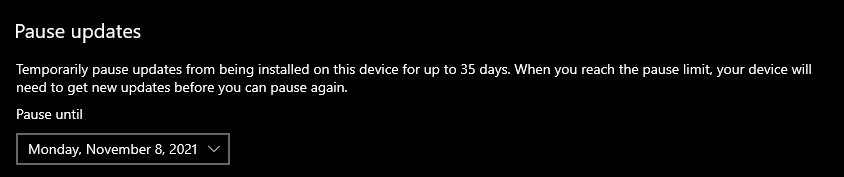
For Windows 11 users, please do the following steps:
- Open Settings
- Go to the Windows Update tab
- Select Pause updates
Please note you can only pause for a maximum of 5 weeks at a time before needing to perform an update.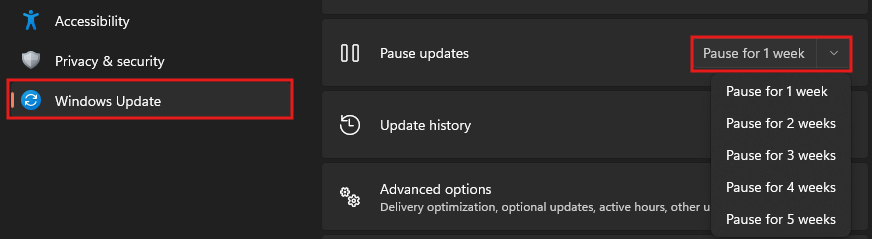
Please be aware that this method will require that an update be installed once the pause reaches the chosen date. If you wish to permanently prevent your Windows OS from updating automatically, this will need to be done using the Windows registry. You can find instructions for this here. We recommend taking extreme caution before making any changes to your system's registry.
What to do if experiencing compatibility issues on an Insider/Preview build of Windows 11?
If a recent update to a Preview build has caused issues with your system, please follow the steps linked HERE.
If you are currently enrolled in the Windows Insider Program and experiencing instability on your system, please follow the steps HERE.