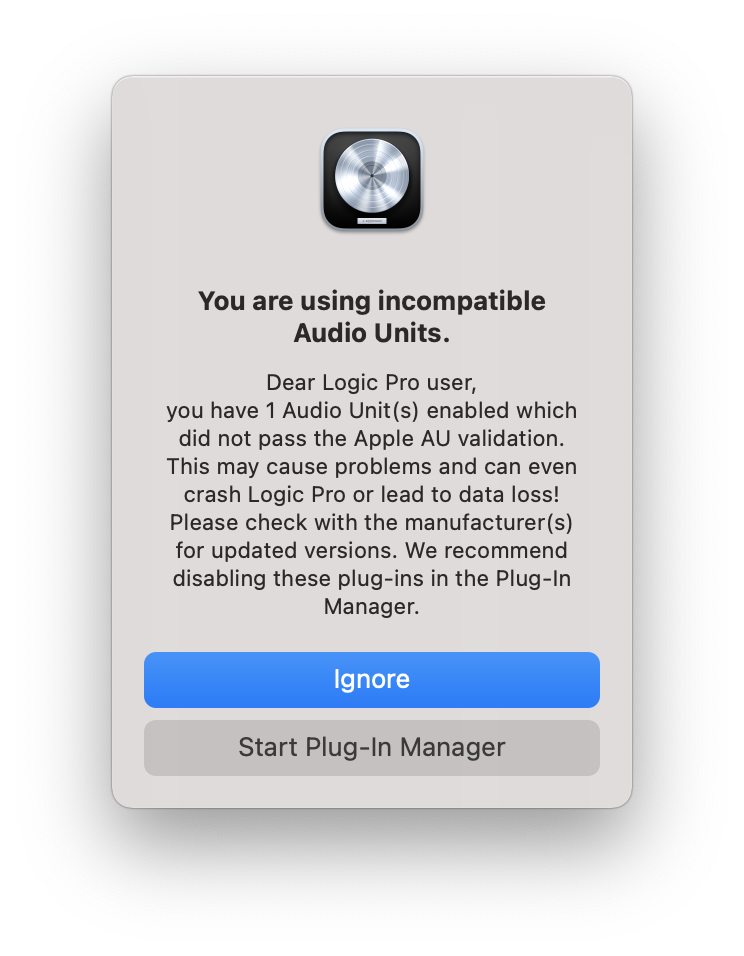
If you have previously run classic AIR plugins and are experiencing a validation error on your Mac with Logic Pro 11, this article covers known steps to resolve this problem.
TABLE OF CONTENTS
- Ensure the software is authorized
- Delete the Existing AU Component
- Reinstall the Latest Version
- Restart Logic Pro
Ensure the software is authorized
Unauthorized software is the main reason users experience a validation error - To solve it, ensure your software is activated under your InMusic account in the InMusic Software Center. If you're not sure how to manage your licenses, see this guide: AIR Music Tech | Installing and Activating your AIR Plugins
Delete the Existing AU Component
1. Navigate to Macintosh HD / Library / Audio / Plugins / Components.
2. Locate the PLUGIN.component file and delete it.
3. Empty your trash.
Reinstall the Latest Version
Download and run the installer for the latest version of the plugin. For guidance on downloading the latest update, see this support article: AIR Music Tech | Installing and Activating your AIR Plugins
Restart Logic Pro
After completing the installation, restart Logic Pro to allow it to rescan the updated plugin.
We hope these steps and updates help resolve any issues you may be experiencing with your classic AIR plugins on your Apple Silicon Mac. If you have any further questions or need additional assistance, please don't hesitate to reach out to our customer support team.