
Modern AIR titles purchased for Akai Pro MPC Standalone / Force hardware are available in your favourite choice of DAW as VST3, AU & AAX builds.
This article provides steps and guidance on how to download & install your MPC / Force plugins for operation in your DAW for Windows or macOS.
TABLE OF CONTENTS
How to Download & Install for Windows / macOS
To obtain these titles for your desktop machine:
- First, download and install the inMusic Software Center

- Once installed, open the application and click 'Log In' to log in to your inMusic Profile - If you've forgotten your password, click HERE
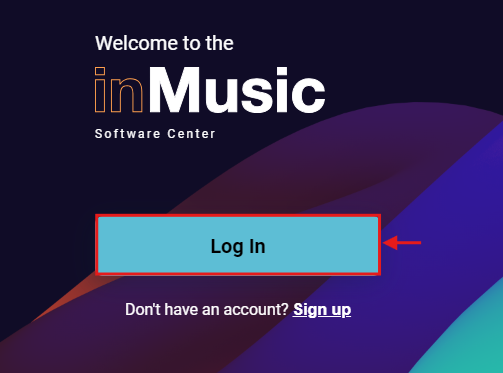
- The default web browser for your computer will open automatically to log in to your inMusic Profile
Enter your login credentials and hit 'SIGN IN' Note: If your web browser isn't automatically launching, please make sure a default browser is specified within your Operating System settings
You will see this notification on your web browser to confirm successful sign-in to your account: Your inMusic Profile will be linked to your inMusic Software Center
 - Navigate back to the Software Center and download your choice of Instrument(s) / Effect(s)

- Click 'Install' to run the installer and follow the steps on screen to continue the installation
 Note: Some titles may specify which builds to install (AAX/VST/AU), be sure to install the versions suited to your setup.
 - Open your DAW and scan for new plugins
Note, that these steps differ for each DAW - Be sure to review the manual for your DAW to help you scan for these plugins. - Once successfully scanned/validated, your Plugin(s) are available to use - Happy music making!
FAQ - Frequently Asked Questions
I've launched my DAW, but I can't see my plugins - What should I do?
We recommend scanning for new plugins in your DAW. Some DAWs may not prompt this feature upon start-up.
If you're not sure how to scan for plugins in your DAW, please refer to the manual/documentation appropriate to the software.
The directory paths for Windows and Mac differ - Please see below the default plugin locations:
Note, AU is exclusively available only on macOS
macOS
VST: Macintosh HD/Library/Audio/Plug-Ins/VST
VST3: Macintosh HD/Library/Audio/Plugins/VST3
AU: Macintosh HD/Library/Audio/Plugins/Components
AAX: Macintosh HD/Library/Application Support/Avid/Audio/Plugins
Windows:
VST: C:\Program Files\Steinberg\VSTPlugins
VST3: C:\Program Files\Common Files\VST3
AAX: C:\Program Files\Common Files\Avid\Audio\Plug-Ins
Which plugins are available on MPC OS Hardware / MPC Desktop, but require a paid purchase for VST/AU/AAX builds?
MPC OS hardware and MPC Desktop software include free MPC plugins, but do not provide licensed versions for use with an alternative plugin format such as VST, AU, or AAX.
Below is a list of included MPC plugins that require purchase to access within other DAWs:
- Bassline
- Tubesynth
- Drum Synth
- Electric
- Hype
- Mellotron
- Solina
- Odyssey
Please note - Users running DAWs such as Ableton, Cubase, Logic, or Pro Tools can access the MPC plugins by loading the MPC Desktop software within the DAW as a plugin, then loading the MPC plugin via the MPC Desktop Software.
I own 'Classic' AIR Titles - Can I use these on my MPC?
Currently, Classic AIR Titles cannot be installed or downloaded onto MPC Standalone or FORCE OS hardware, but can be used within the MPC Desktop software as a VST, VST3, or AU plugin.
For AIR plugins that are compatible with both MPC Hardware and Desktop software - CLICK HERE
Note, that some titles may be currently unavailable for Force users - Be sure to review the compatibility information on the product page to help you confirm whether or not the plugin is available for Force.