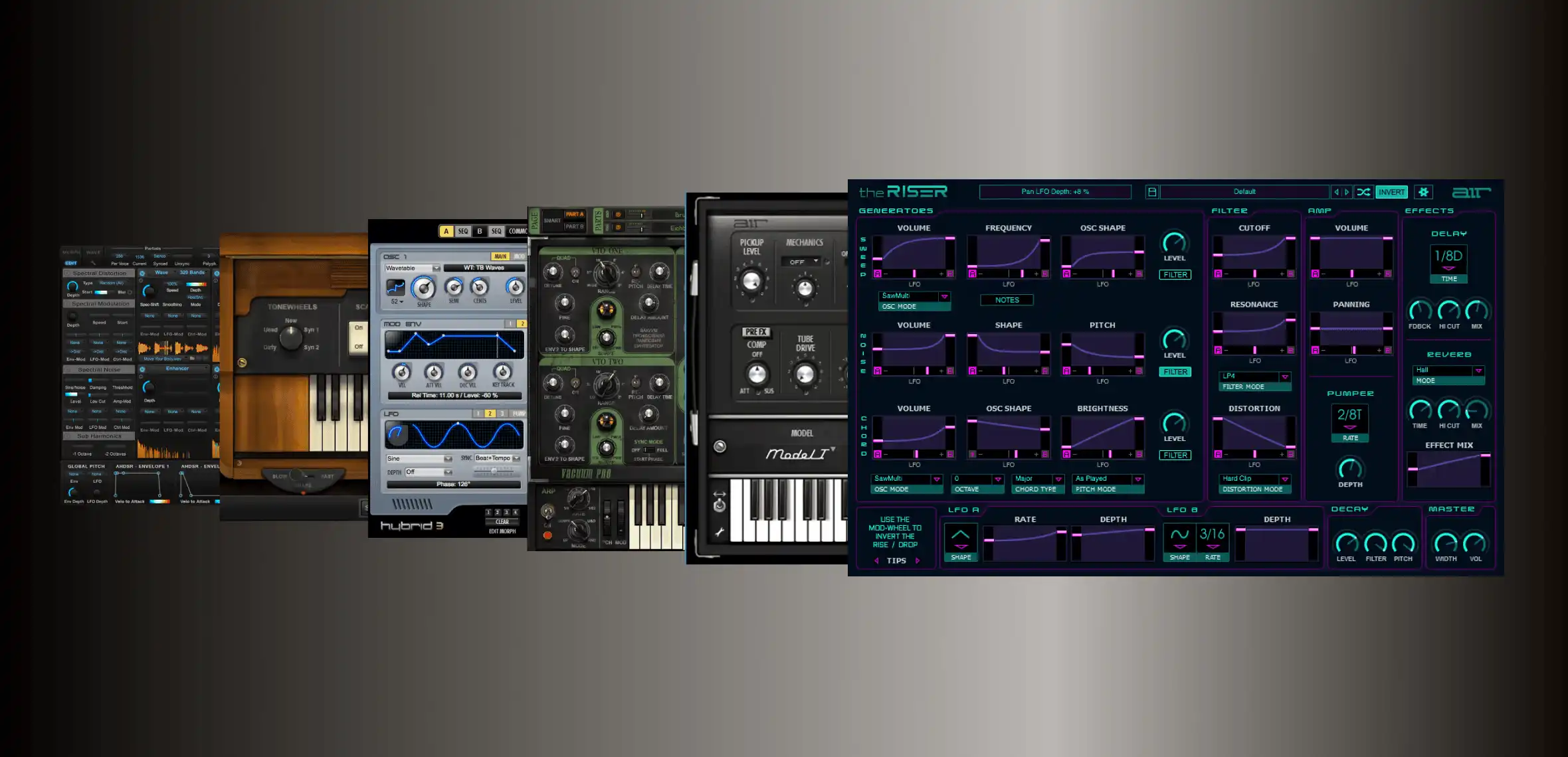
Classic AIR Plugins have received a new update that strips PACE / iLok authorization and now utilizes the inMusic Software Center for Download, Installation, and Activation.
The contents of this article will answer your frequently asked questions and provide steps to aid the update or redemption process.
TABLE OF CONTENTS
- Which products are classic AIR titles?
- Redemption, Download & Install
- FAQ
- I've seen an update for my classic AIR Title in the inMusic Software center - Will my iLok code activate it?
- I have an iLok code, but I'm prompted to unlock my classic AIR Title in the inMusic Software Center - What should I do?
- I'm stuck in a loop attempting to uninstall/reinstall - What should I do?
- Why am I seeing duplicates of my classic AIR Titles in the inMusic Software Center?
- My inMusic Profile / inMusic Software Center isn't displaying the software. What should I do?
- Do I need to pay to receive the update?
- How do I start a trial for Classic AIR plugins?
- Can I still use the iLok version of my AIR Plugins?
Which products are classic AIR titles?
- Hybrid 3.0
- Loom II
- Vacuum Pro
- Structure 2
- Strike 2
- Velvet
- Transfuser 2
- The Riser
- DB-33
- Mini Grand
- Xpand!2
- Boom
- Vacuum Classic
- Creative FX Collection (V1)
Redemption, Download & Install
Upgrade Portal: Upgrading an iLok license purchased from a third-party
If you purchased your Classic AIR Software from a third-party and need to update to the inMusic Unlock build... We've built a portal to help you upgrade and check out at zero value/free of charge.
Please see the steps below:
- Visit https://airmusictech.onfastspring.com/upgrade
- Find your Product or Bundle - If you own a bundle, ensure that the bundle itself is selected, and not each product from the bundle
- Add it to the cart
- Enter your iLok license in the coupon code field
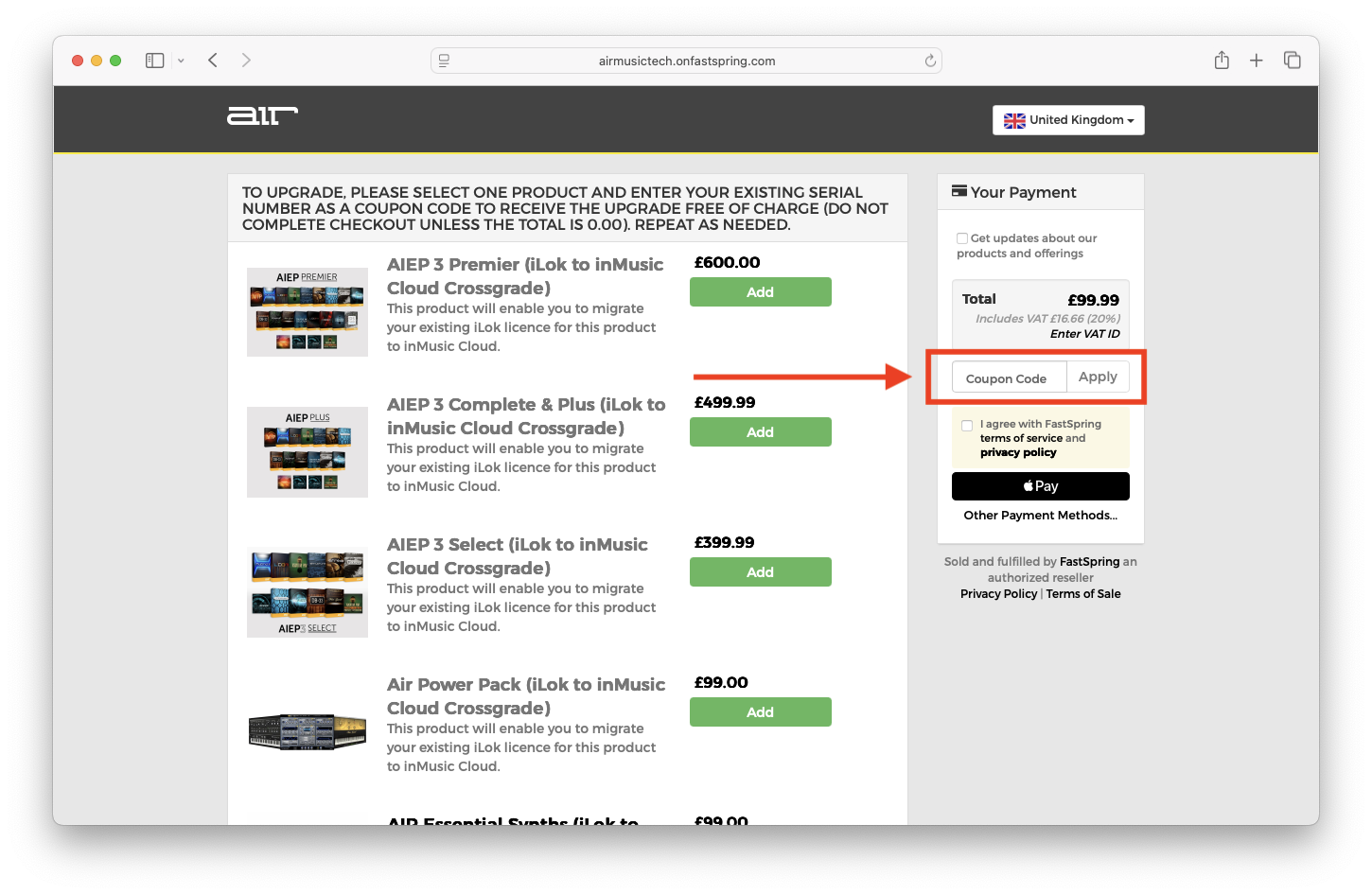
- Click 'Apply' - Observe the message 'Your order is Free'
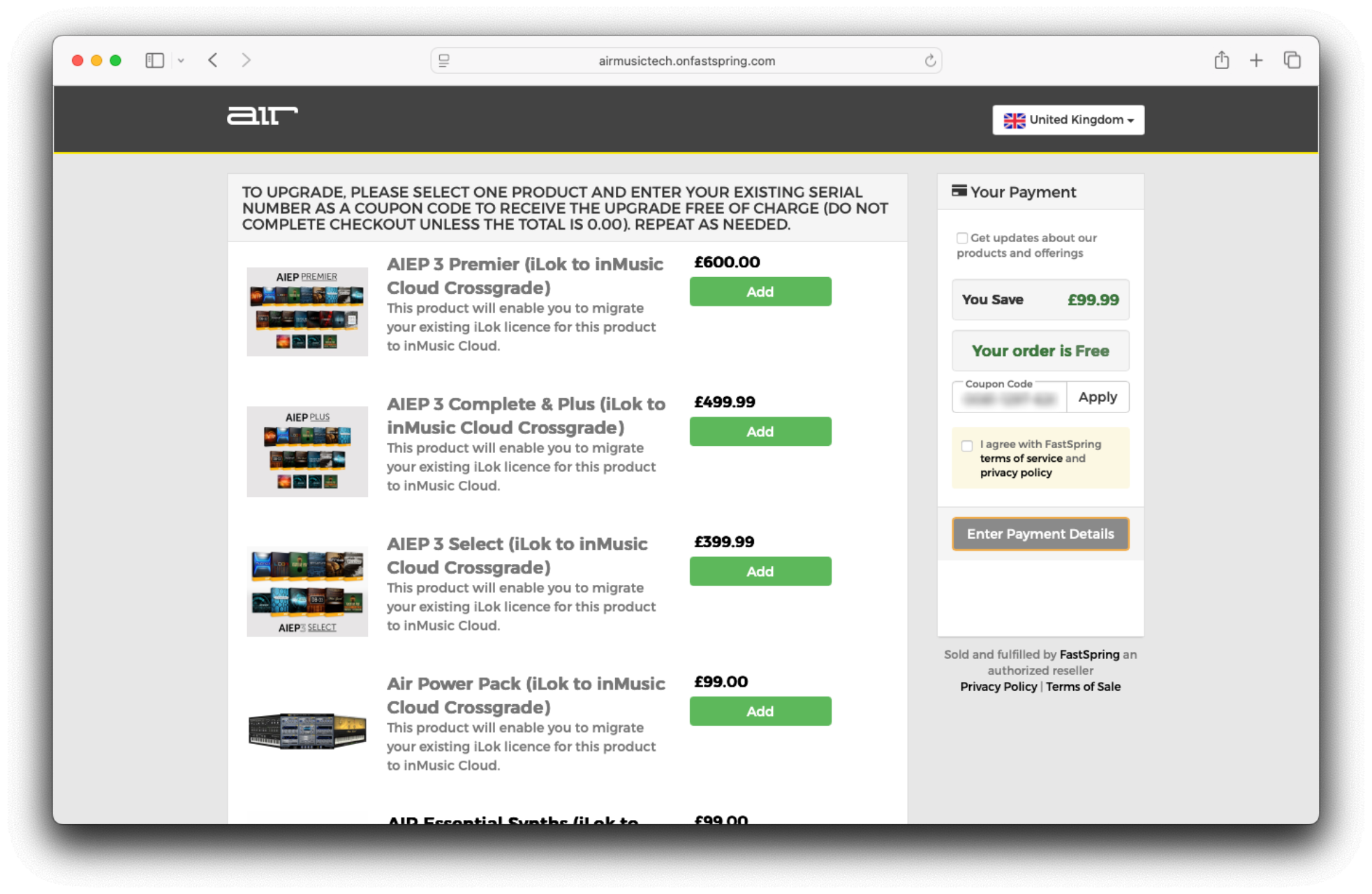
- Proceed to checkout at zero value
- IMPORTANT: Ensure the email address on checkout is your inMusic Profile email address
- You have now successfully completed the upgrade! Note, that the serial number has been automatically deposited into the email address used at checkout
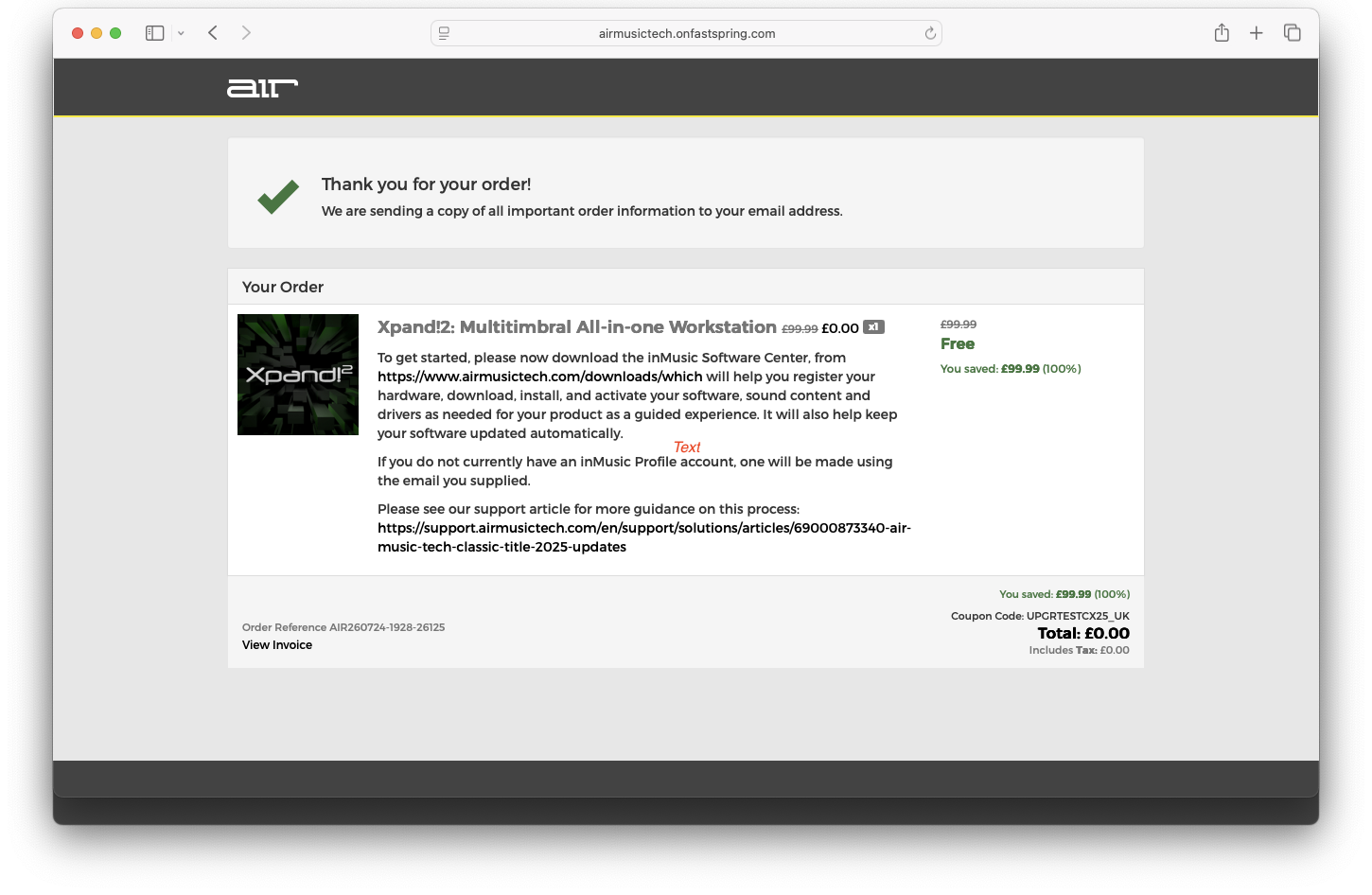
- Next, proceed to Software Download & Activation
Note: It is not possible to checkout with multiple products at zero value - If you have individual iLok licenses for each product, you will need to checkout with each title and iLok code at a time

If your iLok code does not present a zero value checkout, contact our support team with the following information:

- Your iLok Redemption Code
- Your iLok User ID
- Your inMusic Profile email address
- Invoice (where applicable)
Redeeming Classic AIR Software bundled with inMusic Hardware (Akai Pro / M-Audio / Alesis)
Users who receive Classic AIR title Software with inMusic Hardware can redeem the inclusion via the inMusic Software Center - See the steps below:
- Download the inMusic Software Center for either Windows or macOS from HERE
- After the download completes, launch the inMusic Software Center Application
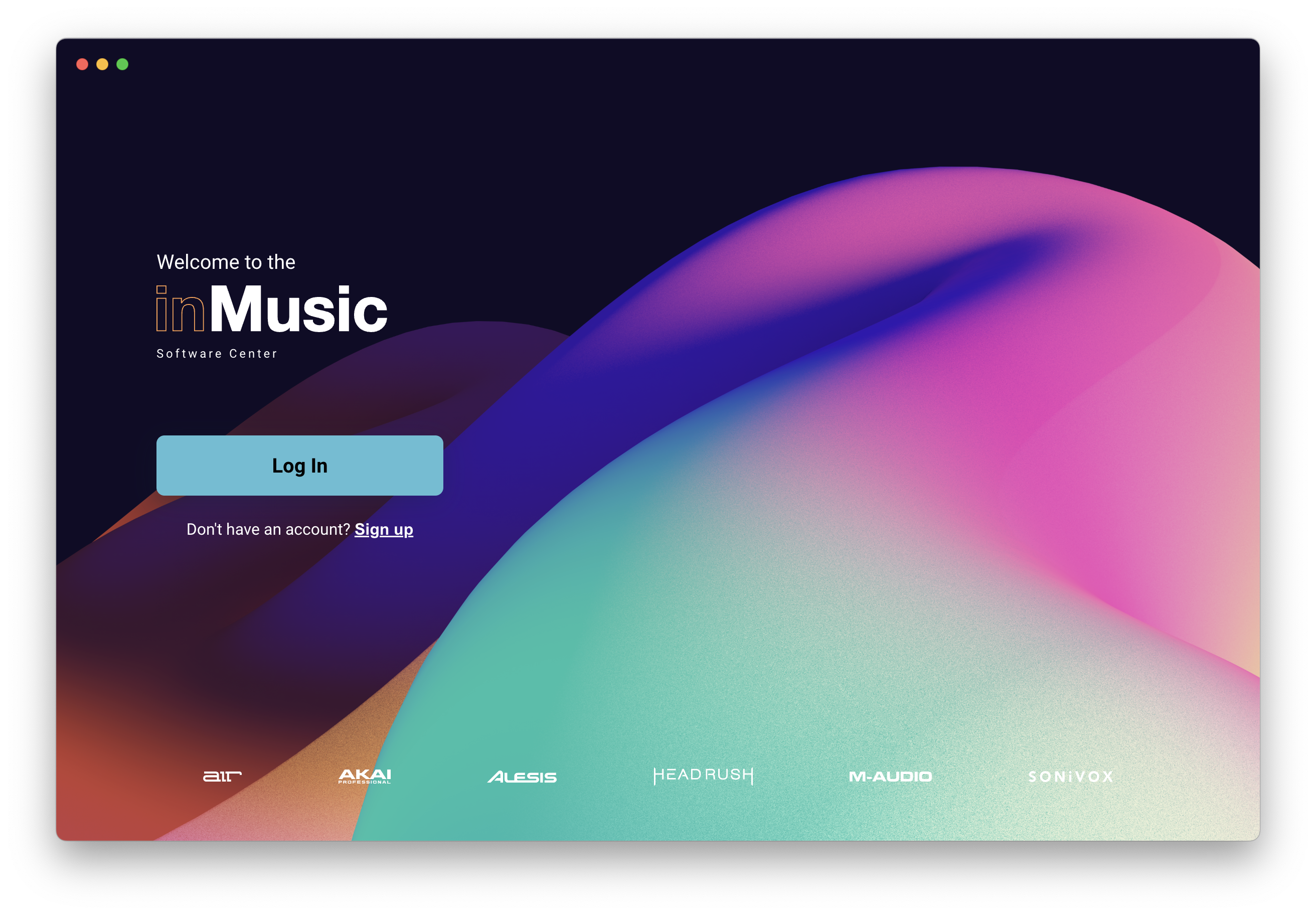
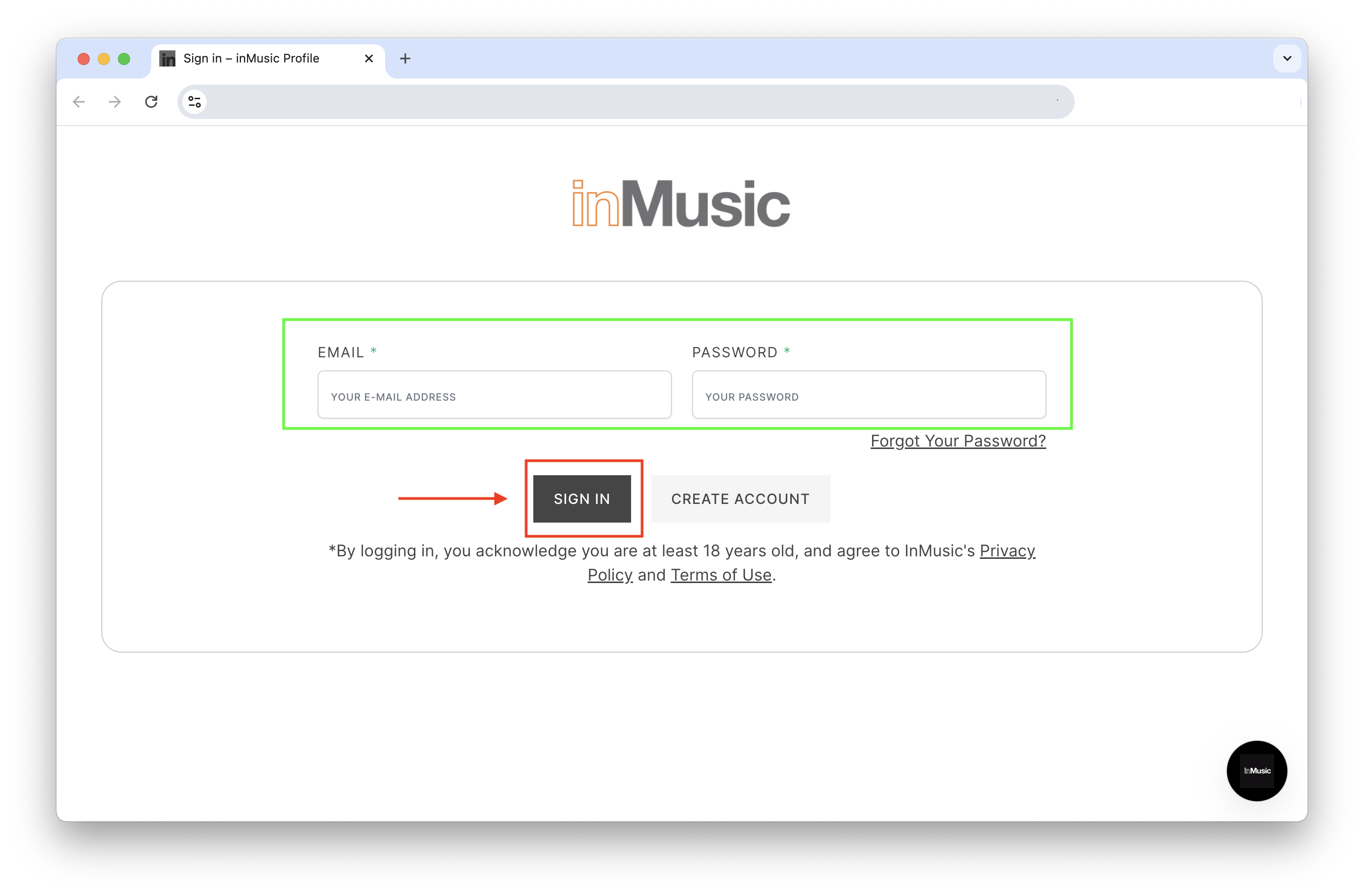
- Click Let's Go! and your default web browser will open for sign-in to your inMusic Profile. Enter both your email address and password and click on "SIGN IN"
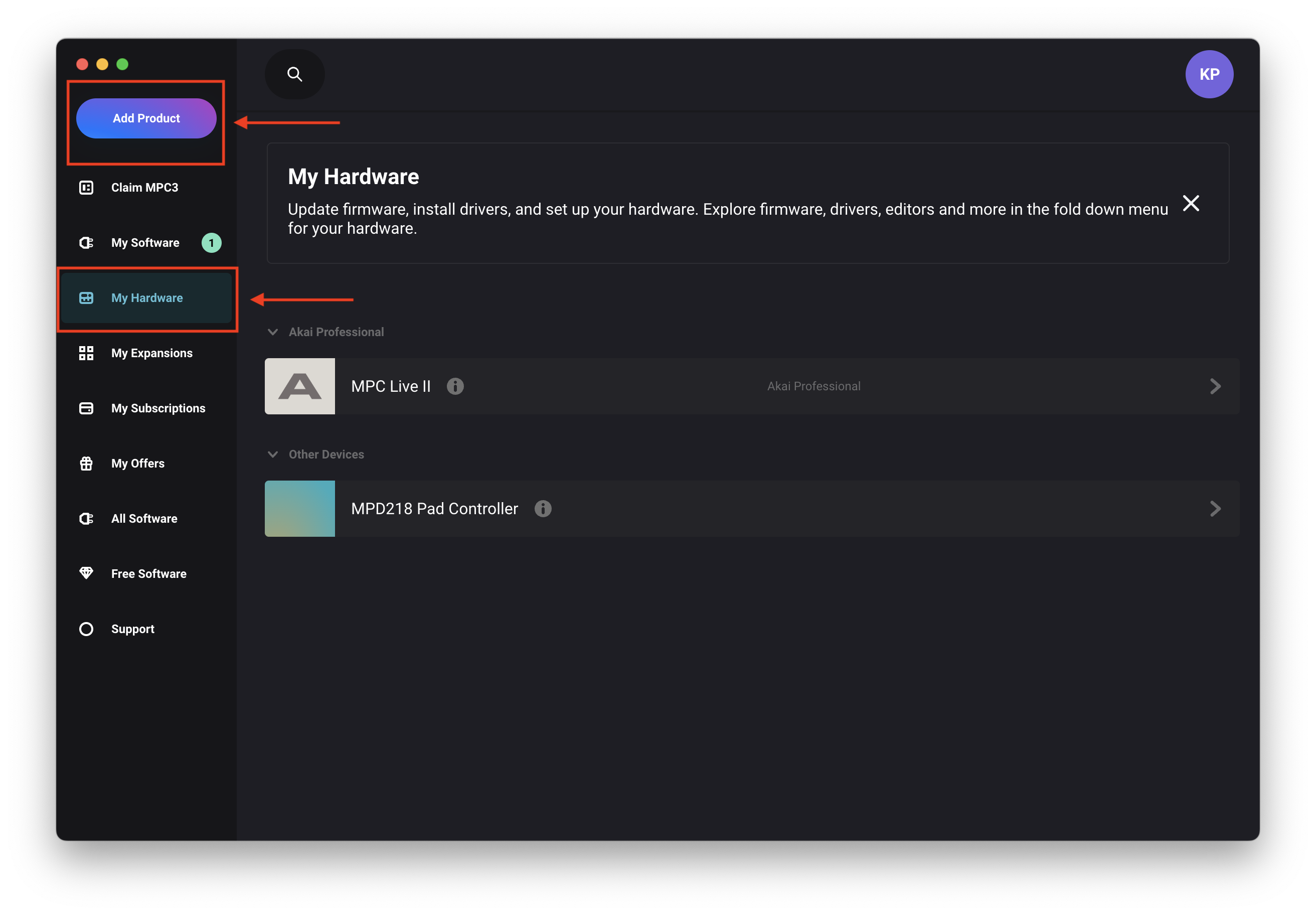
- If you're yet to register your hardware... Click 'Add Product' via the inMusic Software Center.
- Click the 'My Hardware' tab, then click on your newly registered product
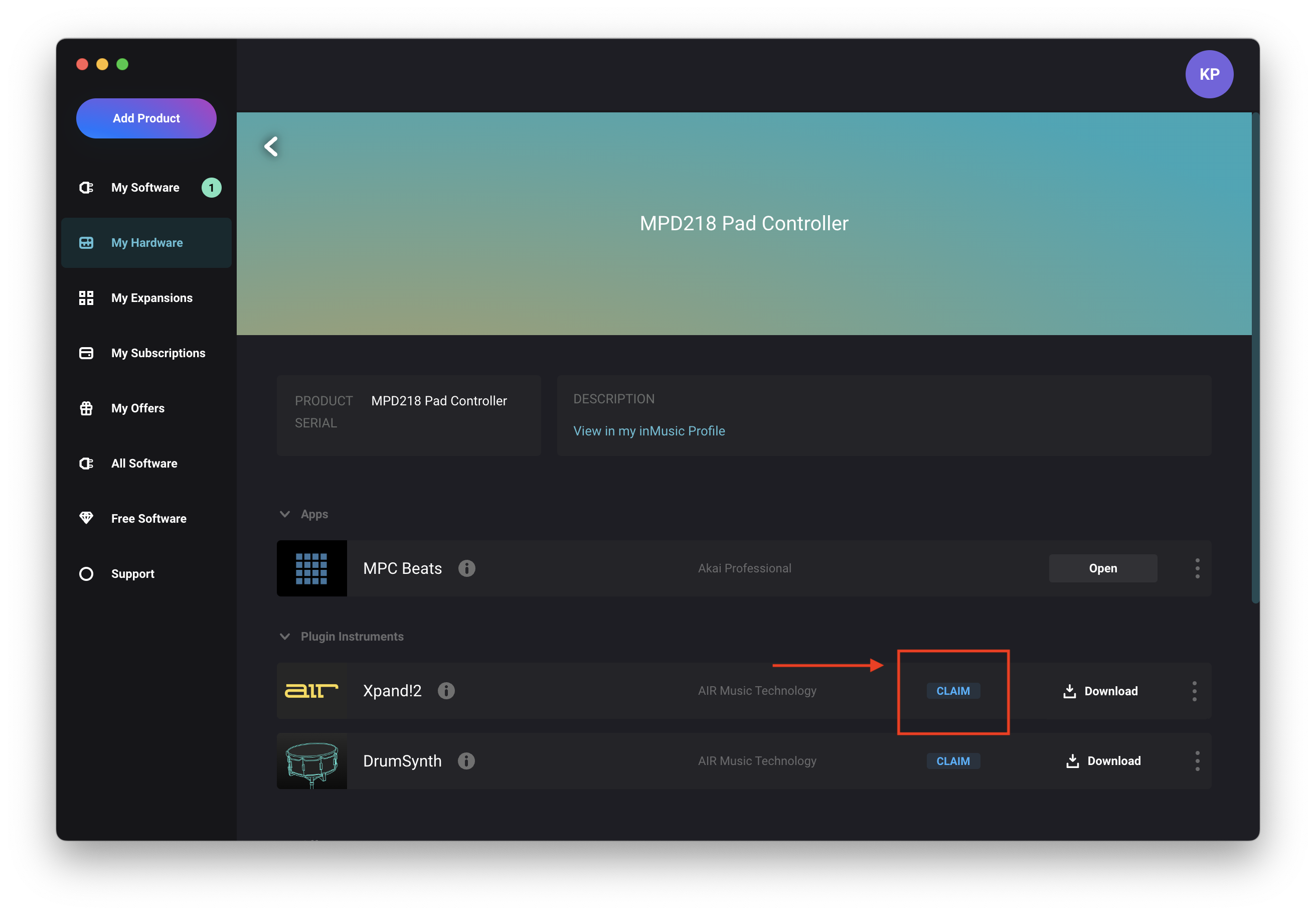
- Click 'Claim' to redeem the software license
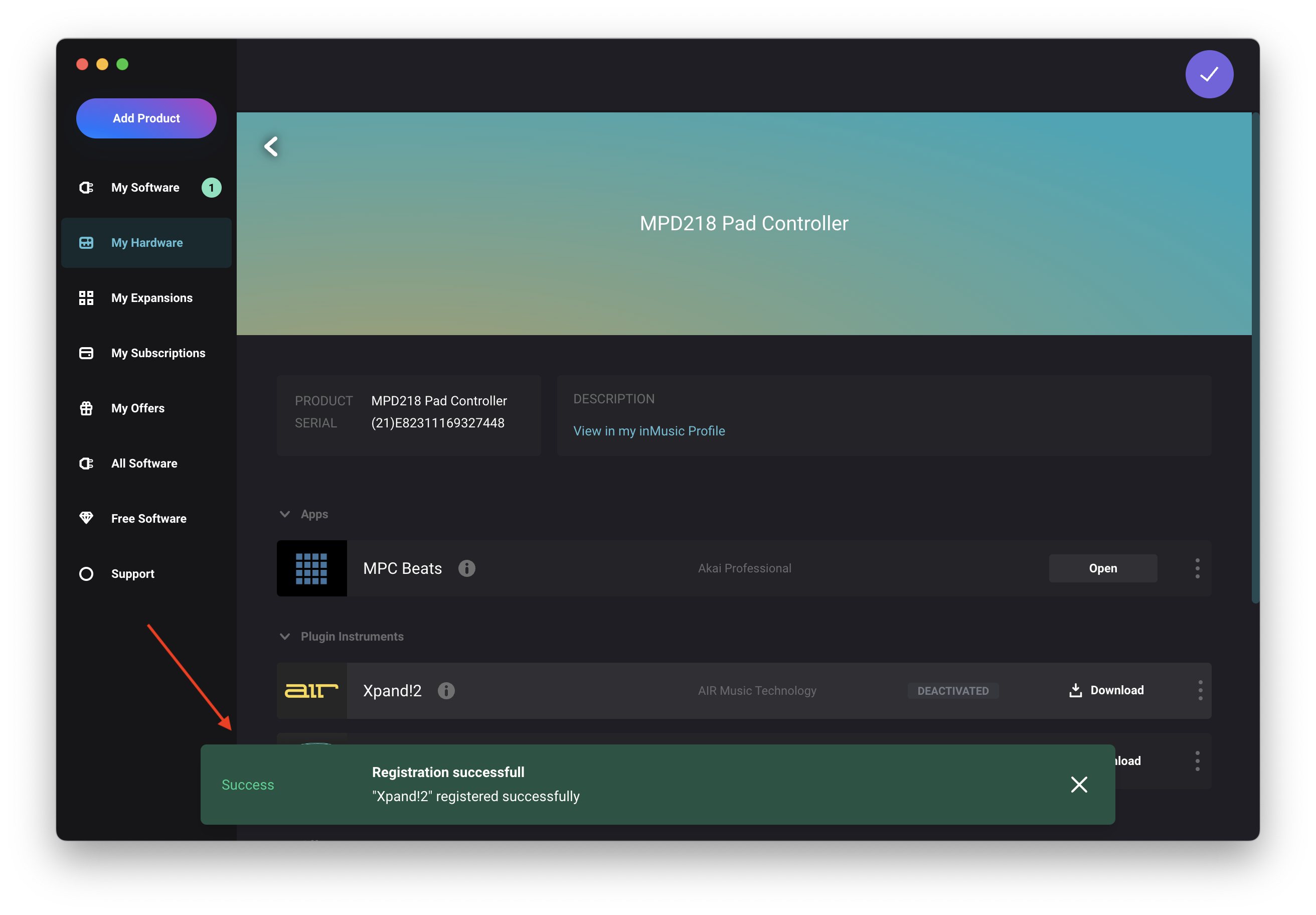
- Wait for the software to automatically deposit into your account - Observe the message confirming the registration
Software Download & Activation
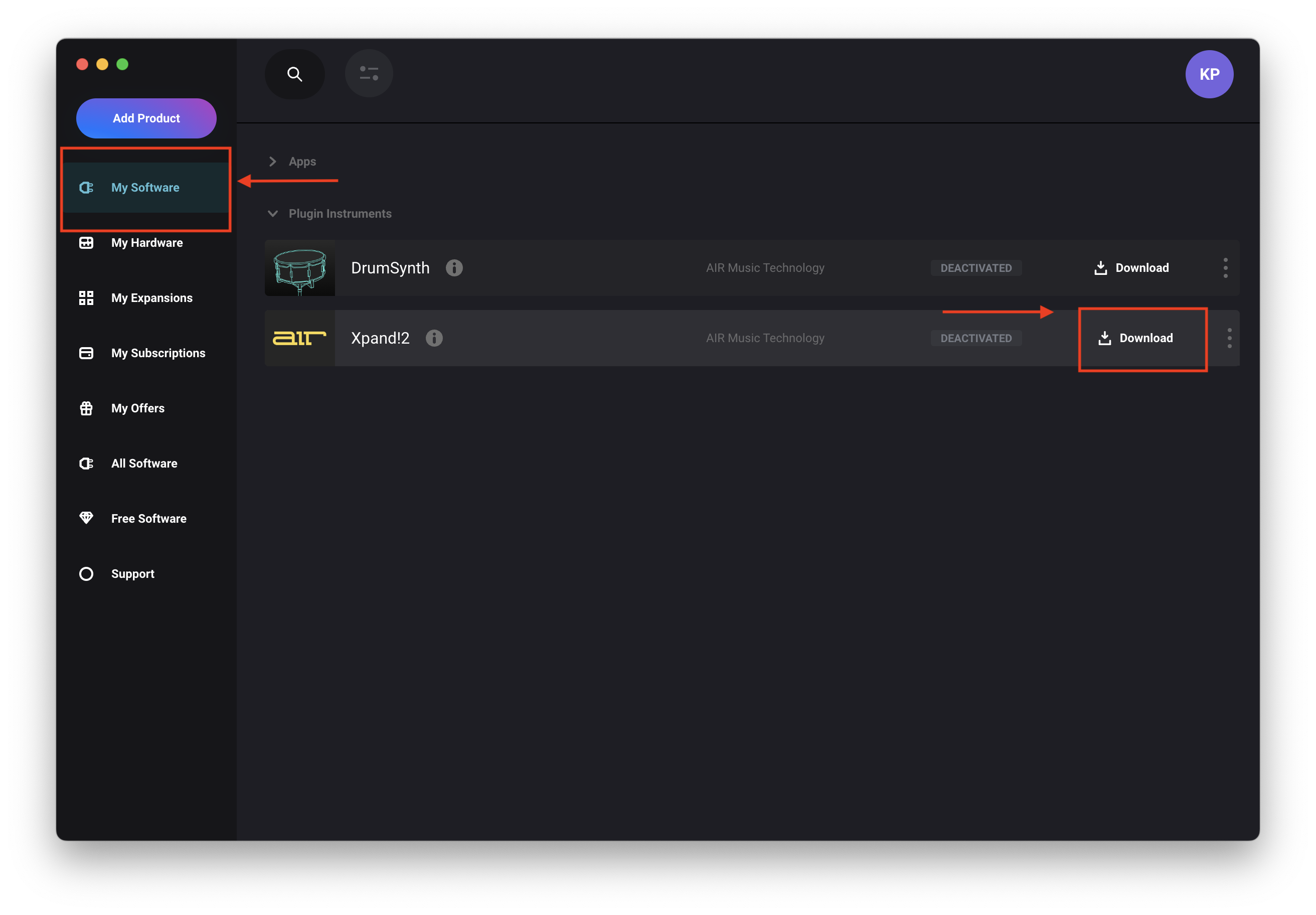
- Navigate to the inMusic Software Centre, click the 'My Software' tab, and then 'Download' OR 'Update' beside your AIR Music Tech plugin(s):
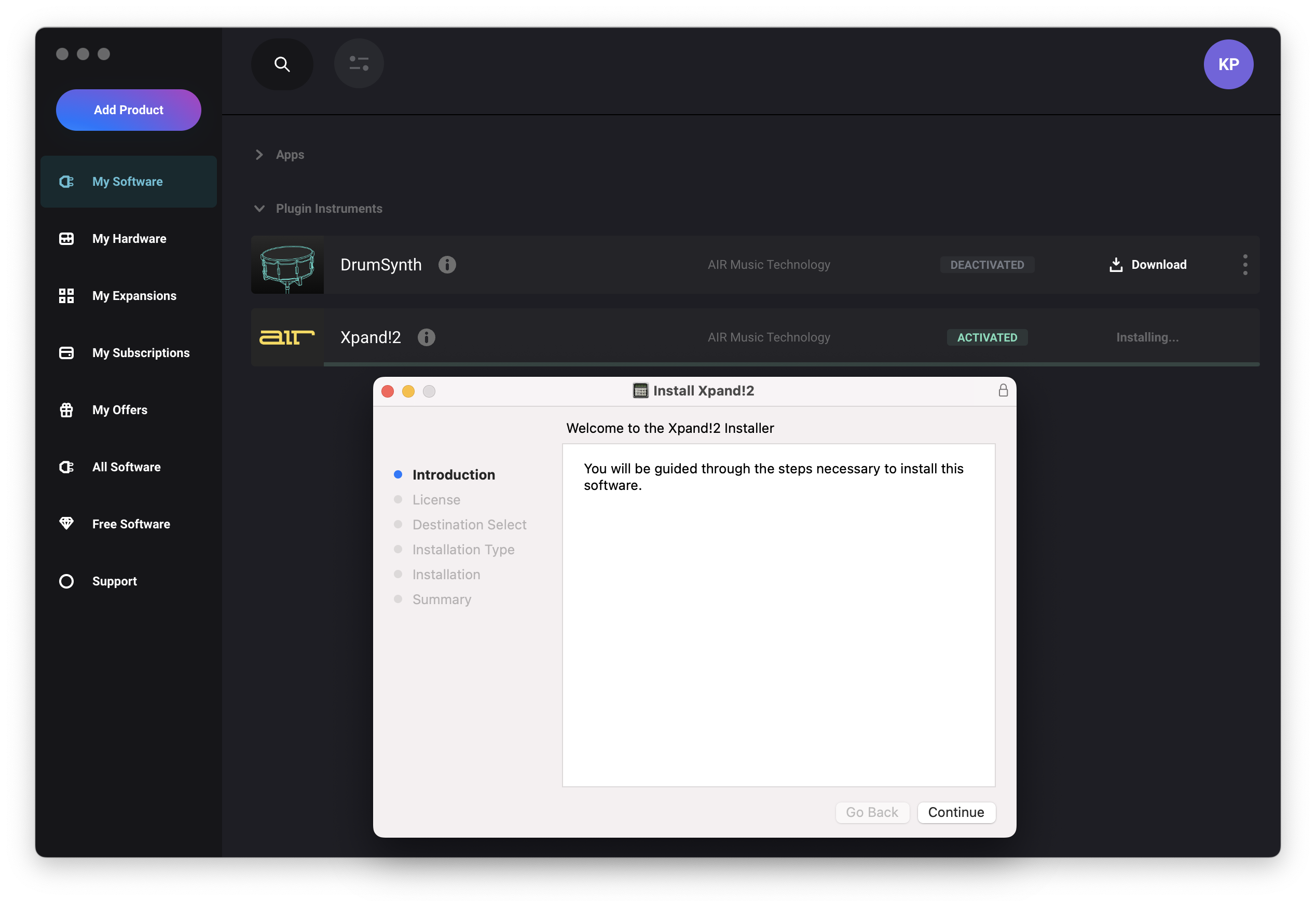
- Once downloaded, click 'Install'
- Clicking 'Install' will automatically 'Activate' the software
- Run through the installation steps:
- Once installed, launch your DAW and load your Classic AIR Music Tech plugin(s) - OR Load the standalone App if included with your software
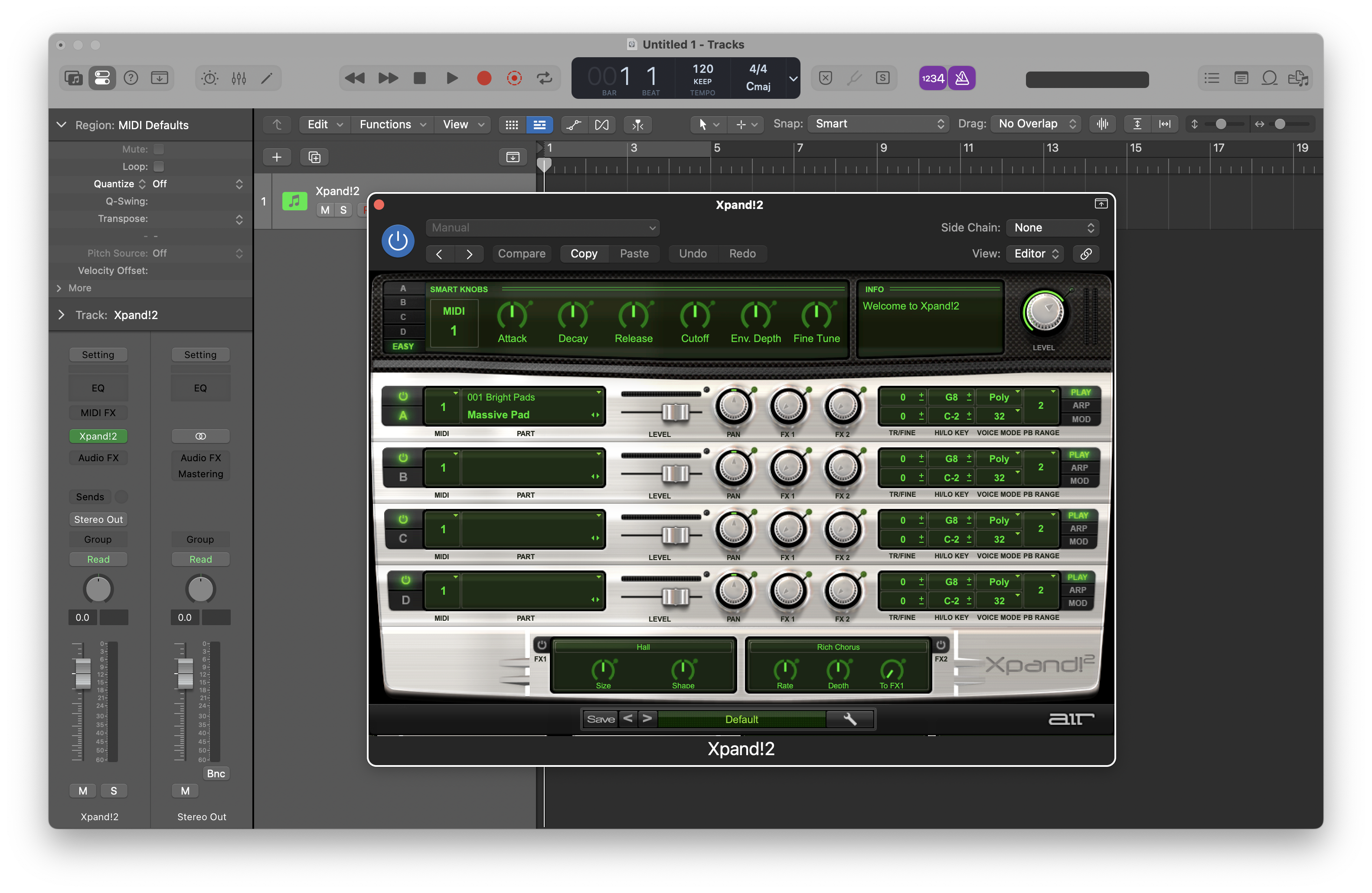
Enjoy using your Plugin(s)!
If you're using the 2025 build for the first time and you see this message:
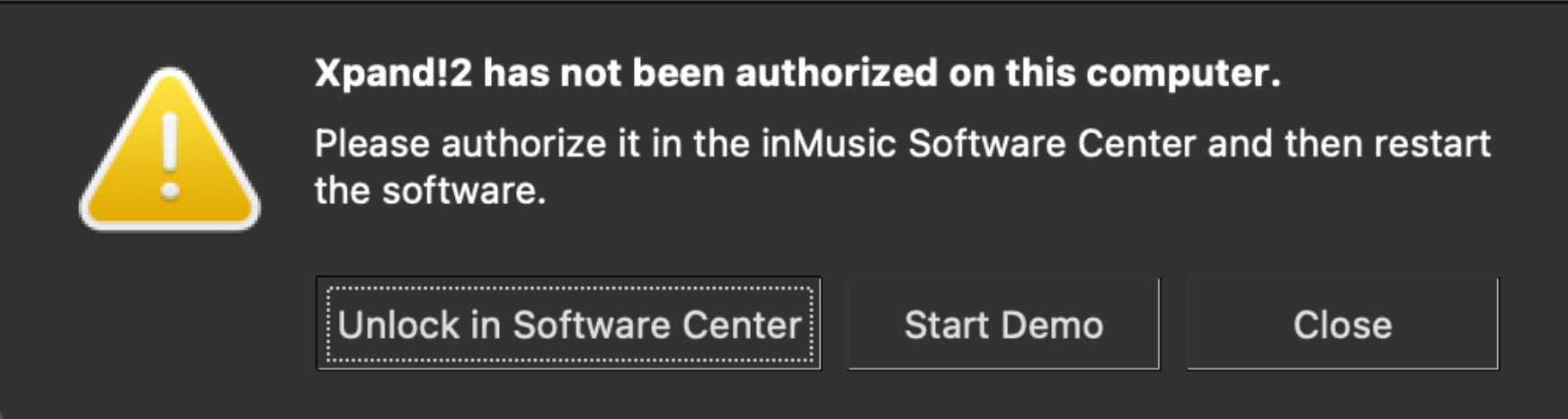
Click 'Unlock in Software Center' and restart your DAW.
FAQ
I've seen an update for my classic AIR Title in the inMusic Software center - Will my iLok code activate it?
No, iLok codes cannot unlock the 2025 update - Entering an iLok code in the inMusic Software Center will present the following error:

To solve this issue, navigate to the steps above and attempt to redeem it via inMusic Profile OR by using the upgrade portal for third-party sales (where applicable).
I have an iLok code, but I'm prompted to unlock my classic AIR Title in the inMusic Software Center - What should I do?
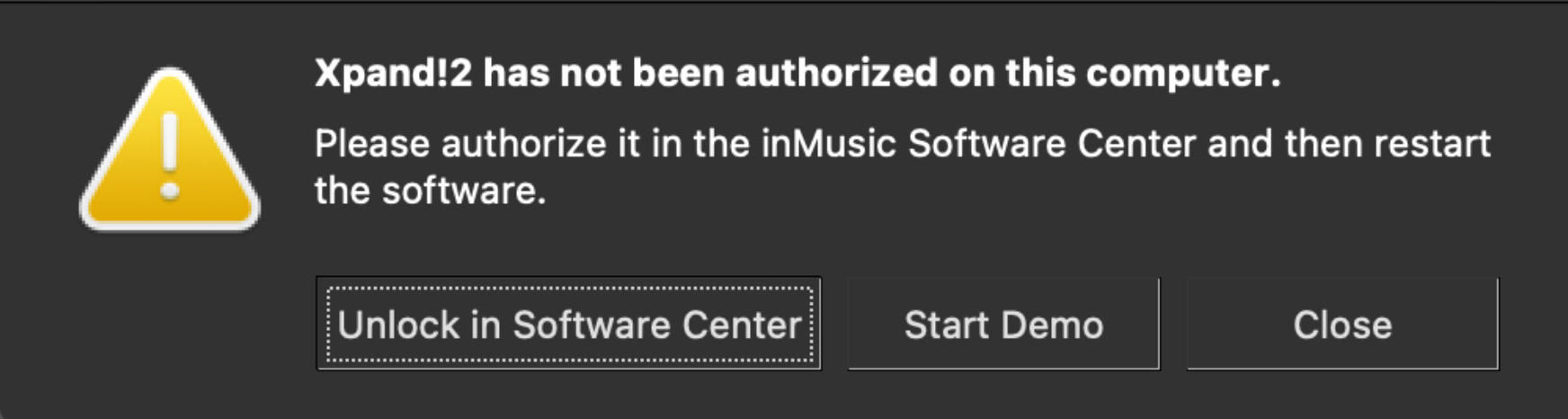
If you're seeing the message above and own an iLok code for your classic AIR plugin, it means you've installed the 2025 update.
To solve this issue, navigate to the steps above and attempt to redeem it via inMusic Profile OR by using the upgrade portal for third-party sales (where applicable).
I'm stuck in a loop attempting to uninstall/reinstall - What should I do?
If you're a Windows user who has installed this update by accident... Please see the uninstallation steps below:
- Use Microsoft’s uninstall tool to remove any broken entries:
- Download and open the Microsoft Troubleshooter here: Microsoft Install/Uninstall Repair Tool
- To download the Troubleshooting tool: Select Windows 10
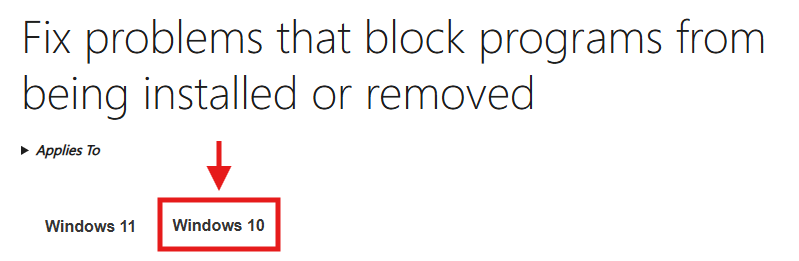
- Go to the Download the Troubleshooter section, and select Download Troubleshooter*
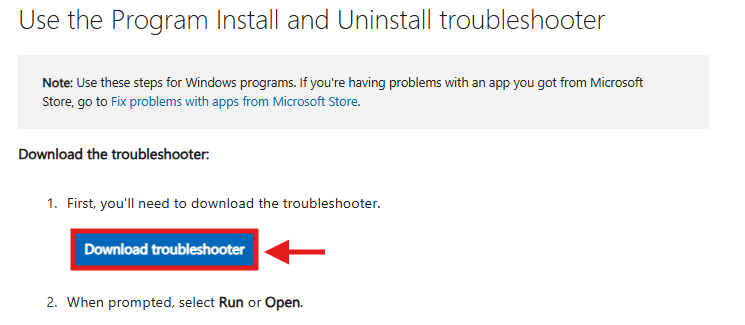
- To download the Troubleshooting tool: Select Windows 10
- Run the .diagcab file
- Select Uninstalling
- Select the plugin content to remove from the list.
- Remove every entry of the plug-in:
- VST3
- Component
- Factory Content
- VST64
- Let the tool complete the cleanup process for each instance of the plug-in.
- Download and open the Microsoft Troubleshooter here: Microsoft Install/Uninstall Repair Tool
Please note, you will need to run the repair tool for each plug-in file you remove.
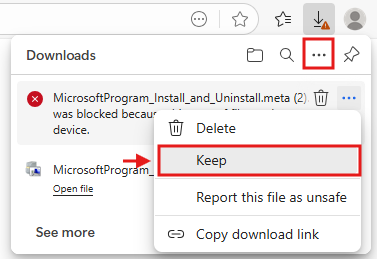
* - Please note - If using Microsoft Edge, you will be prompted with a block
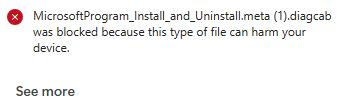
Disregard this prompt and retain/download the file by clicking the 3-dot icon and selecting 'Keep'.
In the event you cannot reinstall the software, please contact our support team by raising a support ticket HERE.
Why am I seeing duplicates of my classic AIR Titles in the inMusic Software Center?
A few conditions may trigger the software center to display duplicate titles, such as receiving the 2025 update from our support team or claiming the 2025 unlock if available in your account.
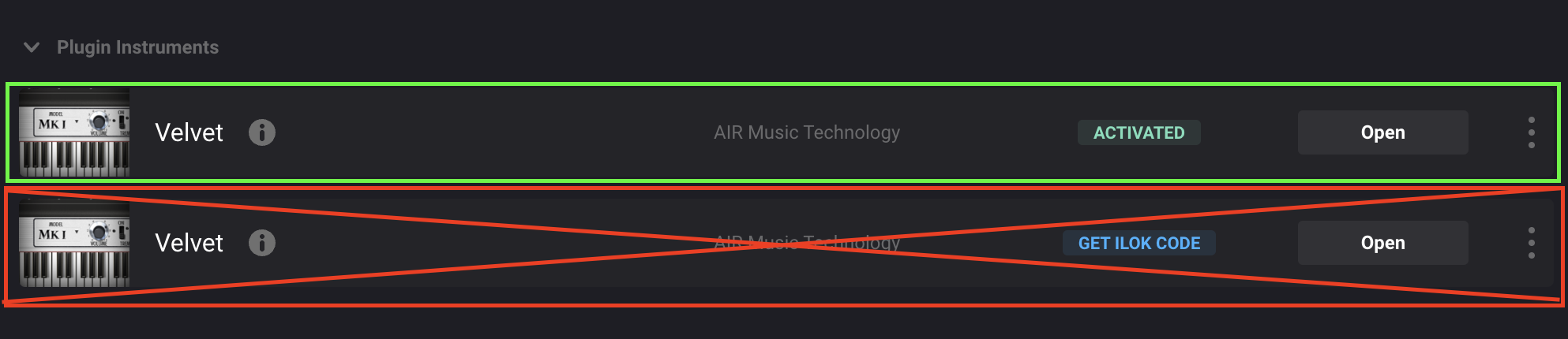
If you see duplicate instances, please disregard the iLok build and refer to the inMusic Unlock build.
An example of the inMusic Unlock build can be seen below:
My inMusic Profile / inMusic Software Center isn't displaying the software. What should I do?
To solve this issue, navigate to the steps above and attempt to redeem it via inMusic Profile OR by using the upgrade portal for third-party sales (where applicable).
Do I need to pay to receive the update?
No, this is a free update available to all existing users - A license in your inMusic Profile is required to activate the software. You can redeem it via inMusic Profile OR by using the upgrade portal for third-party sales (where applicable).
How do I start a trial for Classic AIR plugins?
To start a trial with the 2025 updated versions of the Classic Titles, the inMusic Software Center must be installed and running on the system.
To locate the latest version of the software you'd like to start demoing, within the Software Center, please go to the All Software tab.
Once downloaded and installed, please follow the steps below to start your demo:
- Load the plugin via your preferred DAW or via the standalone build (if available)
- You will be prompted with an Unauthorized message with the option to Unlock or Start Demo
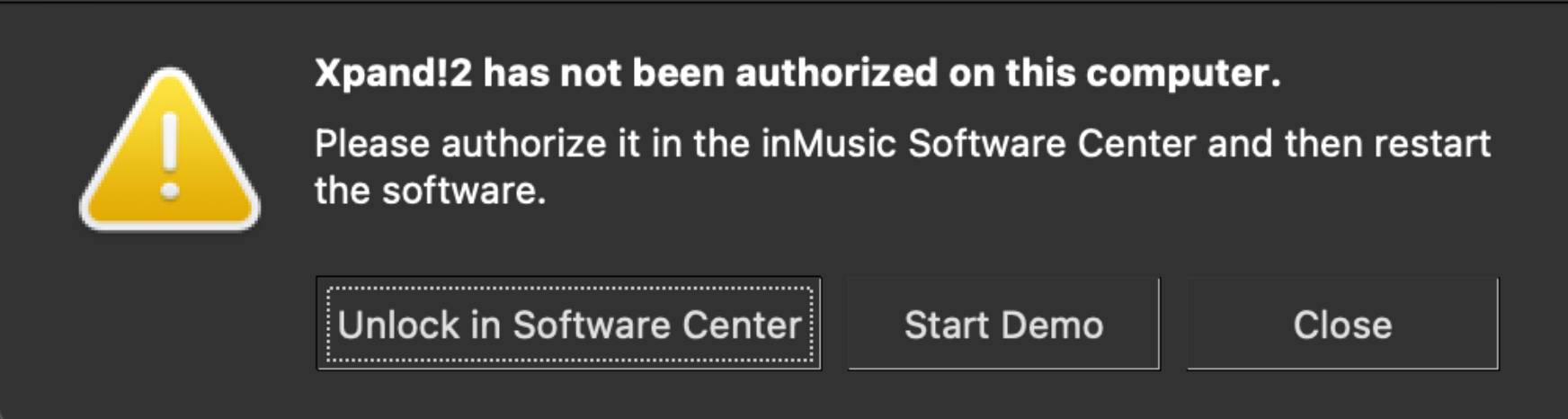
- Select Start Demo
- This will sync to the inMusic Software Center and create an Activate Trial message.
- Select Activate Trial
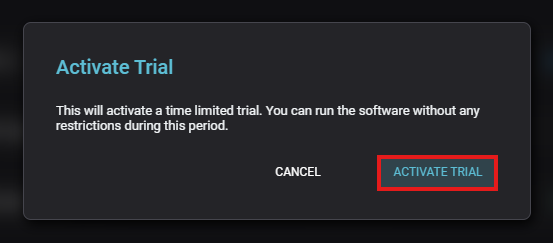
- Once the Software shows the Trial Activated, please remove and reload your plugin within the DAW*

* - If an intermittent test tone occurs, this is due to the plugin running in an unactivated state. Please ensure you remove the plugin and add the plugin back into your DAW, or restart your DAW to refresh the plugin state.
Can I still use the iLok version of my AIR Plugins?
Yes, you can still use the iLok versions of your AIR Plugins - New product sales, however, will not issue an iLok code.
Our support team is still available to assist with resetting your activations/redemptions if required.