
Welcome to this support article on how to redeem the Software included with your inMusic Hardware.
If you own an Akai Pro | Alesis | M-Audio | HeadRush product, you've landed on the correct support page to help you download your included software! In this article, we'll guide you through the registration and download journey to get started.
TABLE OF CONTENTS
- How to Register Your inMusic Hardware
- How To Redeem Your Included Software
- How To Locate And Download Your Redeemed Software
- Frequently Asked Questions
How to Register Your inMusic Hardware
Download and install the inMusic Software Center
The inMusic Software Center allows users to register their hardware while managing their software downloads, installs, and activations. To register your hardware and access the included software, please download and install the inMusic Software Center via the links below:
To install the inMusic Software Center:
- Locate the installer from your computer's Downloads folder
- Double-click and run the installer
- Once the installation completes, the Software Center will launch for the first time*
Please note - You may be asked if you would like to allow this program to make changes to your system. Click Yes.
MacOS: users may be asked to allow third-party developer access and/or enter their password depending on system settings. This is normal and expected.
* - If the Software Center is not launching on your Windows system, please refer to our troubleshooting guide: inMusic Software Center | Not Launching on Windows 10 / 11
Login/Create an inMusic Profile
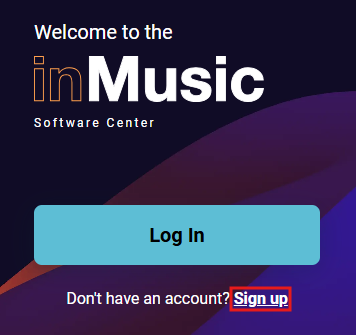
With the Software Center launched, please use the Log In option to complete your Log In.
If you don't currently have an inMusic Profile, please use the Sign up option to create an account.
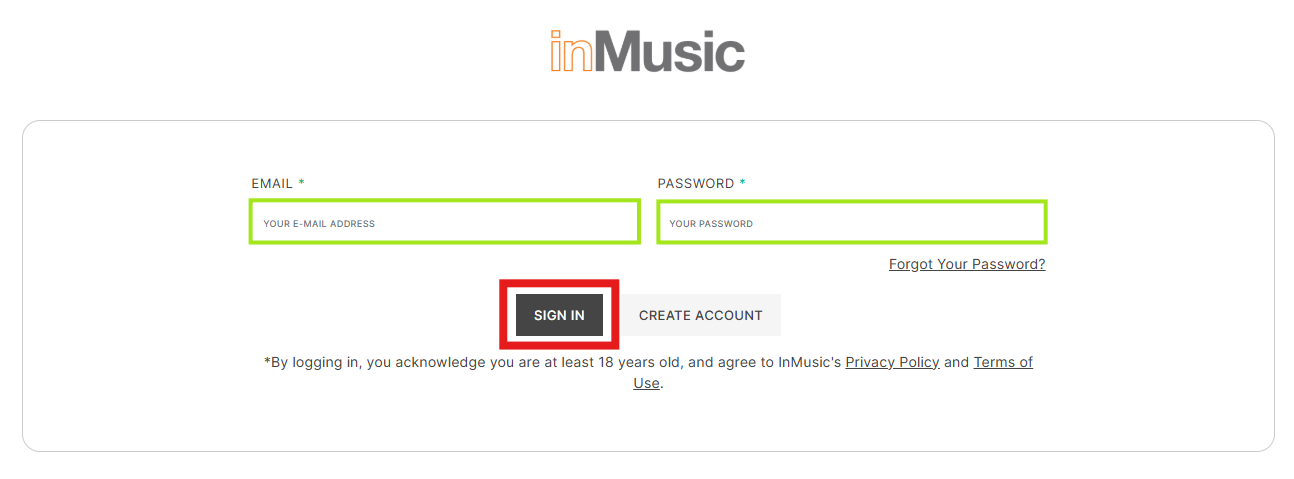
The Log In option will open a tab in your browser: Enter both your email address and password and click on "SIGN IN"
Register your hardware
If this is your first time logging into the inMusic Software Center, you will have the option to add your new product: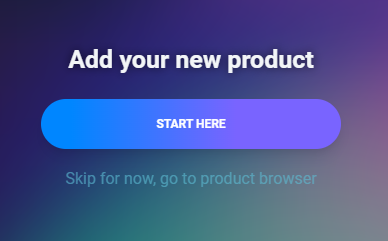
Pressing START HERE will take you to the registration panel
If you're an existing inMusic Software Center user: you can access the registration panel via the Add Product widget in the top-left corner.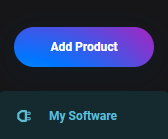
Within the New Product page, enter your Hardware's Serial Number
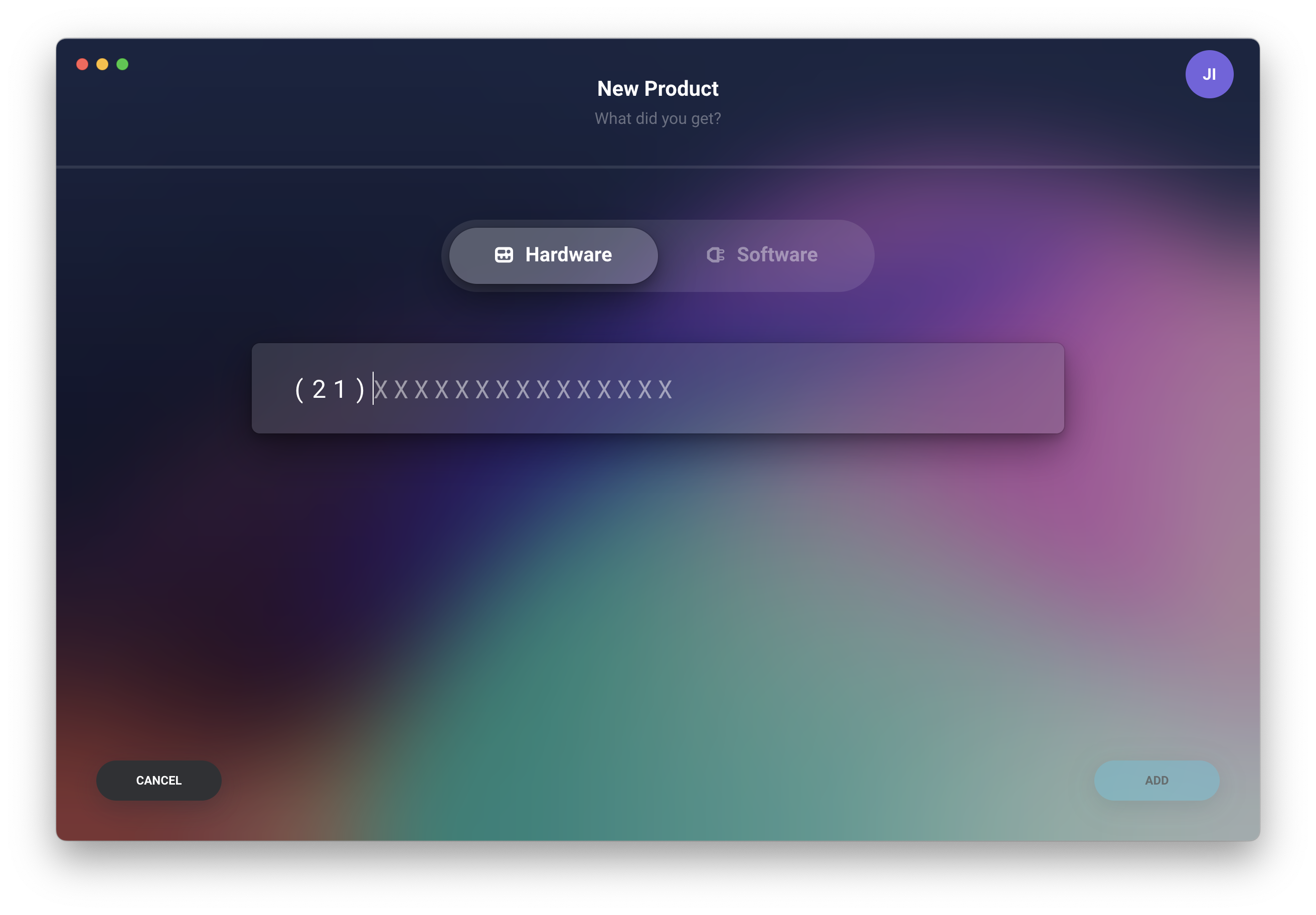
Press ADD to complete the registration

Once prompted 'Hardware registered successfully', press Continue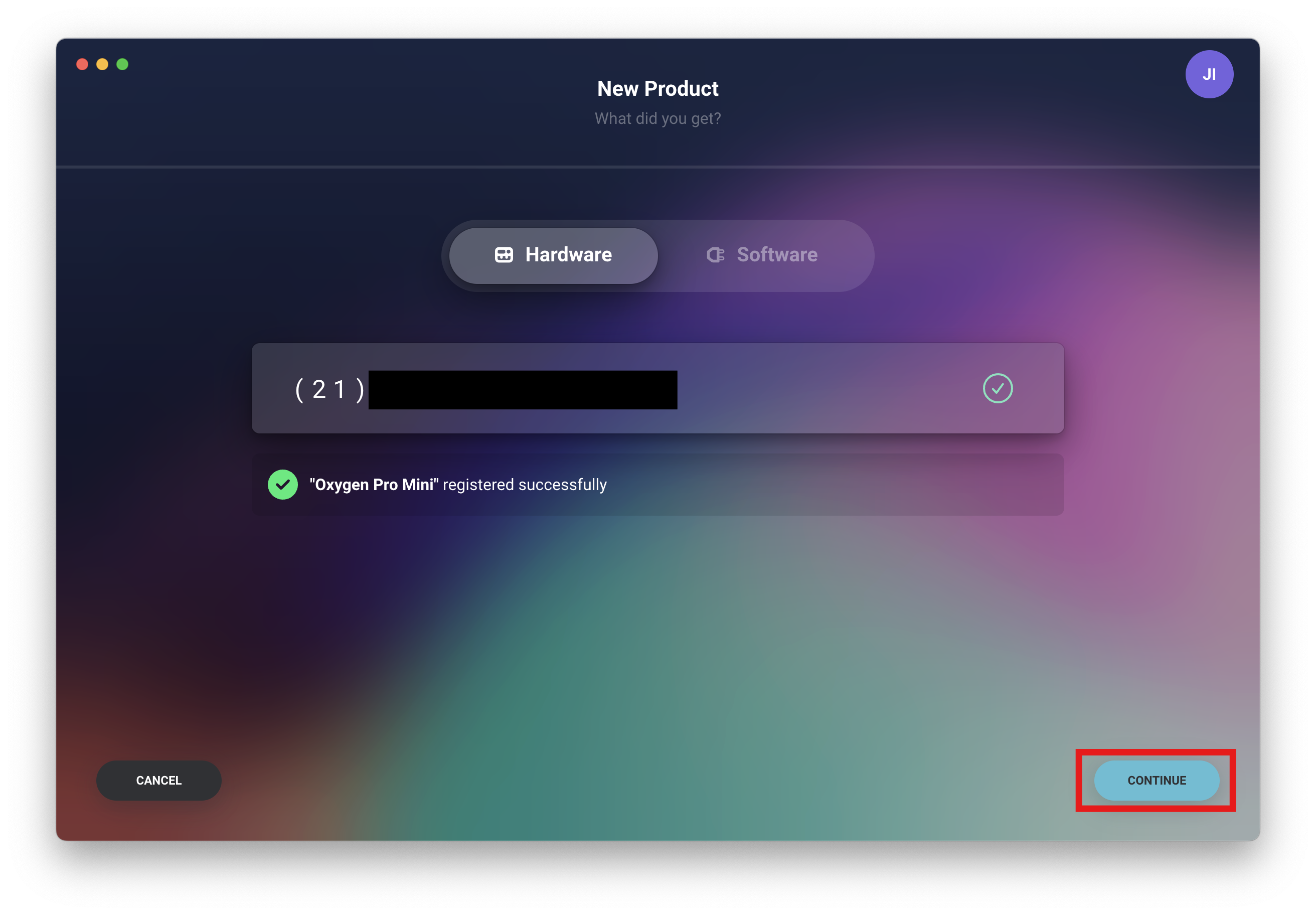
How To Redeem Your Included Software
To redeem the included software and other content with your hardware unit, please follow the steps below:
* - HeadRush hardware must be set to FIRMWARE UPDATE mode by tapping the icon on the Main Menu.
Wait for the unit to reboot, and then proceed with the steps below
- Connect your hardware* via USB Cable
- Once connected, press 'Redeem Software'
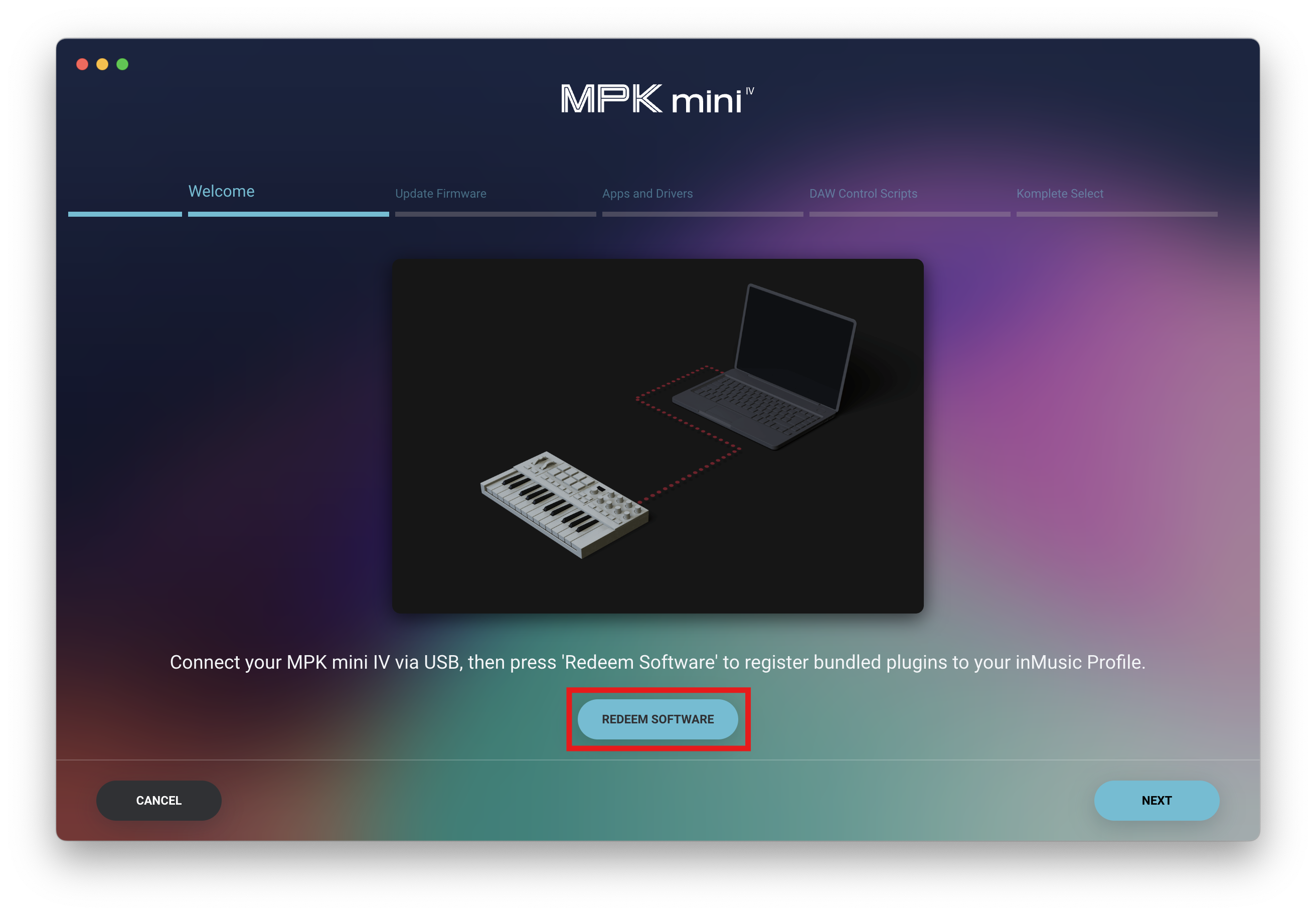
- Once redeemed - click NEXT

- From here, you will be shown all the included software related to your hardware.
Below is an example of the Akai Pro MPK mini IV and the available software for this controller.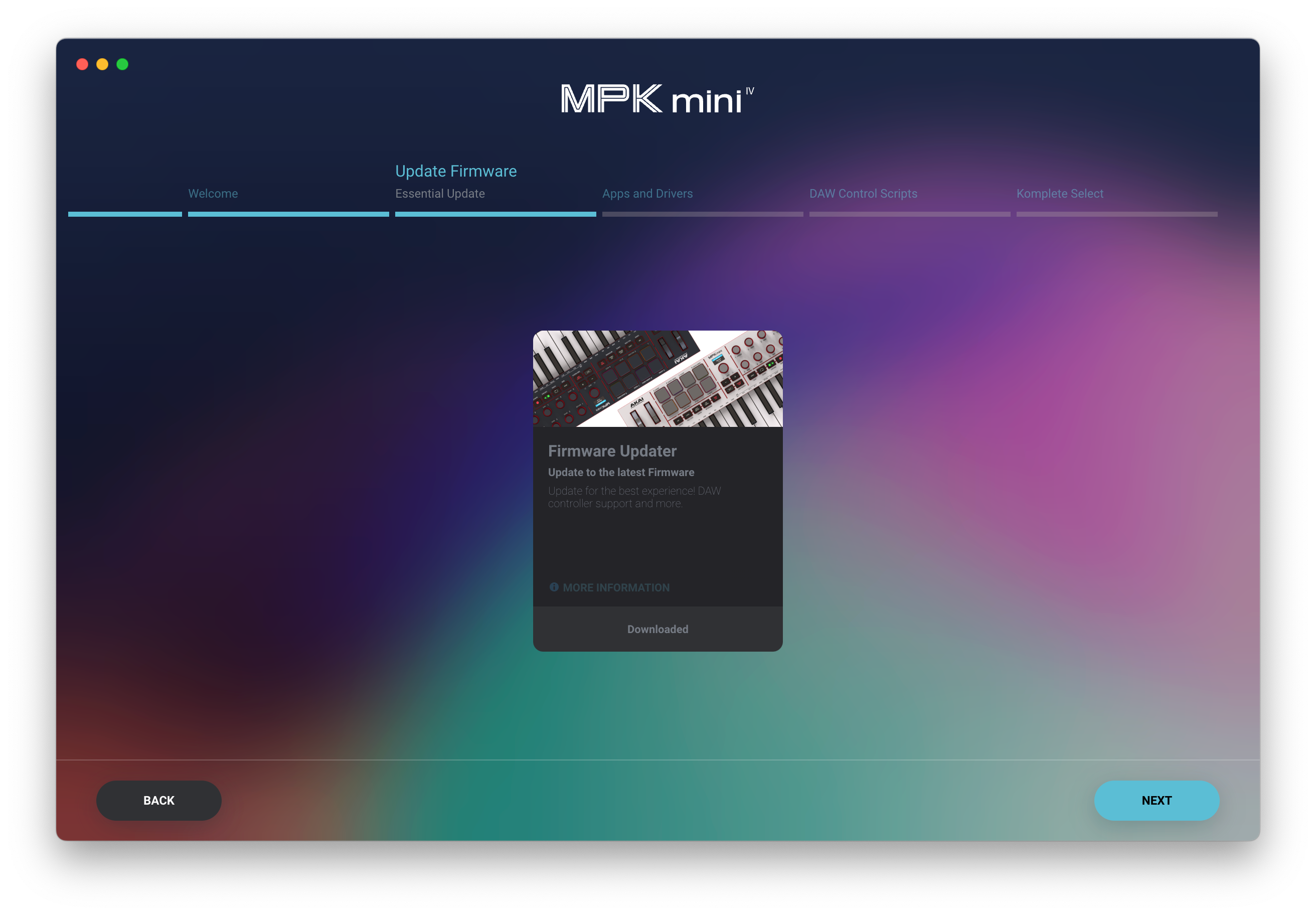
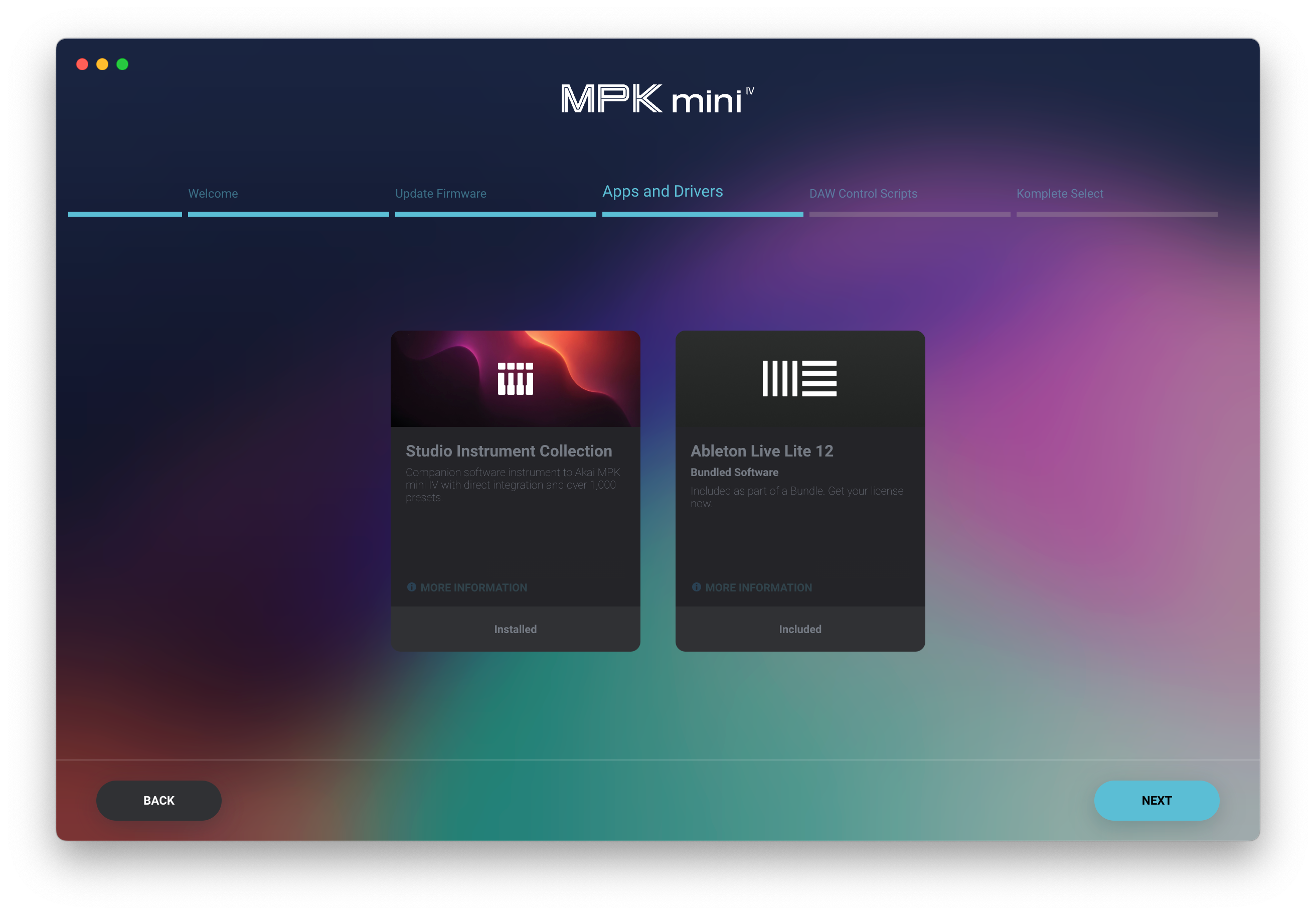
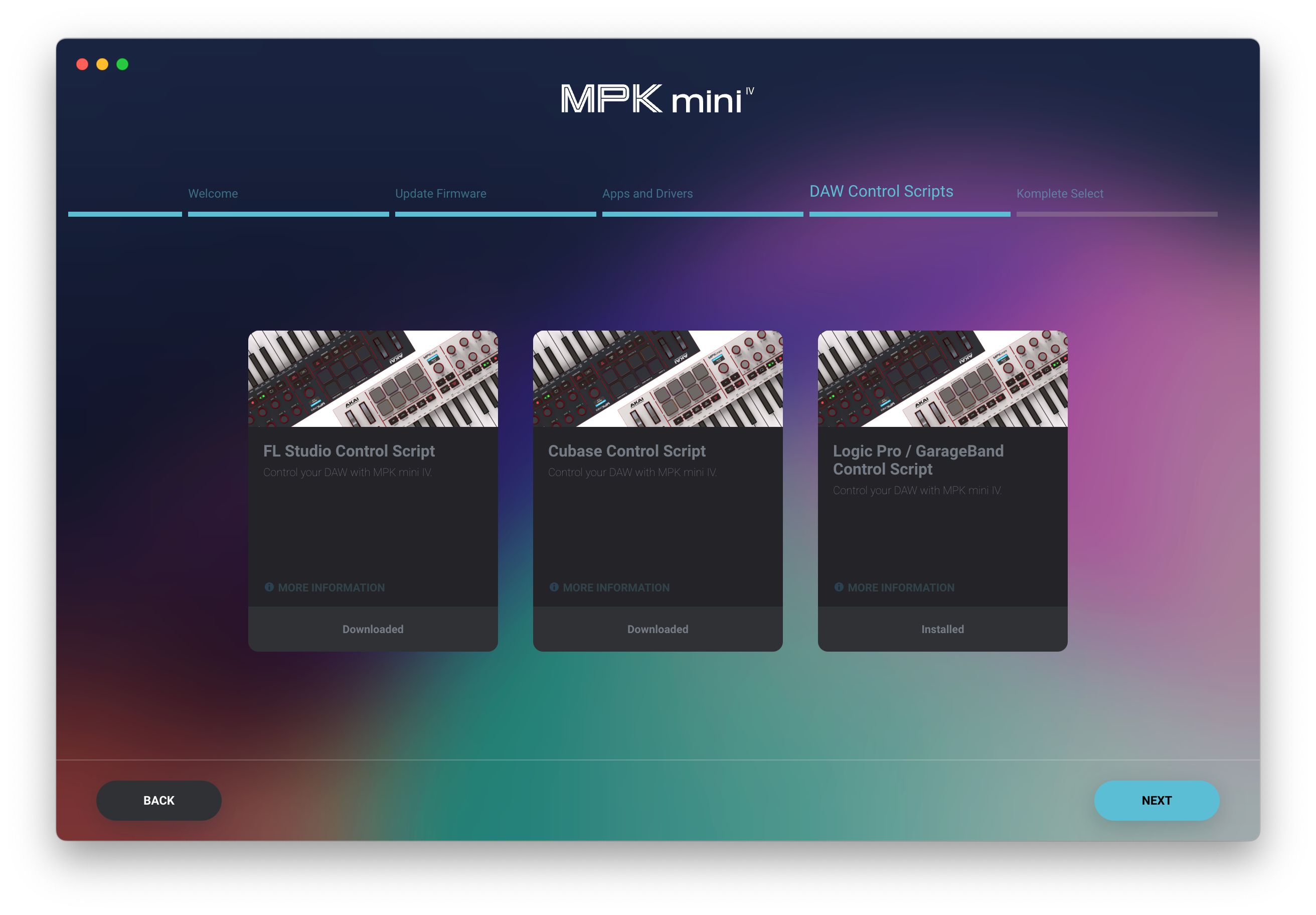
- Go through each section, selecting the software you would like to start downloading.
- When happy with your selection, press NEXT, and the downloads will begin!
Please note - Certain recommended content will be pre-selected to download. If you'd prefer to download your own selection, these recommendations can be deselected at any time. - To close the software redemption page, go to the last section and select DONE

- Wait for the download to complete, and install your new software
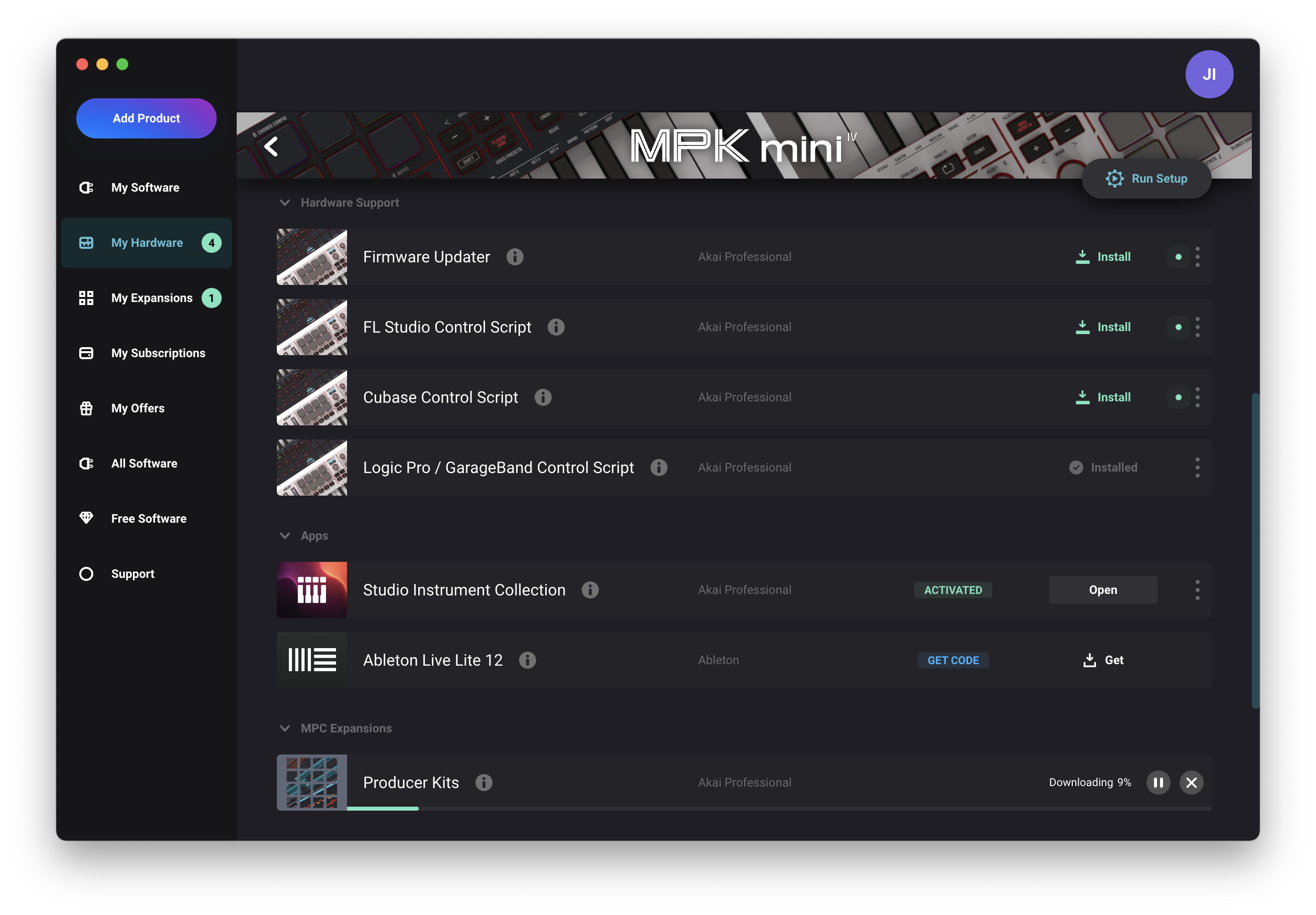
- Enjoy using your hardware with the included software!
Redeeming Classic AIR Titles
For hardware that includes Classic AIR titles, there are some additional steps required to access these plugins:
- If you're yet to register your hardware... Click 'Add Product' via the inMusic Software Center.
- Once registered, click the 'My Hardware' tab, then click on your newly registered product
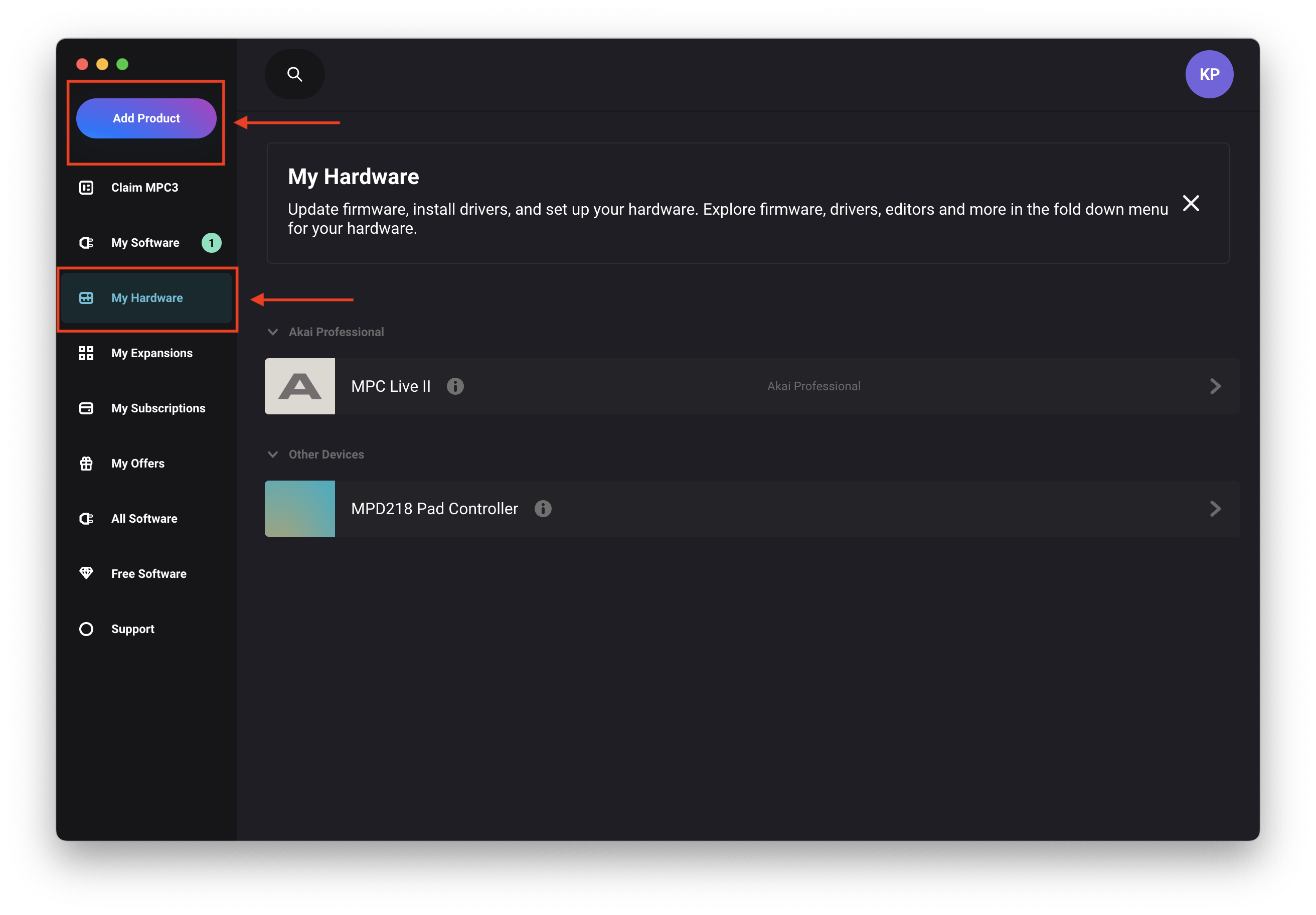
- Click 'Claim' to redeem the software license
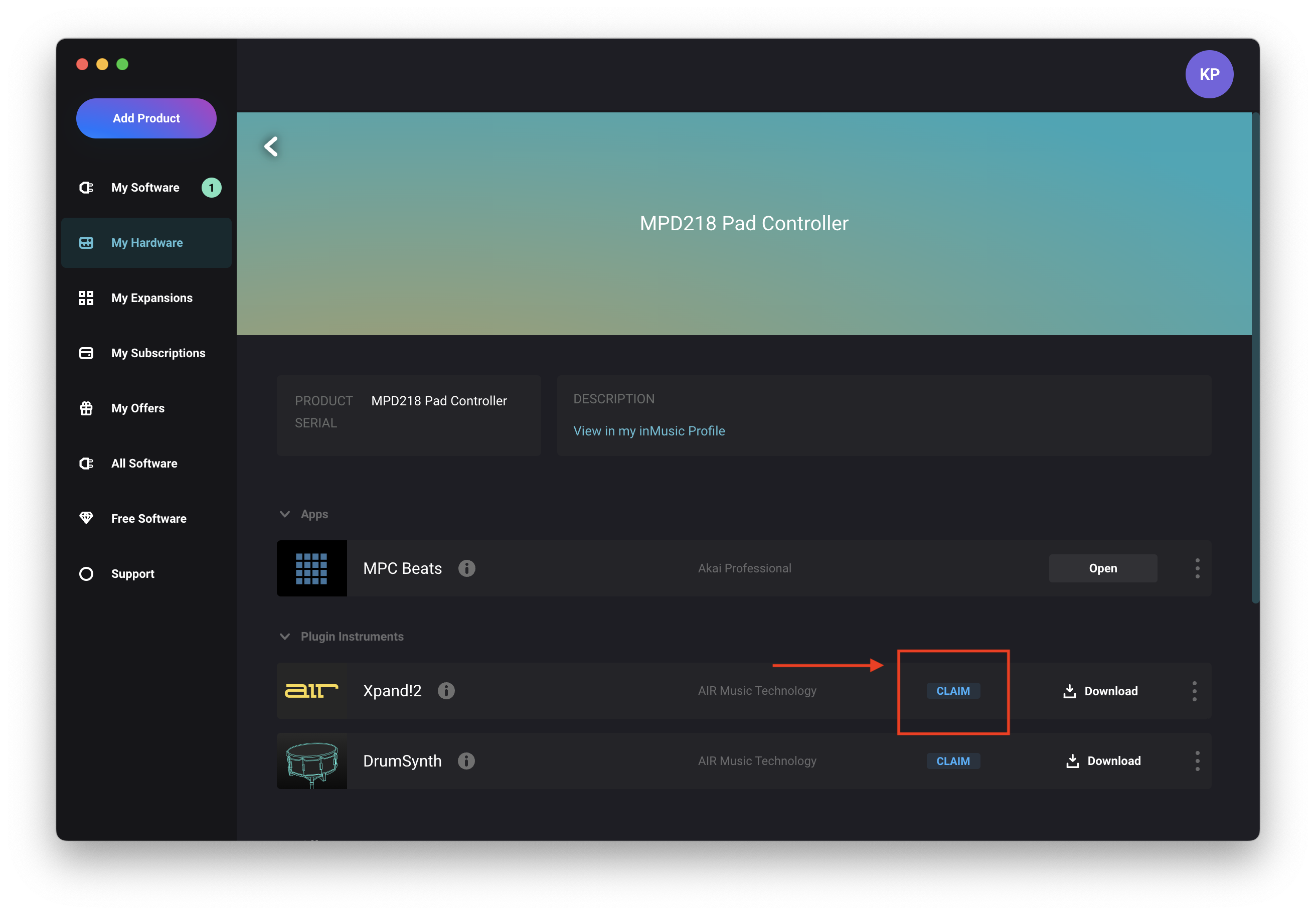
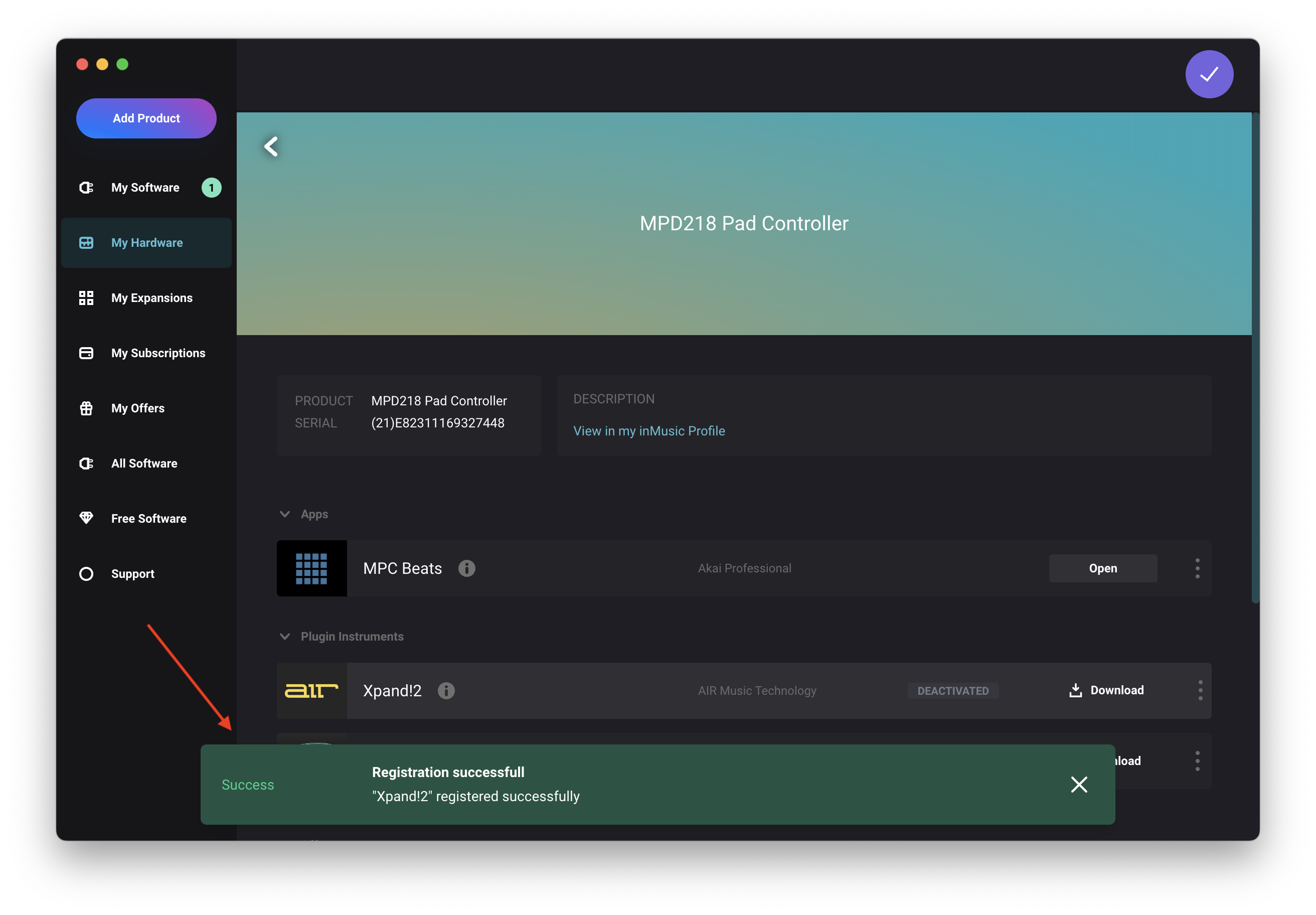
- Wait for the software to automatically deposit into your account - Observe the message confirming the registration
Redeeming MPC 2 software
For MPC Hardware that provides a complimentary iLok license for the MPC 2* software, this iLok code can be found via the inMusic Software Center:
- Once registered, click the 'My Hardware' tab, then click on your newly registered product
- Locate MPC 2 under Apps
- Select GET ILOK CODE
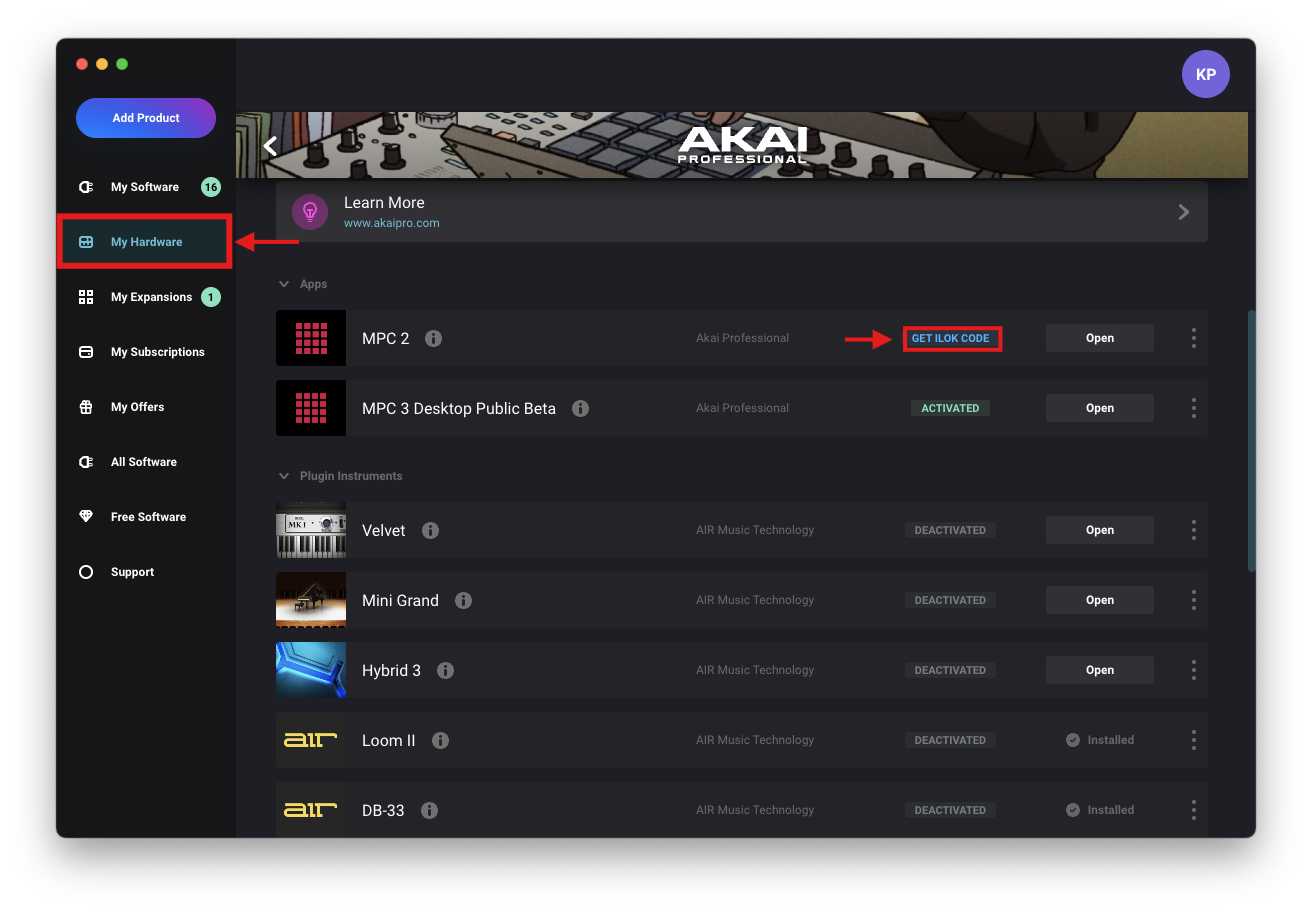
- A Product Activate Code prompt will appear with steps on how to activate your iLok license
- Select Get Code
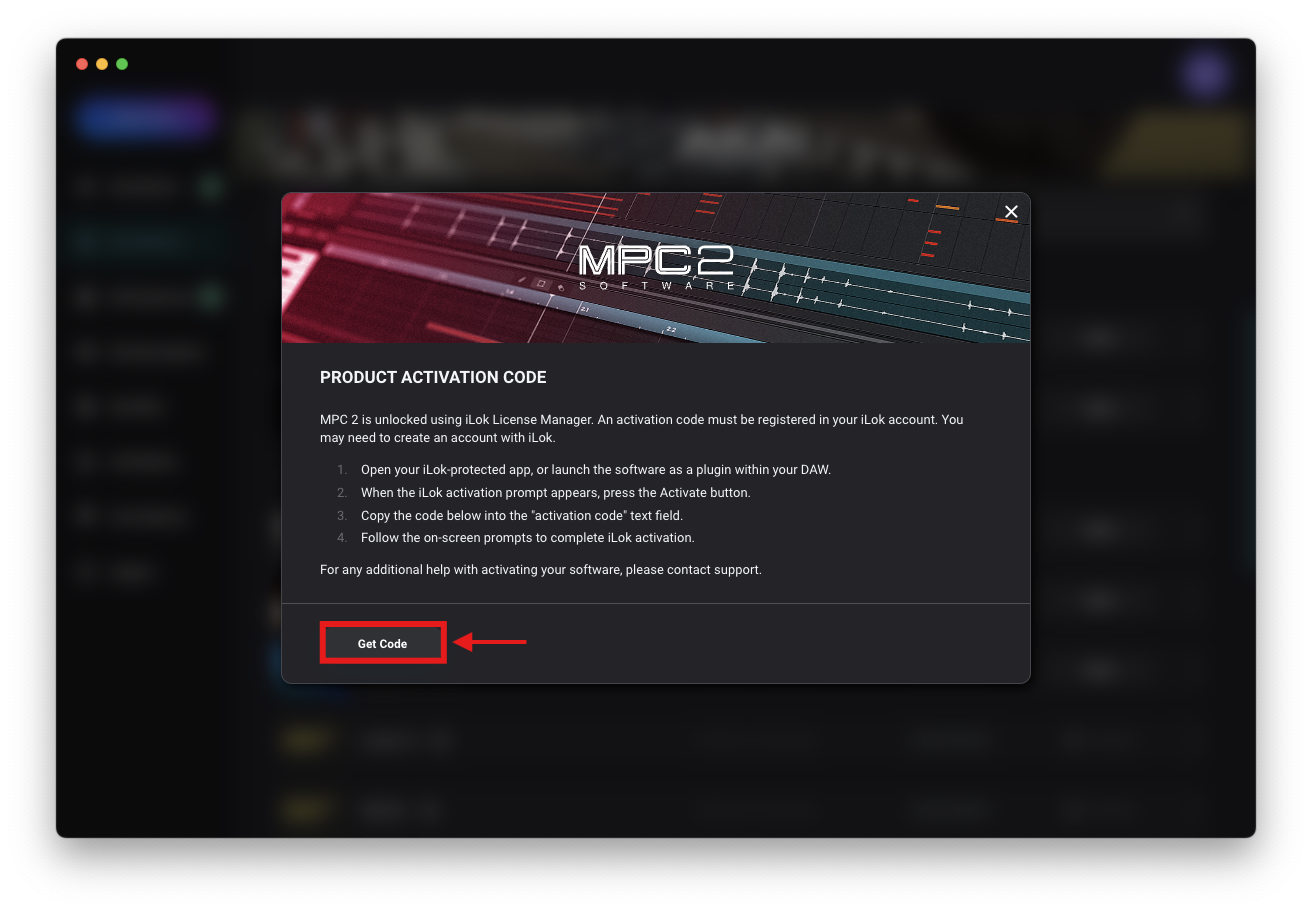
- Copy the iLok code and paste it into the iLok License Manager
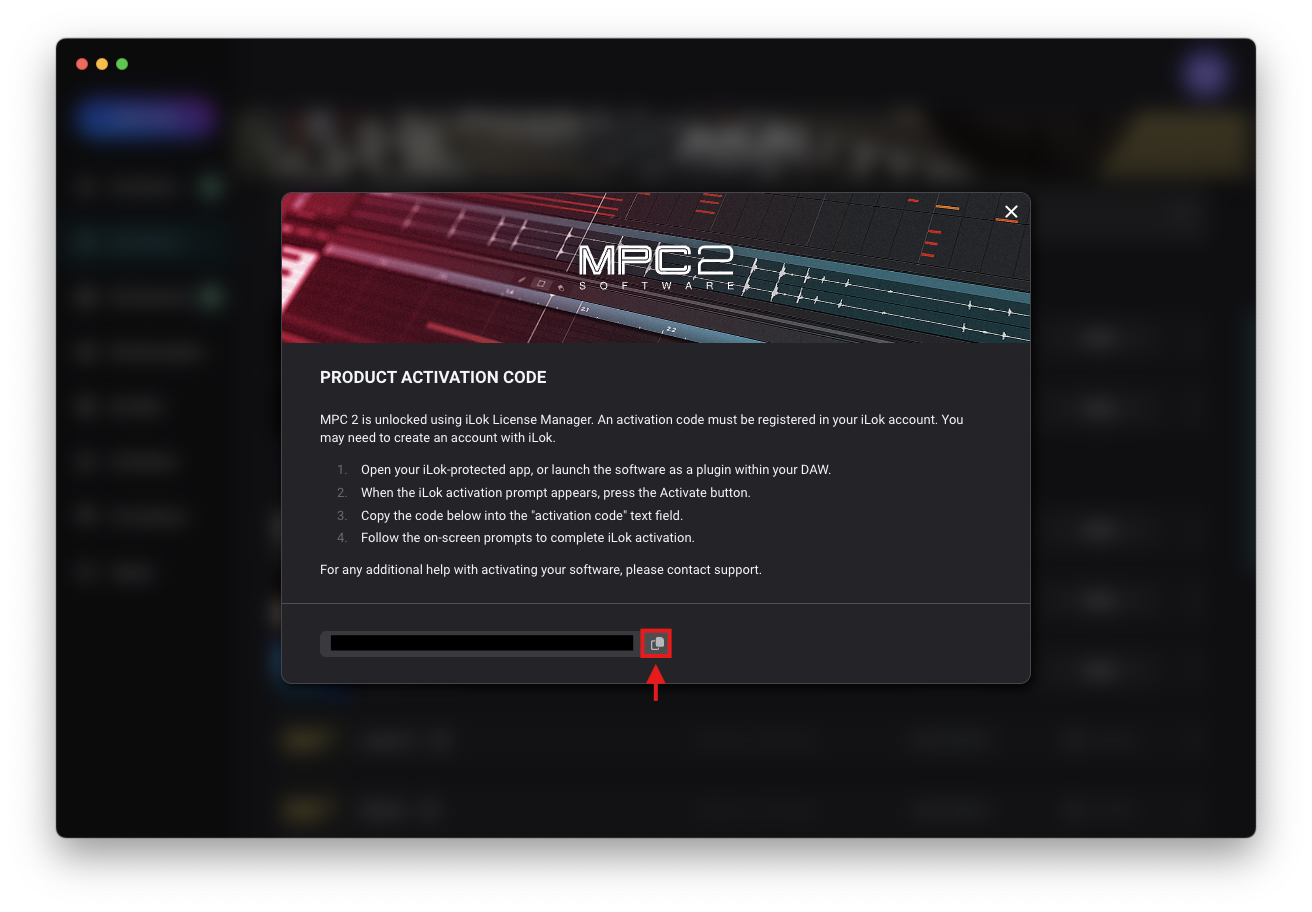 For an in-depth guide on activating and managing your iLok licenses, please use the following guide:
iLok | Activation Assistance & Troubleshooting
* - MPC 2 has been replaced by MPC 3 Desktop, which no longer requires iLok.
To redeem MPC 3: Please go to Claim MPC3 and select CLAIM NOW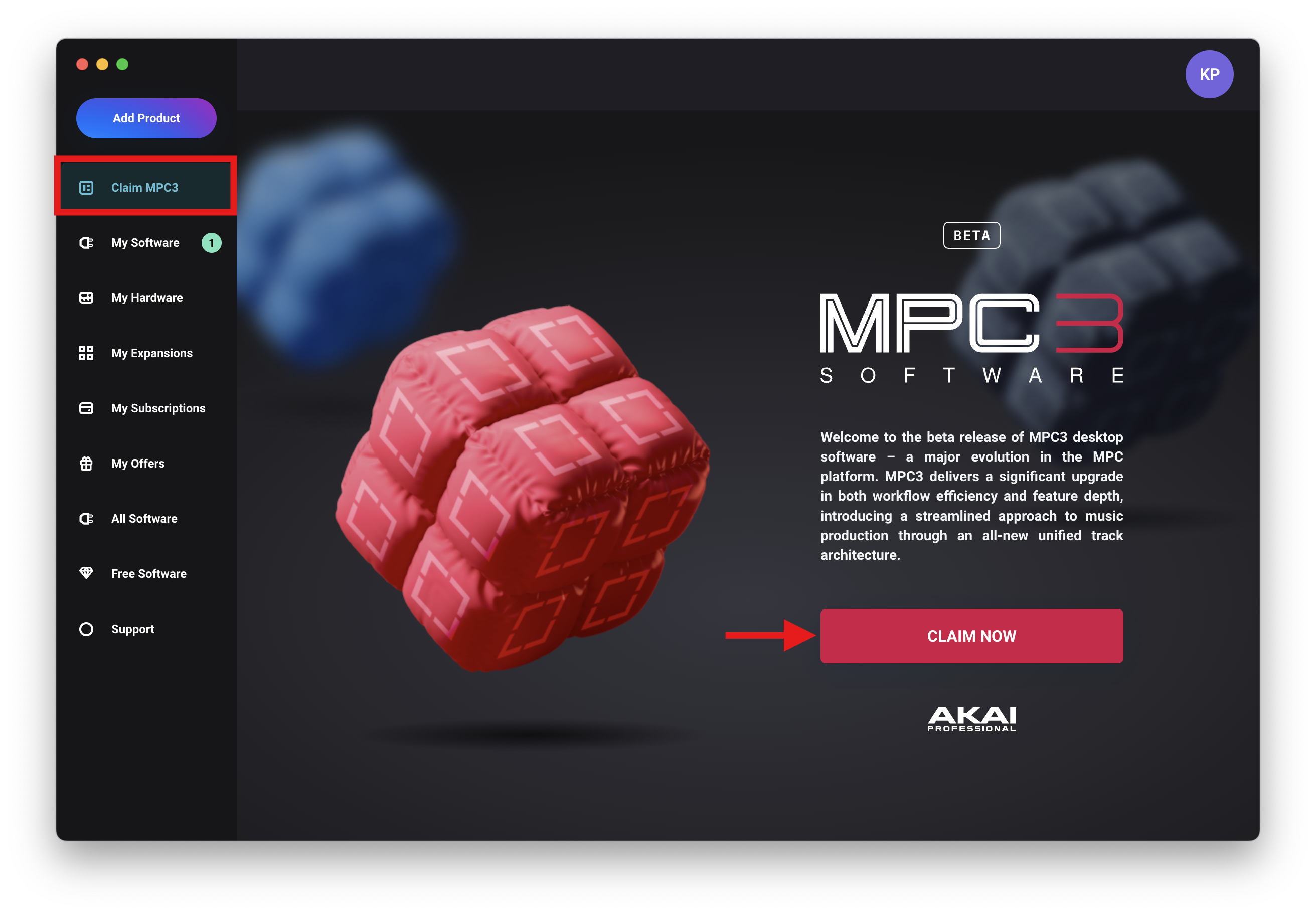
How To Locate And Download Your Redeemed Software
When redeeming software during registration, you may not want to download all the content that is on offer. If you would like to find the specific content for your newly registered hardware, you can find all your software within the inMusic Software Center:
- Applications and Software Instruments: These can be found in the My Software tab

- Expansions: These can be found in the My Expansions tab

- Drivers or Firmware: These can be found in the My Hardware tab

Frequently Asked Questions
I've changed systems and need to download my drivers. Where can I find my drivers and firmware?
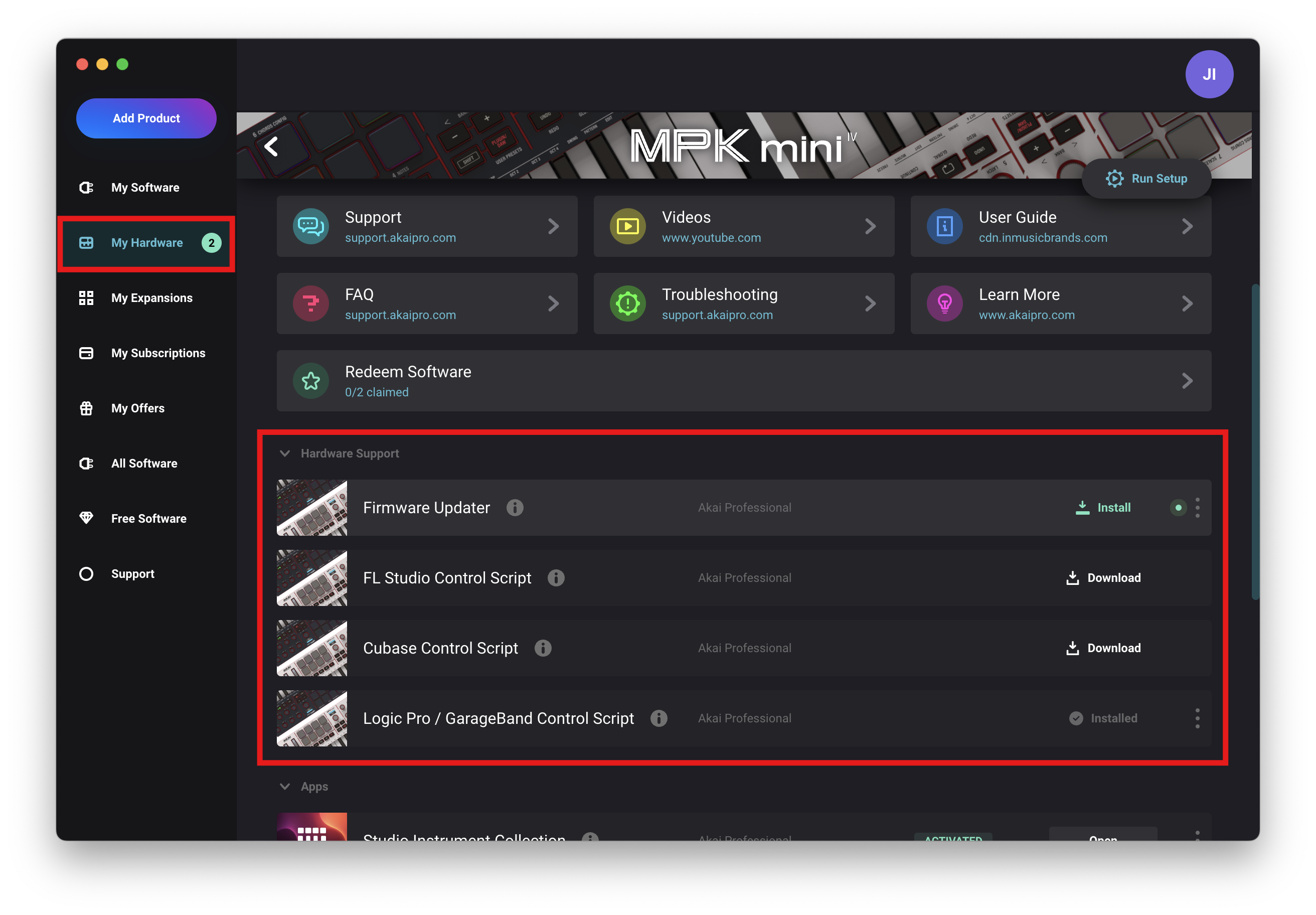
All drivers and firmware updates can be found within the inMusic Software Center, via the My Hardware section. From here, you will find a list of your available hardware:
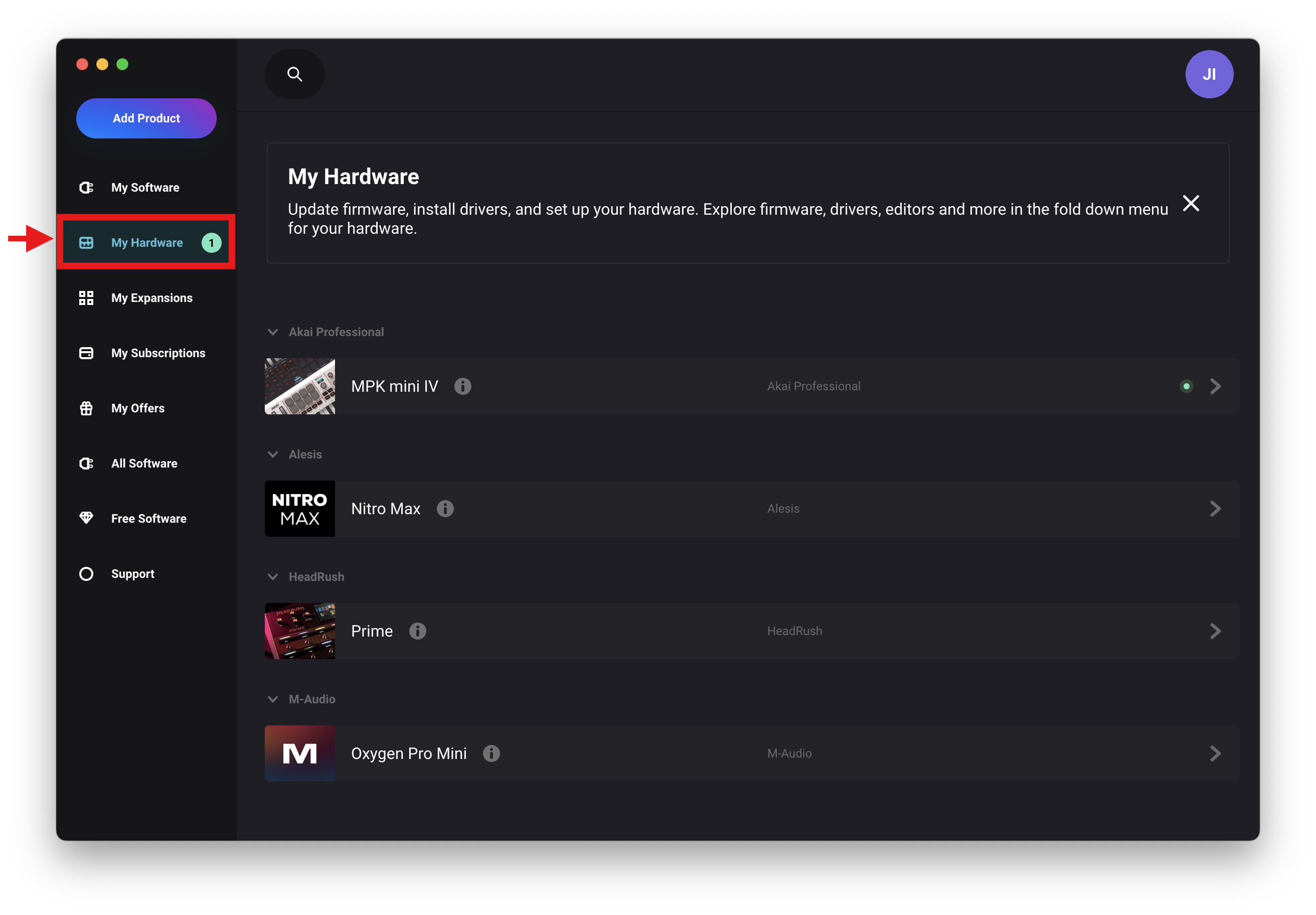
Click on the hardware you want to download the specific firmware or drivers for.
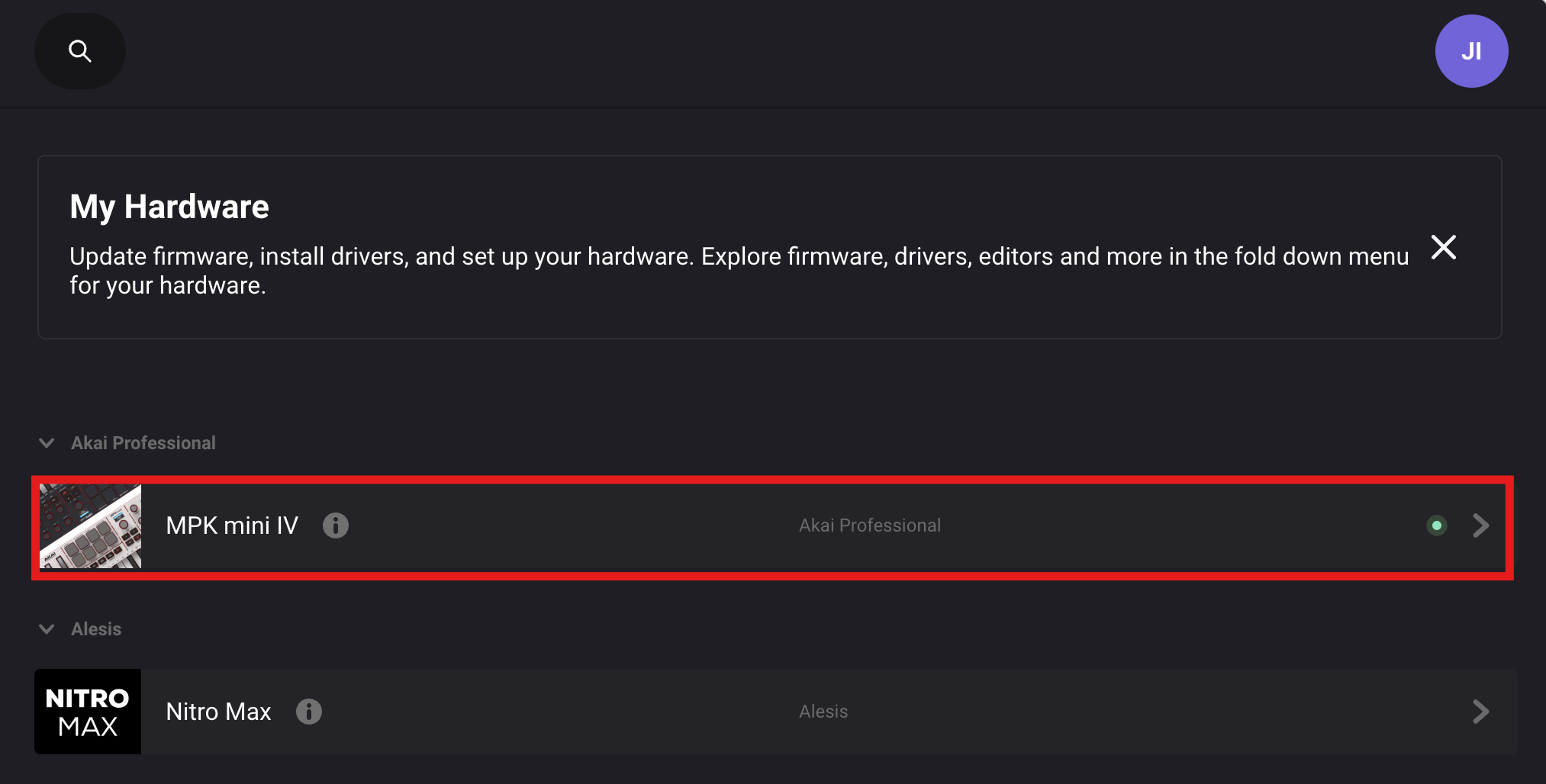
Within this hardware menu, you will see the available drivers/firmware to download and install under the Hardware Support tab.
I forgot to redeem my software. Can I go through the Setup/Redemption process again?
Yes, you can! If you registered your hardware but haven't redeemed your software, you can start the setup at any point. To do this:
- Open the inMusic Software Center
- Go to your My Hardware tab
- Select the hardware you'd like to redeem your software from
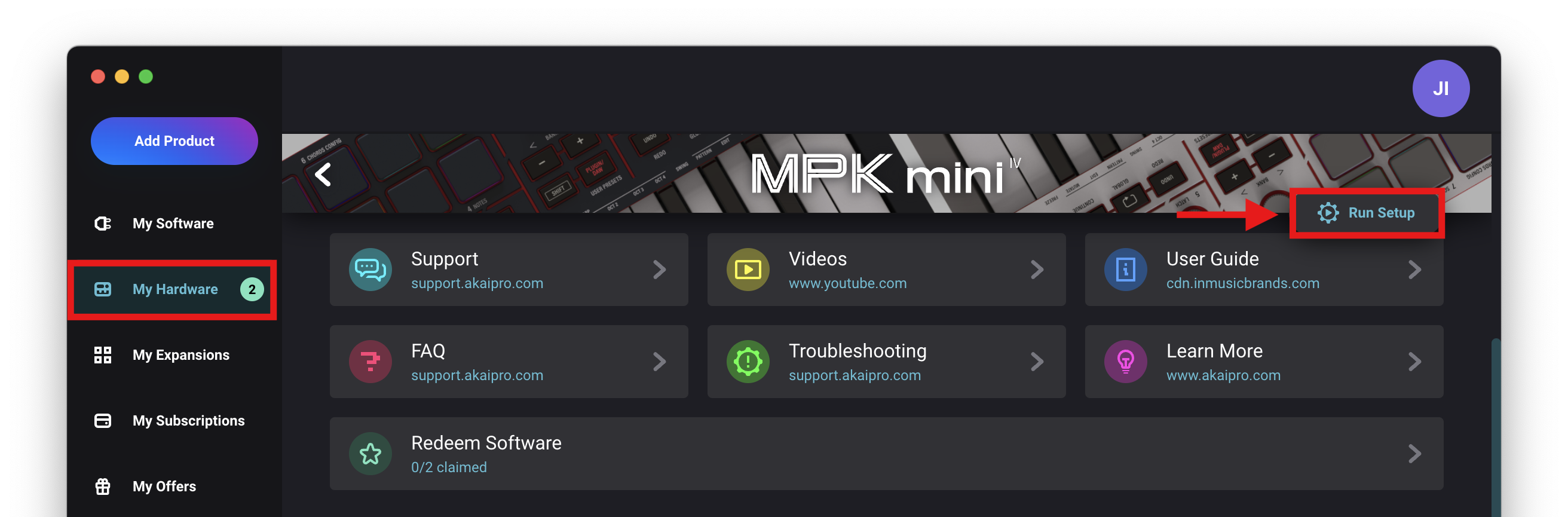
- In the top-right hardware window, select Run Setup
- Follow the How To Redeem Your Included Software steps listed above to access your software.
I get an error message when I try to download my software. What should I do?
If you are experiencing errors when attempting to download your software, please use this troubleshooting guide:
inMusic Software Center | Troubleshooting Download Errors
Please use the error message examples to find the best steps to fix the error you're experiencing.
We hope you enjoy using your new hardware with the included software! If you find you are having difficulties registering your hardware or accessing any included plugins. Please get in touch with our support team, who will be happy to assist!