If you have multiple drum tracks in your project that you'd like to combine into a single drum program, you can use the Merge Pads feature. This is a great way to free up tracks while keeping all of your sounds accessible from a single drum track. To get started, please check through the steps below:
1. Create a New Project, then create x3 or more drum tracks.
2. Ensure that two drum tracks contain drum sounds, and leave a third drum track empty.
3. From the Main screen, use the Main Dial to select the empty drum track.
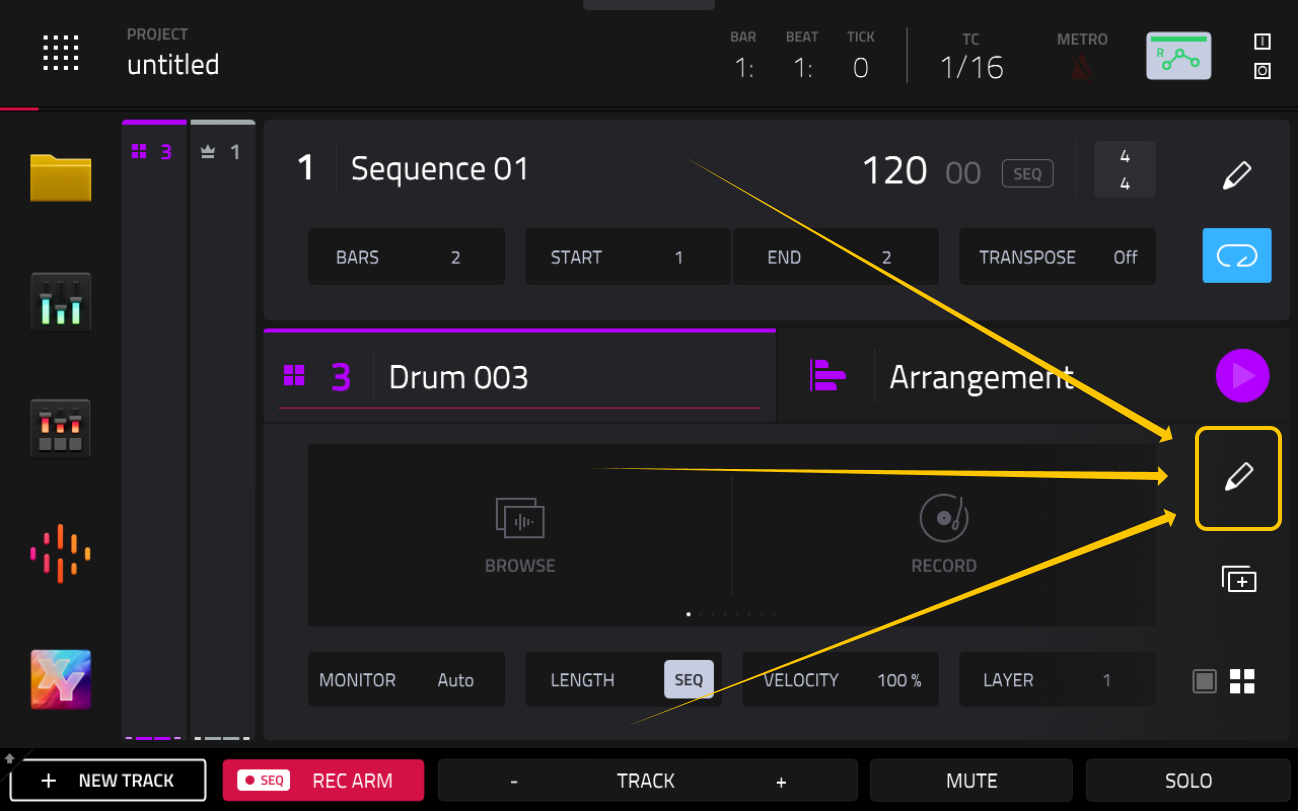
4. Tap the Pencil icon in the right section of the screen highlighted in yellow below:
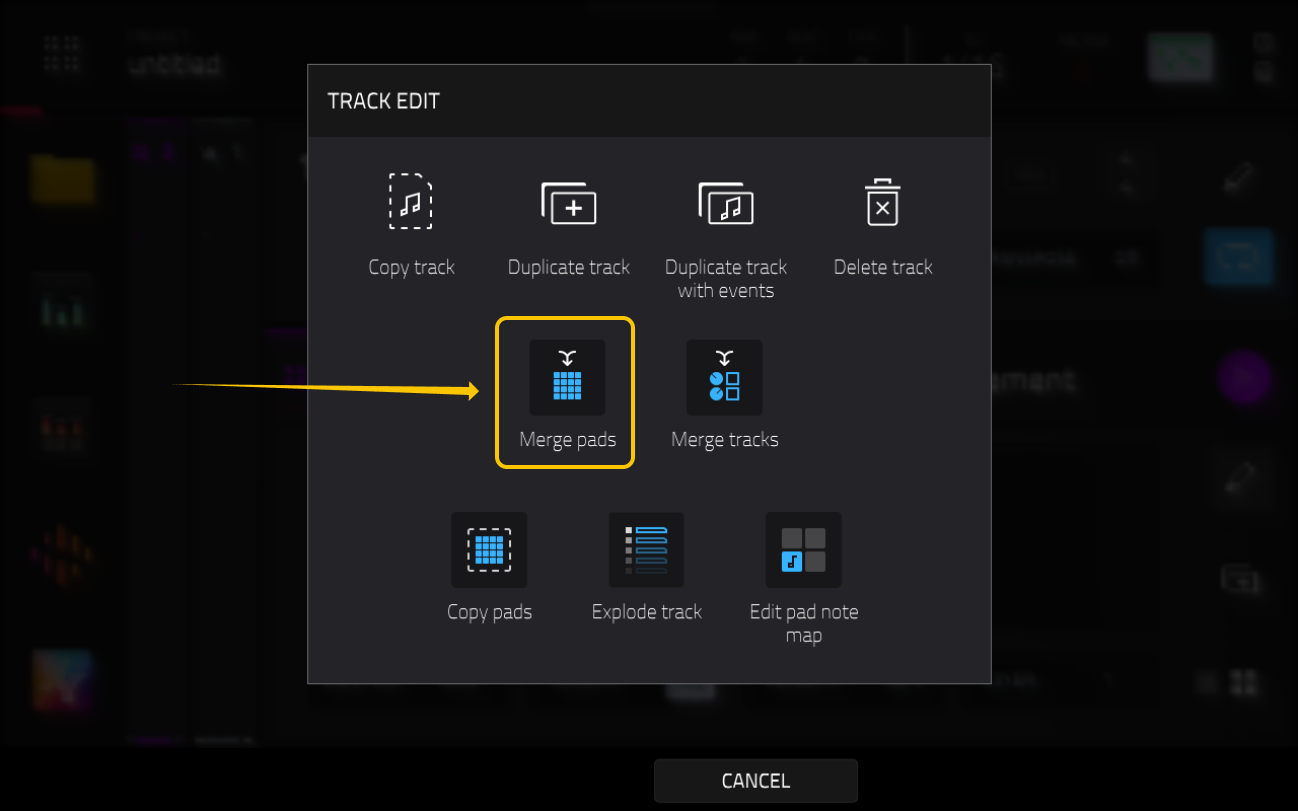
5. Select the Merge Pads option.
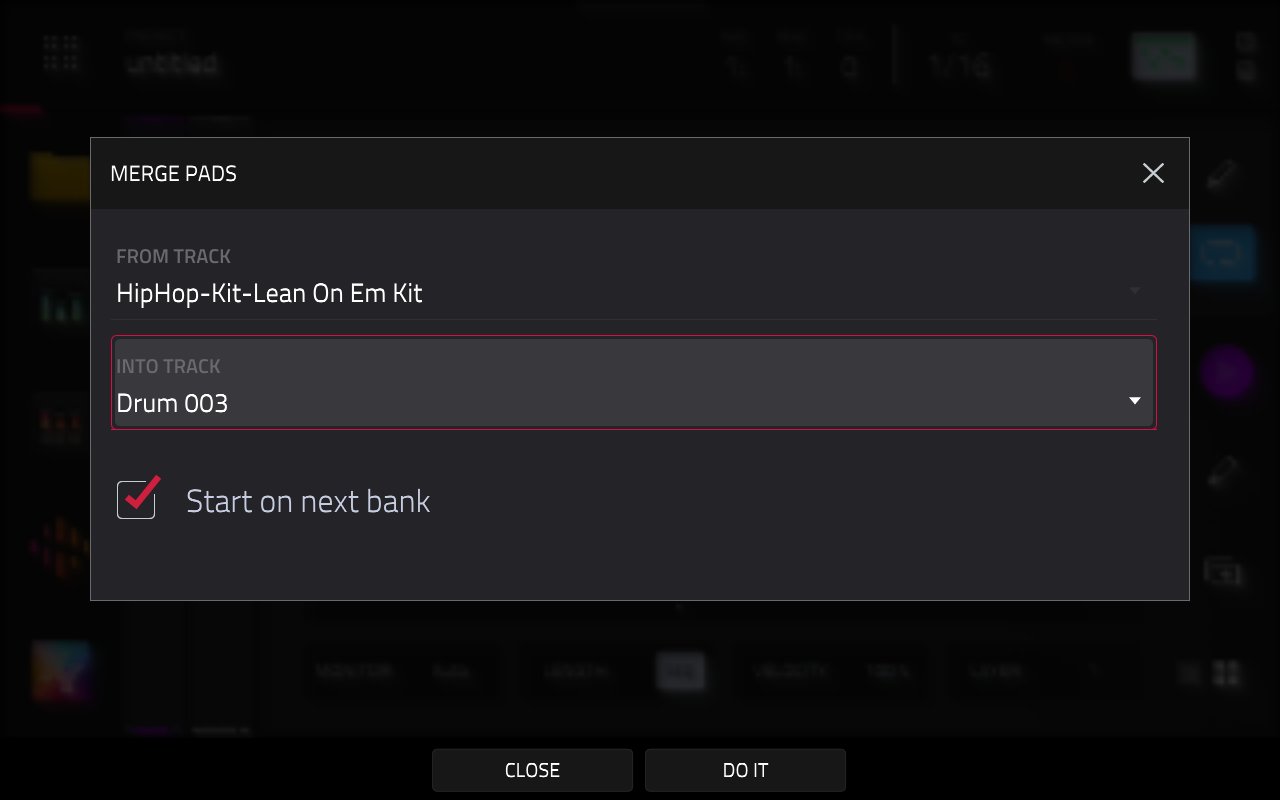
6. In the Merge Pads window:
- Set the "From Track" field to one of the drum tracks containing sounds.
- Set the "Into Track" field to the empty drum track, then tap DO IT.
7. Repeat the process:
- Tap the same Pencil icon from the Main screen.
- Select Merge Pads again.
- Under the "From Track" field, select the second drum track containing sounds.
- Under the "Intro Track" field, select the same destination track that was originally empty, then tap DO IT.
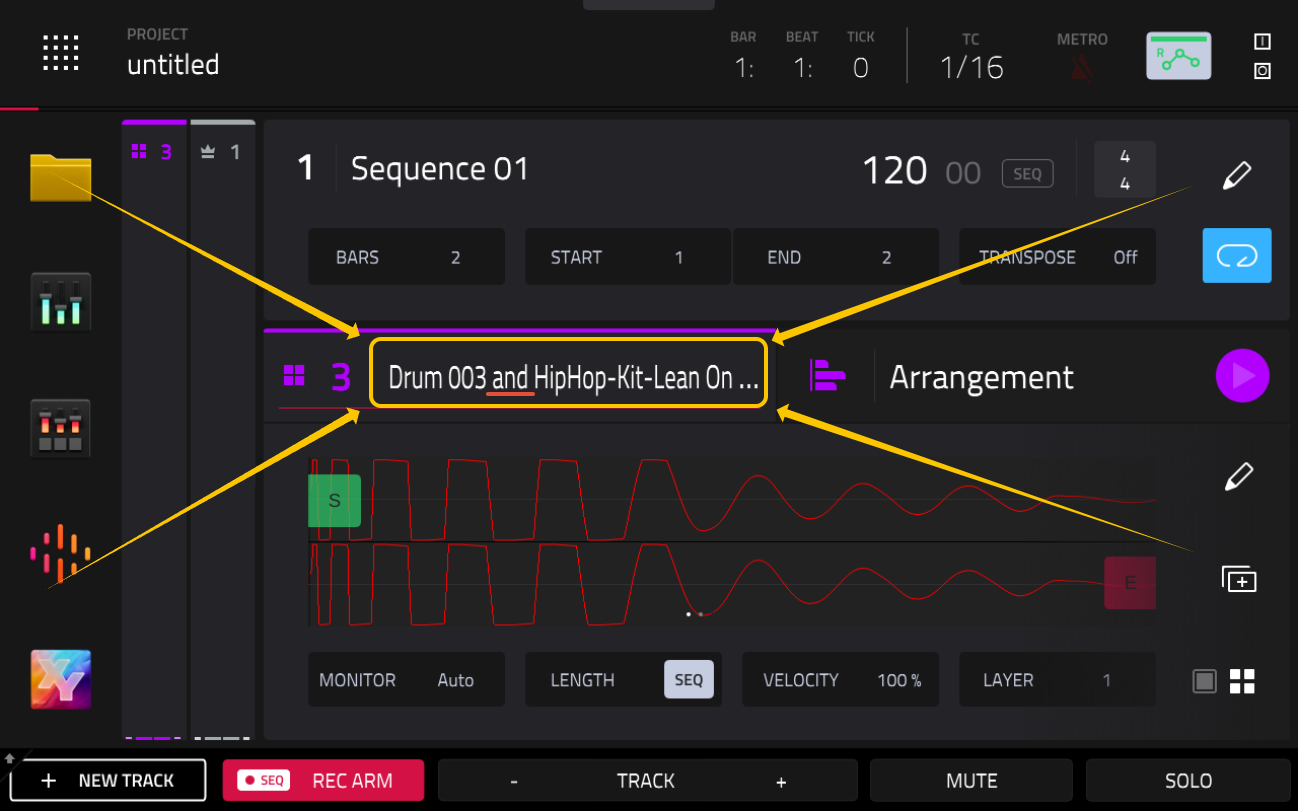
8. Return to the Main screen. The destination drum track will now contain the pads from both source tracks, and its name will update to reflect the merged content.
9. To access the merged sounds, switch between Pad Banks:
- The sounds from the first track merged will typically be placed in Bank A.
- The sounds from the second track merged will typically be placed in Bank B.
Note: The bank used for newly merged pads depends on which pad banks are already occupied in the destination drum program. If sounds have previously been merged or assigned, the MPC will automatically place the new pads into the next available bank rather than always using Bank A or Bank B.
10. Delete the original source tracks (Optional).
Once you've confirmed that all of the desired pads have been successfully merged, you can remove the original drum tracks to reduce project clutter and free up track space.
- From the MAIN screen, use the Main Dial to select one of the original drum tracks that was merged.
- Tap the same Pencil icon which was highlighed in step 4.
- Select Delete Track.
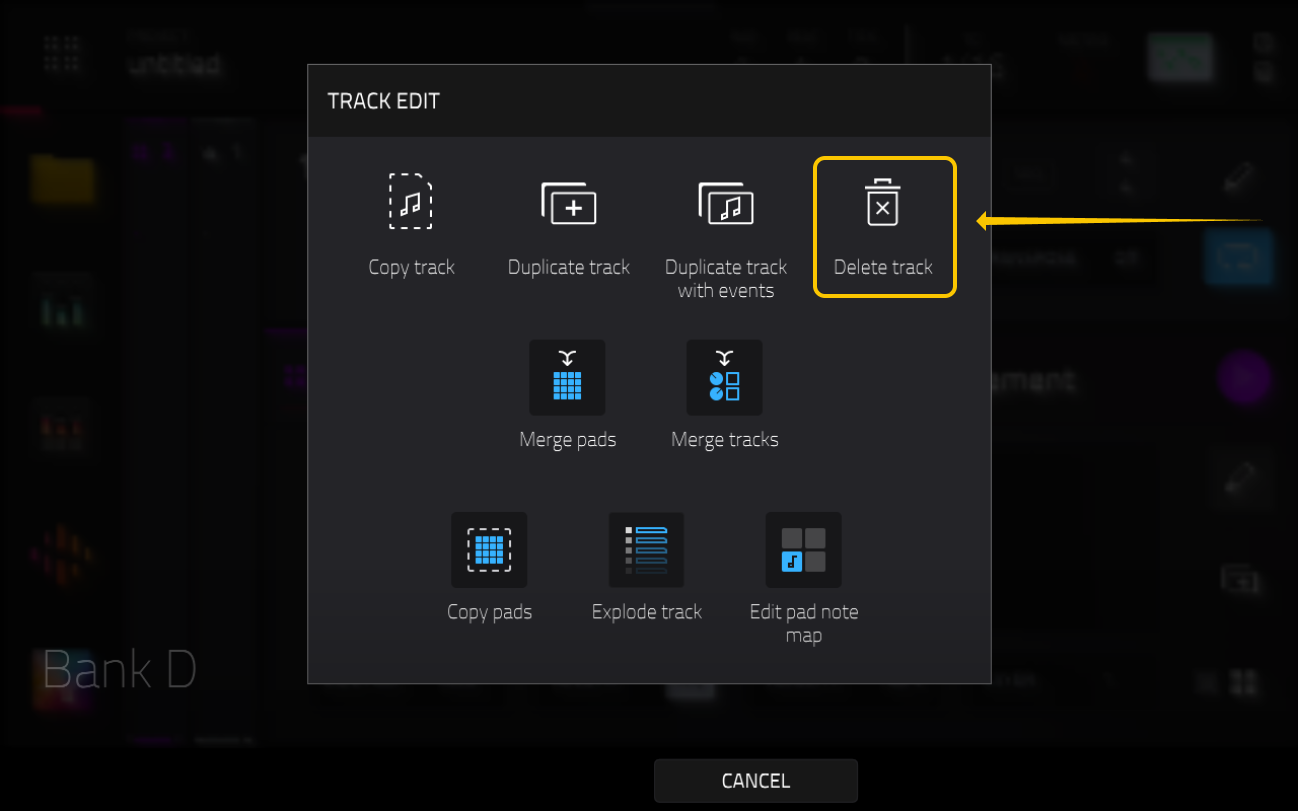
- Repeat this process for any additional source tracks you no longer need.
You can continue merging additional drum tracks into the same destination track, provided there are enough empty pad banks available in the drum program. This can be a useful way to consolidate large projects and reduce track count without losing access to your sounds.