The arpeggiator can be used as a useful tool to creatively enhance your projects and performances. In this guide, you will learn how to create and load your own custom arp patterns to use with your MPC hardware and MPC desktop software!
TABLE OF CONTENTS
- Creating Arp Patterns - Desktop
- Loading Arp Patterns - Desktop
- Creating Arp Patterns - Standalone
- Loading Arp Patterns - Standalone
Creating Arp Patterns - Desktop
1. Create a plugin track and load a plugin instrument
2. Play/record a pattern in the piano roll using your MPC's pads/keys or MIDI keyboard controller:

3. Once done, save this pattern via Menu > File > Export as MIDI Track File
4. Save your .mid pattern file to Desktop
5. Close MPC software
6. Go to the following locations on your computer:
Mac: Finder > Macintosh HD > Library > Application Support > Akai > MPC > Arp Patterns
Windows: C: > Program Files > Akai Pro > MPC > Arp Patterns
7. Drag and drop your custom .mid pattern file into the Arp Patterns folder
8. Re-open MPC software and select a plugin instrument track
9. Open the Arpeggiator via Menu > Tools > Arpeggiator
10. Tick the 'Enable' box and change the 'Action' to 'Pattern' as seen below:

10. Open the 'Pattern' dropdown list. You should now see your custom Arp pattern in the list and ready to be used!
Loading Arp Patterns - Desktop
1. To load a pre-existing arp (.mid) pattern, ensure MPC software is closed.
2. Then, copy the arp pattern to the following location on your computer
Mac: Finder > Macintosh HD > Library > Application Support > Akai > MPC > Arp Patterns
Windows: C: > Program Files > Akai Pro > MPC > Arp Patterns
3. Re-open MPC software and select a plugin instrument track
4. Open the Arpeggiator via Menu > Tools > Arpeggiator
5. Tick the 'Enable' box and change the 'Action' to 'Pattern' as seen below:
Creating Arp Patterns - Standalone
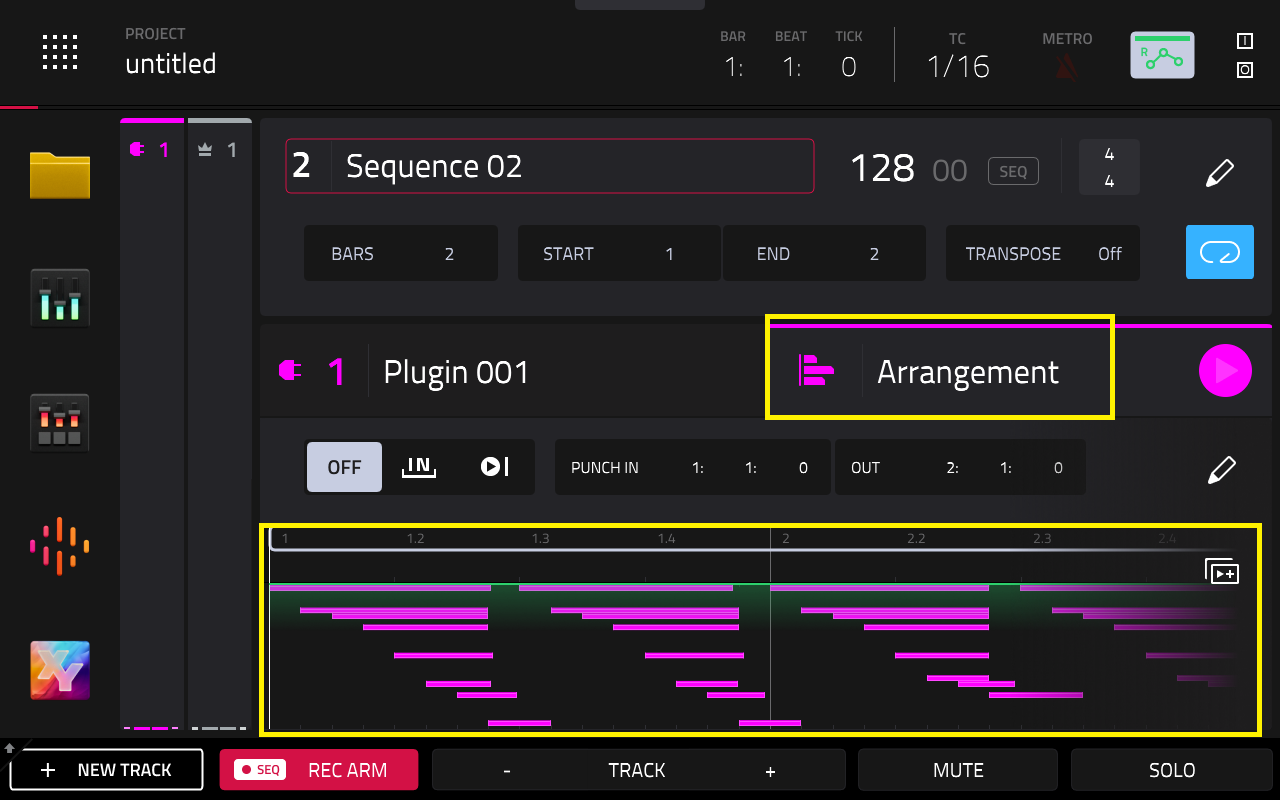
1. Create a new plugin track and load a plugin instrument
2. Play/record a MIDI note pattern in the arranger/piano roll using your MPC's pads, keys or MIDI keyboard controller
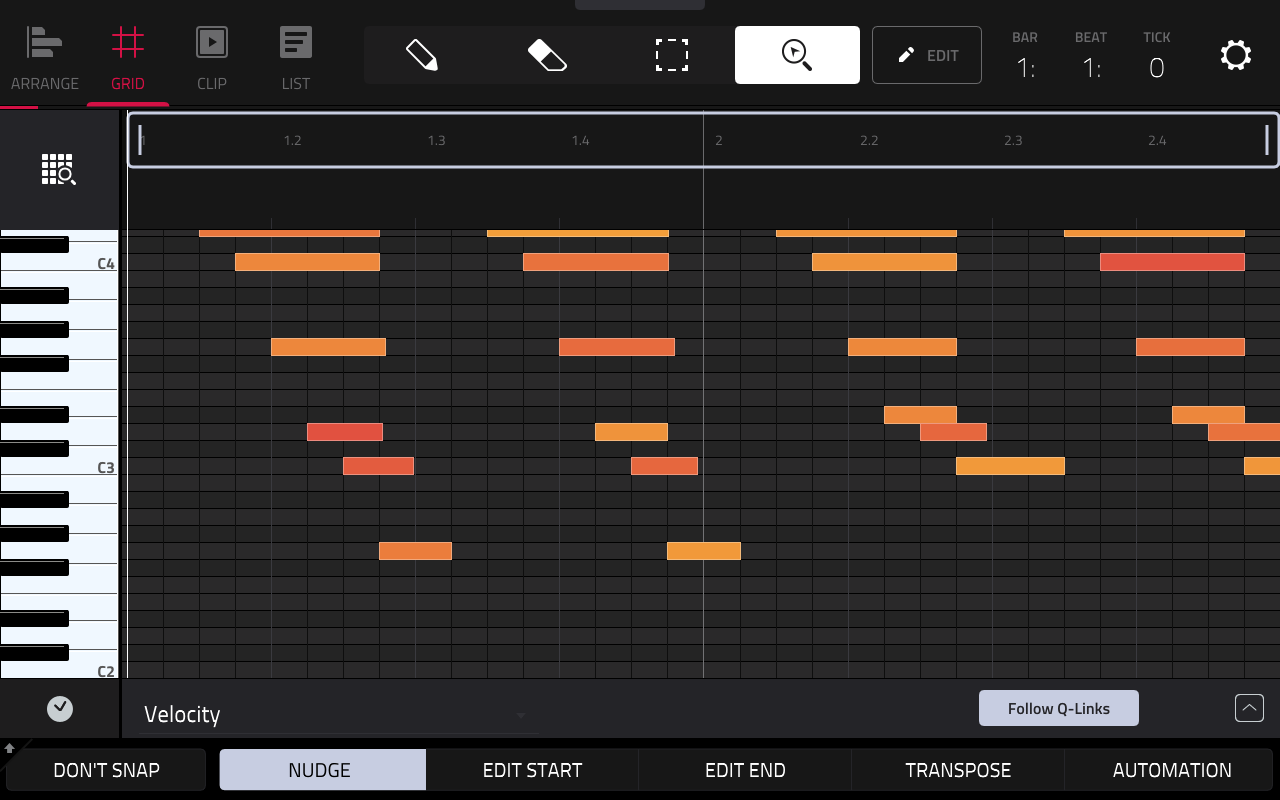
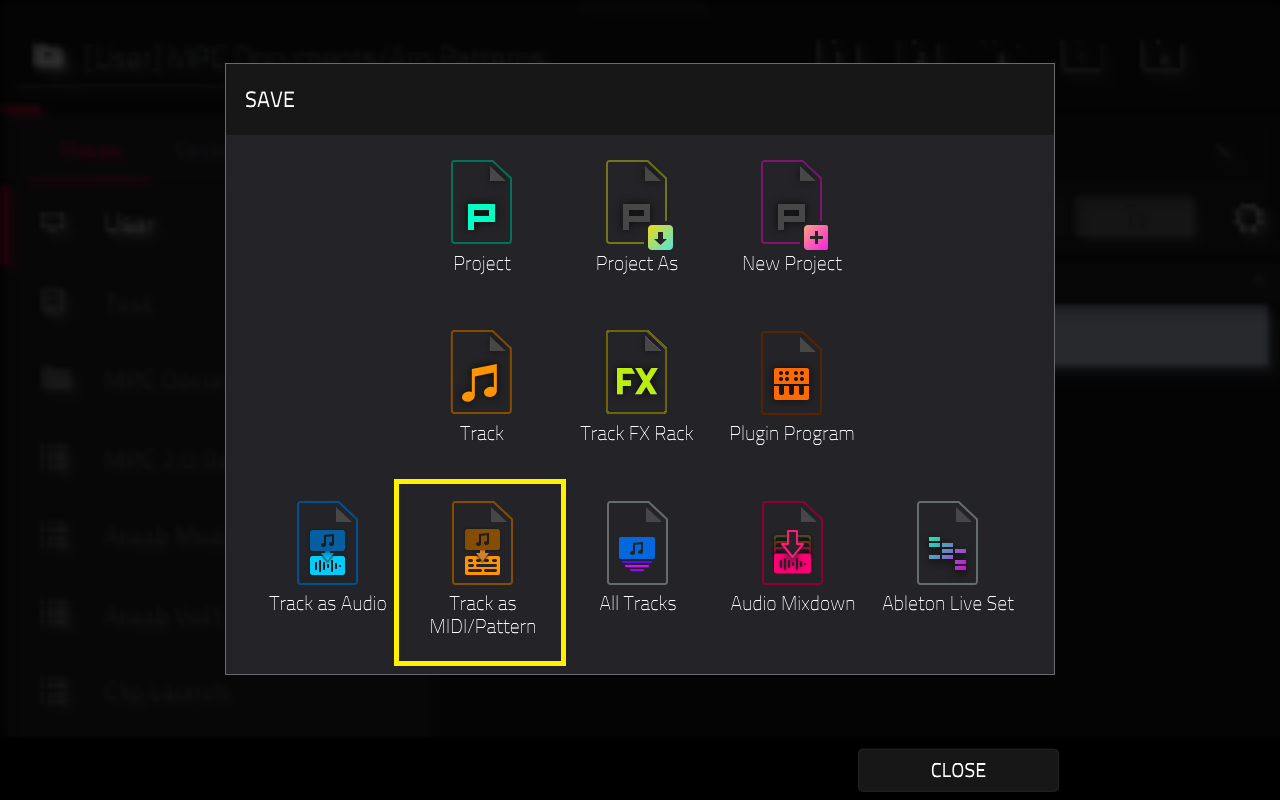
3. Once done, save this pattern via Menu > Save > Track as MIDI/Pattern
4. Select Export as MIDI
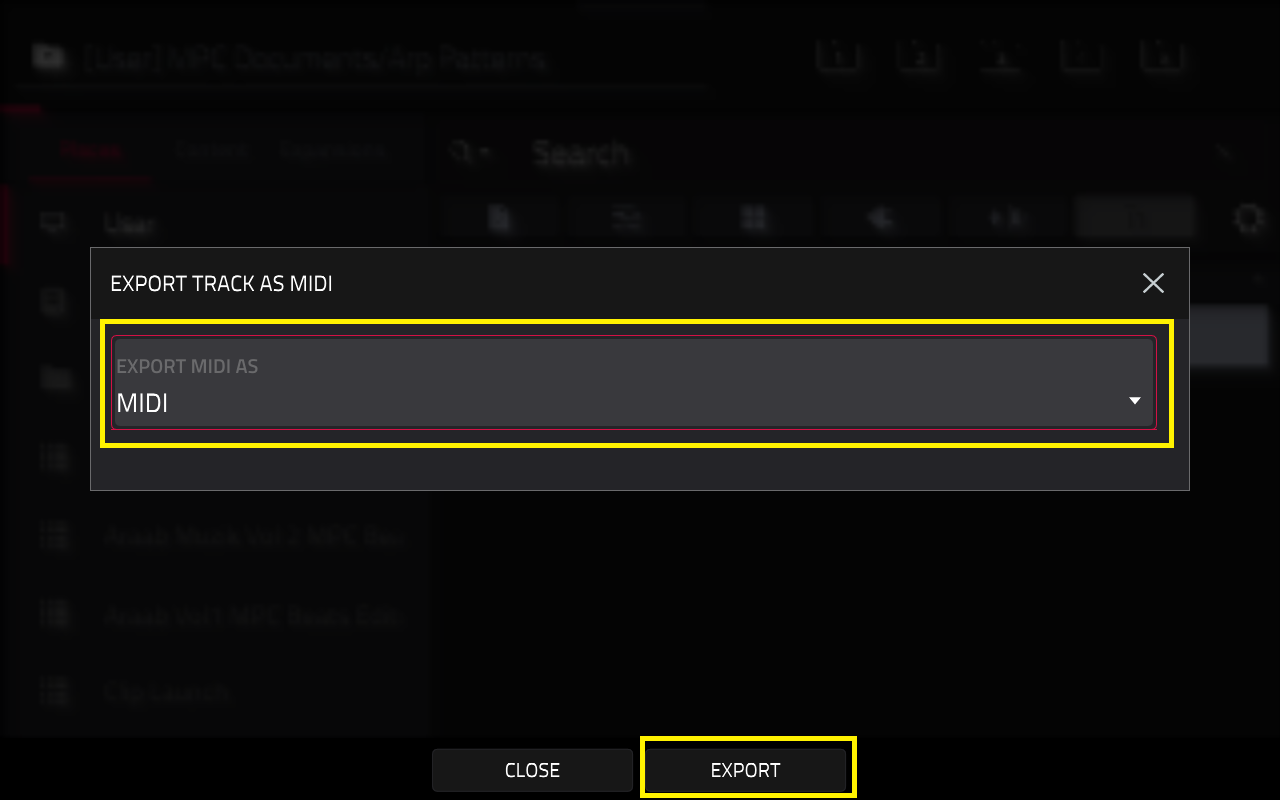
5. Save the file to MPC Documents > Arp Patterns folder on the MPC's Internal drive [User]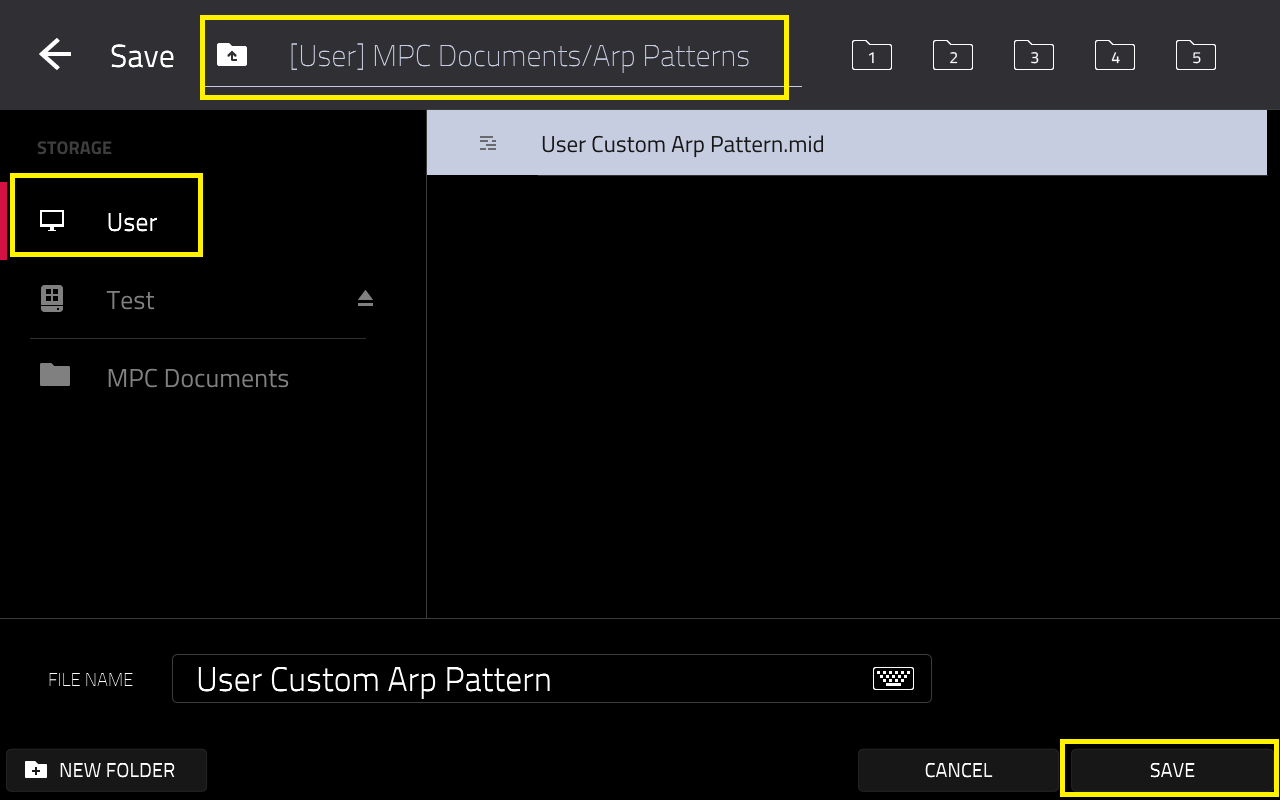
6. Once done, create a new project - your custom arp pattern will be available to select in the arpeggiator under the 'Action - Pattern' field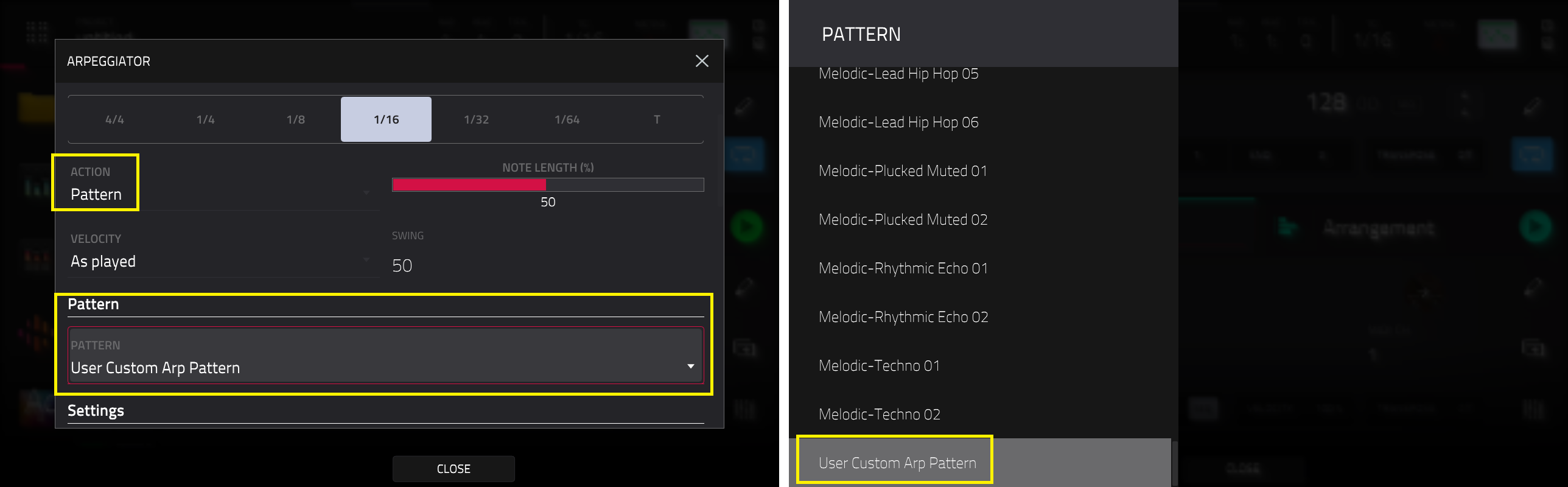
Loading Arp Patterns - Standalone
1. Go to Menu > Browser, find the arp (.mid) file on your own drive (SD card, USB drive, SSD. Once found, tap LOAD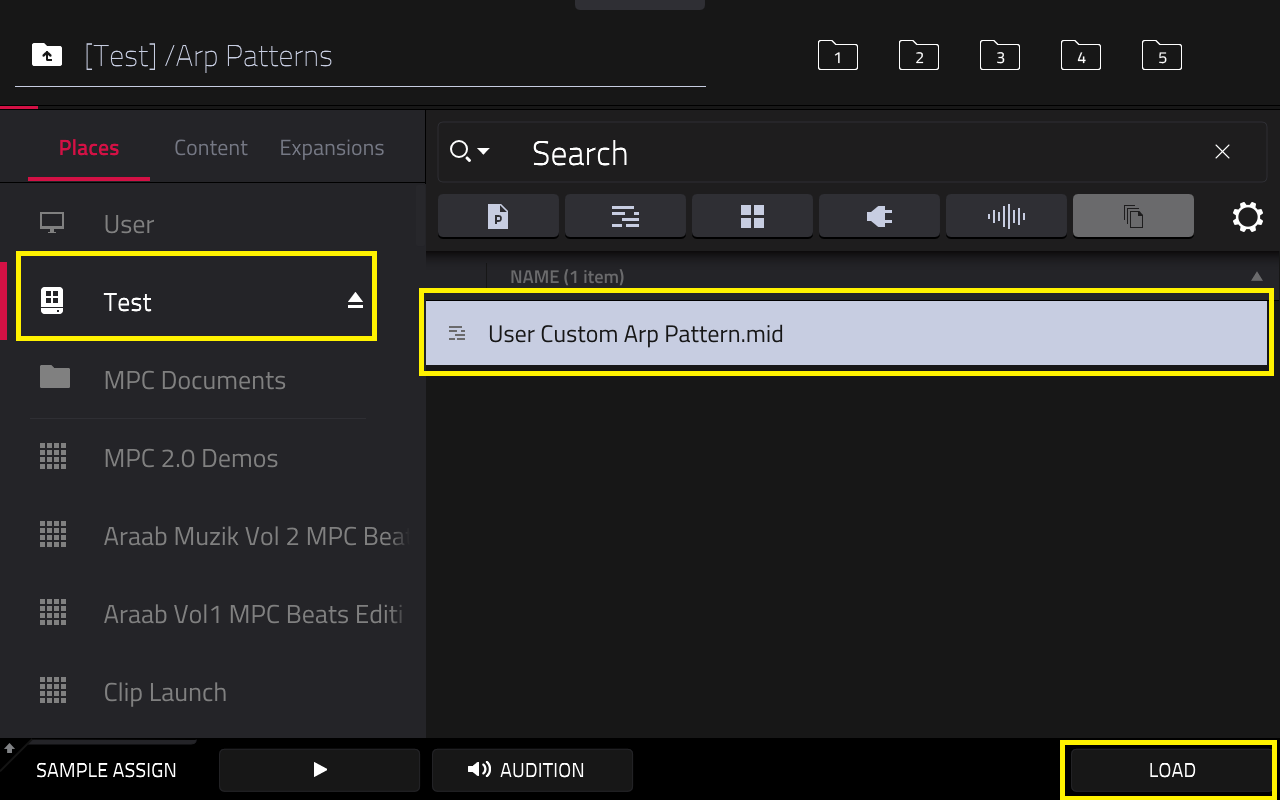
2. The arp (.mid) file will be loaded into the arrangement as MIDI