
MPC 3 OS introduces a new Disk Streaming feature which relies on the performance of the selected disk you are streaming from.
This article will provide guidance on how to manage your drives and resolve disk space and memory warnings on MPC 3 OS (Standalone)
TABLE OF CONTENTS
- Disk Space Low Warning
- Checking Drive Space
- Selecting a Drive - Temporary File Location
- Optimizing the MPC's Internal Drive
Disk Space Low Warning
If you have received the following messages:
- Disk Space Low - Warning Low on Temporary Space
- Please check temporary path in preferences and memory use
This indicates that the currently selected drive you are using in Temporary File Location is almost full.
Drive space can quickly fill up depending on the size of the contents in your project whilst disk streaming.
Checking Drive Space
To start, the first thing you'll need to check isthe available free space on your drive.
1. Do this by pressing the Menu button on your MPC
2. Tap on the CPU/MEM meters in the top-right corner of the screen
3. Select Drives on the right side of the System Resources window
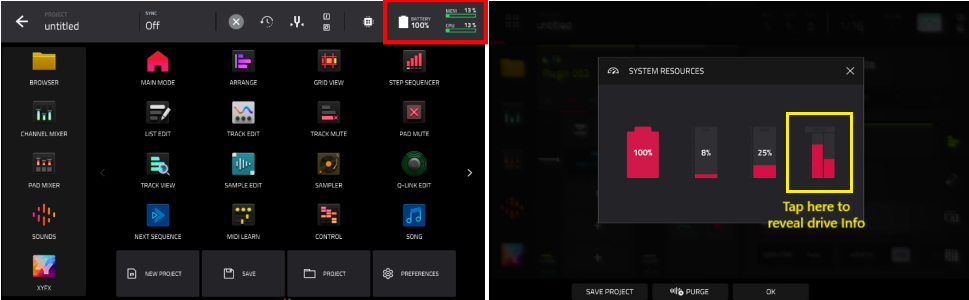
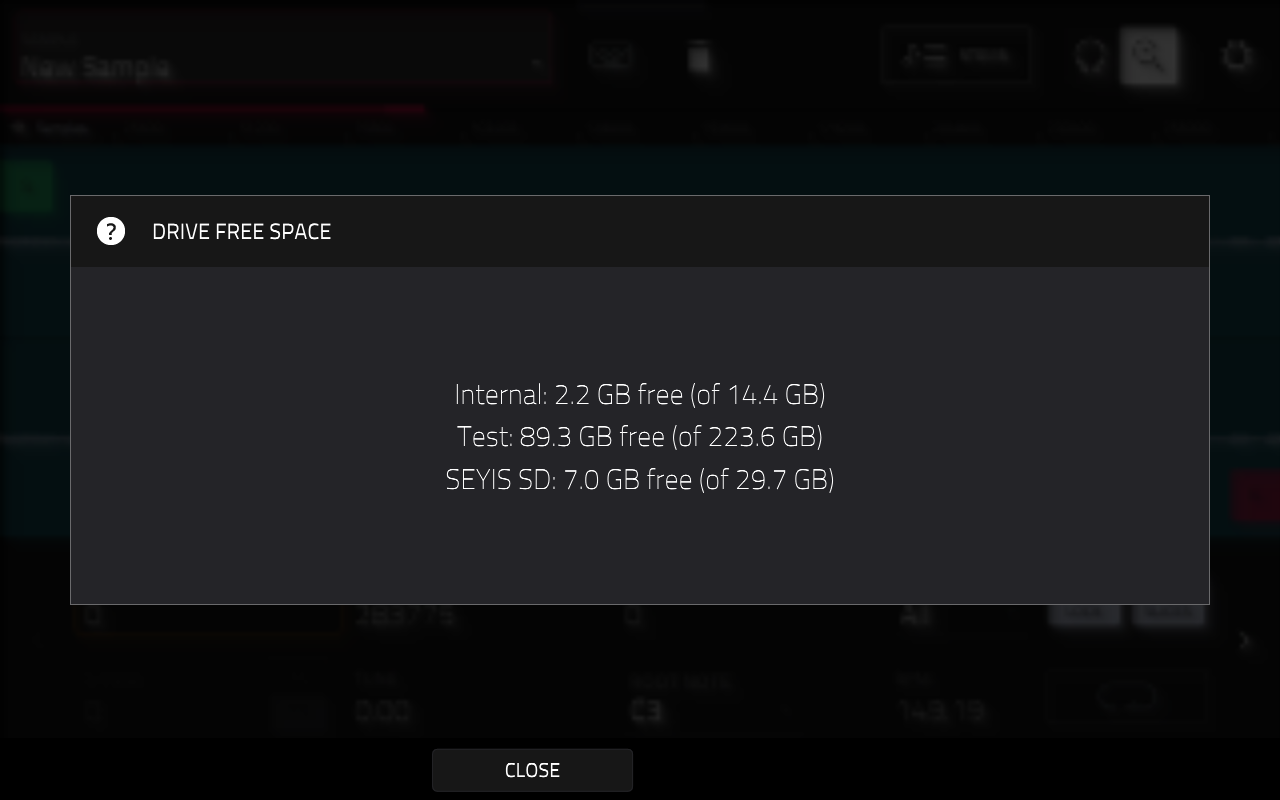
If the free space is low on the drive you are currently using in the Temporary File Location, this will result in the memory warnings. The space on the drive can quickly fill up depending on the size of the contents within your active project.
With this in mind, please see the steps to resolve these warning messages..
Selecting a Drive - Temporary File Location
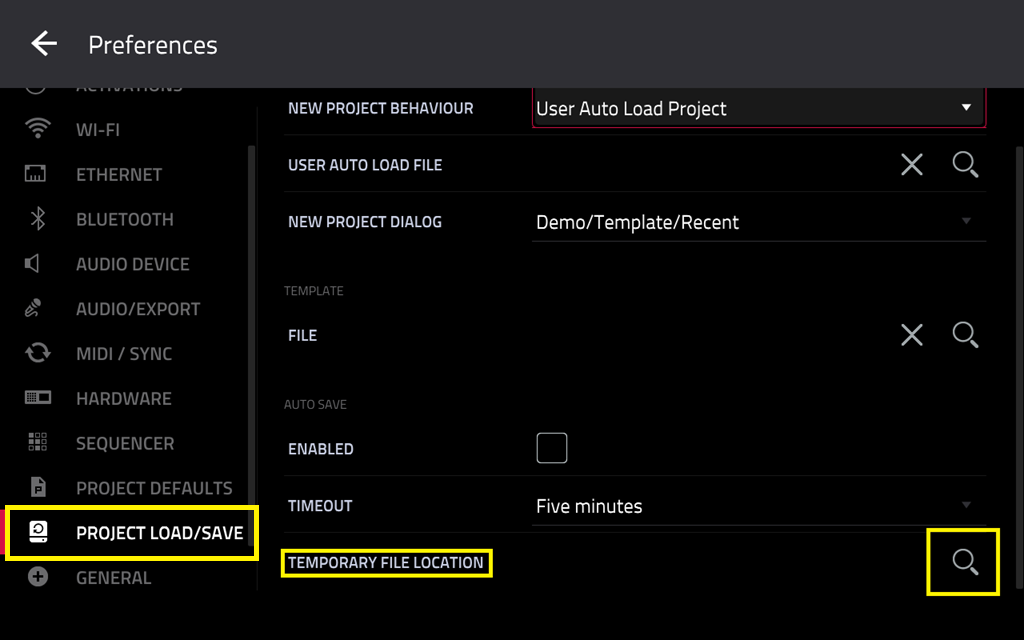
1. On your MPC, go to Menu > Preferences > Project Load/Save
2. Set the Temporary File Location to an external drive formatted to exFAT preferably.
We recommend using a drive with ample space, such as an SSD, SD card or USB drive
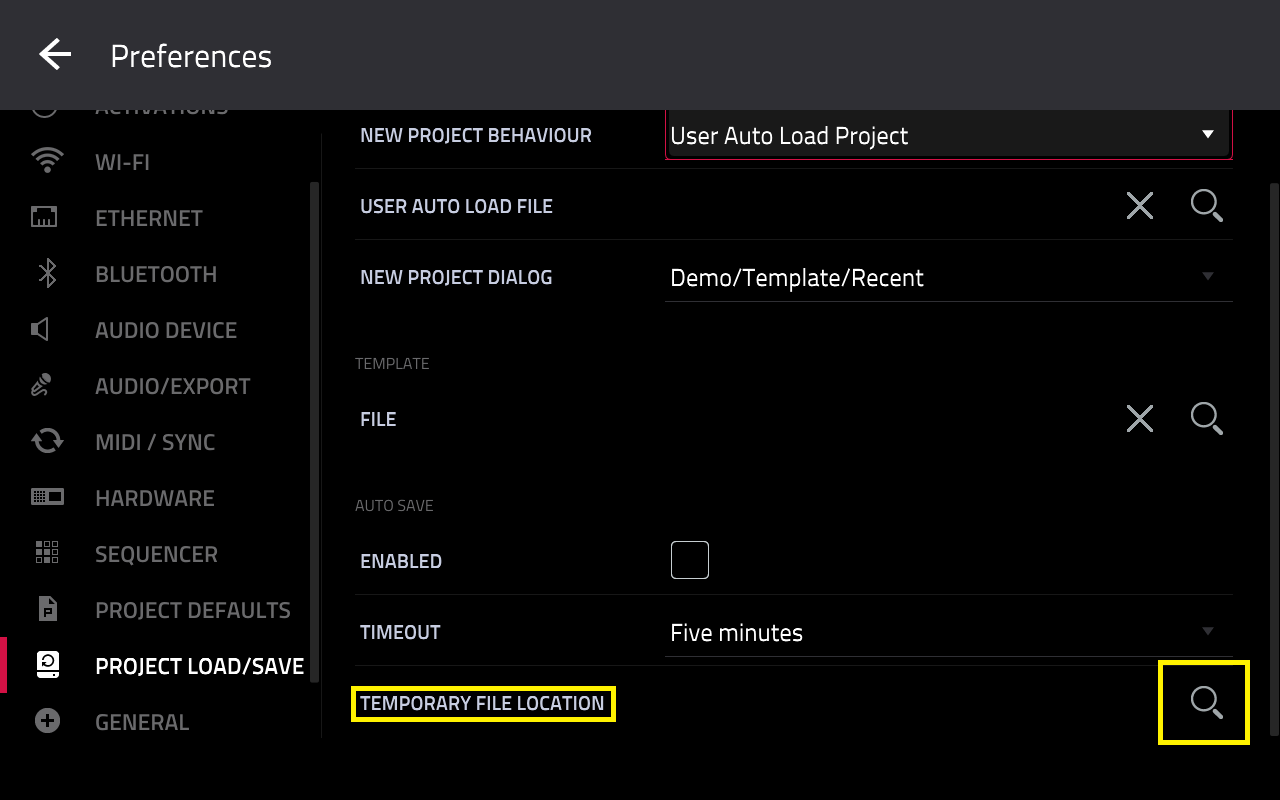
3. After you have selected your drive, the MPC will appear with a dialogue stating: Changes will take effect on reloading or starting a new project - tap OK
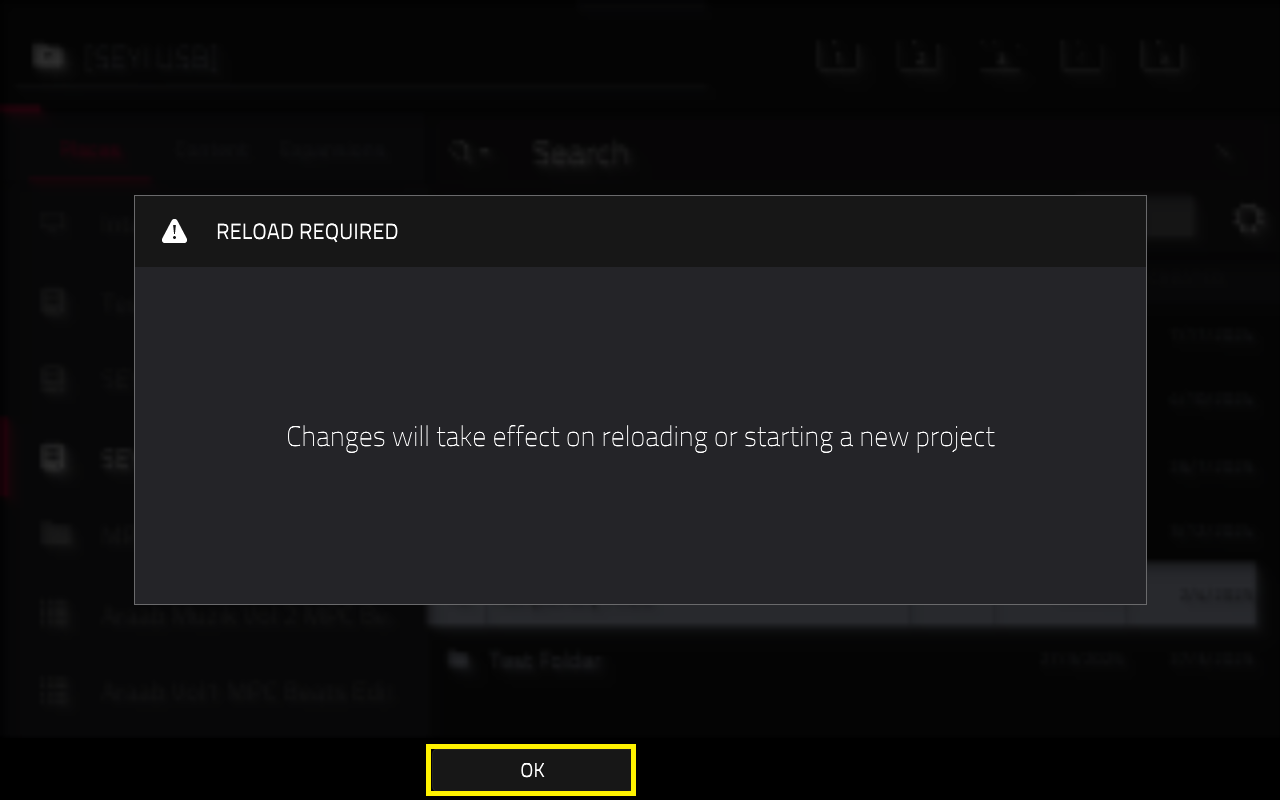
Important: After you have tapped 'OK' - you will need to either create/load a project, or restart your MPC. This ensures that the new drive is officially set as the Temporary File Location.
Once done, you should find that the warning messages no longer appear.
Tip: You may also wish to enable auto save whilst working: Akai Pro MPC Series | Saving Projects with Auto Save
Optimizing the MPC's Internal Drive
Whilst we recommend using an alternative drive (SSD, SD card, USB drive), it is still possible to use the MPC's internal drive as the Temporary File Location.
If you are using the internal drive, and you find that it is low on space - please refer to the following article to optimize it: Akai Pro MPC Series | Optimizing Your MPC's Internal Storage