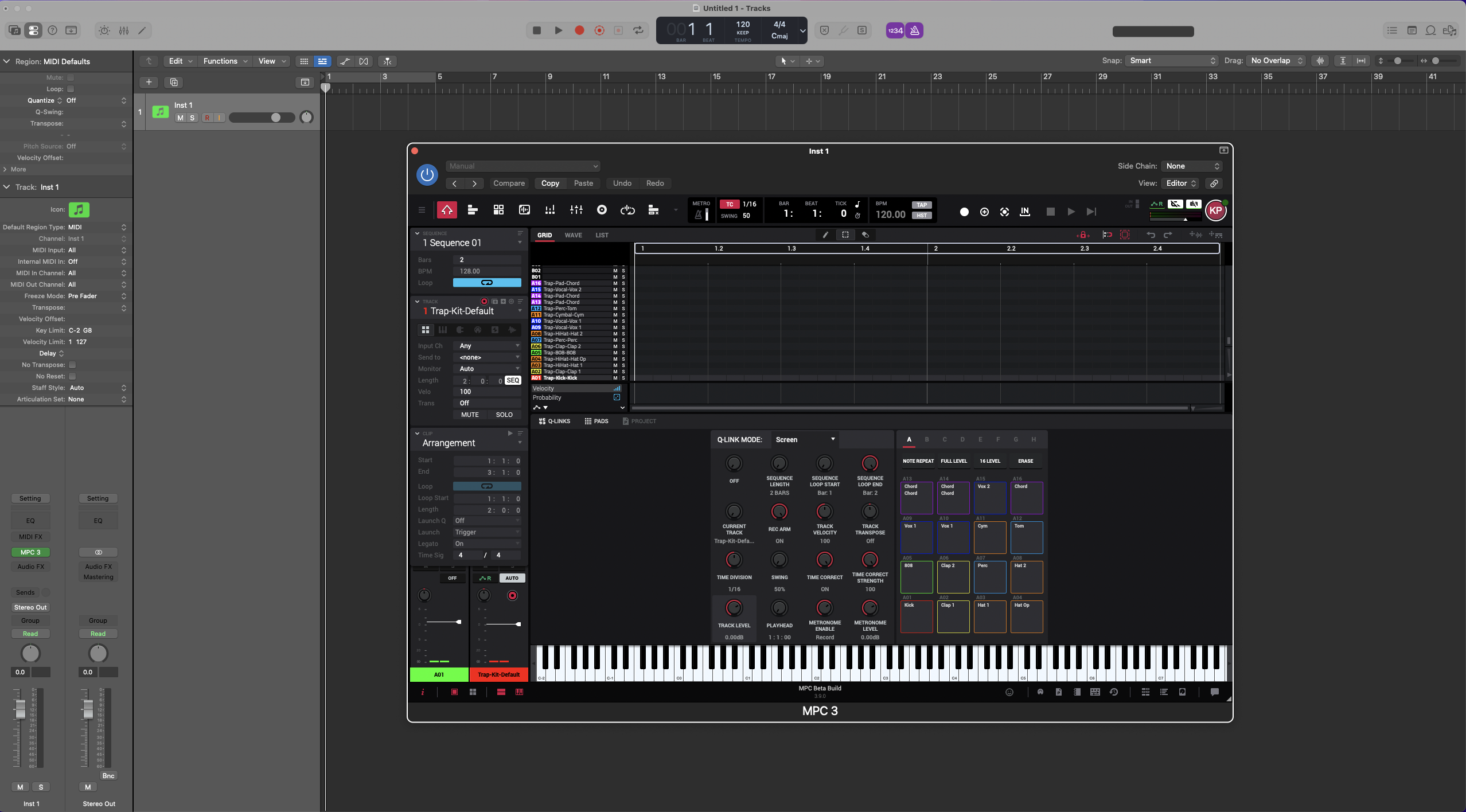
Welcome to this support article on MPC 3 Desktop! The contents of this article contain instructions to help you get started, as well as answers to some frequently asked questions.
TABLE OF CONTENTS
- What is MPC 3 Beats?
- How do I get MPC 3 Beats?
- How do I get MPC 3 Desktop?
- Which MPC Hardware supports MPC 3 Desktop?
- What are the minimum system requirements for MPC 3 Desktop?
- I own MPC 2, but not MPC hardware - Can I still receive MPC 3 Desktop?
- Are my MPC Hardware Drivers compatible with MPC3 Desktop?
- Where can I find the user manual for MPC 3 Desktop?
- The arranger view is not working - Is this normal?
- I'm experiencing a bug with MPC 3 Desktop; how should I report it?
- Does my MPC Hardware need to run MPC 3 firmware to work with MPC 3 Desktop?
- Is MPC 3 Desktop Licensed?
- Can I still use MPC2 Desktop if I have MPC3 Desktop Installed?
- Does the MPC3 Desktop Beta include any plugin builds?
What is MPC 3 Beats?
MPC 3 Beats is the new free tier of the MPC 3 desktop software, designed to give customers an accessible way to start making music using the MPC workflow.
Unlike the previous MPC Beats software, MPC 3 Beats is designed to run within the same MPC 3 application used by the full version of MPC 3. This means you will not need a separate MPC Beats application.
The free and full experiences use the same Windows/macOS installer and application, with the available feature set determined upon activation.
How do I get MPC 3 Beats?
MPC 3 Beats is available as a free download via the inMusic Software Center
- Download the inMusic Software Center
- Log in to your inMusic Profile or create an account
- Navigate to the Free Software tab
- Download MPC Beats
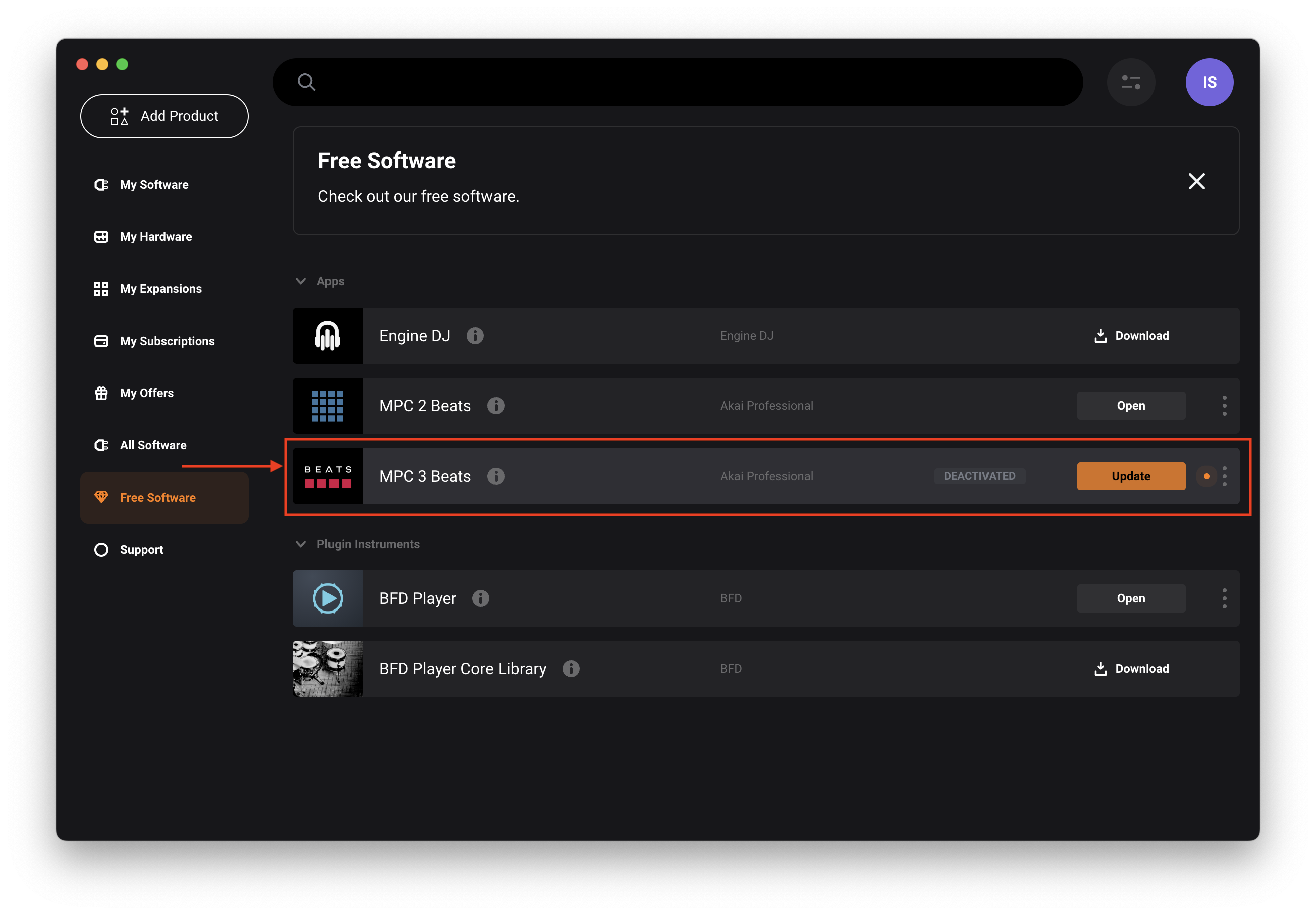
Note: If you already have MPC 3 Desktop, or if you redeemed the Desktop Beta... MPC 3 Beats will not be available, and the full MPC 3 Desktop software will be available for download.
How do I get MPC 3 Desktop?
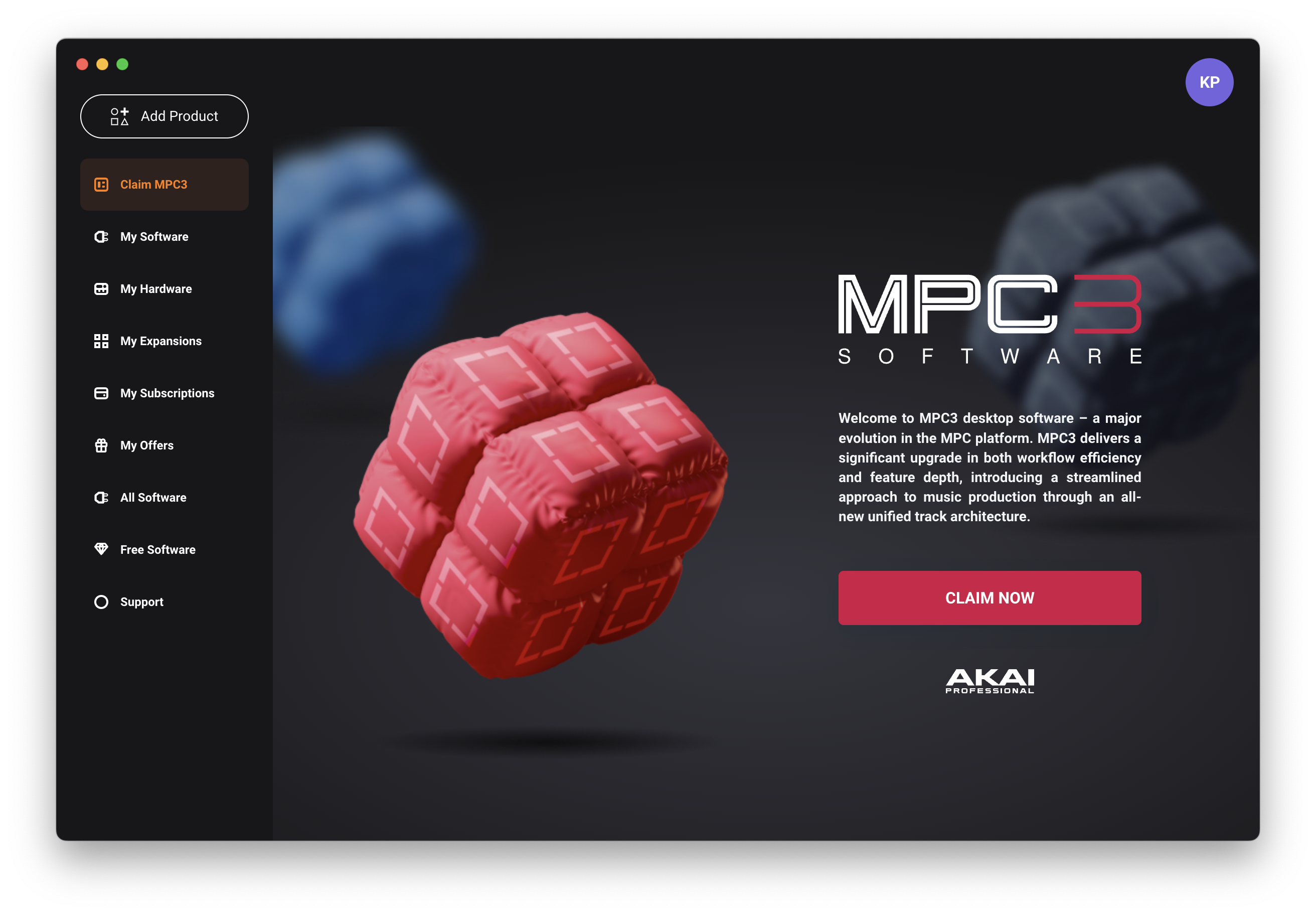
Users who have registered qualifying MPC hardware to their inMusic Profile can redeem MPC 3 Desktop via the inMusic Software Center.
Note: If you already redeemed the MPC 3 Desktop Beta, you do not need to repeat these steps.
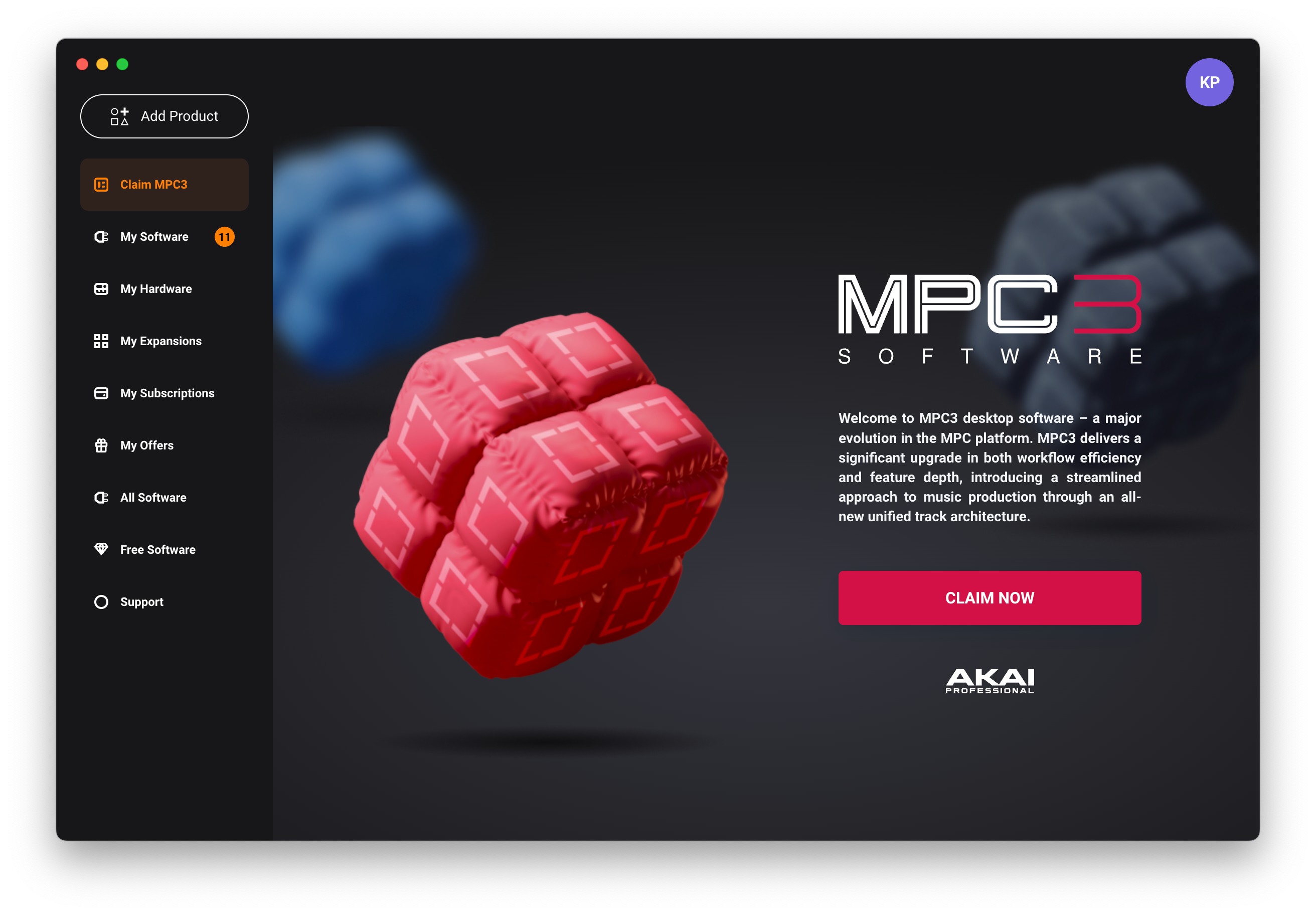
- Log in to your inMusic Profile via the inMusic Software Center
- Claim MPC will appear upon login
- Click CLAIM NOW
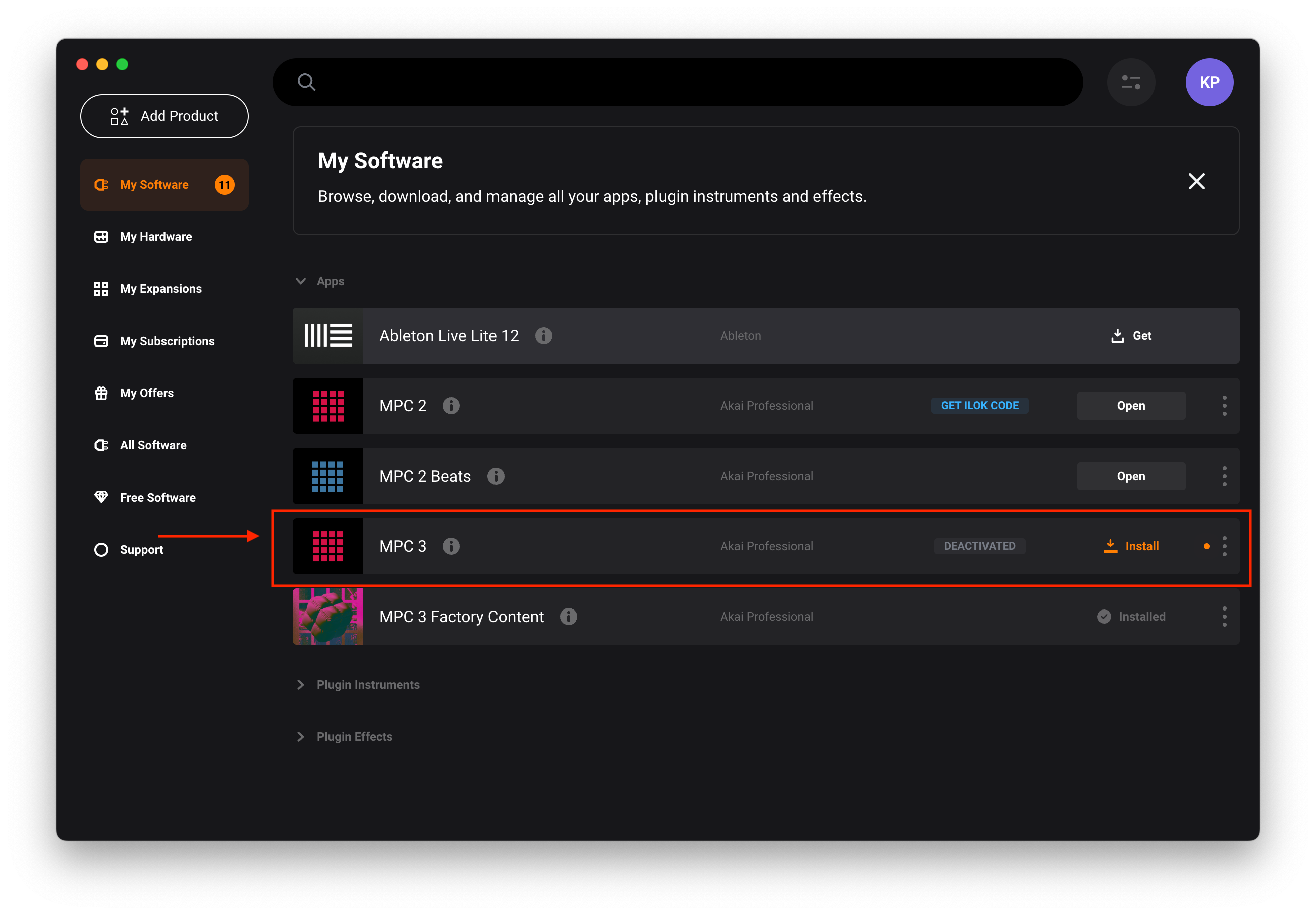
- Click the My Software tab
- Download MPC3 Desktop
If you do not own qualifying MPC Hardware, MPC 3 Desktop is available for purchase here: https://www.akaipro.com/mpc3/
Which MPC Hardware supports MPC 3 Desktop?
- MPC Key 37 G2
- MPC One G2
- MPC XL
- MPC Live III
- MPC Key 37
- MPC One+
- MPC X Special Edition
- MPC Key 61
- MPC One
- MPC Live II
- MPC X
- MPC Live
- MPC Studio MK2
What are the minimum system requirements for MPC 3 Desktop?
Windows
Windows 10 (21H2) - Windows 11 (26H2)
2GB free disk space (20GB for all content recommended)
4GB RAM (8GB recommended)
Dual-core 2.5GHz CPU
Internet connection
Mac
macOS 15 - 27 (Intel and M Chip compatible - check Specific MPC Models for Driver Support)
2GB free disk space (20GB for all content)
4GB RAM (8GB recommended)
Dual-core 2.5GHz CPU
Internet connection
I own MPC 2, but not MPC hardware - Can I still receive MPC 3 Desktop?
Yes - MPC 3 Desktop is a free update for existing MPC2 users.
If MPC 2 was purchased from the Akai Pro site / MPC Store, MPC3 Desktop will be available to claim via your inMusic Profile in the inMusic Software Center.
If you purchased MPC 2 from a third-party seller and find MPC3 Desktop is missing from your inMusic Profile account, please contact our support team for assistance.
Are my MPC Hardware Drivers compatible with MPC3 Desktop?
Yes - The latest drivers from the inMusic Software Center are compatible with MPC3 Desktop.
To check whether your computer is running the latest driver for your MPC Hardware...
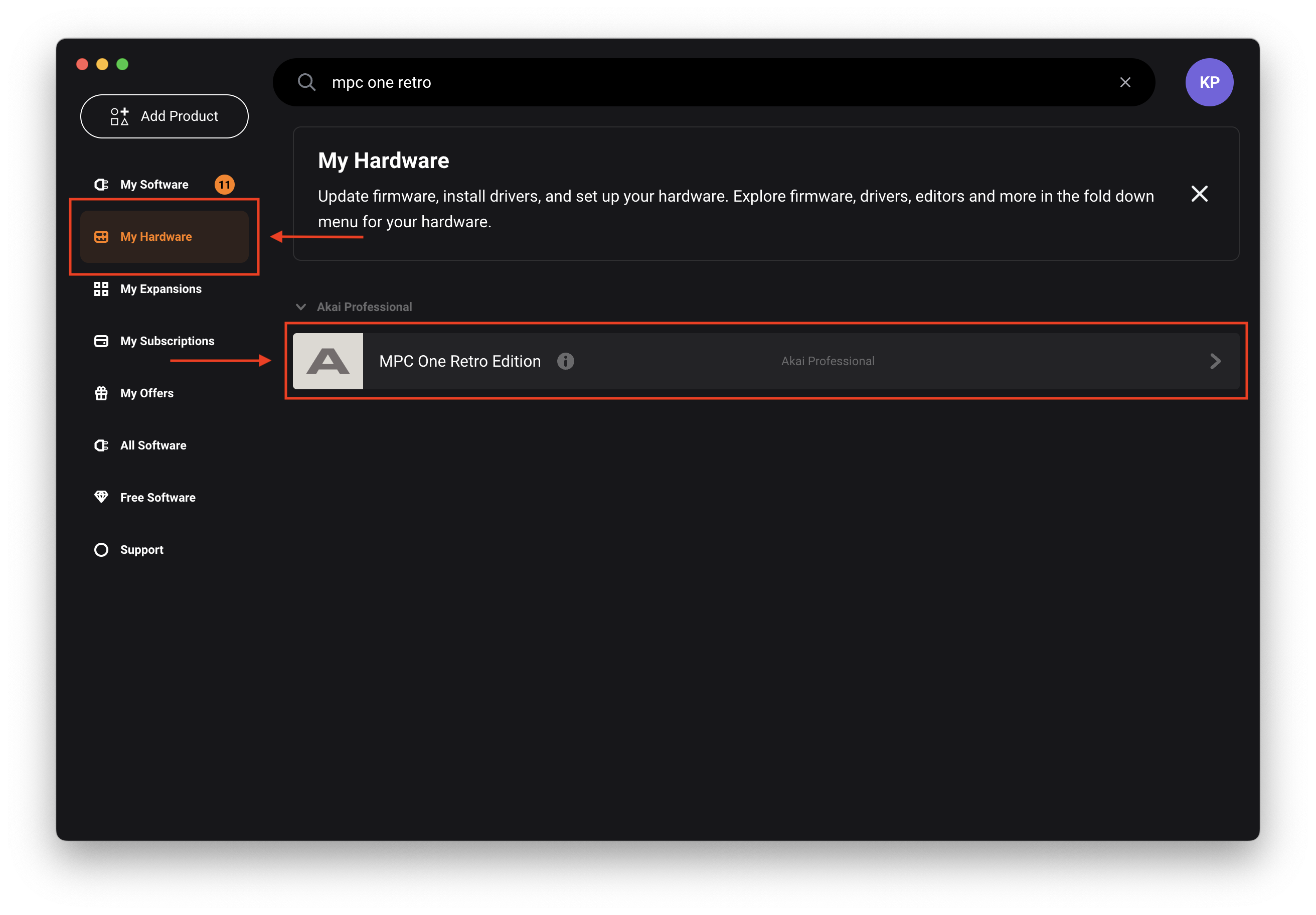
- Navigate to the inMusic Software Center Application.
- Click the 'My Hardware' tab
- Locate your MPC and click on it
- Scroll down to locate the driver. If the option 'Installed' is greyed out, you are already running the latest driver.
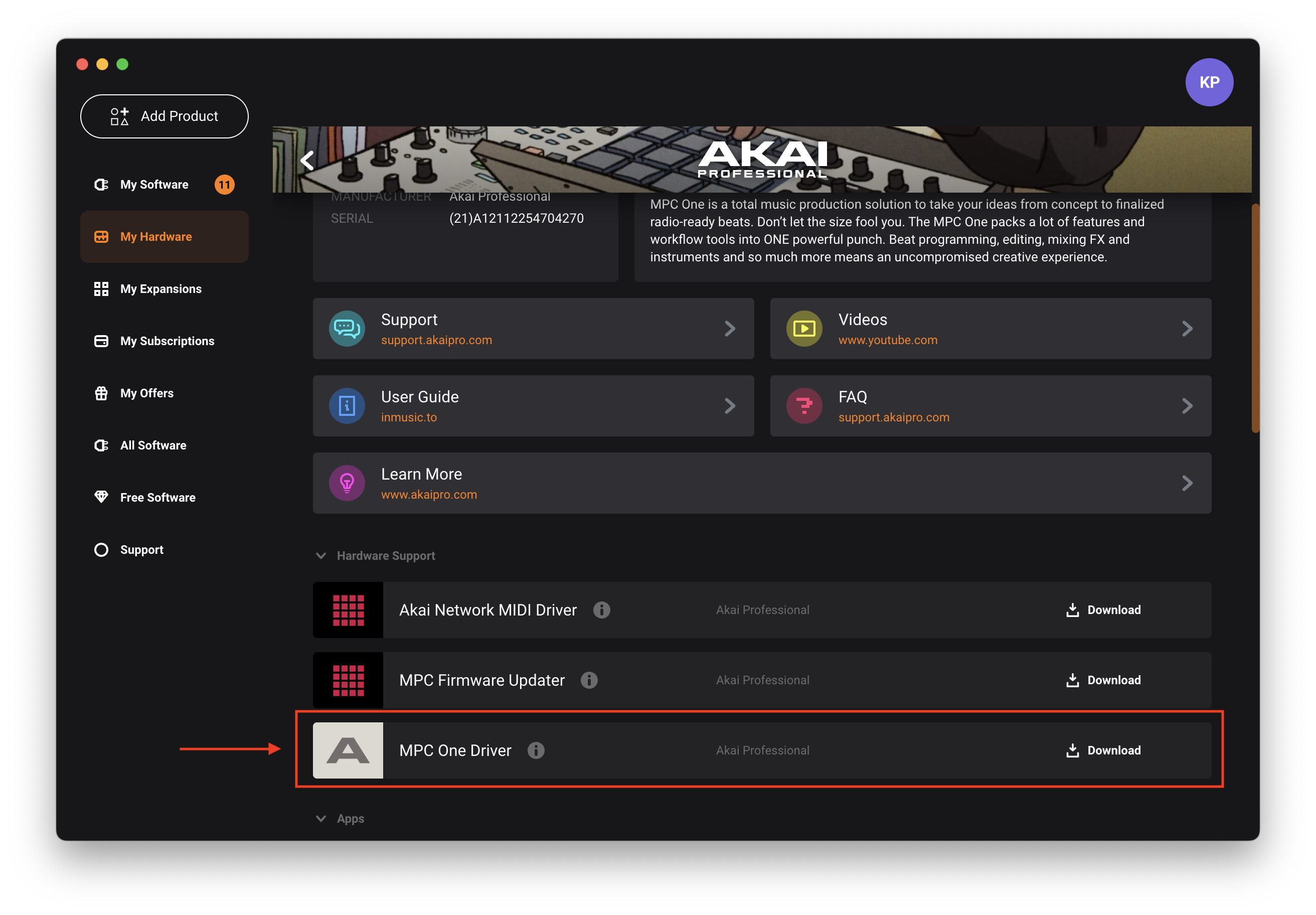
- If you are prompted to update/download/install the driver, please proceed.
Where can I find the user manual for MPC 3 Desktop?
Please find the latest user manual for the MPC 3.10 Desktop hyperlinked HERE
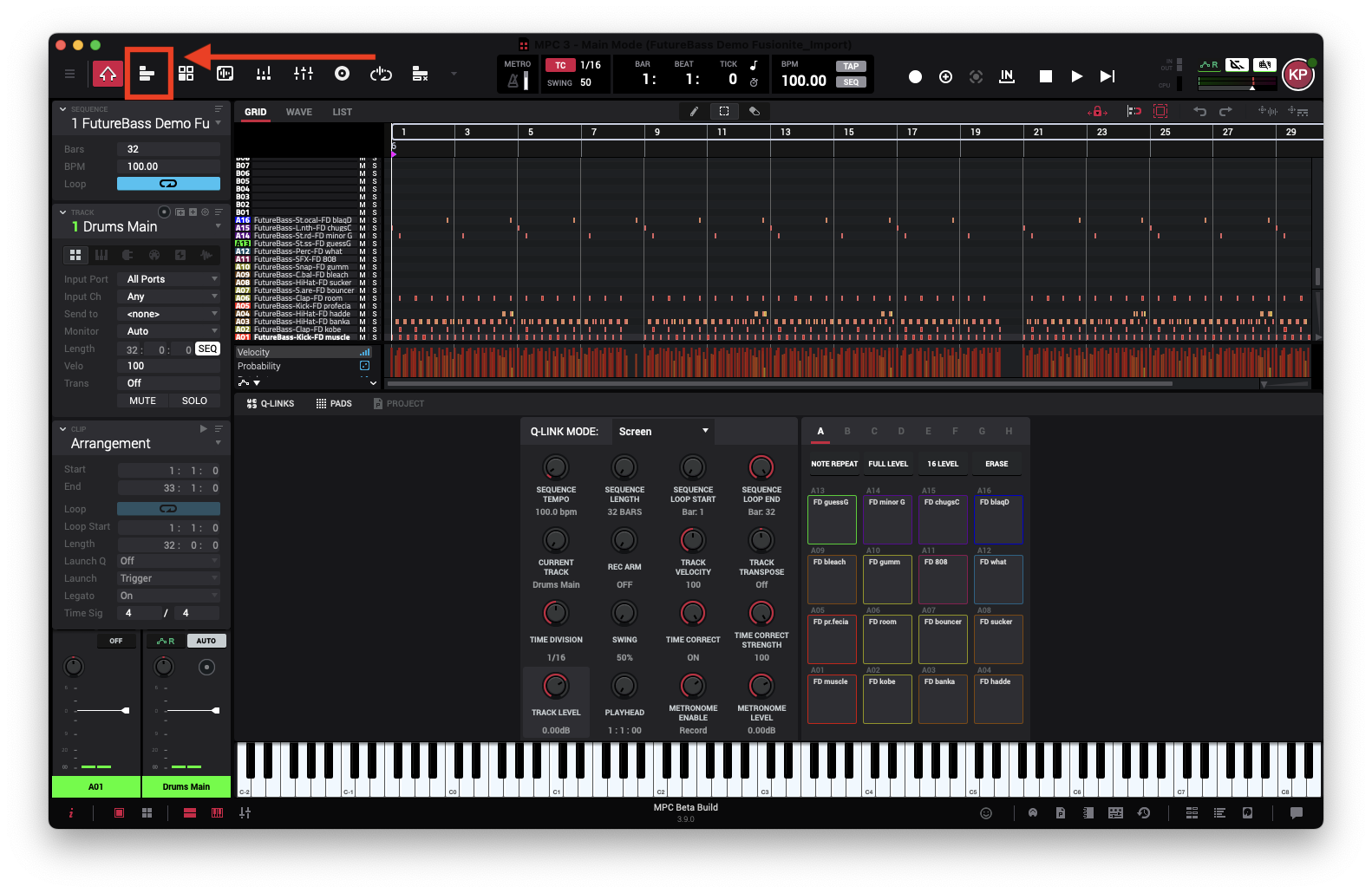
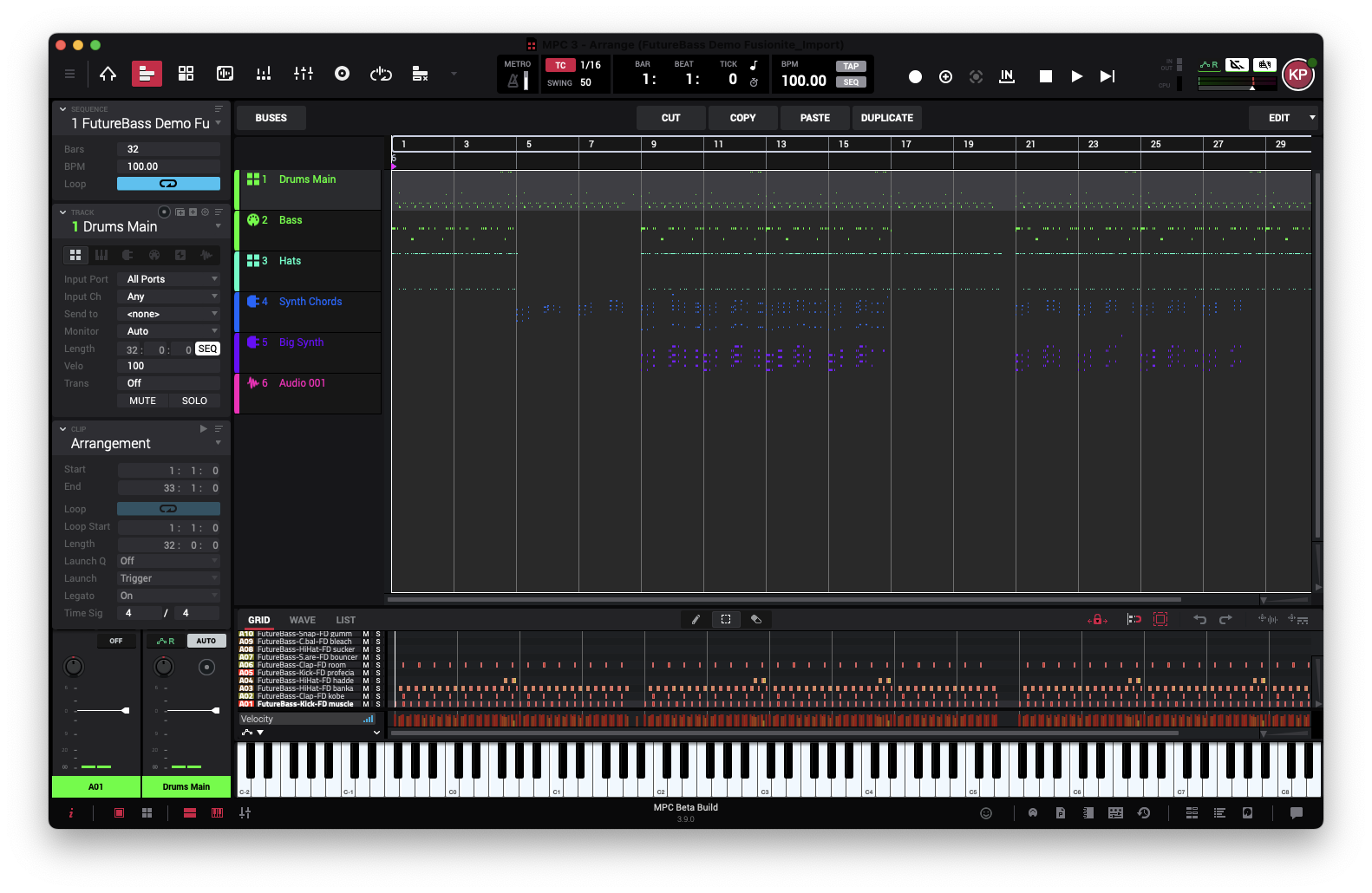
The arranger view is not working - Is this normal?
If the arranger view icon isn't reacting, you'll need to update to MPC Desktop 3.10 as you'll likely be running an older beta build.
To update, see the steps below:
- Close / Quit MPC3 Desktop
- Launch the inMusic Software Center
- Click 'My Software'
- Locate (or search) MPC 3
- Click 'Update'
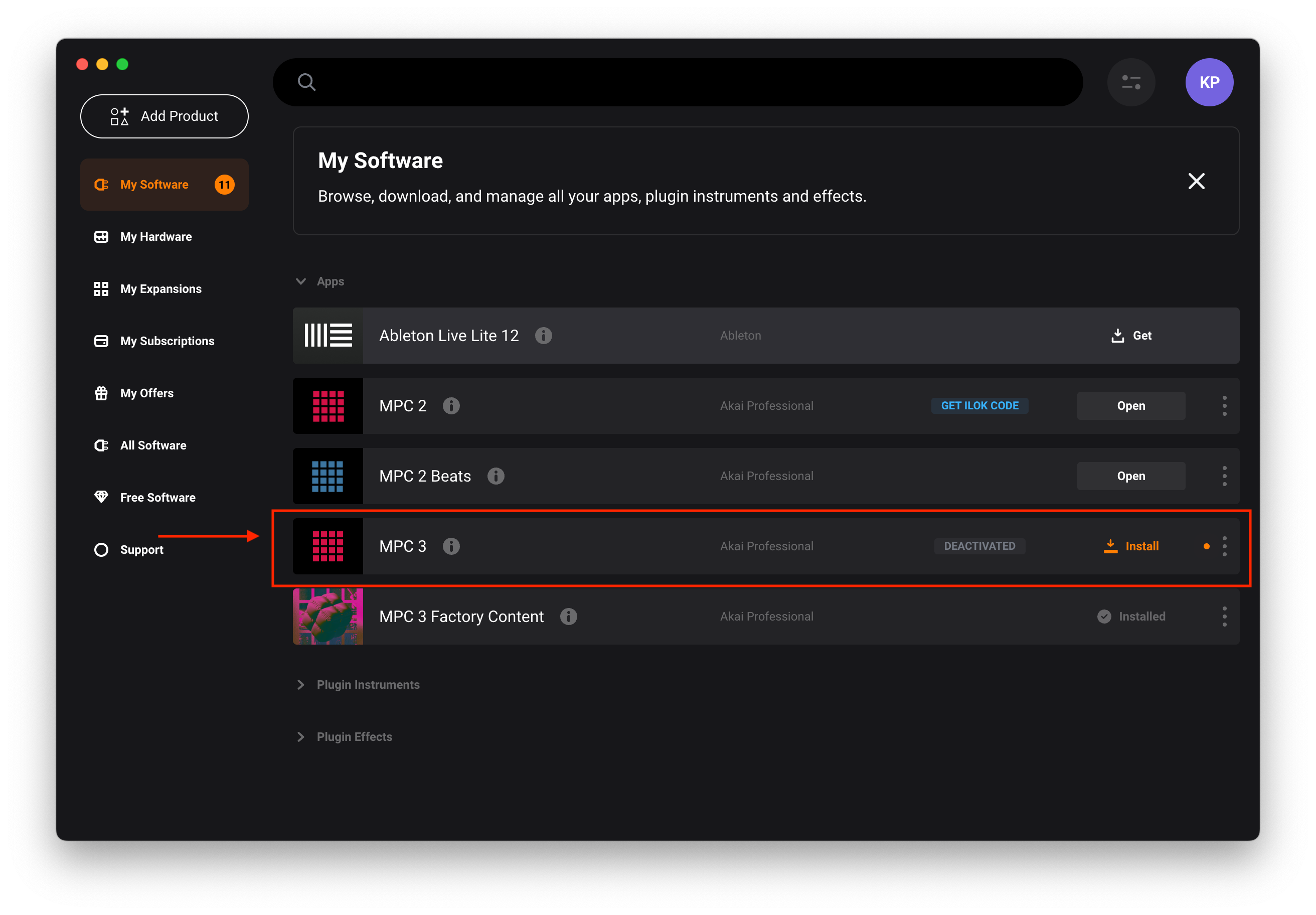
Launch MPC3 and the arranger view will behave as expected:
I'm experiencing a bug with MPC 3 Desktop; how should I report it?
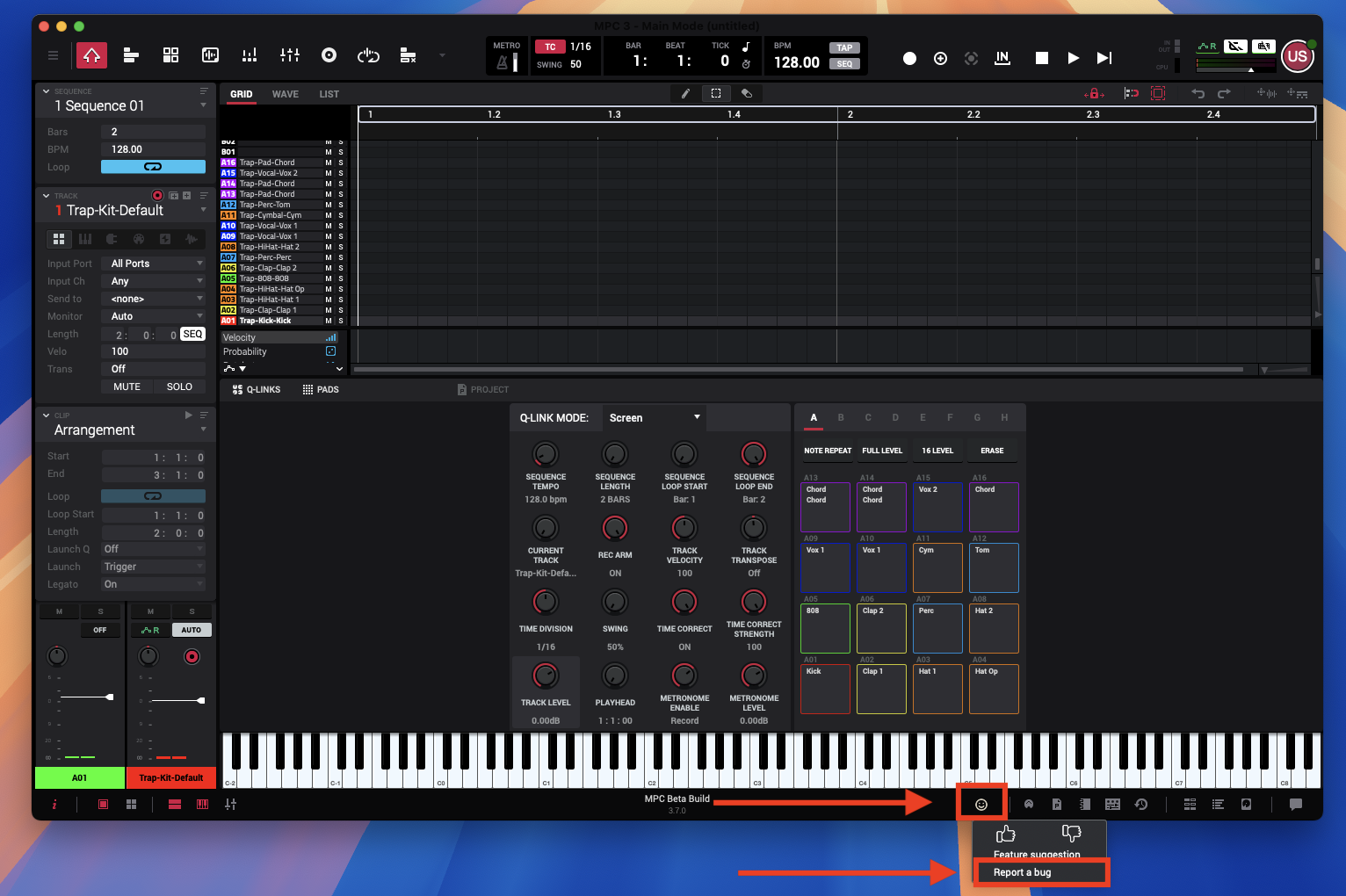
To report a bug from within the MPC3 Desktop Software:
- Launch MPC3 Desktop
- Locate the 'Smiley Face' icon towards the bottom right of your screen
- Click on the 'Smiley Face'
- Click 'Report a bug.'
Users may also report a bug associated with MPC 3 Desktop by visiting THIS page.
Does my MPC Hardware need to run MPC 3 firmware to work with MPC 3 Desktop?
Yes - The MPC 3.10 Firmware update for standalone hardware has been released alongside the MPC 3.10 Desktop.
Your MPC Hardware requires the 3.10 update in order to be seen by the MPC 3.10 Desktop software.
If you are running an earlier build of MPC firmware released before 3.10, your MPC Hardware will not be seen by MPC 3.10 Desktop until you update.
Note: If you own MPC Studio MKII, this information does not apply.
Is MPC 3 Desktop Licensed?
Yes, MPC 3 Desktop is licensed and provides up to 3 activations between your computers; however, it does not use iLok (as seen with MPC2).
If you have yet to generate a license and add it to your inMusic Profile - Please see the steps at the start of this article
MPC 3 Beats is free and does not require a separate license.
Can I still use MPC2 Desktop if I have MPC3 Desktop Installed?
Yes - Your computer will identify MPC2 & MPC3 Desktop as two entirely different applications.
Does the MPC3 Desktop Beta include any plugin builds?
Yes - MPC 3.10 Desktop offers VST3, AU & AAX versions of the application to load in your favourite DAW
Note: If AAX is missing, please run the 3.10 update via the inMusic Software Center - AAX support has been added from MPC 3.10.