
The MPC 3.7 firmware update introduces a library of Partial Pad Presets for Drum Tracks to accelerate sound design and creative experimentation. This feature is found when you load a Drum track, then navigate to Track Edit Mode > Samples Tab

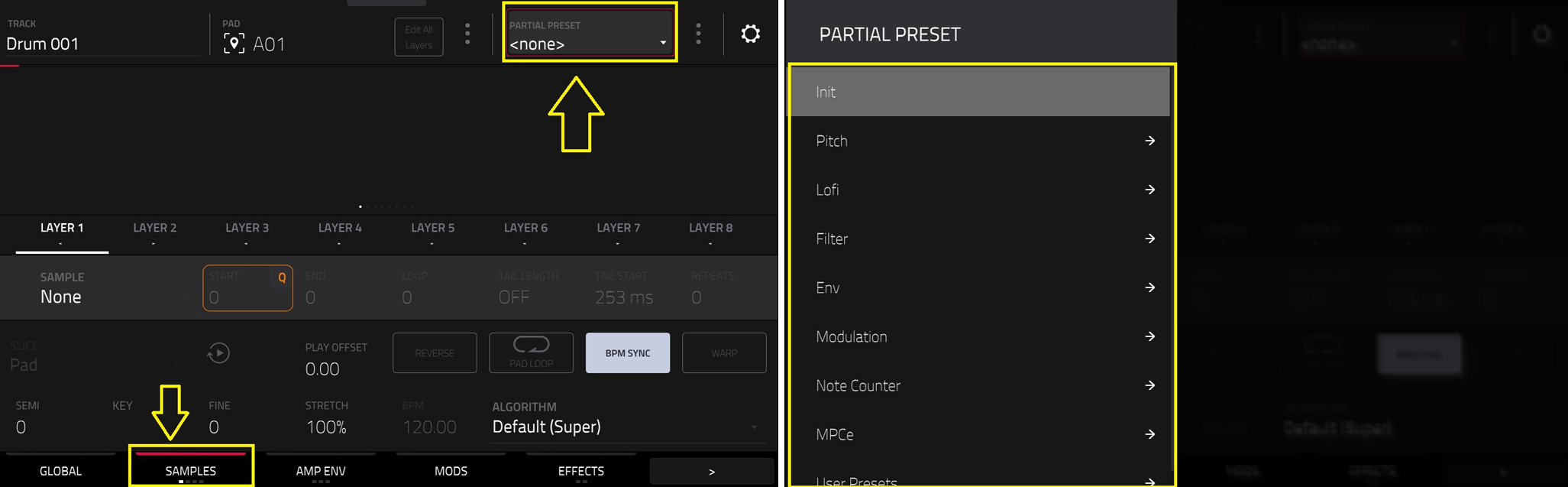
A Partial Pad Preset (.xid) contains the complete state of the synthesis engine that processes a pad, along with a selection of key setup parameters. These presets instantly apply rich, preconfigured signal paths and modulation routings, allowing you to quickly explore advanced configurations without starting from scratch.
This article will cover the steps to manage the pad partial preset file (.xid) after it has been saved to the MPC's Internal drive or your own user drive.
TABLE OF CONTENTS
- Saving Partial Pad Presets (.xid file)
- Managing the .xid preset file - Gen 2
- Managing the .xid preset file - Gen 1
Saving Partial Pad Presets (.xid file)
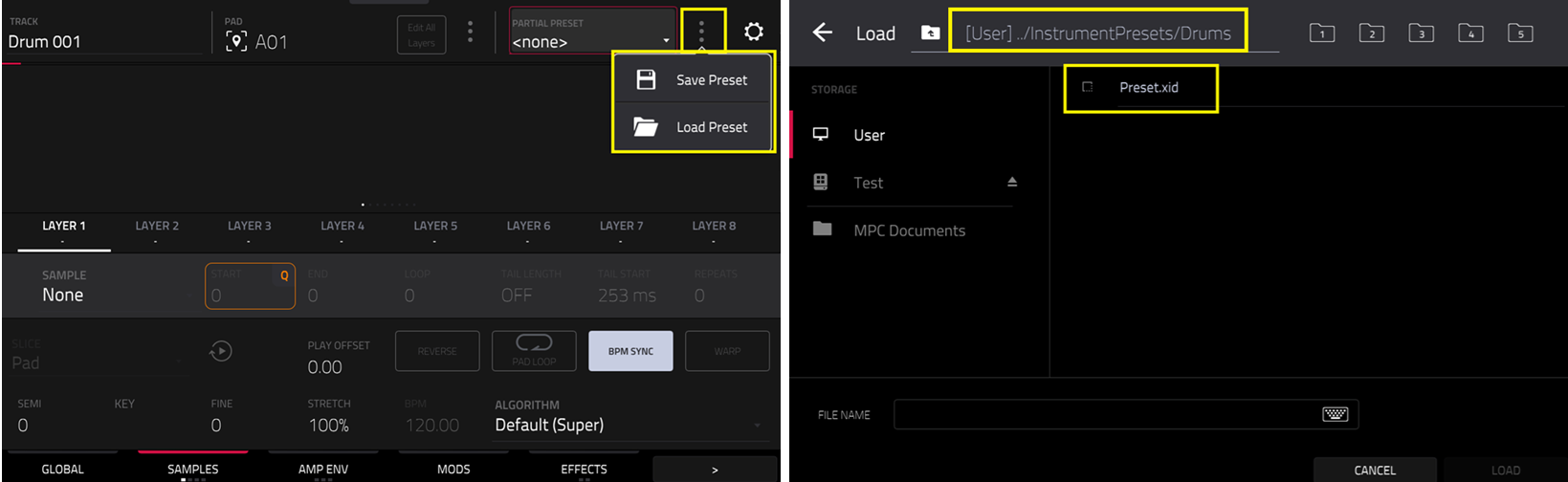
Please see the following steps to take to manage the file after it has been saved.
Managing the .xid preset file - Gen 2
Gen 2 MPC's include the MPC Live III and MPC XL
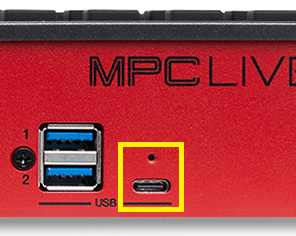
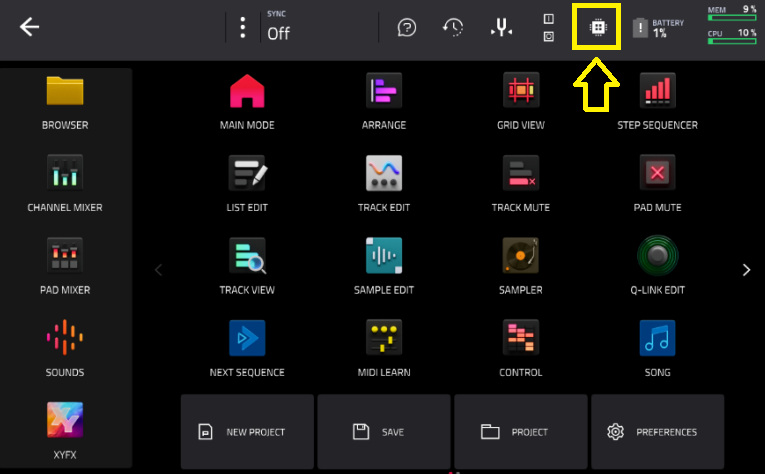
3. You can also view/copy/delete the .xid file when connecting the MPC to your computer (via USB-C) and place the MPC in controller mode
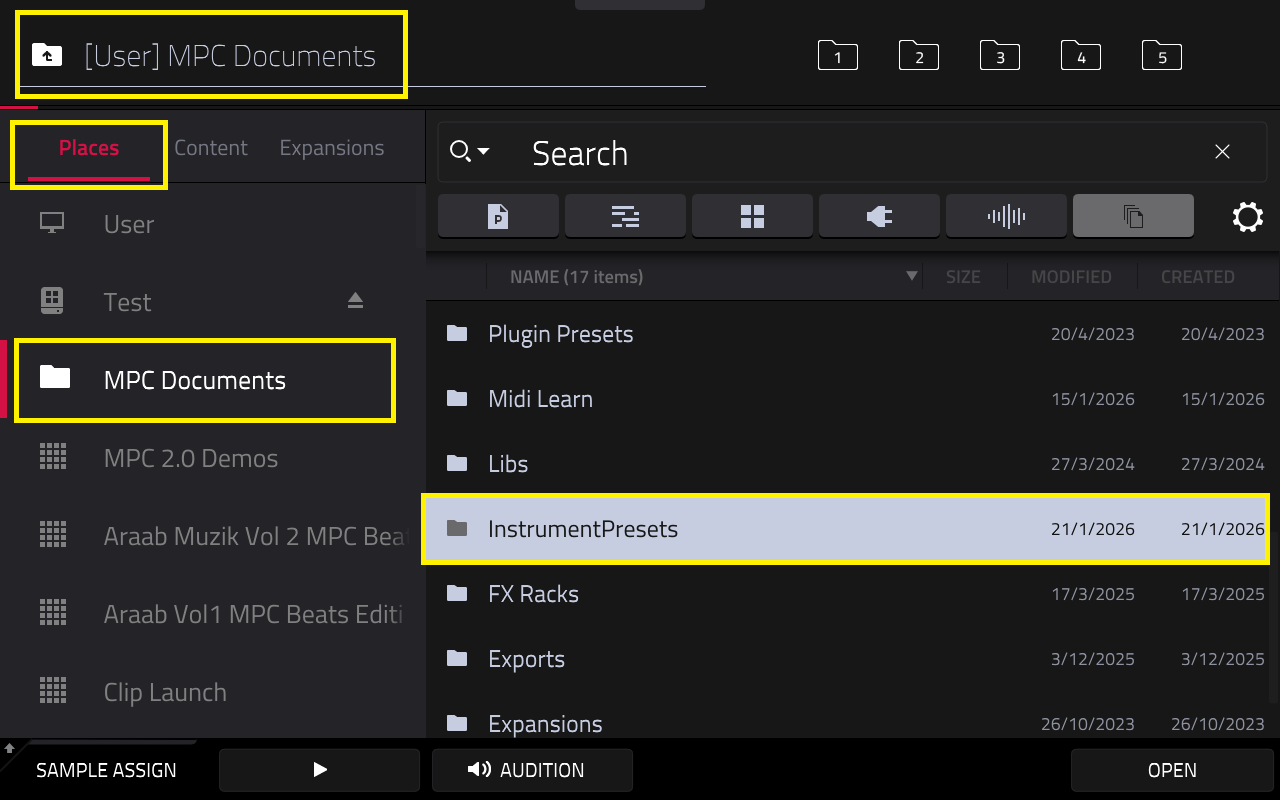
4. Once done, go to MPC User > MPC Documents > InstrumentPresets > Drums. You can view/copy/delete the .xid file from your computers file browser.
5. Alternatively, if you have saved the file to your own user removable drive (SD card or USB drive) - place the MPC in controller mode or connect the drive to your computer. You can view/copy/delete the .xid file from your computers file browser.
Managing the .xid preset file - Gen 1
Gen 1 MPC's include the MPC Live, Live II, One, One+, X, X SE, Key 61 and Key 37.
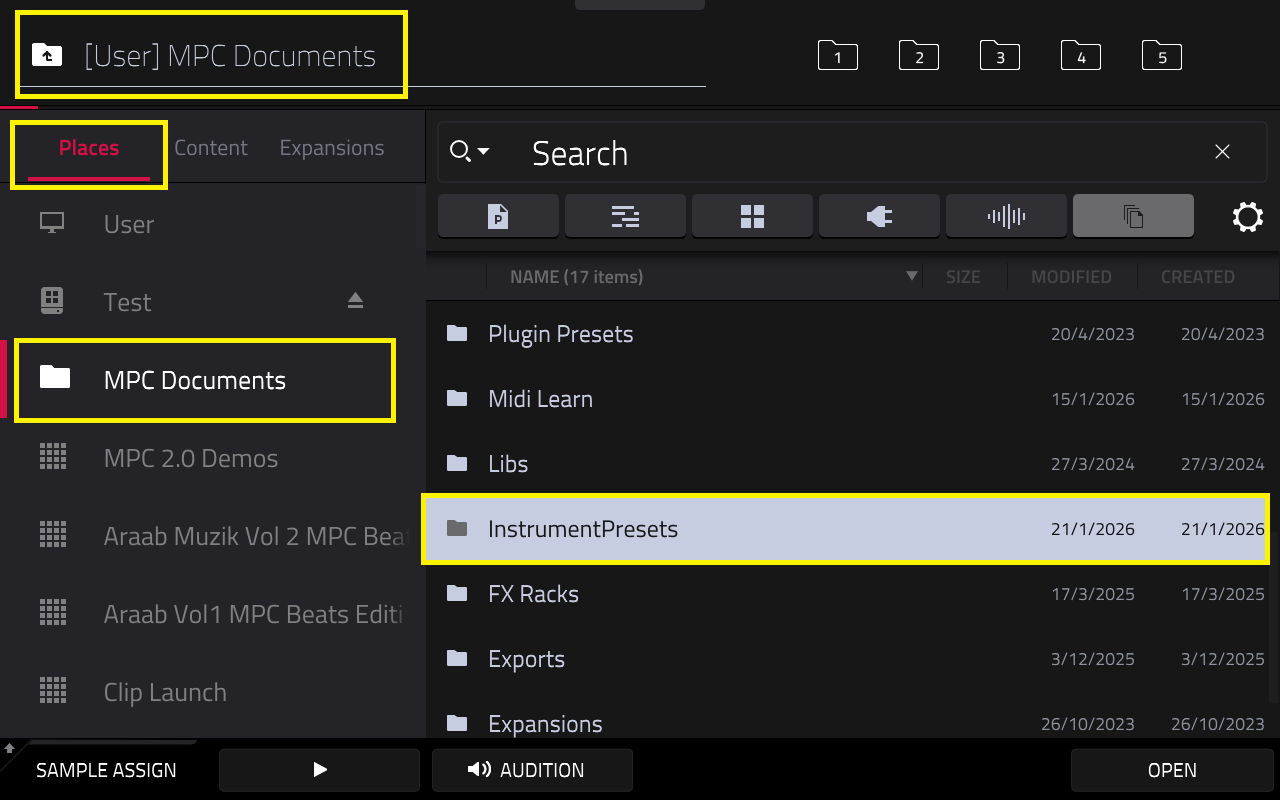
Important Note: it is only possible to delete the .xid preset file from the internal drive - it is not possible to make a copy of the file.
For this reason we recommend saving the file to a user drive (a SSD, SD card or USB drive) this gives you the option to view/copy/delete the .xid file in your computers file browser.
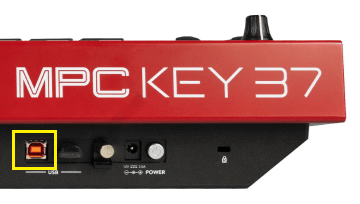
1. Connect the MPC to your computer (via USB-B) and place the MPC in controller mode
2. Once done, go to the location you saved the file om your drive, you will be able to view/copy/delete the .xid file from your computers file browser.
3. Alternatively, you can insert your removable drive directly to your computer. Kindly refer to the following article for further guidance on this process: Akai Pro MPC Series | Transferring Content to and from the MPC via a Computer : Akai Professional