Akai Pro MPK mini Series | How To Play Pads and Keys At The Same Time In Any DAW

In this guide, we will walk through the steps to configure your MPK mini to trigger the drum pads and keys simultaneously in a DAW.


TABLE OF CONTENTS


MIDI Channels Overview


MIDI channels allow different parts of your controller to communicate independently with your DAW. In this case, the pads and keys transmit their MIDI data on different channels, meaning you can assign them to control different instruments or sounds at the same time.

For example:

  • The keyboard (Channel 1) could play a piano or synth.

  • The pads (Channel 10) could trigger drums.

Understanding MIDI channels gives you greater control over routing and layering sounds, allowing you to perform and produce more flexibly within your DAW.


Feel free to use the below links to view the set up steps for your MPK Mini model:


MPK Mini IV


The Global Menu is used to customize the hardware device settings of MPK mini IV.


Important: These settings can only be changed for User Presets. They cannot be changed while using the DAW or Plugin Presets to maintain mapping compatibility. 


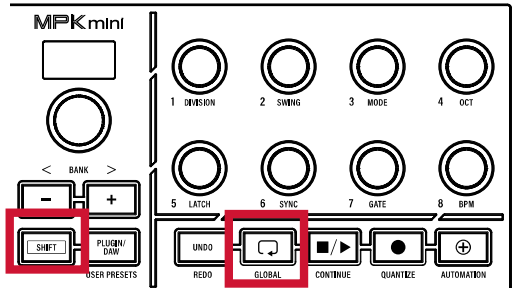
1. To open the Global Menu, press and hold SHIFT and then press the LOOP button. Use the encoder to browse and edit the following settings.


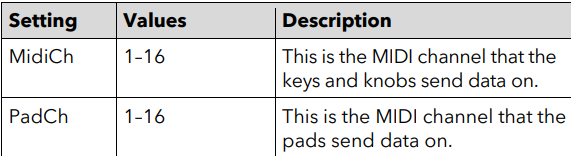
2. To change the MIDI Channel for the keys. Navigate to 'MidiCh' and select 1


3. To change the MIDI Channel for the pads. Navigate to 'PadCh' and select 10


4. To save, hold SHIFT and press the OCT + button. Use the encoder to select a User preset slot, and then press it to confirm. 


5. When you are finished editing, press the PLUGIN/DAW button to exit. 


6. To load a custom program, hold SHIFT and press the PLUGIN/DAW / USER PRESETS button. Use the encoder to browse and select the desired preset from the list. 


7. In your DAW, Create 2 MIDI tracks:

  • Set one track to MIDI Channel 10 (for pads)
  • Set the other track to MIDI Channel to 1 (for keys)
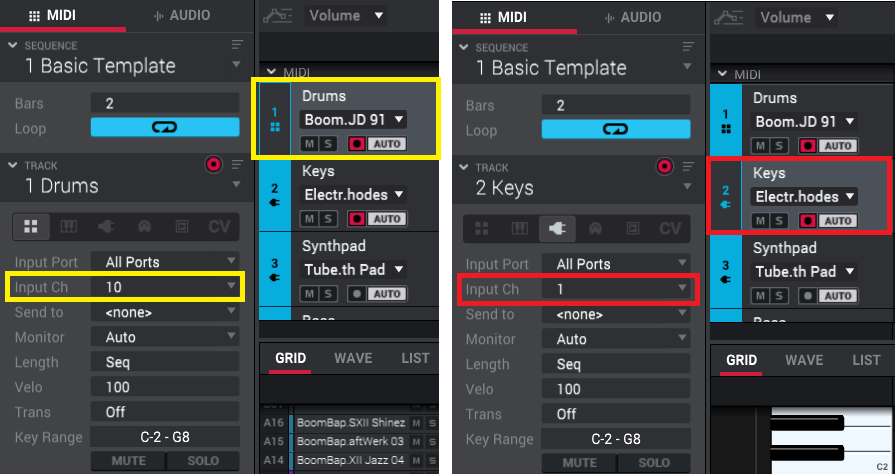
     
  • Ensure both tracks are record-armed (this allows you to play MIDI on both tracks at the same time)
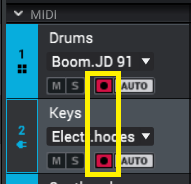


After this, you should have the ability to play both the keys and pads simultaneously.


MPK Mini Plus
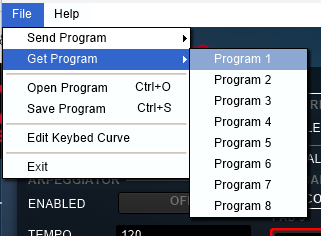

1. Download and install the MPK Mini Plus editor for your device at MPK Mini Plus Downloads | Akai Pro 

2. Ensure that you have fully closed down all music making DAW apps or MIDI apps before opening the MPK Mini editor as other applications may be trying to take MIDI priority of the MPK Mini which will cause issues when making changes from the editor to your MPK Mini. 

3. Open the MPK Mini Plus editor

4. Connect the MPK Mini Plus to your computer via USB

5. If you have a specific program you are using, retrieve it by going to File > Get Program. If not, skip to step 6.


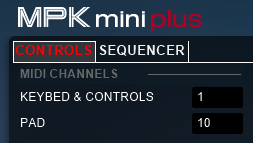
6. If you notice the pads and keys are on the same MIDI channel, change this so 'Keybed & Controls' are on 1 and 'Pad' is on 10


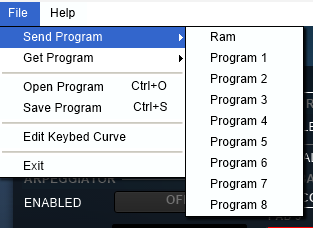
7. Send this change to the MPK Mini by going to File > Send Program. Then select a slot:


8. Close the MPK Mini Plus editor and open your DAW.

9. In your DAW, Create 2 MIDI tracks:

  • Set one track to MIDI Channel 10 (for pads)
  • Set the other track to MIDI Channel to 1 (for keys)

     
  • Ensure both tracks are record-armed (this allows you to play MIDI on both tracks at the same time)


After this, you should have the ability to play both the keys and pads simultaneously.


MPK Mini III
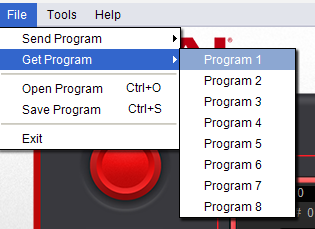

1. Download and install the MPK Mini III editor for your device at MPK Mini III Downloads | Akai Pro 

2. Ensure that you have fully closed down all music making DAW apps or MIDI apps before opening the MPK Mini editor as other applications may be trying to take MIDI priority of the MPK Mini which will cause issues when making changes from the editor to your MPK Mini. 

3. Open the MPK Mini III editor

4. Connect the MPK Mini III to your computer via USB

5. If you have a specific program you are using, retrieve it by going to File > Get Program. If not, skip to step 6.


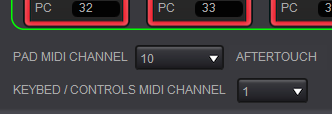
6.  If you notice the pads and keys are on the same MIDI channel, change this so 'Pad MIDI Channel' is on 10 and 'Keybed / Controls MIDI Channel' is on 1 


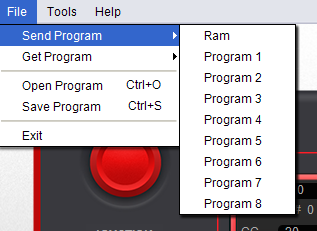
7. Send this change to the MPK Mini by going to File > Send Program. Then select a slot:


8. Close the MPK Mini editor and open your DAW.

9. In your DAW, Create 2 MIDI tracks:

  • Set one track to MIDI Channel 10 (for pads)
  • Set the other track to MIDI Channel to 1 (for keys)

     
  • Ensure both tracks are record-armed (this allows you to play MIDI on both tracks at the same time)


After this, you should have the ability to play both the keys and pads simultaneously.


MPK Mini Play Mk3

1. Download and install the MPK Mini Play Mk3 editor for your device at MPK Mini Play Mk3 Downloads | Akai Pro 

2. Ensure that you have fully closed down all music making DAW apps or MIDI apps before opening the MPK Mini editor as other applications may be trying to take MIDI priority of the MPK Mini which will cause issues when making changes from the editor to your MPK Mini. 

3. Open the MPK Mini Play Mk3 editor

4. Connect the MPK Mini Play Mk3 to your computer via USB

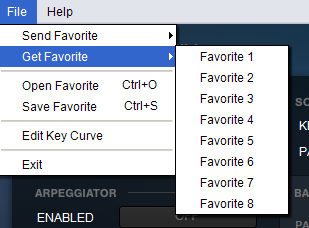
5. If you have a specific favorite program you are using, retrieve it by going to File > Get Favorite. If not, skip to step 6.


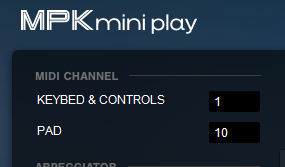
6. If you notice the pads and keys are on the same MIDI channel, change this so 'Keybed & Controls' are on 1 and 'Pad' is on 10


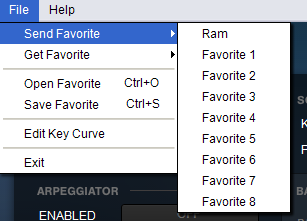
7. Send this change to the MPK Mini by going to File > Send Favorite. Then select a slot:


8. Close the MPK Mini editor and open your DAW.

9. In your DAW, Create 2 MIDI tracks:

  • Set one track to MIDI Channel 10 (for pads)
  • Set the other track to MIDI Channel to 1 (for keys)

     
  • Ensure both tracks are record-armed (this allows you to play MIDI on both tracks at the same time)


After this, you should have the ability to play both the keys and pads simultaneously.


Was this article helpful?

That’s Great!

Thank you for your feedback

Sorry! We couldn't be helpful

Thank you for your feedback

Let us know how can we improve this article!

Select at least one of the reasons
CAPTCHA verification is required.

Feedback sent

We appreciate your effort and will try to fix the article