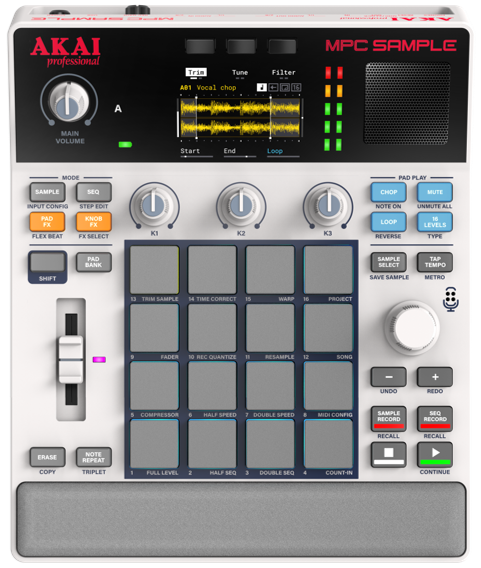
This guide provides step-by-step instructions for updating the firmware on your MPC Sample.
TABLE OF CONTENTS
Note 1: For Windows 10 users, please use the downloadable updater app available on the MPC Sample Downloads page. See I Am Using Windows 10. How Do I Update? for instructions
Note 2: For iOS users, you will require an iOS that has a USB-C port. If your iOS device uses a lightening port - you will require Apple's Lightening to USB 3 Camera Adapter. See Troubleshooting / Frequently Asked Questions for instructions.
Update Instructions
- Turn on MPC Sample.
- Connect MPC Sample via USB to a computer or iOS device.
- In a web browser, type mpc-sample.local in the address bar.
- On the page below, press ‘Update Now’.
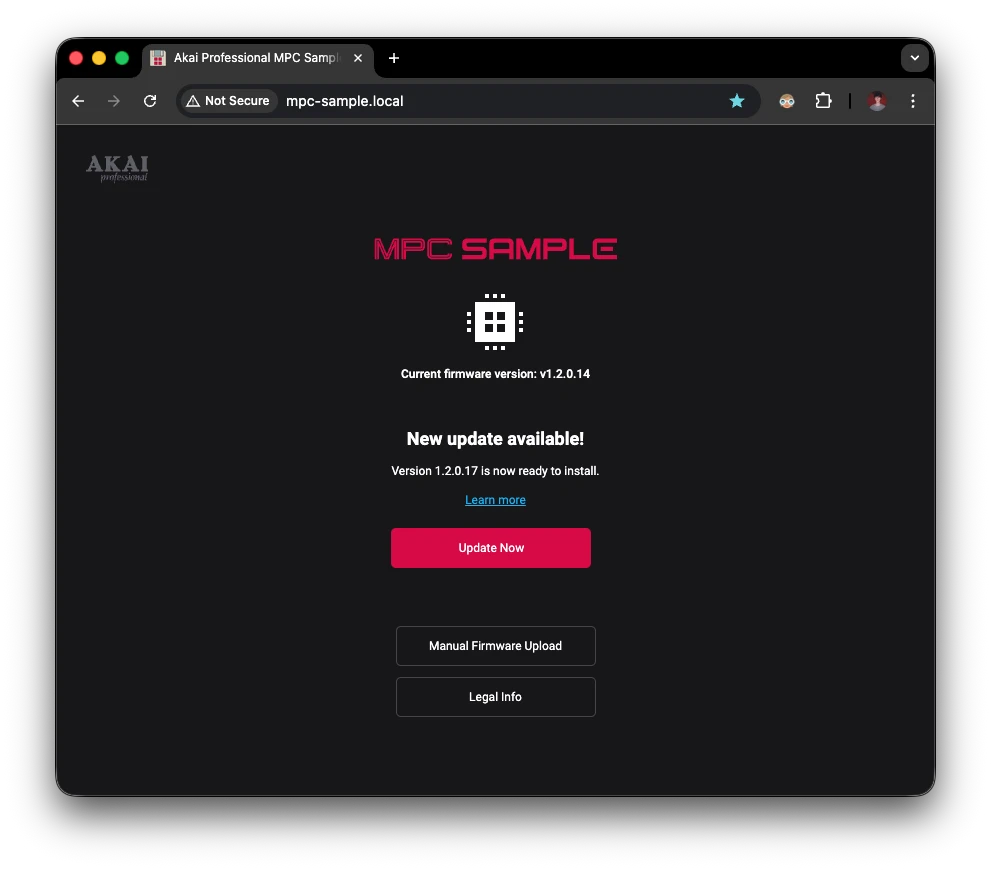
- The update process will begin, do not unplug the device while an update is in progress.
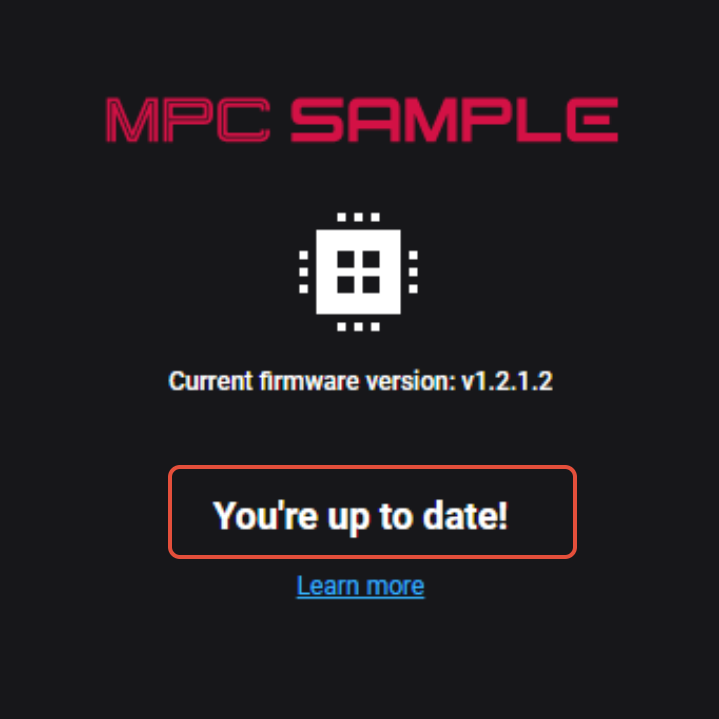
- Once the update has completed successfully, you can disconnect the USB.
- Once the update is complete, the device will automatically restart with the latest firmware.
Troubleshooting / Frequently Asked Questions:
I cannot connect to mpc-sample.local in my web browser. What can I try?
- While connected via USB, power off MPC Sample and then power back on. Retry connection.
- Enter 192.168.155.1 in the browser address bar while MPC Sample is connected.
I cannot connect to mpc-sample.local in my web browser on iOS.
Important: iOS users, will require an iOS device that has a USB-C port. Ensure you are using the included USB-C cable.
If your iOS device uses a lightening port - you will require Apple's Lightening to USB 3 Camera Adapter that features a power passthrough.
1. Connect a 20W USB-C power adapter to the power passthrough port on the adapter.
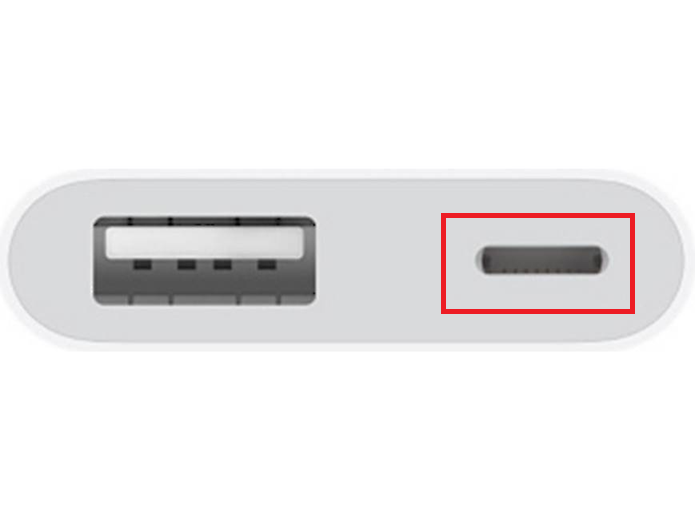
2. Obtain a USB-A to USB-C cable that supports full data transfer.
3. Connect the USB cable to the adapters' USB-A port
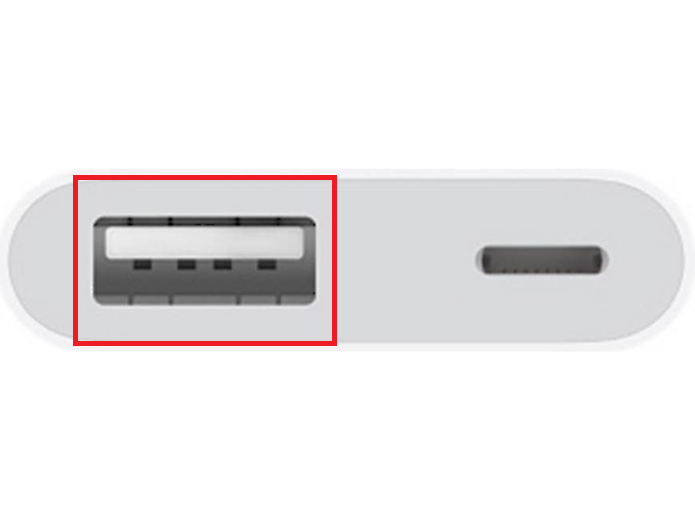
4. Connect the other end of the USB-A to USB-C cable to the MPC Sample's USB-C port.
I Am Using Windows 10. How Do I Update?
To update using Windows 10, follow the directions below:
- Download the desktop MPC Sample Updater for Windows from the MPC Sample Downloads page.
- Power off MPC Sample.
- While holding CHOP + MUTE + SAMPLE SELECT, power on MPC Sample to enter Update Mode.
- Ensure MPC Sample is connected to your computer via USB.
- Run the desktop MPC Sample Updater.