If your Studio Instrument Collection plugin shows no presets or sound library after installation, this usually means the preset files are either missing, not installed correctly, or not being scanned by the plugin.
This guide walks through how to verify your presets and restore them.
TABLE OF CONTENTS
- Check if Presets Are Installed
- Rescan the Library
- Reset the Application Cache
- If Presets Are Missing
- Additional Checks
Check if Presets Are Installed
- Open File Explorer
- Navigate to:
C:\Users\your username\AppData\Roaming\Akai\Studio Instrument Collection
- Right-click the Presets folder → select Properties
- Allow it to load, then check:
- The number of files listed under Contains
- Open the Presets folder and confirm you see subfolders similar to:
- AIR Music Technology folders (MPC Bassline, Hype, Mellotron, etc.)
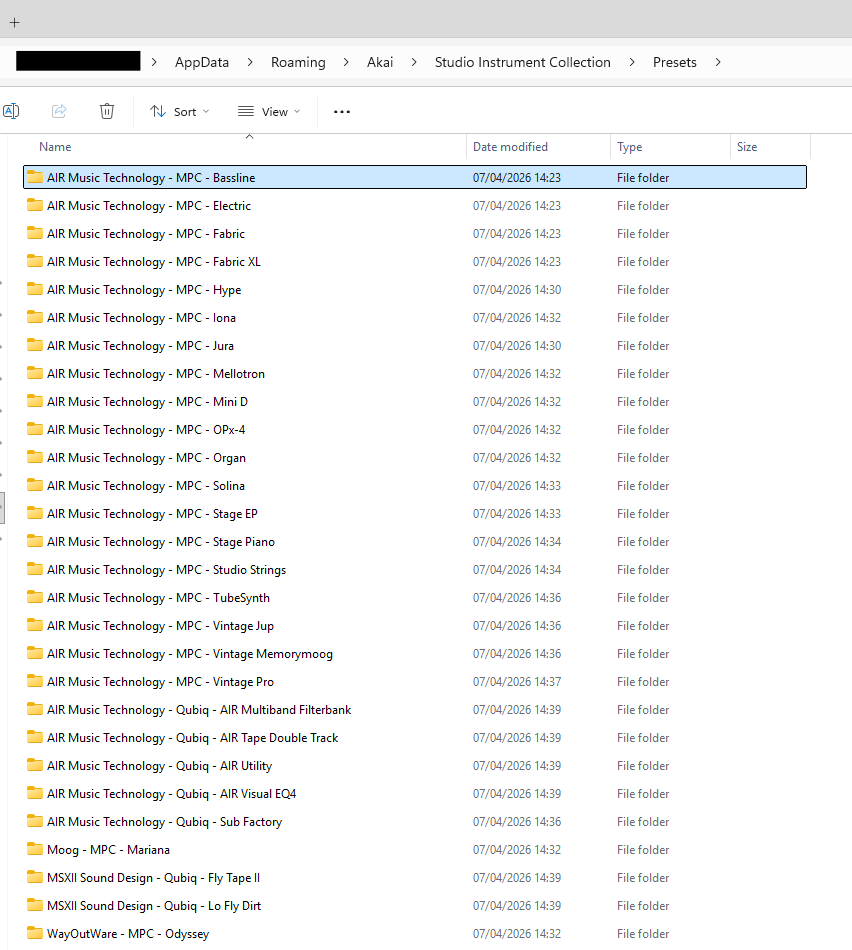
- AIR Music Technology folders (MPC Bassline, Hype, Mellotron, etc.)
Rescan the Library
If the preset folders are present:
- Launch Studio Instrument Collection
- Open the menu (top-right icon)
- Select Rescan Library
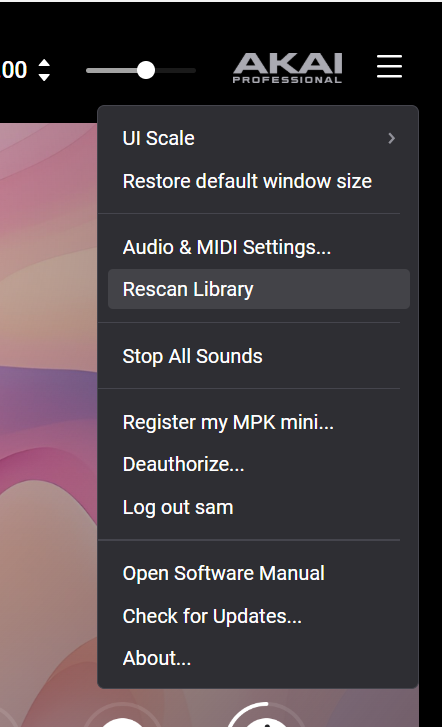
- Wait for the scan to complete
Reset the Application Cache
If presets exist but still do not appear:
- Close Studio Instrument Collection
- Navigate to:
C:\Users\your username\AppData\Roaming
- Delete the following folders:
- Studio Instrument Collection
- Studio Instrument Collection.exe
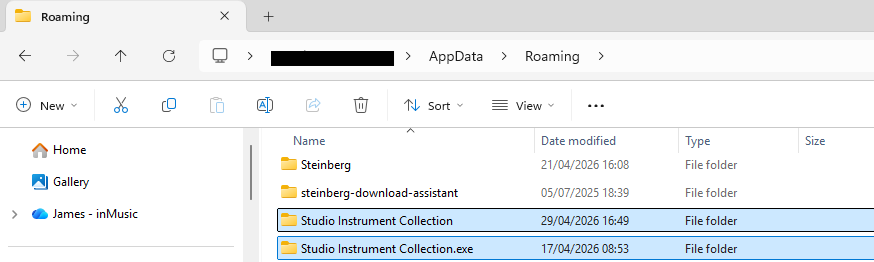
- Empty the Recycle Bin
- Relaunch the plugin
- If needed, run Rescan Library again
If Presets Are Missing
If the Presets folder is empty or incomplete:
- This indicates the content did not install correctly
- A fresh reinstall or direct content installer may be required
Additional Checks
If the issue continues, confirm the following:
Reinstall the Studio Instrument Collection
You can reinstall the program directly from the inMusic Software Center. However, if you are finding issues downloading the full version of the software, you may find a reinstall for the Studio instrument Collection [HERE].
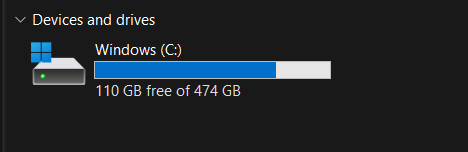
You have sufficient drive space
- Open File Explorer
- Select This PC from the left panel
- Under Devices and drives, locate your C: Drive
- Check the available space shown under the drive
You are using the main admin account
- Select the Start Menu and open Settings
- Go to Accounts → Your info
- Under your name, check if it says “Administrator”
No antivirus, firewall, or VPN is blocking installation
Security software can sometimes block downloads or prevent content from installing correctly.
- Temporarily disable any third-party antivirus or firewall software
- Disconnect from any active VPN
- Then try reinstalling or launching the plugin again
Still stuck? Reach out to support with a screenshot of your Presets folder and your system details, and we’ll help you take it from there.