The MPK mini IV Windows driver has now been discontinued, and is no longer required to use your MPK mini IV with your Windows system.
Users running the latest Windows 11's MIDI 2.0 Service Stack update may experience certain behaviours with their included software, such as Ableton Live Lite and Studio Instrument Collection. Certain behaviours users may experience are as follows:
- Your MPK mini IV might be recognized by your computer but appear 'dead' in your Digital Audio Workstation or Virtual Instrument software.
- Your DAW or Studio Instrument Collection may crash during startup.
- Your DAW or Studio Instrument Collection may hang when closed.
Following the steps in this article will remove the discontinued Akai MPK mini IV driver and resolve any issues experienced between the discontinued driver and the Windows 2.0 MIDI Service Stack.
TABLE OF CONTENTS
- How do I uninstall the MPK mini IV driver?
- How can I tell if the MPK mini IV is using the Akai driver or the Generic USB driver?
How do I uninstall the MPK mini IV driver?
- Disconnect the MPK mini IV from your system
- Restart your system
Important Note: Please keep the MPK mini IV disconnected - Go to Windows Add or Remove Programs
- In the search bar, search "MPK"
- Locate Akai Professional MPK mini IV 1.0.1
- Click the 3-dot icon next to the software, and select Uninstall
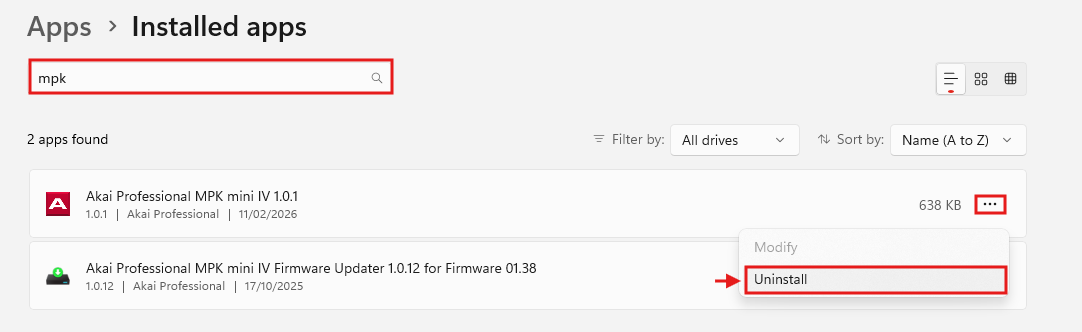
- Once uninstalled, reconnect your MPK mini IV and you'll be up and running!
Advanced Uninstall Method
If you continue to experience issues where your driver is still installed. Please follow the steps below to uninstall via Windows Device Manager:
- Disconnect the MPK mini IV from your system
Please note: If you have recently attempted to launch any software utilizing this driver, please restart your system. - Open Device Manager (Right-click on the Windows icon)
- Under the View options, enable Show hidden devices
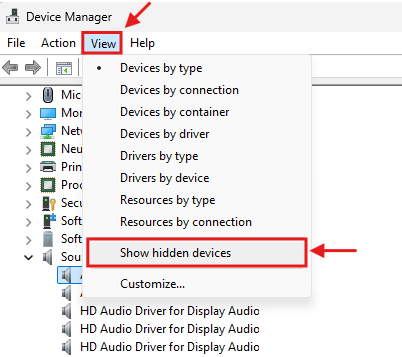
- Expand the Sound, video and game controllers and Universal Serial Bus Controllers sections
- Locate any faded entries for Akai Professional drivers
- Right-click on the Akai Professional MPK mini IV
- Select Uninstall Device
- Ensure "Attempt to remove the driver for this device." is enabled
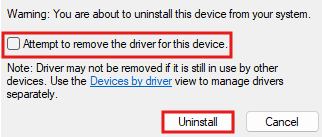
- Uninstall the device and driver
- Once uninstalled, restart your system and reconnect the MPK mini IV to your system
Once this driver is removed, your Audio/MIDI software should launch as intended with your MPK mini connected to the system.
How can I tell if the MPK mini IV is using the Akai driver or the Generic USB driver?
If unsure whether you have the Akai driver installed, you can verify this via the Windows Device Manager. To verify this, please follow the steps below:
- Open Device Manager
- Expand Sound video and game controllers
- Locate the MPK mini IV listed in this section
- If the Akai driver is being used:
The MPK mini IV will show in the Device Manager as - Akai Professional MPK mini IV - If the Generic USB driver is being used:
The MPK mini IV will show in the Device Manager as - MPK mini IV
- If the Akai driver is being used:
- Right-click on the MPK mini IV device and select Properties
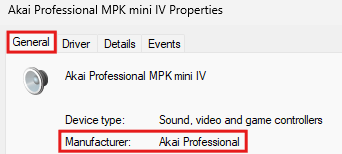
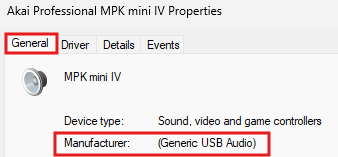
- In the General tab, the Manufacturer will show as either Akai Professional or Generic USB Device
- Akai Driver Installed:
- Akai Driver Uninstalled:
- Akai Driver Installed: