
This article serves as a guide to troubleshoot missing plugins in the activations menu on the MPC One.
TABLE OF CONTENTS
- Immediate Troubleshooting
- Ethernet/Router Configurations
- Manually Configure DNS Settings
- Rollback to 2.15.1
- Leave the MPC On for 24hrs
Immediate Troubleshooting
- Ensure your MPC Hardware is updated to firmware 2.15 (or higher)
- On your MPC Hardware, try logging out/back into your inMusic Profile
- Try powering off and powering back on your MPC
- Try to refresh the plugin list by switching to controller mode and back again (no need to be connected to a computer).
Ethernet/Router Configurations
All MPC hardware require an internet connection to receive the latest software and plugin updates. The MPC One is a unique model as it does not include Wifi, therefore it will require an active ethernet connection to a router to establish a network and receive the latest updates.
In the case that your MPC One has been disconnected from a network for a considerable amount of time, there may be a small delay to re-populate the plugin list. If you find that you are missing some plugins in the activations list, please review the troubleshooting steps below to resolve this.
- Ensure your MPC is connected to a stable Internet connection. Ideally via Ethernet cable, directly into your Router
- Please also try a different Ethernet cable
- Disable any VPN's that may be connected to your Modem
- To verify that your MPC One is connected, the Enter Serial, Refresh and Log Out buttons will be lit in light grey
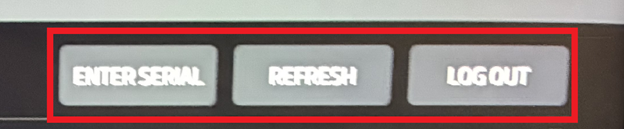
In rare cases, the firewall on user routers/modems can also block MPC from communicating with our servers - We suggest restoring your router to its default settings in these scenarios, whilst consulting the manufacturer / Internet Service Provider (ISP) of your Modem/Router.
Please use the following articles to review your router/ethernet settings once more:
- MPC Series | Wi-Fi Connection Fails with WPA3 Enabled Router : Akai Professional
- Akai Pro MPC and Force | Troubleshooting Internet Connection : inMusic Store
Manually Configure DNS Settings
If the problem continues to persist, try manually configuring your DNS settings:
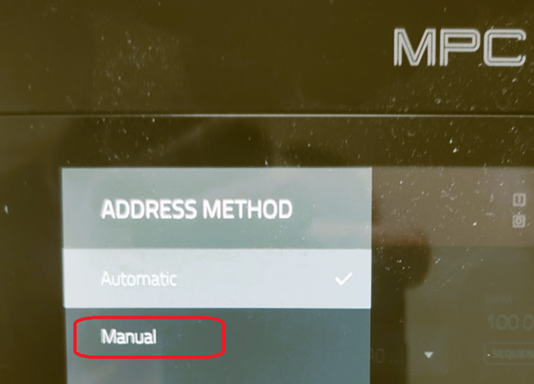
- In Preferences go to Ethernet. Then, double-tap on automatic and change to Manual.
On the bottom row called DNS double tap that and change that to 8.8.8.8 and select DO IT:
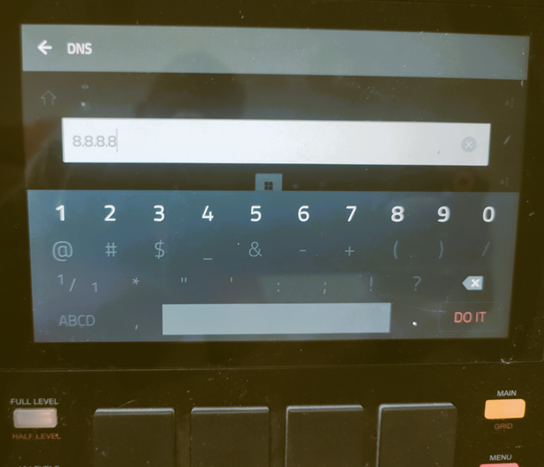
The main goal is to ensure that your DNS is set to 8.8.8.8 and Gateway field is populated with values.
Rollback to 2.15.1
If you have gone through the above steps, please revert to 2.15.1 - MPC Standalone | How Do I Roll Back To MPC 2?
Once on 2.15.1, Refresh the activations list once more.
If your plugin appears on 2.15.1, you can then upgrade to the latest MPC 3 firmware version: Akai Pro MPC Series | Firmware Update Walkthrough
Leave the MPC On for 24hrs
In the event your plugin fails to appear after following all of the above steps, we would advise leaving the MPC on, and to sit for approx. 24 hours. Ensuring that you are logged in and fully connected on the ethernet page.