Welcome to this guide on how to set up your MPC Edition | Spitfire Audio Plugins for operation with MPC3 standalone hardware and desktop.
TABLE OF CONTENTS
- FAQ - Frequently Asked Questions
- Purchasing your MPC Edition Spitfire Audio Plugin
- Setup / Installation MPC/Force Standalone
- Setup / Installation MPC Desktop
FAQ - Frequently Asked Questions
Do I need MPC3 to install Spitfire Audio Plugins?
Yes - Spitfire Audio plugins are not compatible with MPC2 Firmware and require MPC OS 3.7.1 or above.
MPC3 is a free update for MPC OS Hardware - Akai Pro MPC | Firmware Update Walkthrough
Which MPC Hardware is compatible with MPC3 & Spitfire Audio Plugins?
- MPC Live
- MPC Live II
- MPC Live III
- MPC One
- MPC One+
- MPC Key 37
- MPC Key 61
- MPC X
- MPC X SE
- MPC XL
Which Spitfire Audio Plugins are available for MPC3 OS?
Spitfire Cinematic Pads
Spitfire Intimate Strings
I already own these Spitfire Audio Originals titles. Can I still redeem them for my MPC?
No - Spitfire Audio plugins for MPC Hardware are exclusive editions specifically built for MPC3 Hardware and need to be purchased separately on the MPC store: https://www.thempcstore.com/
Users who already own Spitfire Audio Originals Plugins are not eligible for a free upgrade to MPC Edition builds of these plugins.
How many activations are available between my MPCs?
Each license allows up to 3 activations between MPC Hardware signed into the same account.
How many instances of Spitfire Audio plugins can be used in a single project?
Due to the CPU and RAM requirements for the Spitfire Audio Originals plugins, the number of plugins that can be used is dependent on the hardware. Please see the list below for details:
The following hardware can run up to 2 instances of Spitfire Audio plugins in a single project:
- MPC Live
- MPC Live II
- MPC One
- MPC One+
- MPC Key 37
- MPC Key 61
- MPC X
- MPC X SE
- FORCE
The following hardware can run up to 5 instances of Spitfire Audio plugins within a single project
- MPC Live III
- MPC XL
Does my MPC require storage to download/install Spitfire Audio Plugins?
Yes - In most cases, the internal storage of MPC Hardware will not be large enough to download/install your Spitfire Audio Plugin.
MPC hardware supports read and write capability for exFAT, FAT32, NTFS, and EXT4 file systems as well as read-only capability for HFS+ file systems.
We recommend using an exFAT file system as it is the most robust one supported by both Windows and macOS.
Do I need an internet connection to activate/install Spitfire Audio Plugins?
Yes, a stable internet connection is required to activate/install Spitfire Audio Plugins.
Note for MPC One, which does not feature integrated WiFi - Users should refer to using either an Ethernet connection or a class-compliant USB WiFi adapter upon connectivity to the USB Type-A port on the rear.
Are MPC Edition Spitfire Audio Plugins available for MPC Desktop?
Yes - Only for MPC Desktop Beta 3.7.1 and above
MPC3 on standalone hardware is backwards compatible with MPC2.15.1 Desktop - Upon navigating to controller mode operation with your Windows or Mac computer, we suggest exporting your Spitfire Audio plugins as an audio file.
See this guide: MPC Series | How to Export Individual Tracks
Is Akai Force Compatible?
Yes - Akai Force now supports MPC Edition Spitfire Audio Plugins from OS 3.7.1 or later.
Can I redeem my plugins via Spitfire Audio?
No - Your purchase is exclusively available for MPC OS Hardware and is redeemed directly on your Hardware.
I'm experiencing an issue activating my Spitfire Audio Plugin. What should I do?
First, please ensure that your Spitfire Audio Plugin license is present in your inMusic Profile.
If you are currently shown Get Trial on your MPC Hardware or Desktop Activation panel, please ensure you are logged into the same inMusic Profile your license has been deposited to, and click 'Refresh'.
If you have recently purchased the MPC Edition Spitfire Audio Plugin and are not seeing the license in your main inMusic Profile, please contact our customer support team by submitting a support ticket.
If for any reason you're experiencing an activation issue, please view this setup guide: Akai Pro MPC Series | Troubleshooting Activation Issues on MPC Standalone Hardware
Purchasing your MPC Edition Spitfire Audio Plugin
- Visit the MPC Store to purchase the Plugin
- Add the MPC Edition Spitfire Audio plugin to the cart
- Check out using your inMusic Profile email
- Receive order confirmation email
- Once the order is complete, the license will automatically be deposited into your inMusic Profile, ready for use!
Setup / Installation MPC/Force Standalone
Updating your MPC Hardware
Ensure your MPC is updated to MPC3 Akai Pro MPC | Firmware Update Walkthrough
Redemption / Download / Installation
- Connect to the internet - Ensure your MPC is connected to a stable internet connection
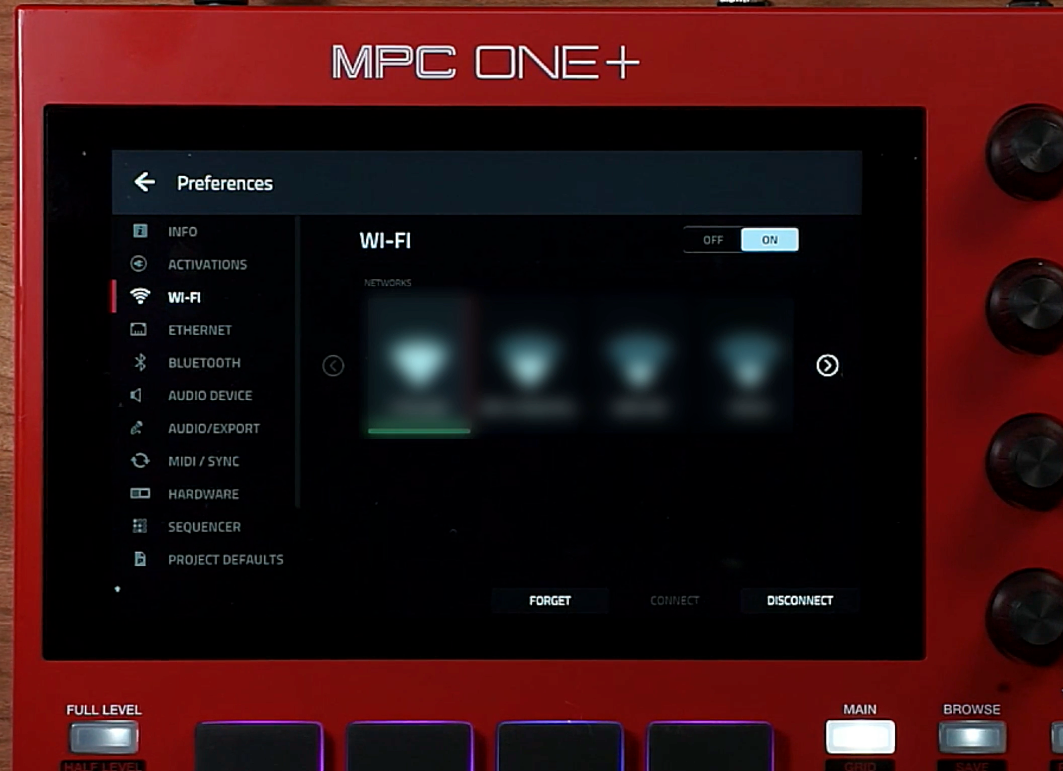
- On your MPC Hardware, press the 'Menu' button
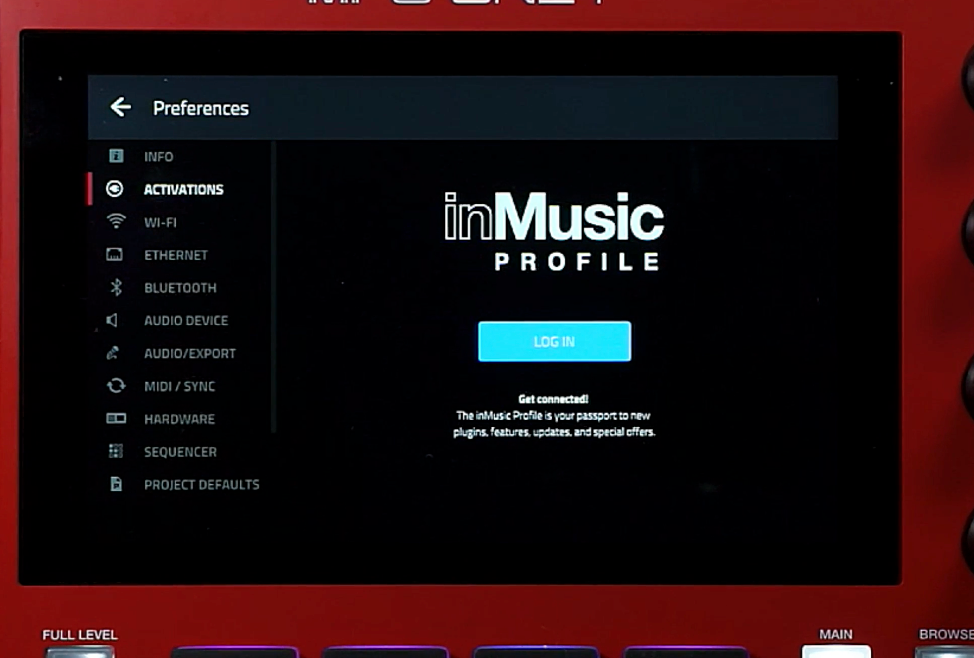
- Navigate to 'Preferences' and tap the 'Activations' tab on the left
- Log in to your inMusic Profile
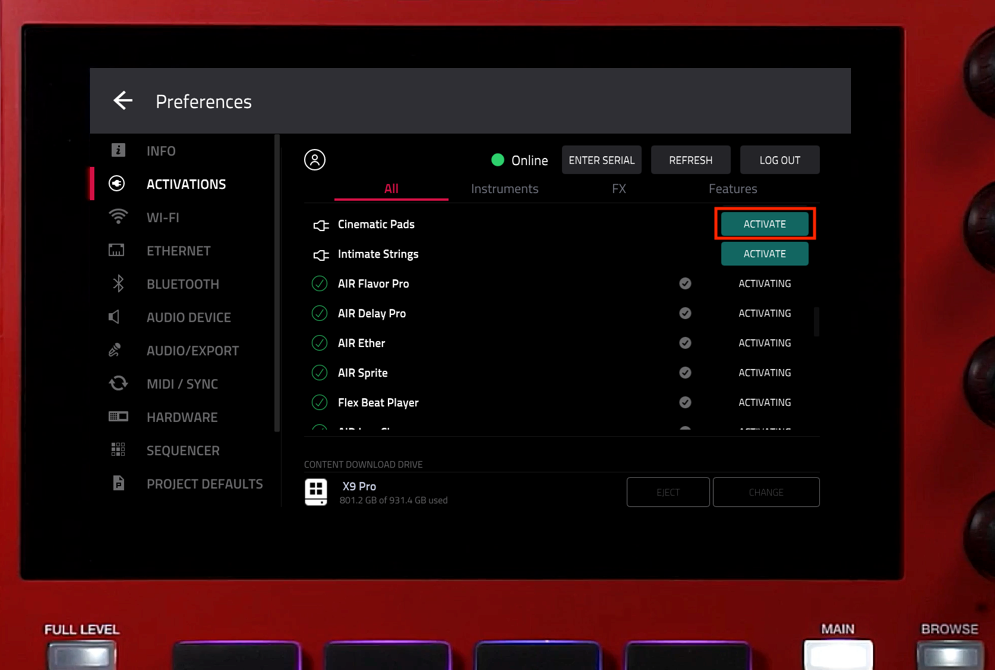
- Observe your list of plugins from the Activation Pane to view your newly redeemed Spitfire Audio Originals plugin:
If shown as Get Trial, tap 'REFRESH', and ensure you are logged into the same inMusic Profile that holds your Spitfire Audio plugin license. - Tap the 'ACTIVATE' Button
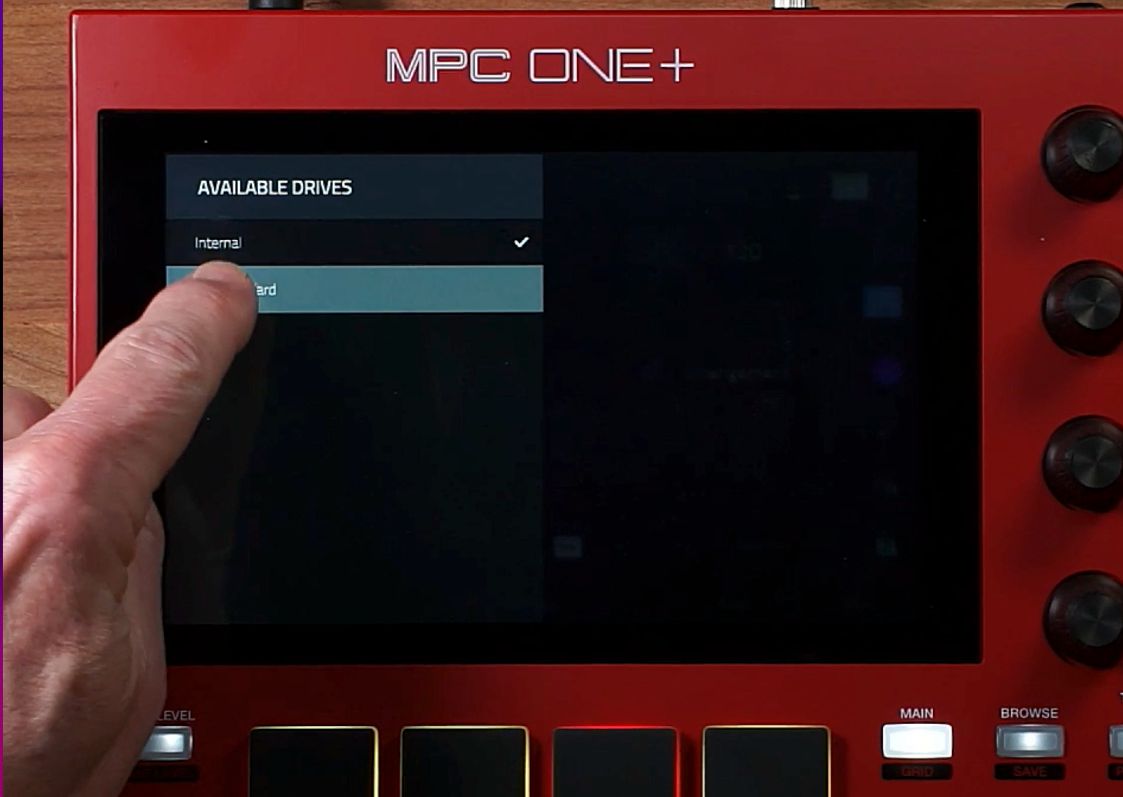
- Select a drive as the download location
Tap the 'CHANGE' button and select your drive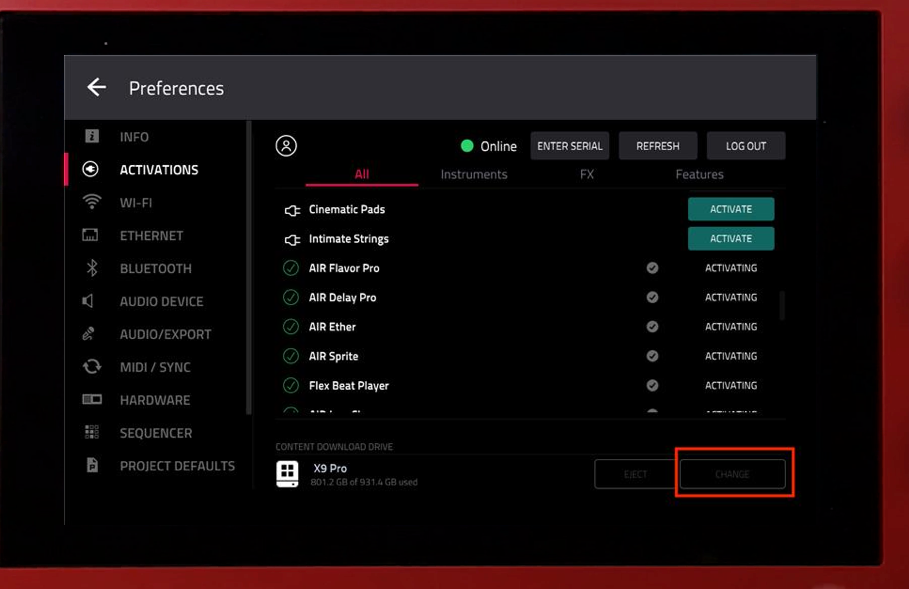
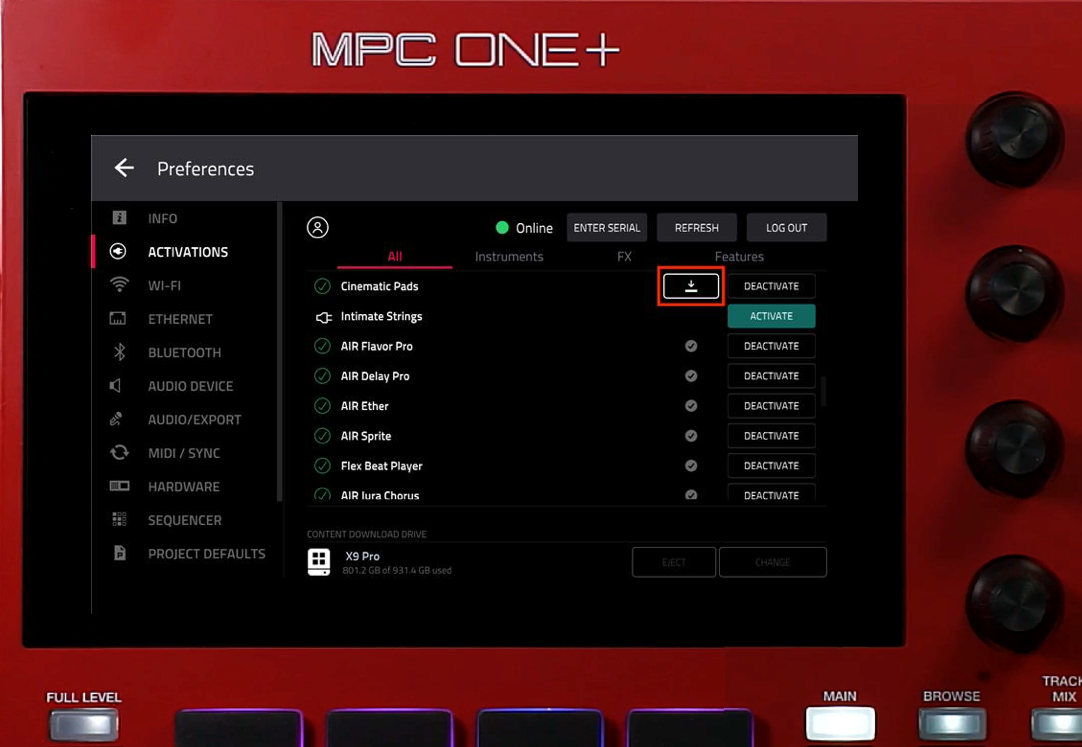
- Tap the Download button to begin the Download
- Ensure a storage device (formatted to exFAT) is connected to your MPC
- Ensure a storage device (formatted to exFAT) is connected to your MPC
Loading a Spitfire MPC Plugin on your MPC Hardware
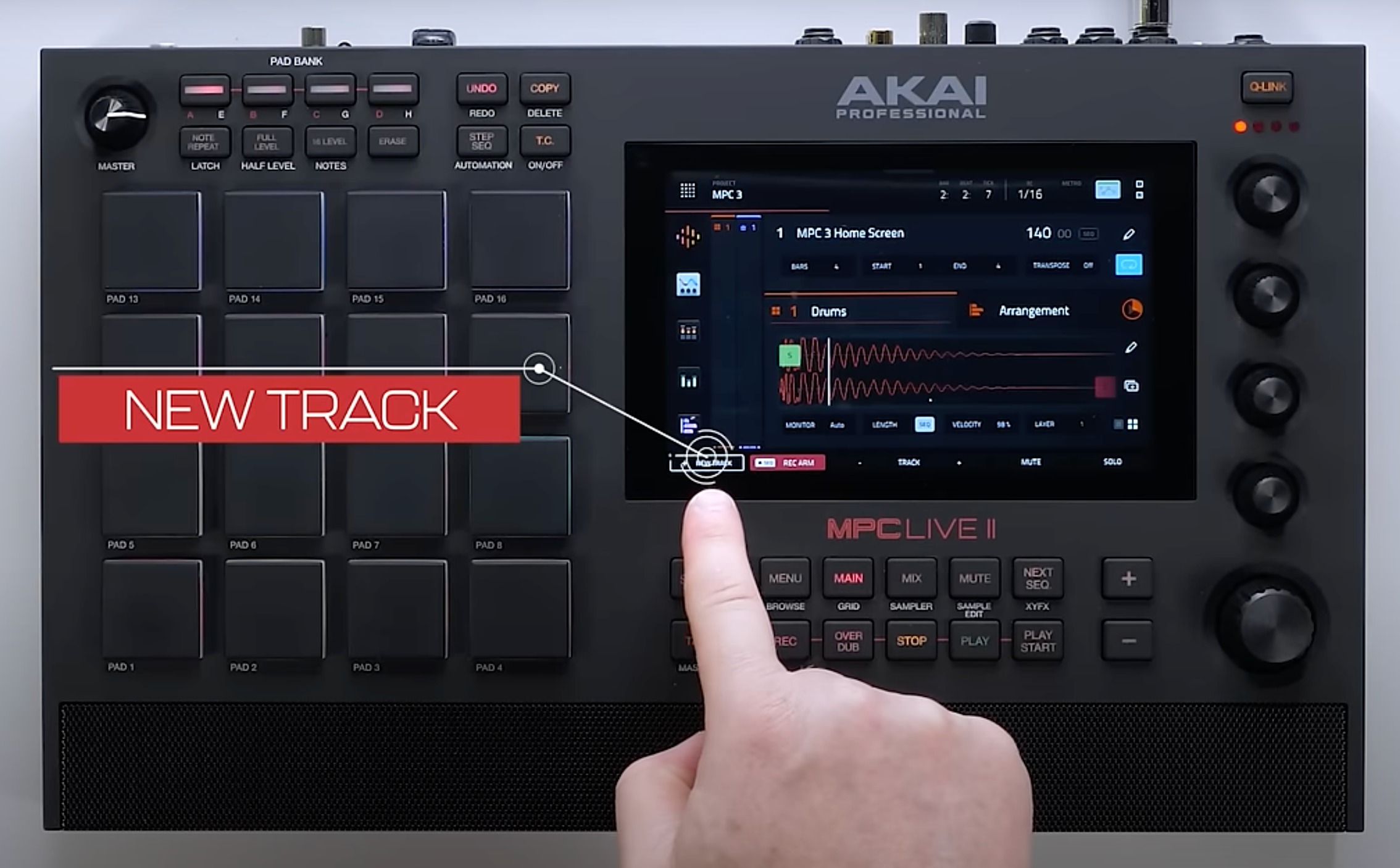
- Press the 'Main' button on your MPC
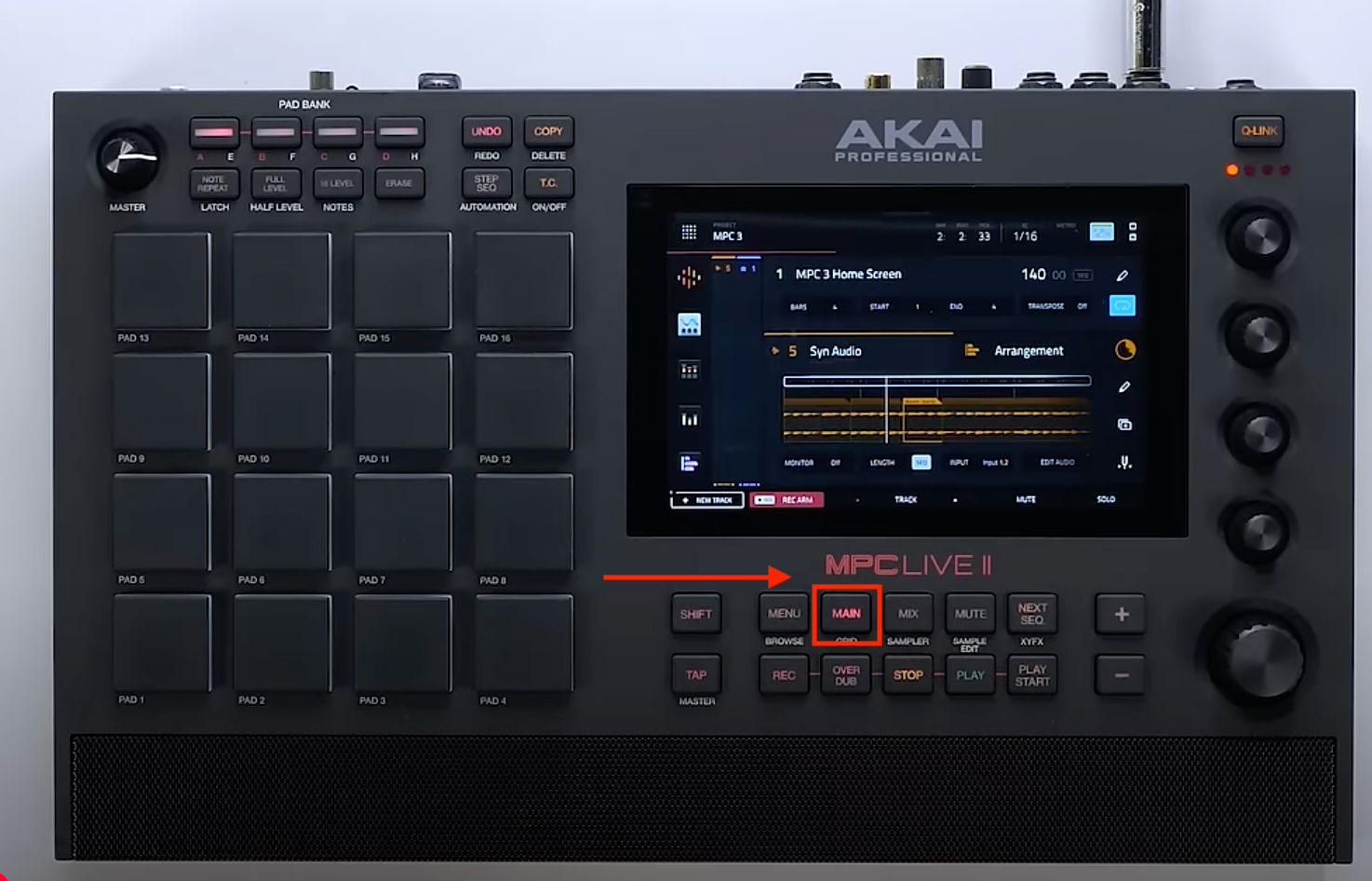
- Tap 'New Track' on the bottom left side of your display
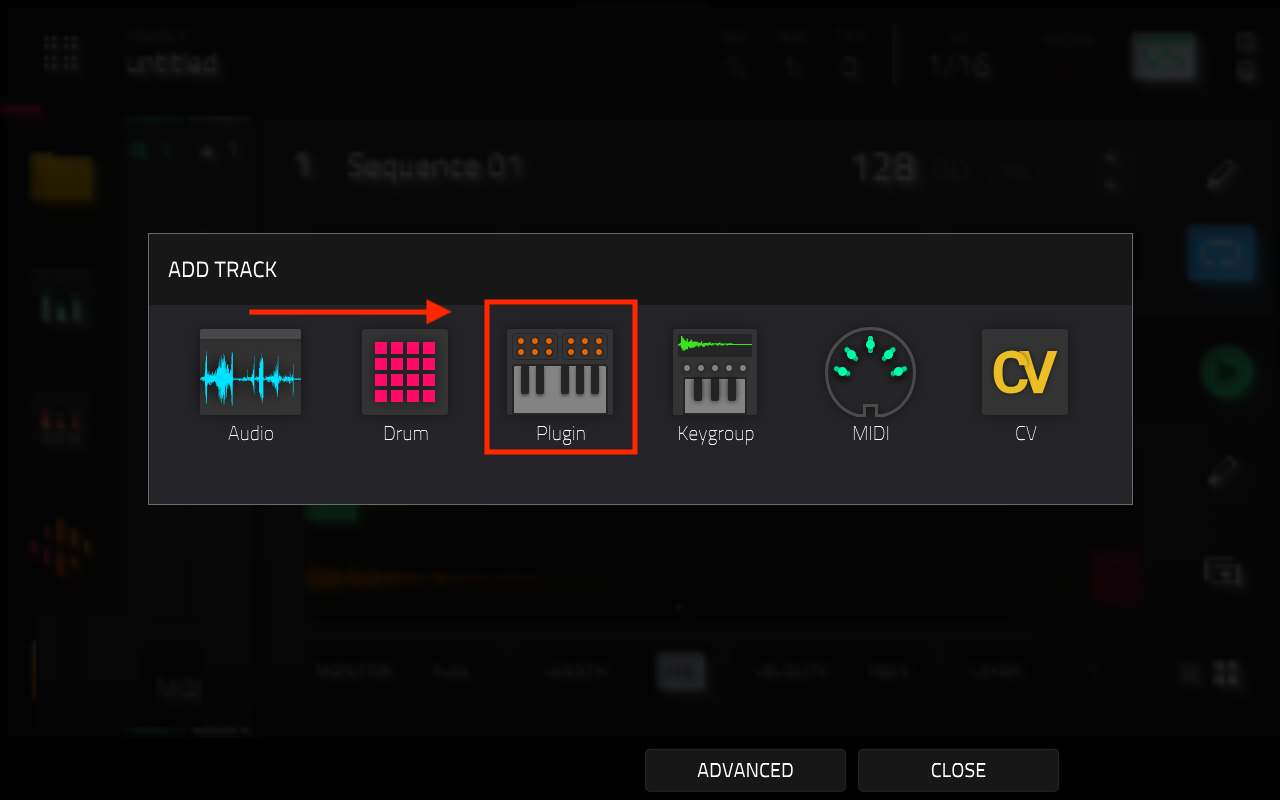
- Select 'Plugin'
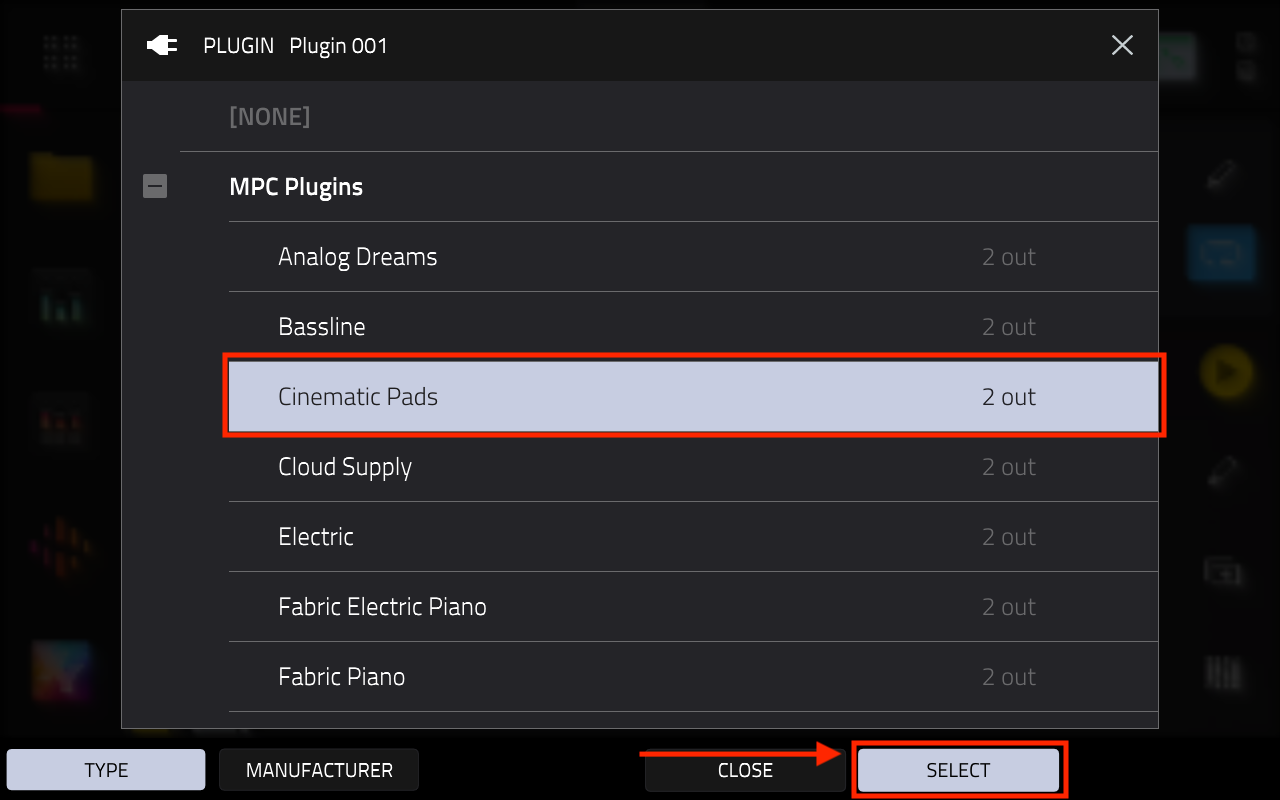
- Double-tap the plugin drop-down box, and select your Spitfire Audio plugin
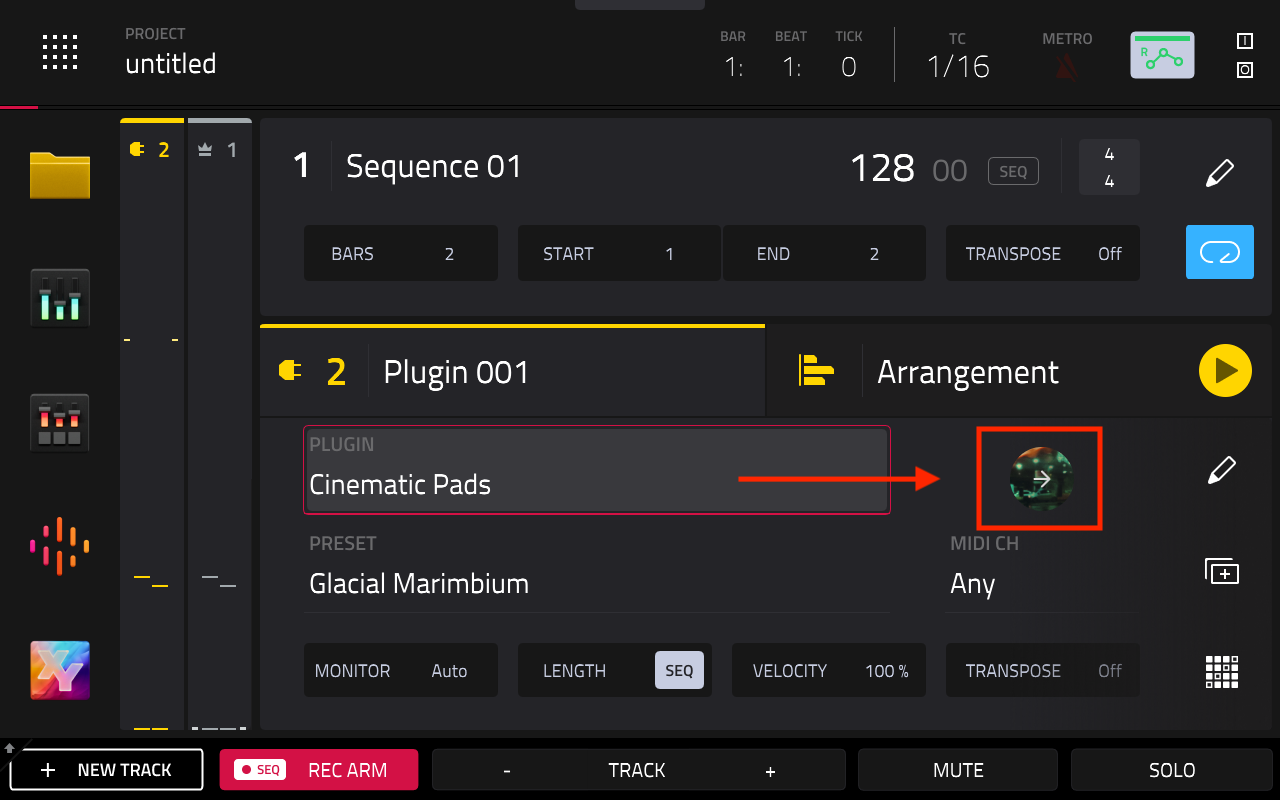
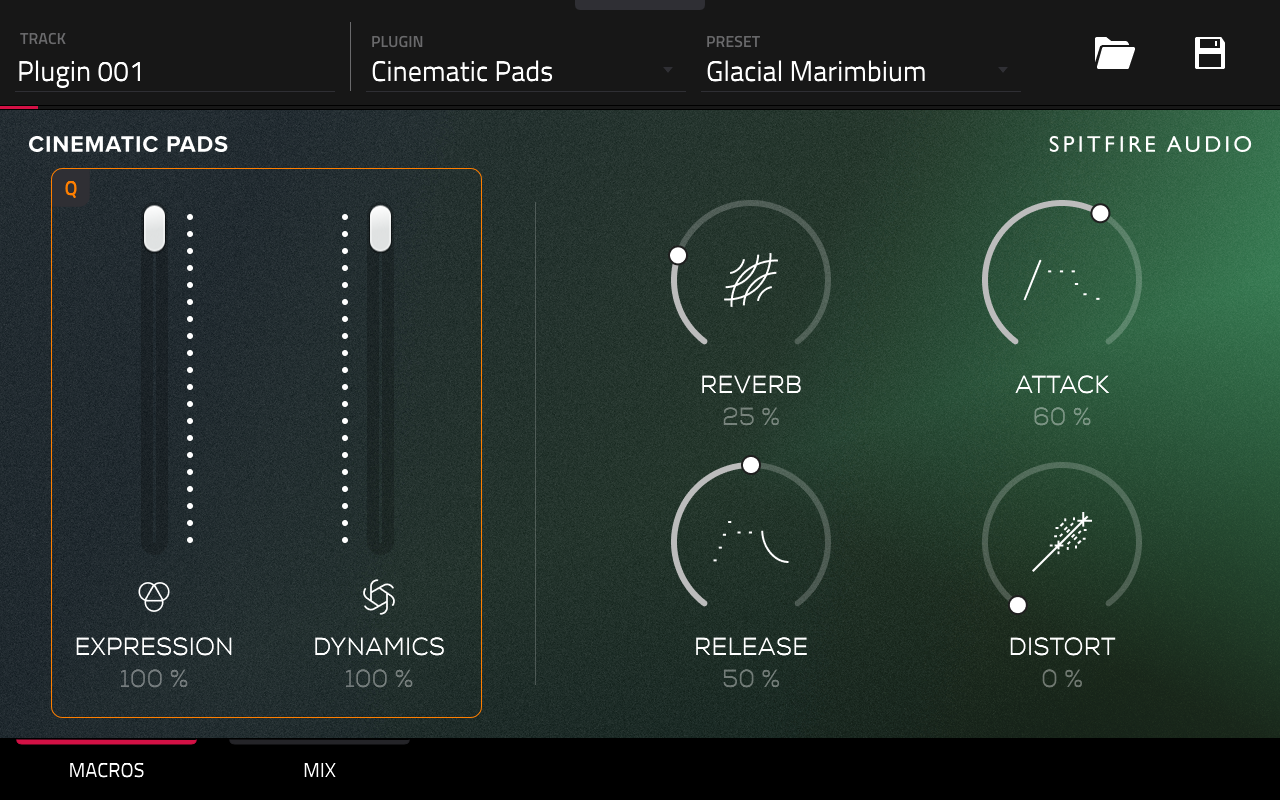
- Tap the 'Editor' Icon to view the GUI
Setup / Installation MPC Desktop
Download the inMusic Software Center
To manage your plugins, you need to download the inMusic Software Center. You can download it here: Download inMusic Software Center.
Log in to the inMusic Software Center
Open the inMusic Software Center and log in using your Akai Professional account credentials. These should match the account associated with your purchase.
Access / Activate Your Spitfire Audio Originals Plugins
Once MPC3 Desktop Beta has been launched:
- Open the Preferences
Windows: Click the menu icon (≡), select Edit, and click Preferences. (Ctrl + ,)macOS: Click the MPC menu, and click Preferences (CMD + ,)
- Click Activations on the left panel
- To activate a plugin, click on ACTIVATE
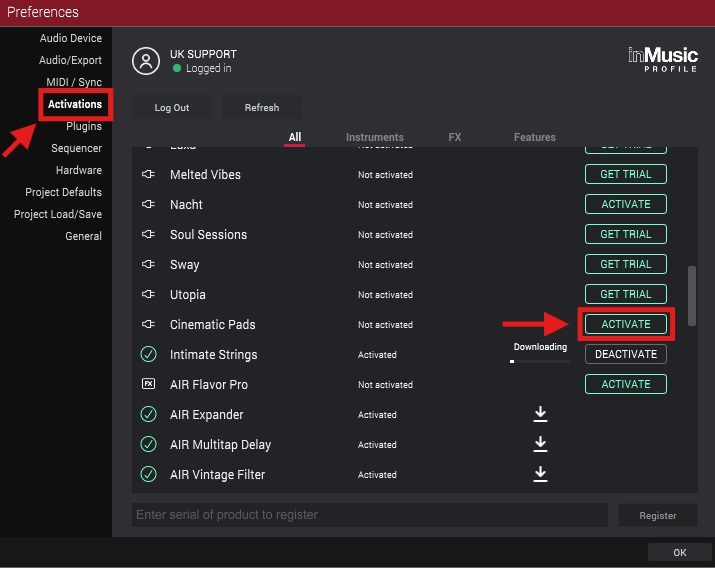
- Click the Download icon to begin the download/installation on the MPC3 Desktop Beta

- Once the download and install completes, enjoy diving into Spitfire Audio Originals!
You can also manage your Spitfire Audio Originals plugin activations via the inMusic Software Center.
Once logged in to the inMusic Software Center:
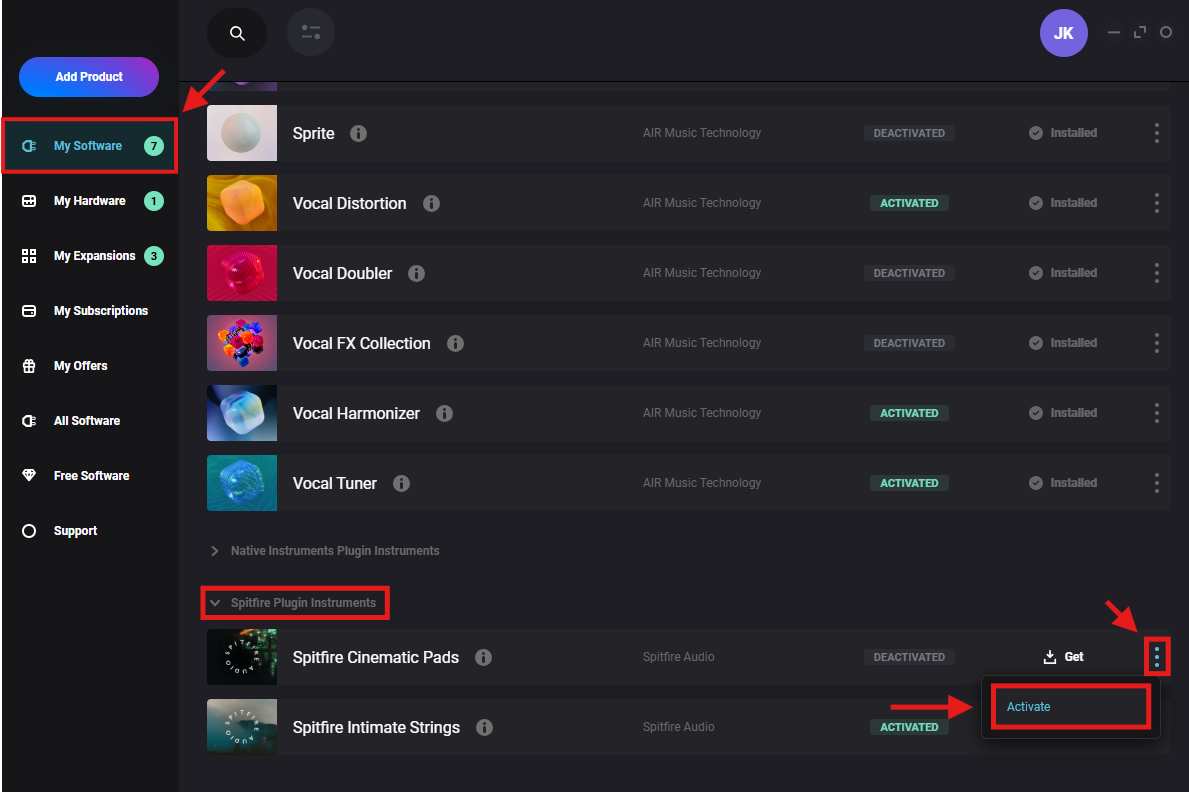
- Navigate to My Software > Spitfire Plugin Instruments
- Here, you'll find all of your purchased Spitfire Audio Originals plugins
- To activate, click the 3-dots and select ACTIVATE