The contents of this article cover setup instructions for installing MPC expansions from the inMusic Software Center. This is helpful if you have accidentally deleted content from your MPC XL or MPC Live III, or would like to put the content on another drive for use with another Standalone MPC.
TABLE OF CONTENTS
- inMusic Software Center
- Method 1: Installing Expansions To The MPC XL & MPC Live III Internal Drives
- Method 2: Installing Expansions To Your Own External Drive
- Method 3: Installing Expansions To MPC 3 Desktop and Exporting from your Computer
- Further Support
inMusic Software Center
1. To download the expansions included with your device, first Download the inMusic Software Center
2. After the download completes, It will open up the inMusic Software Center

3. Click on Let's Go! and will then take you to a browser window to sign into your newly created inMusic Profile. Enter both your email address and password and click on "SIGN IN"

Method 1: Installing Expansions To The MPC XL & MPC Live III Internal Drives
The following information will demonstrate the steps to copy the MPCe™ Expressive Kits Expansion from your computer and to your MPC XL and MPC Live III for Standalone use. The same steps apply for the other included expansions.
2. In the MPC Sound Packs category, you will find all of the included content for the MPC XL and MPC Live III.
3. Scroll to till you see Standalone - MPCe™ Expressive Kits and click Download - do so for each Standalone expansion.
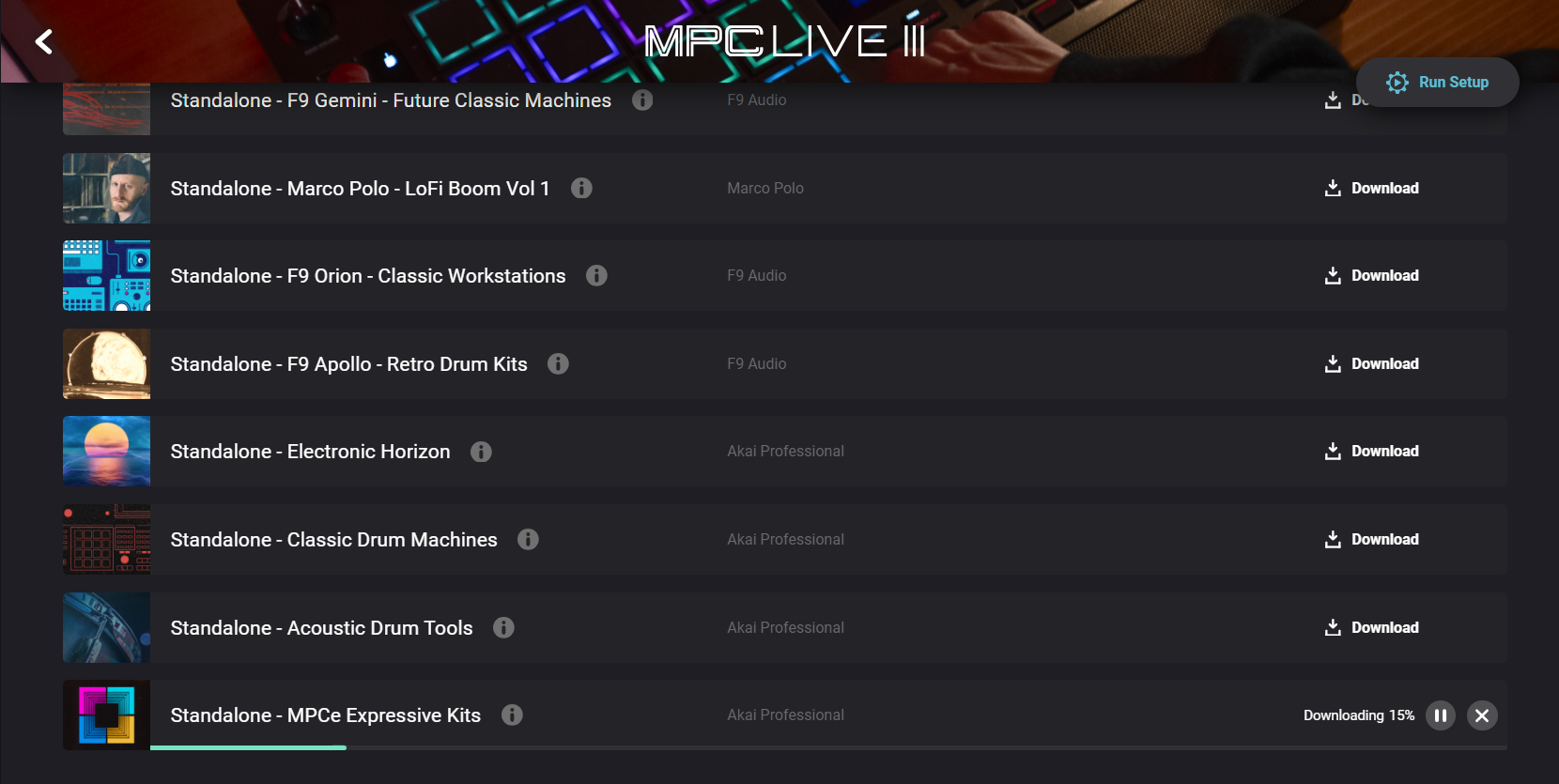
Note 1: If 'Transfer' does not appear... You have downloaded the expansion installer for desktop - Navigate back to step 3.

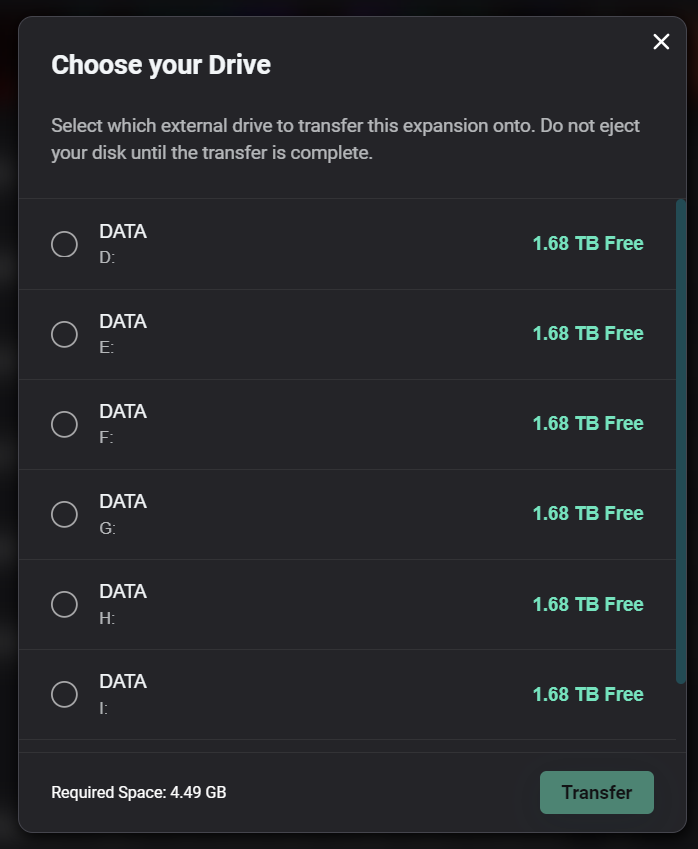
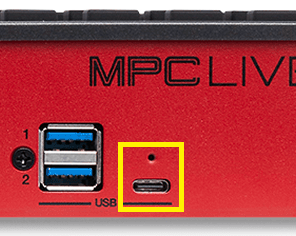
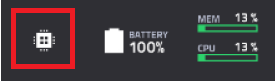
6. Return to the inMusic Software Center, you should now see MPC Content and MPC User Drive appear in the Choose Your Drive list.

Note: If there is not enough space on MPC Content, select MPC User instead
8. Wait for the files to transfer

9. Once the transfer is complete, you will receive a Transfer Complete message confirming the drive the expansion has been transferred to.
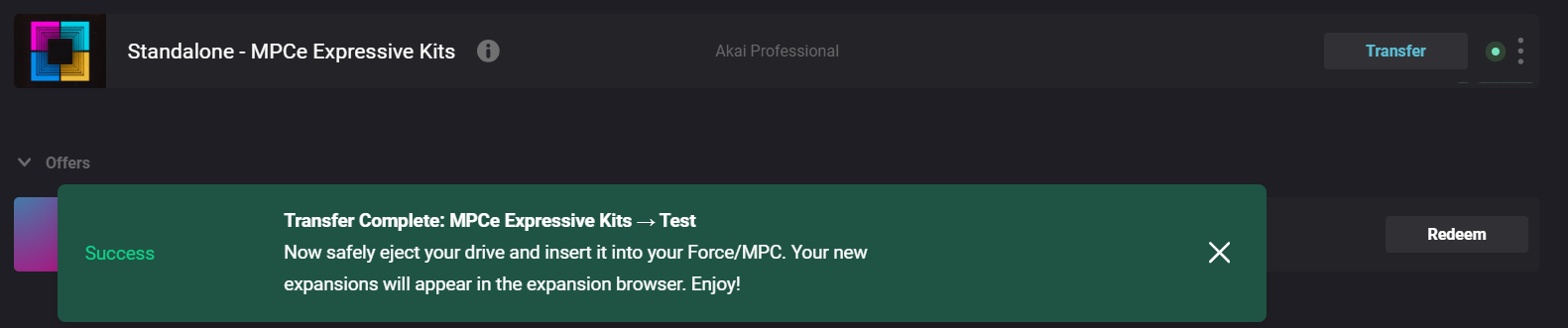
10. Place your MPC back in standalone mode.
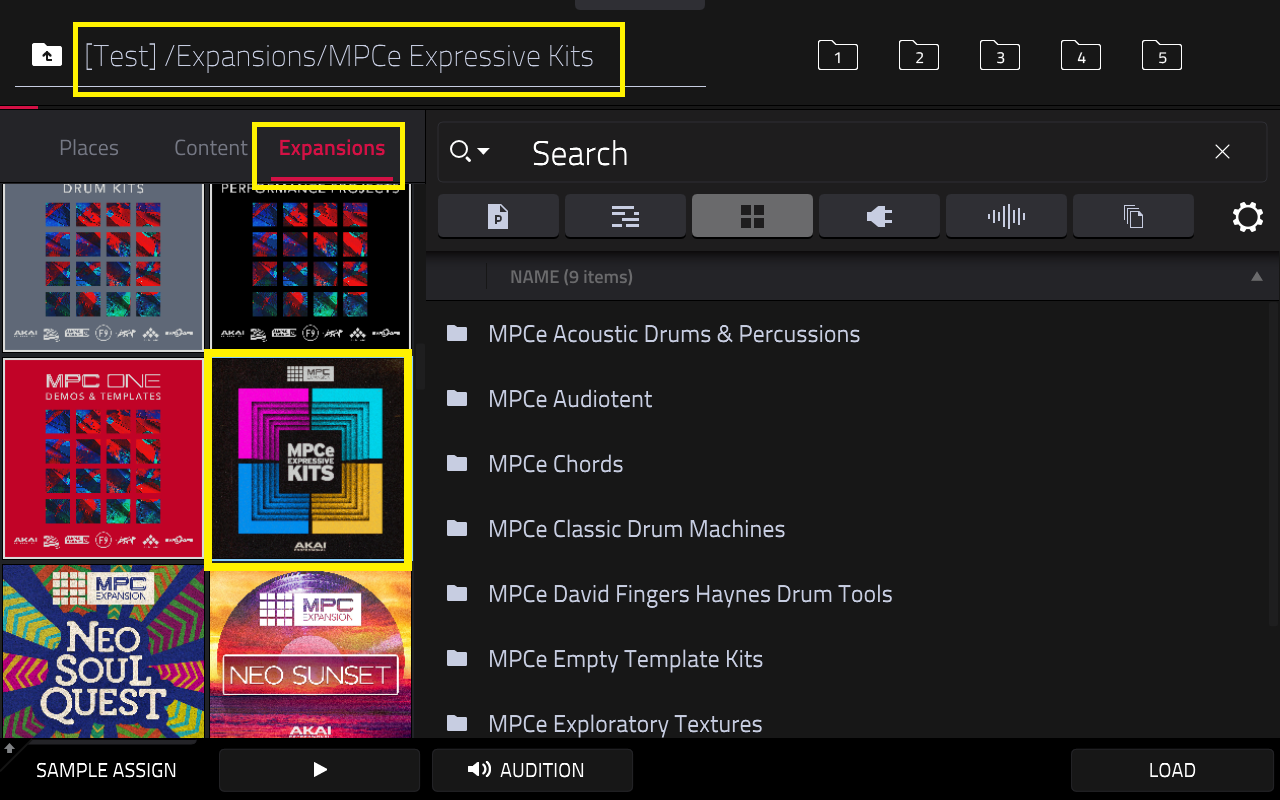
Method 2: Installing Expansions To Your Own External Drive
The following information will demonstrate the steps to copy the MPCe™ Expressive Kits Expansion from your computer and to your MPC XL and MPC Live III for Standalone use. The same steps apply for the other included expansions.
2. In the MPC Sound Packs category, you will find all of the included content for the MPC XL and MPC Live III.
3. Scroll to till you see Standalone - MPCe™ Expressive Kits and click Download - do so for each Standalone expansion.
Note 1: If 'Transfer' does not appear... You have downloaded the expansion installer for desktop - Navigate back to step 3.
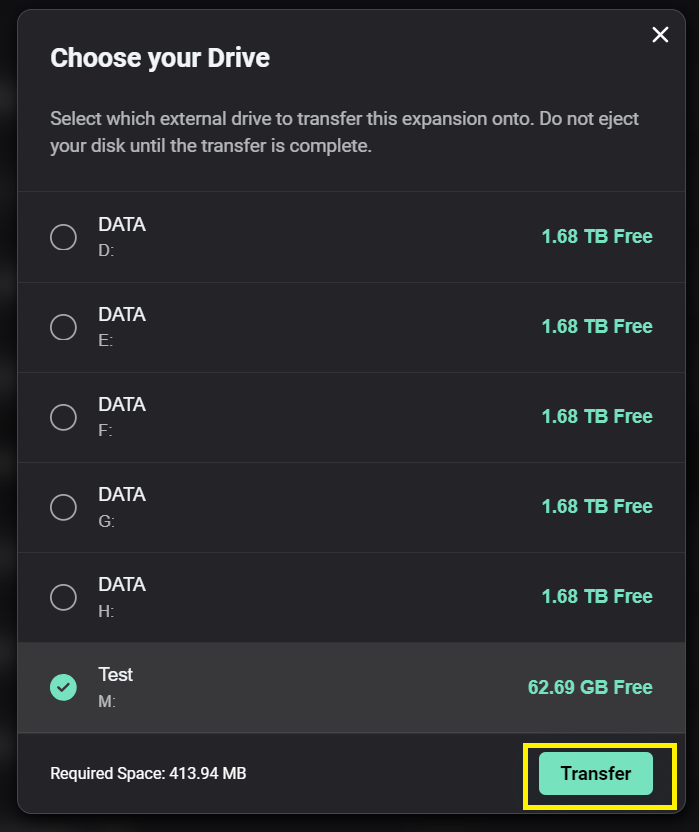
7. Wait for the files to transfer
8. Once the transfer is complete, you will receive a Transfer Complete message confirming the drive the expansion has been transferred to
9. Safely eject the drive from your computer/place your MPC back in standalone mode.
Method 3: Installing Expansions To MPC 3 Desktop and Exporting from your Computer
The following information will demonstrate the steps to install your included expansions your computer and export them to your MPC XL and MPC for Standalone use.
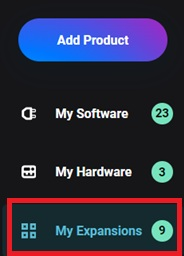
1. Click My Expansions from the tab on the left:
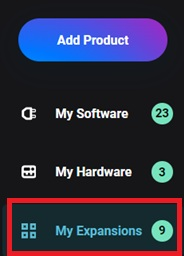
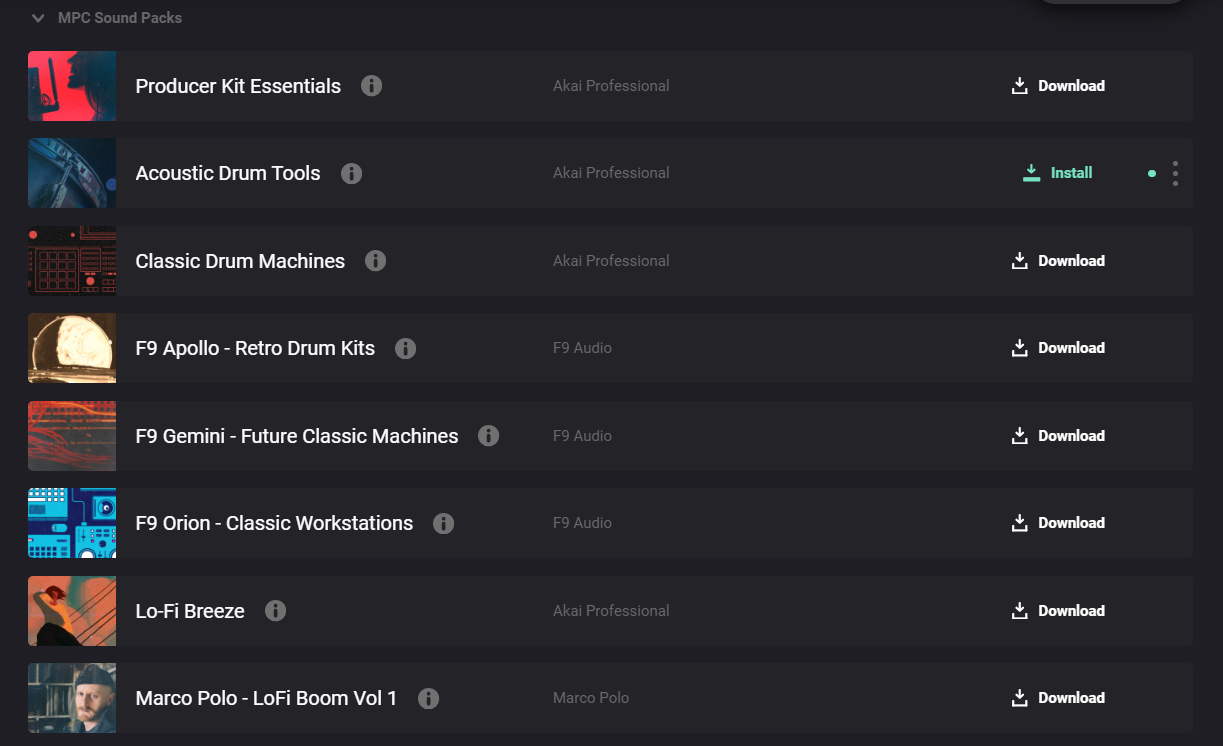
2. In the MPC Sound Packs category, you will find all of the included content for the MPC XL and MPC Live III.
3. You will see a Download button on each expansion. Click to download, then when completed click Install to install each expansion.
4. Once the download and install is complete, connect your MPC to your Computer and enter Controller Mode, then open the MPC 3 Desktop Software.
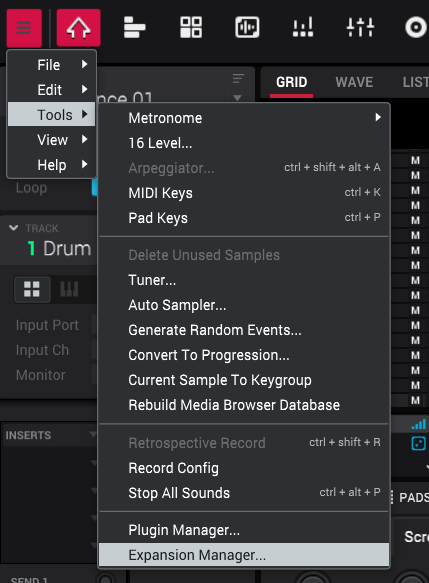
5. Windows Users will want to click the 3 lines in the top right to open up the menu, then hover over Tools and Click Expansion Manager.
Mac Users will only need to click Tools at the top of the screen and then click Expansion Manager.
6. Locate the Export button in the bottom right to move from the Manager to the Export screen.
7. Select your MPC Content drive in the drive field, click Select All, then click Export.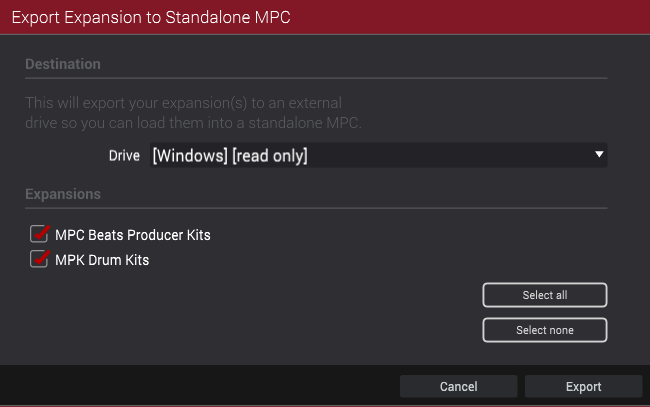
When completed, take the MPC out of controller mode and you will then have all the expansions on your MPC.
Further Support
- Getting Started with MPC Live III | Creating MPCe Custom Kit
- Akai Pro MPC Series | How to Audition Expansions and Samples