Studio Instrument Collection is your go-to premium toolkit for composing or performing in any environment. Designed from the ground up to integrate with the Akai Professional MPK® mini IV & MPK® mini Plus II, it provides a virtual instrument locker of the finest presets from AIR, Moog, and Akai.
Note: The contents of this support article apply only to MPK® mini IV & MPK® mini Plus II
TABLE OF CONTENTS
- Product Registration & Software Installation
- Launching the Studio Instrument Collection
- Studio Instrument Collection - Get More Instruments
Product Registration & Software Installation
Registration
1. Download the inMusic Software Center Application
2. Double-click the downloaded file to run the installer.
3. Follow the on-screen instructions.
4. Open the inMusic Software Center application and connect your MPK Mini to your computer.
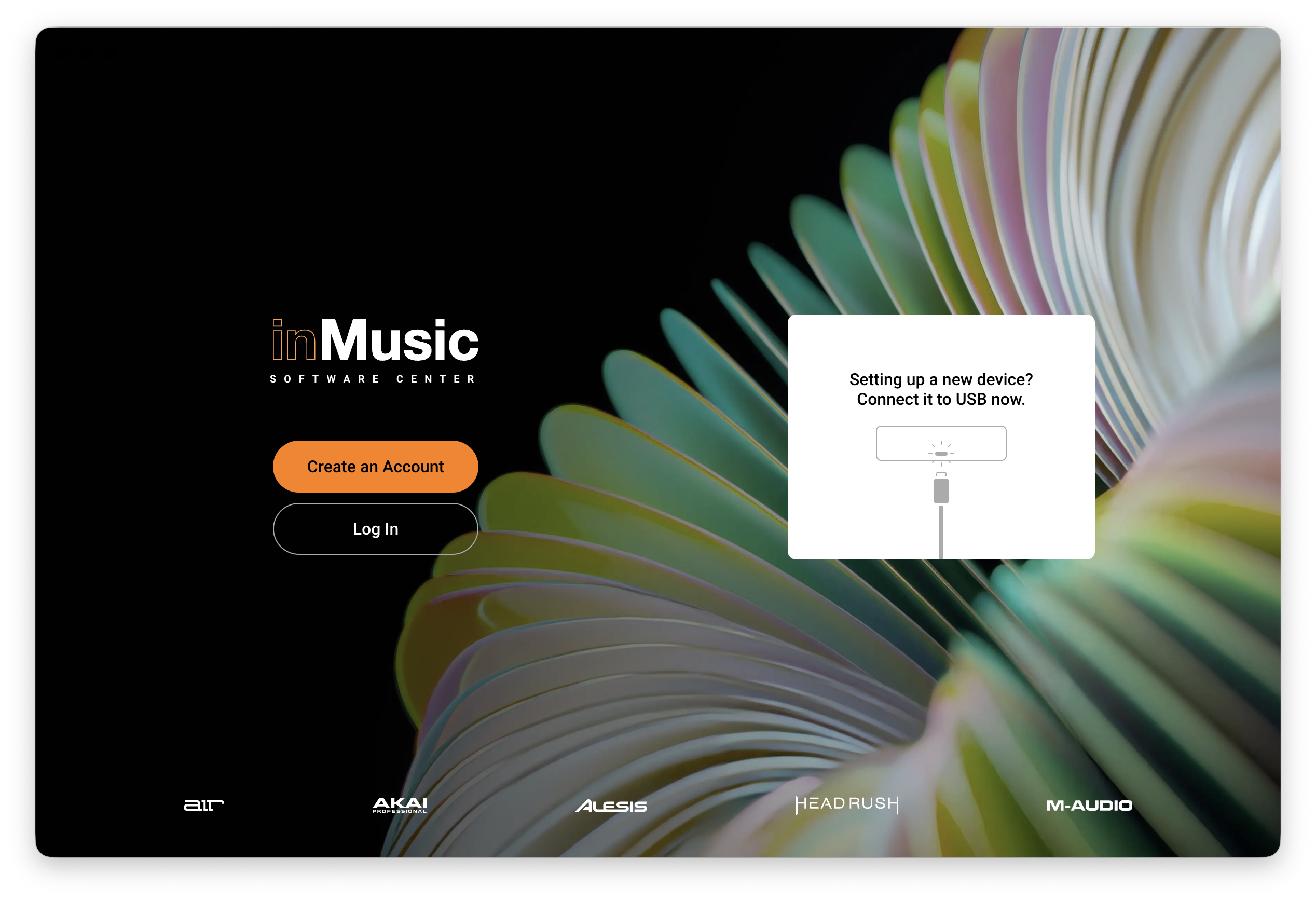
5. Select 'Create an Account' to create an inMusic Profile account.
- If you already have an inMusic Profile, click 'Log In' and skip to step 10.5
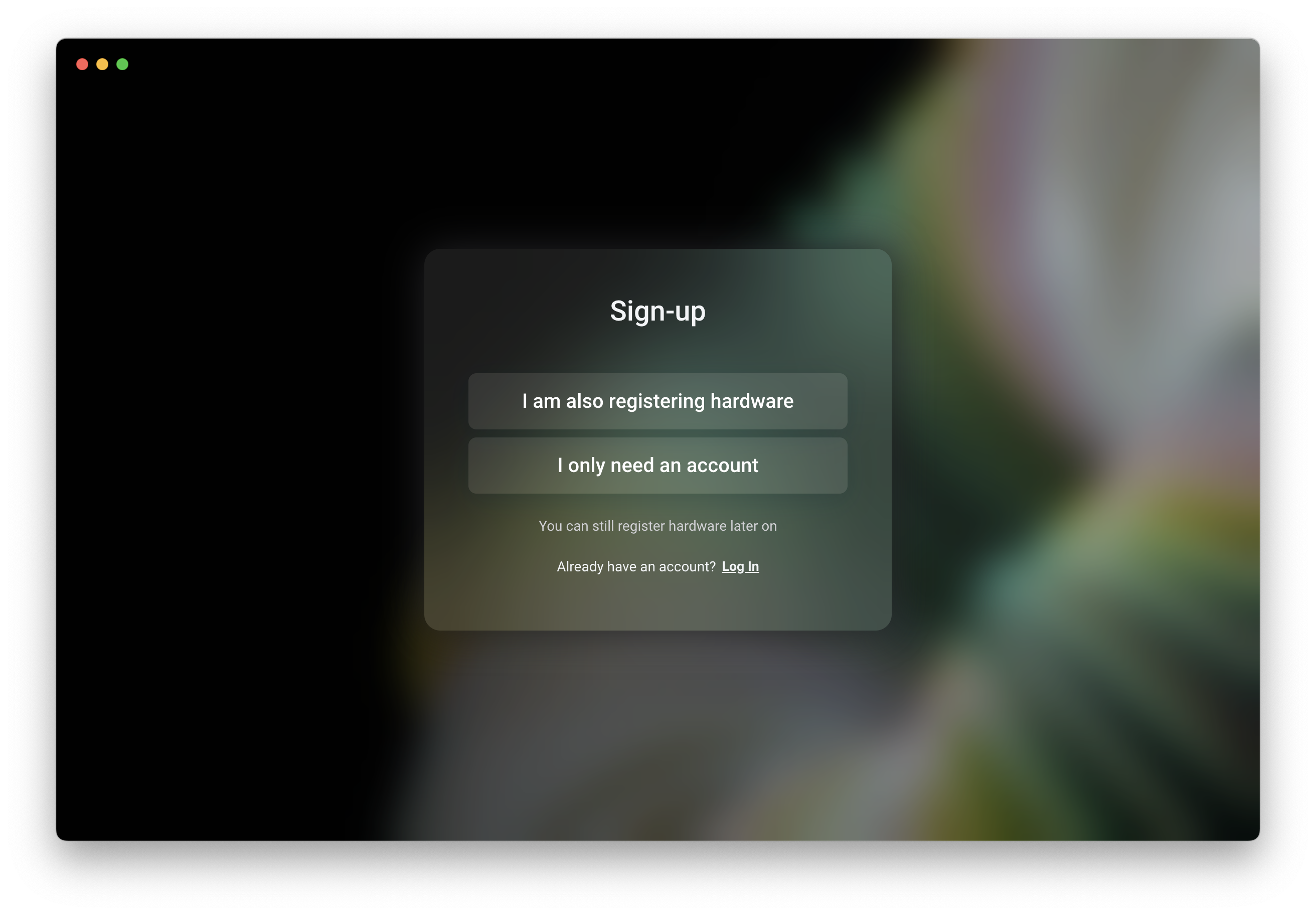
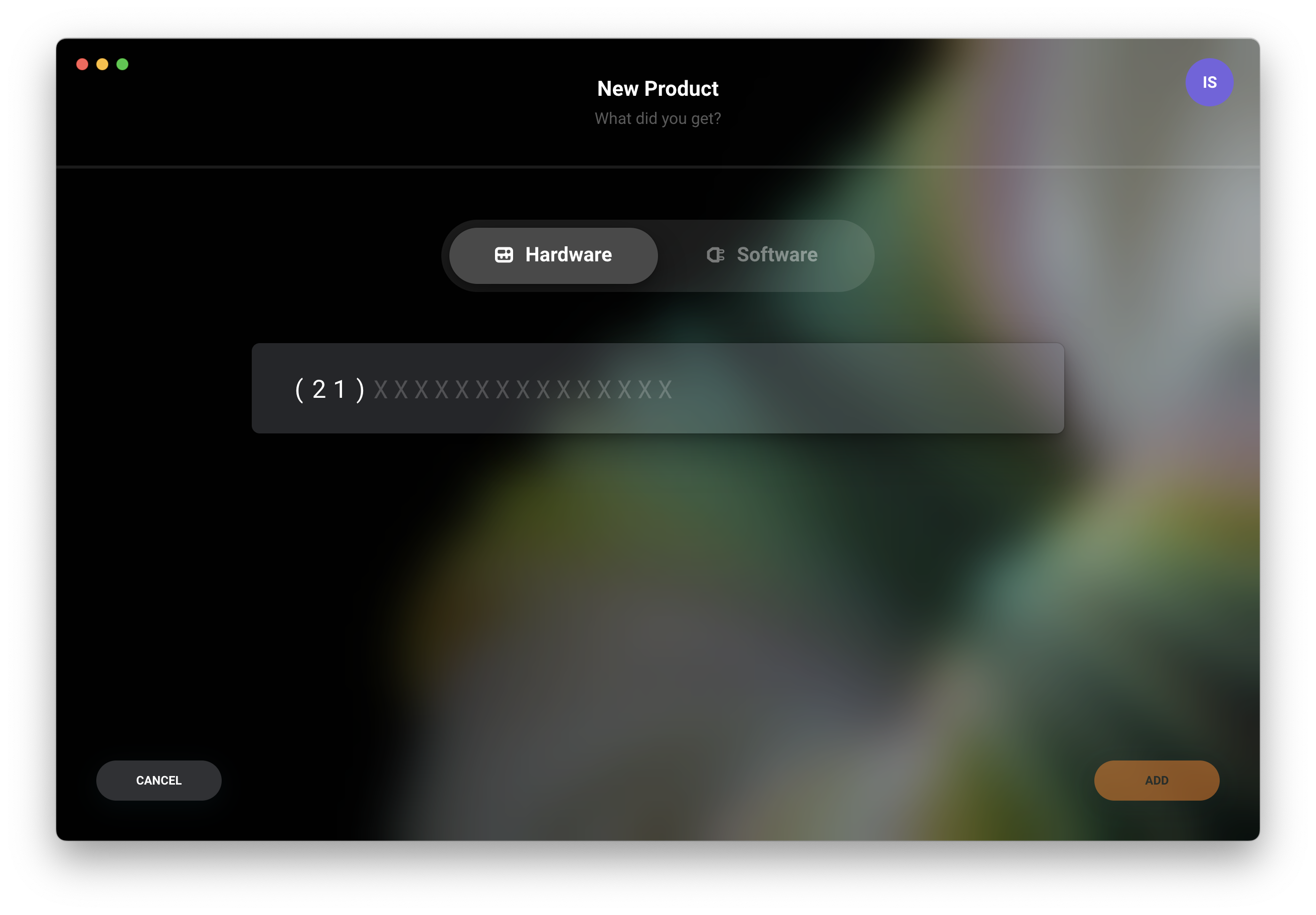
6. If selecting 'Create an Account', choose 'I am also registering hardware' to add the MPK mini to your inMusic Profile.
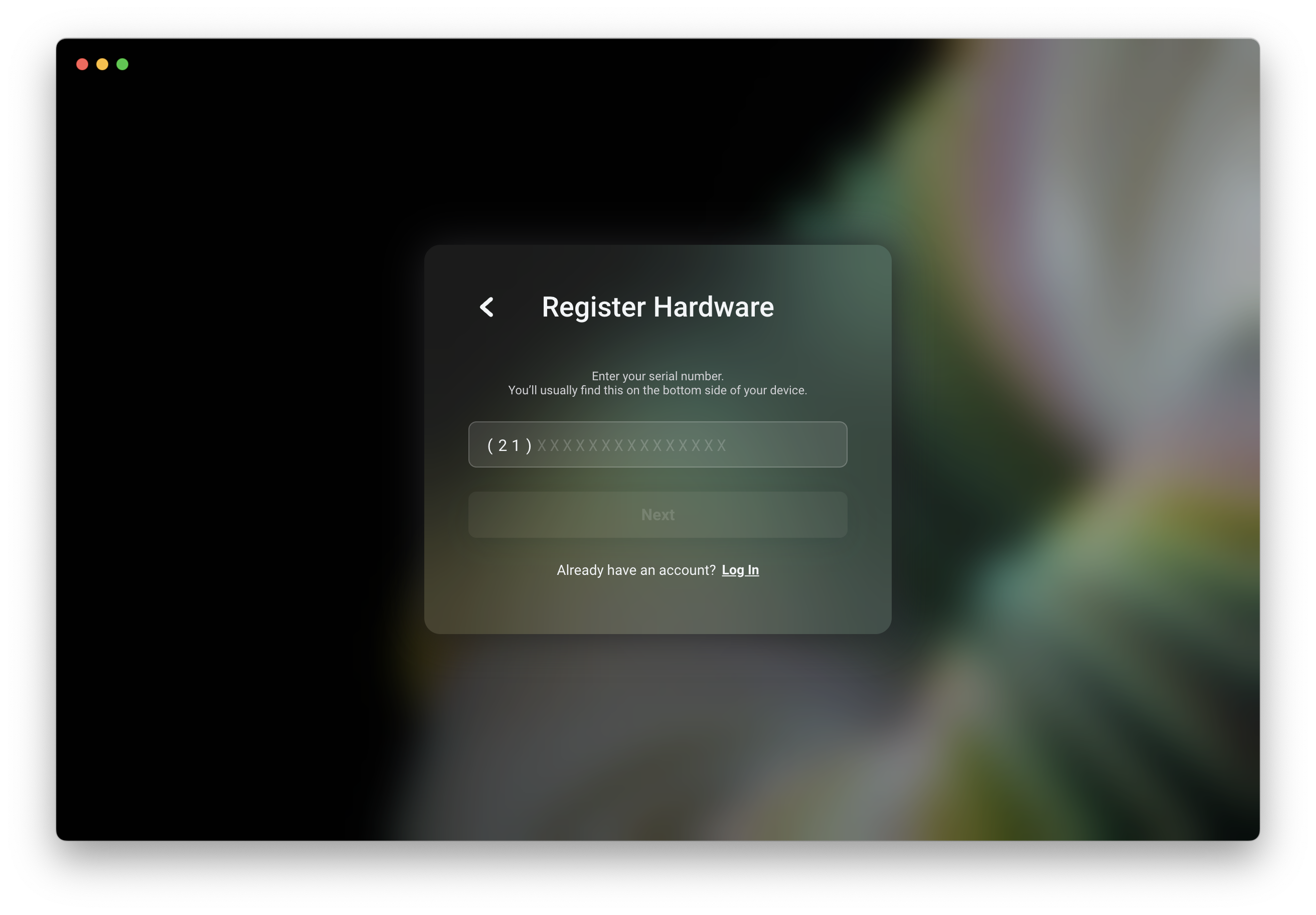
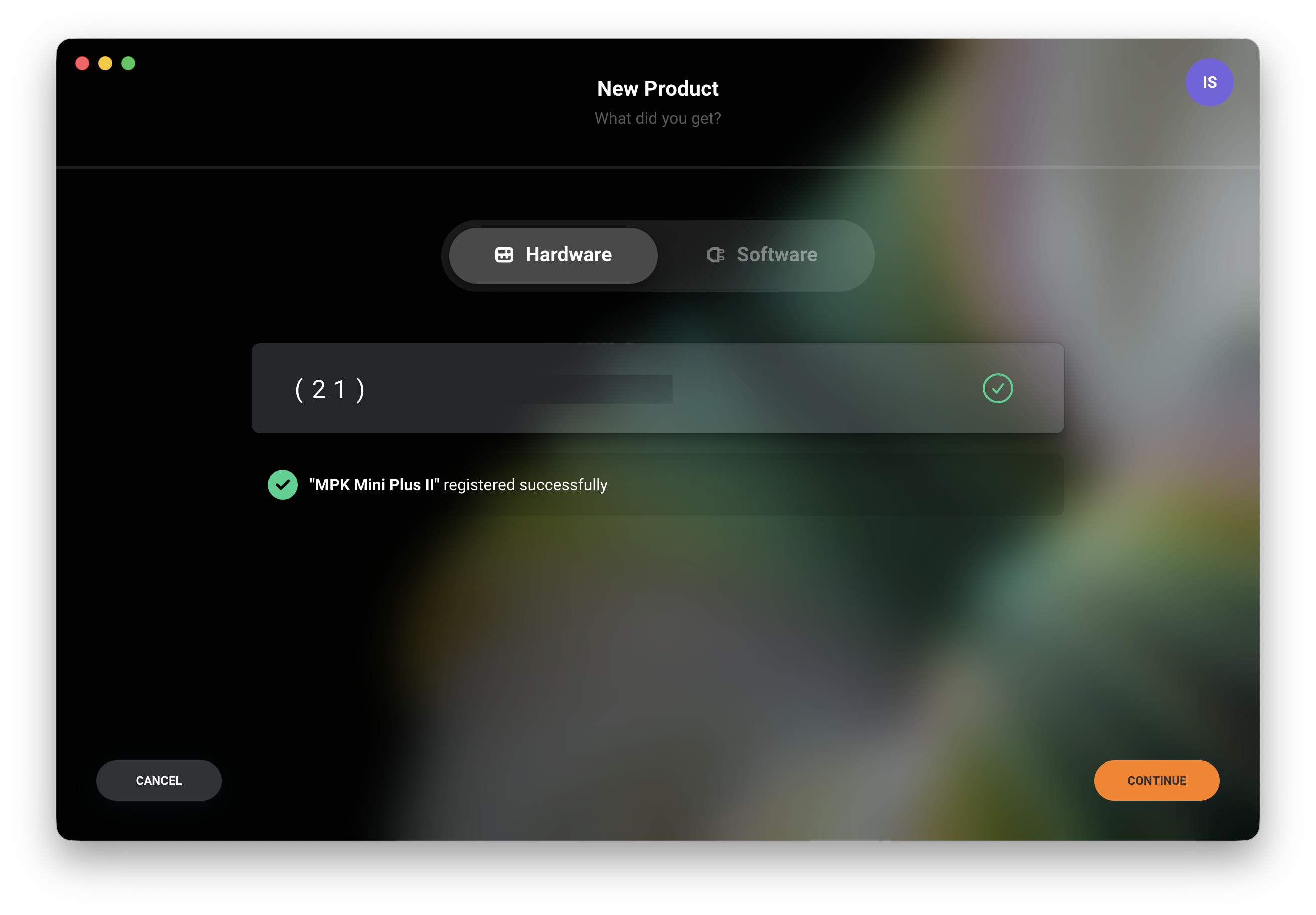
7. Enter the hardware serial number beginning with '(21)', found on the base/underside of your MPK Mini.
Click Next to begin registration, then click Continue once registration is complete.
 8. Follow the on-screen instructions and enter your name and email.
The email address entered will be used to create your inMusic Profile.
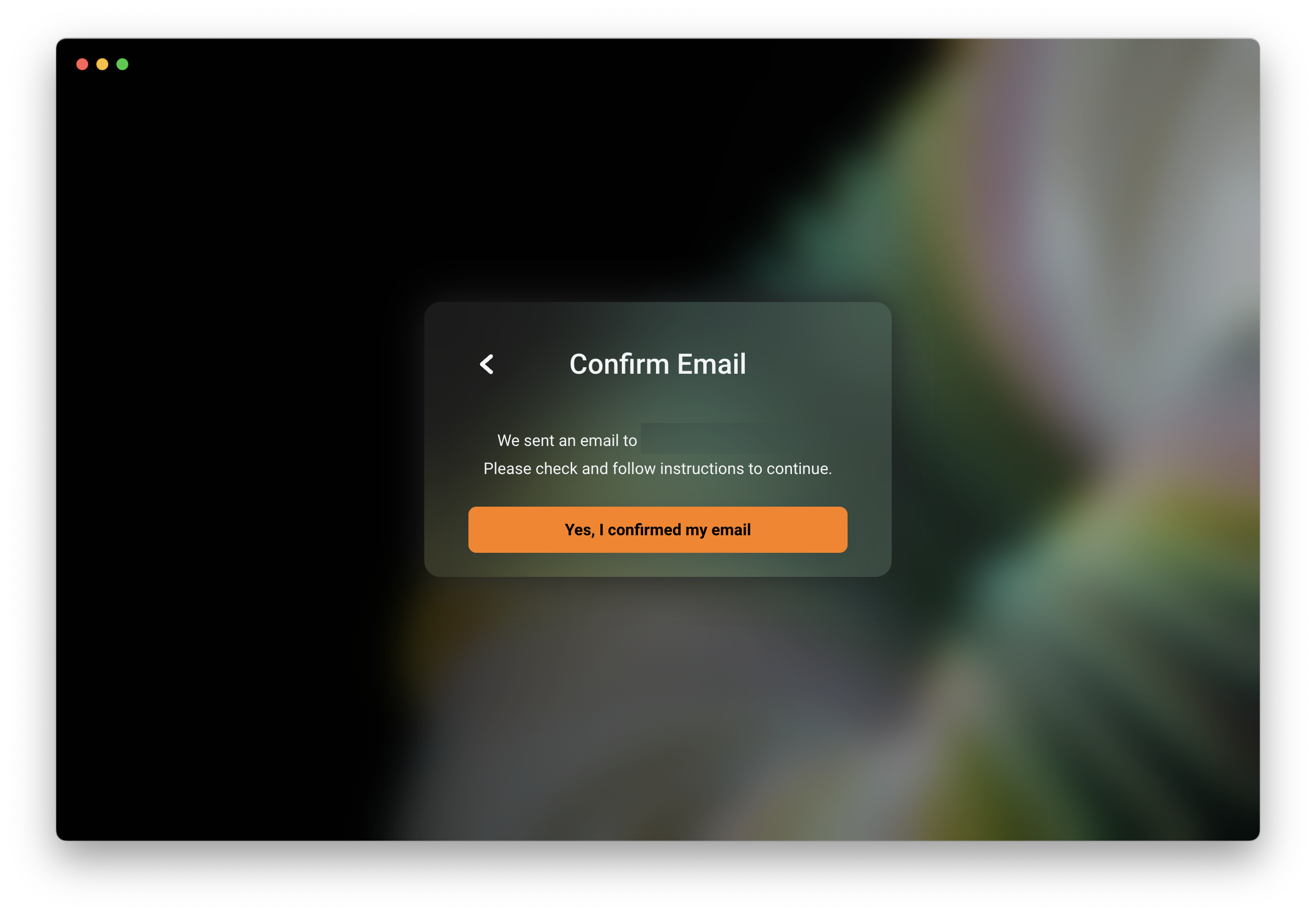
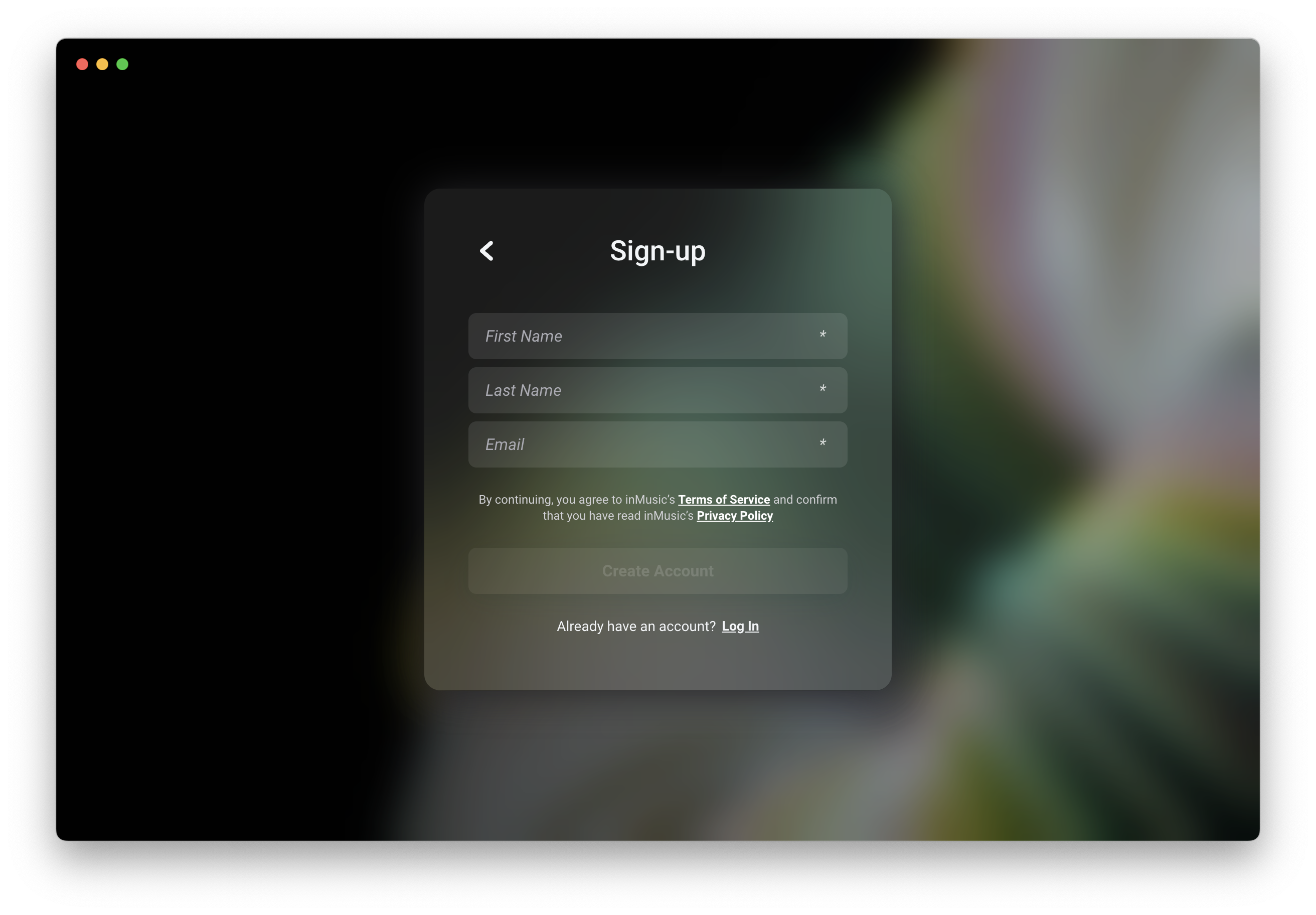 9. A confirmation email will be sent to the email address specified. Head over to your inbox and follow the instructions in the email.
Then select 'Yes, I confirmed my email' once complete.
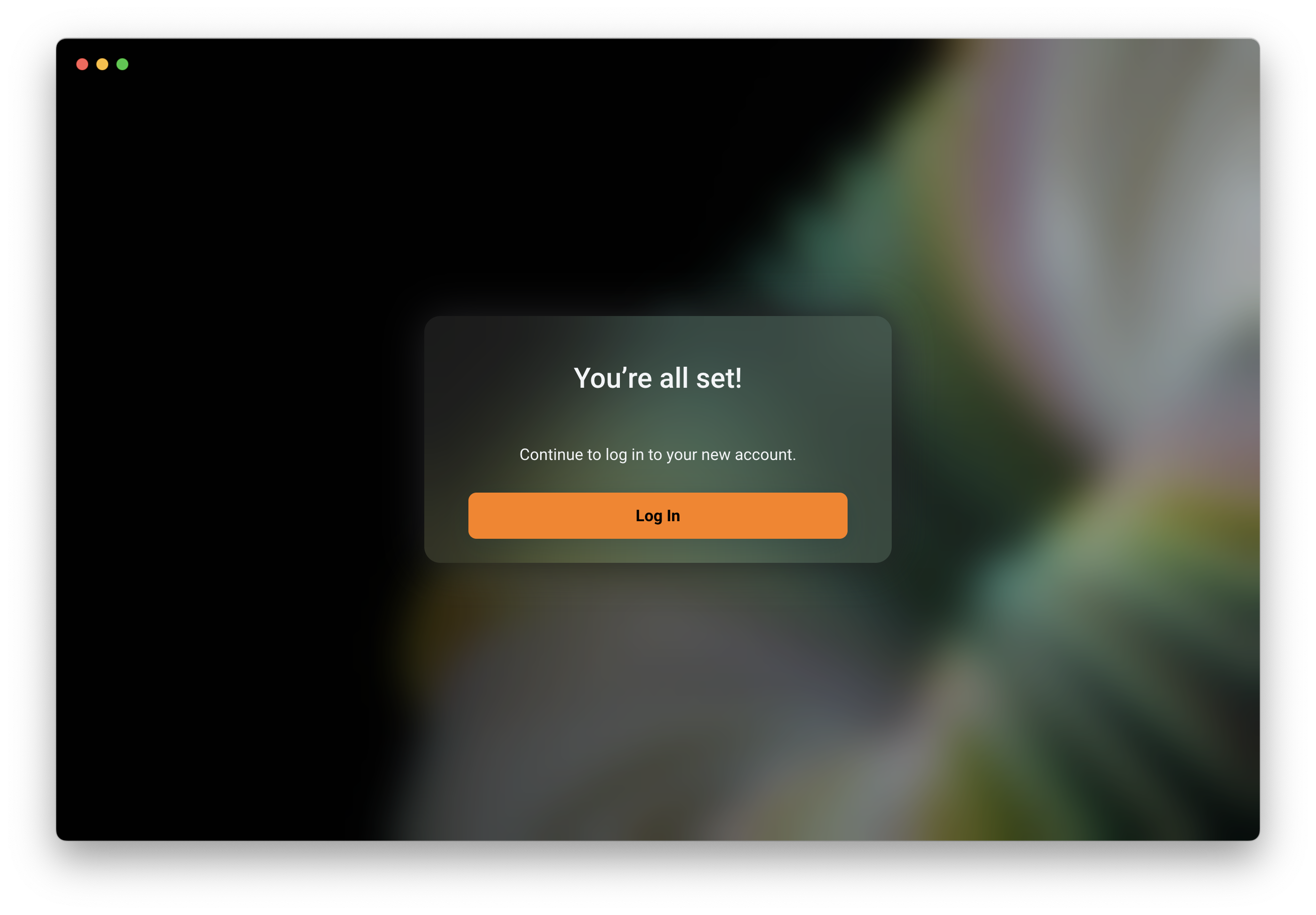
 10. Proceed to log in to your new account.
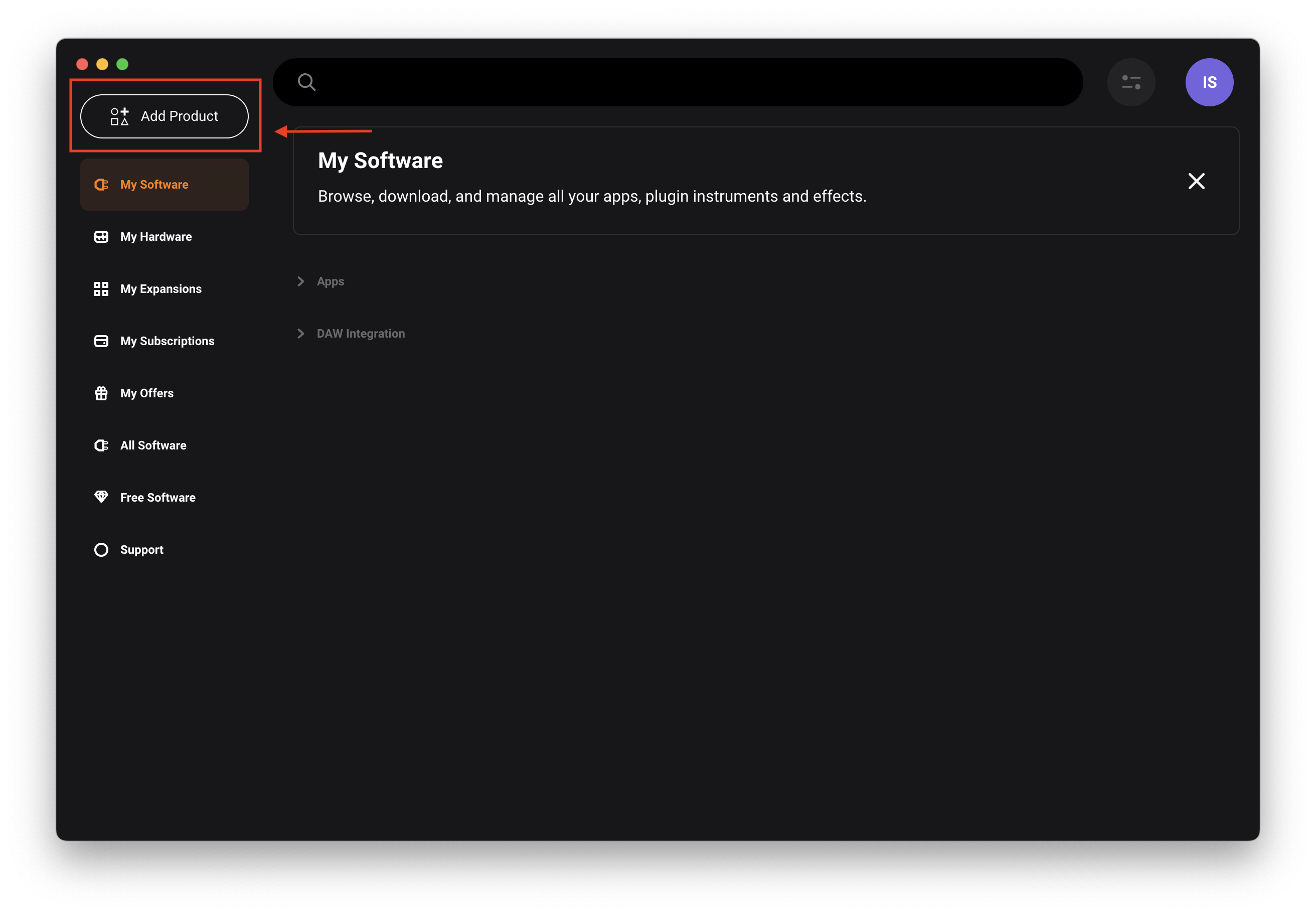
10.5. Note: If you have already logged in, you can select 'Add Product' from the top left of the inMusic Software home page, to register your MPK Mini.
MPK mini Firmware Update
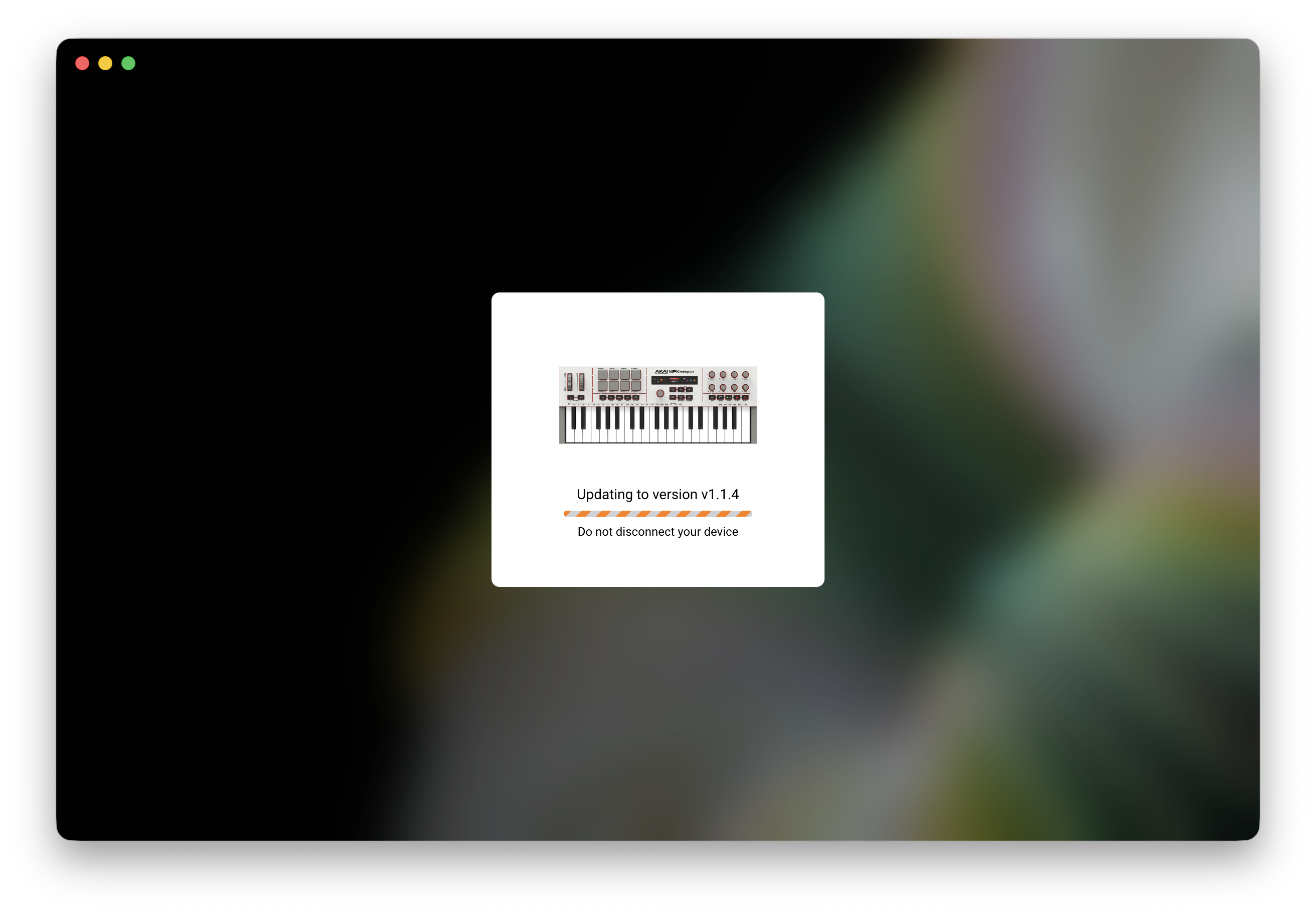
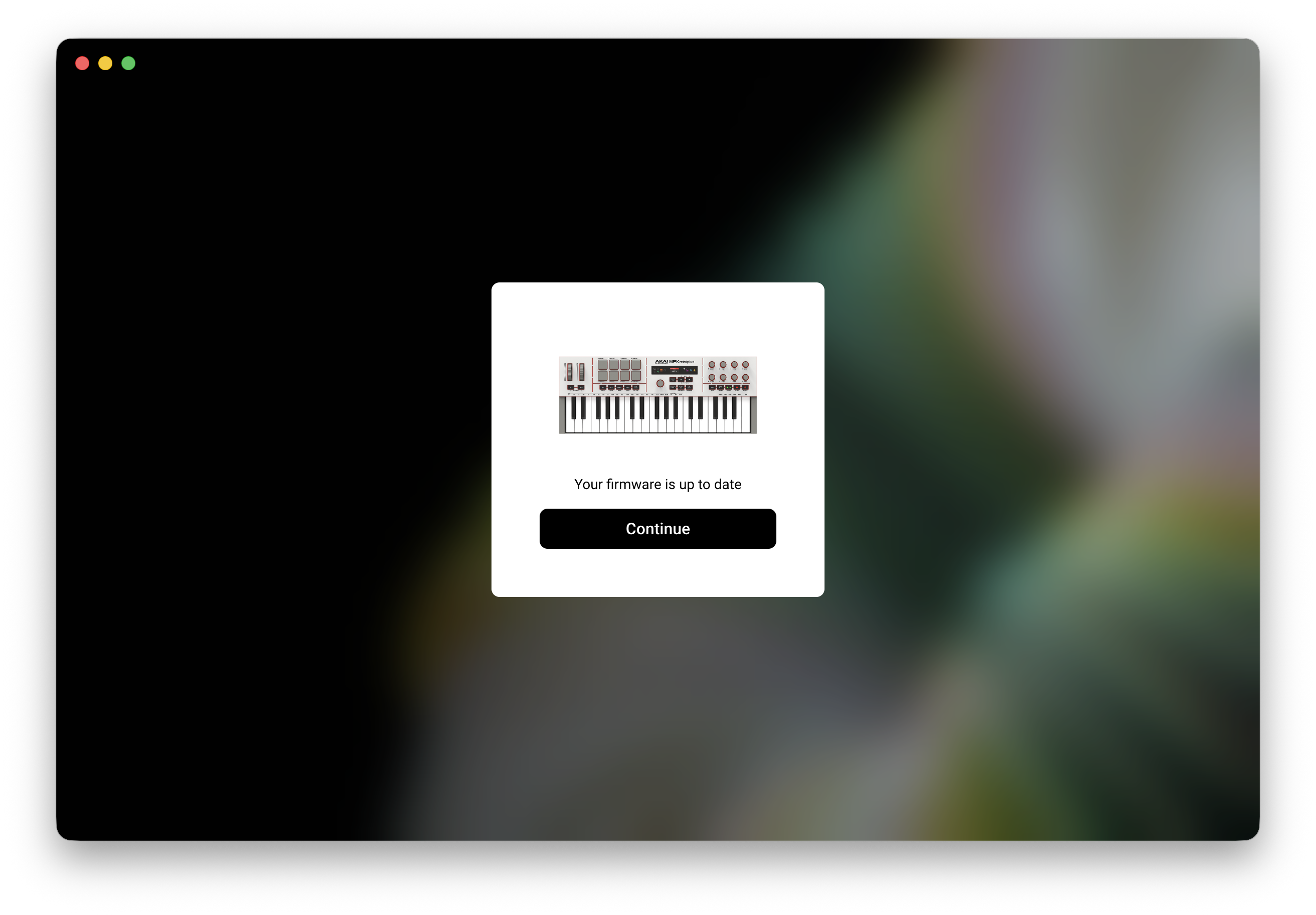
11. IMPORTANT - A Firmware Update is required for users to receive the best experience with DAW script mapping and Studio Instrument Collection. If prompted, please follow the instructions to update the MPK Mini firmware.
Do not disconnect your MPK Mini during the firmware update process.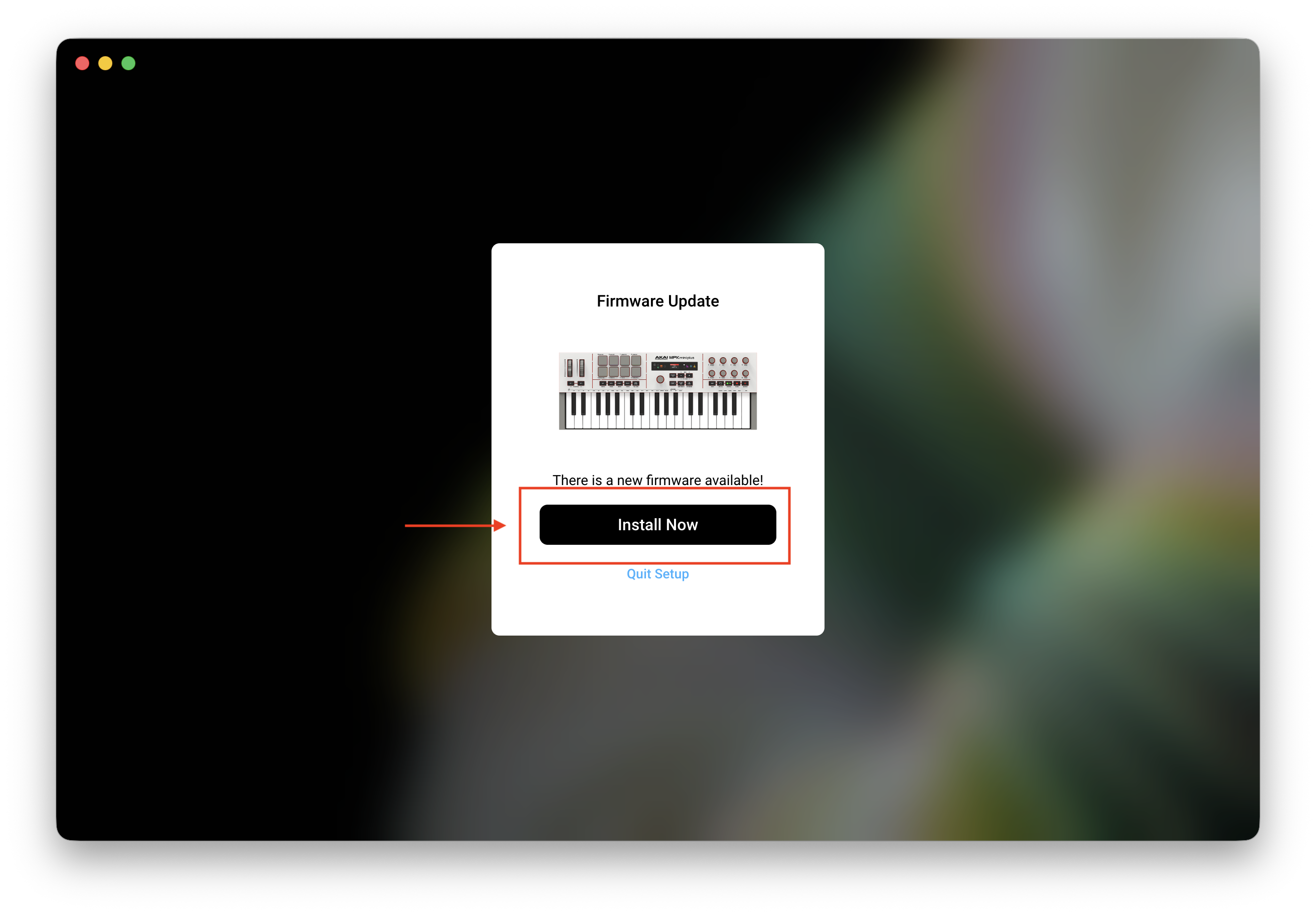
Software Installation
12. Choose whether you want to install only Studio Instrument Collection, or all other software included with your MPK Mini
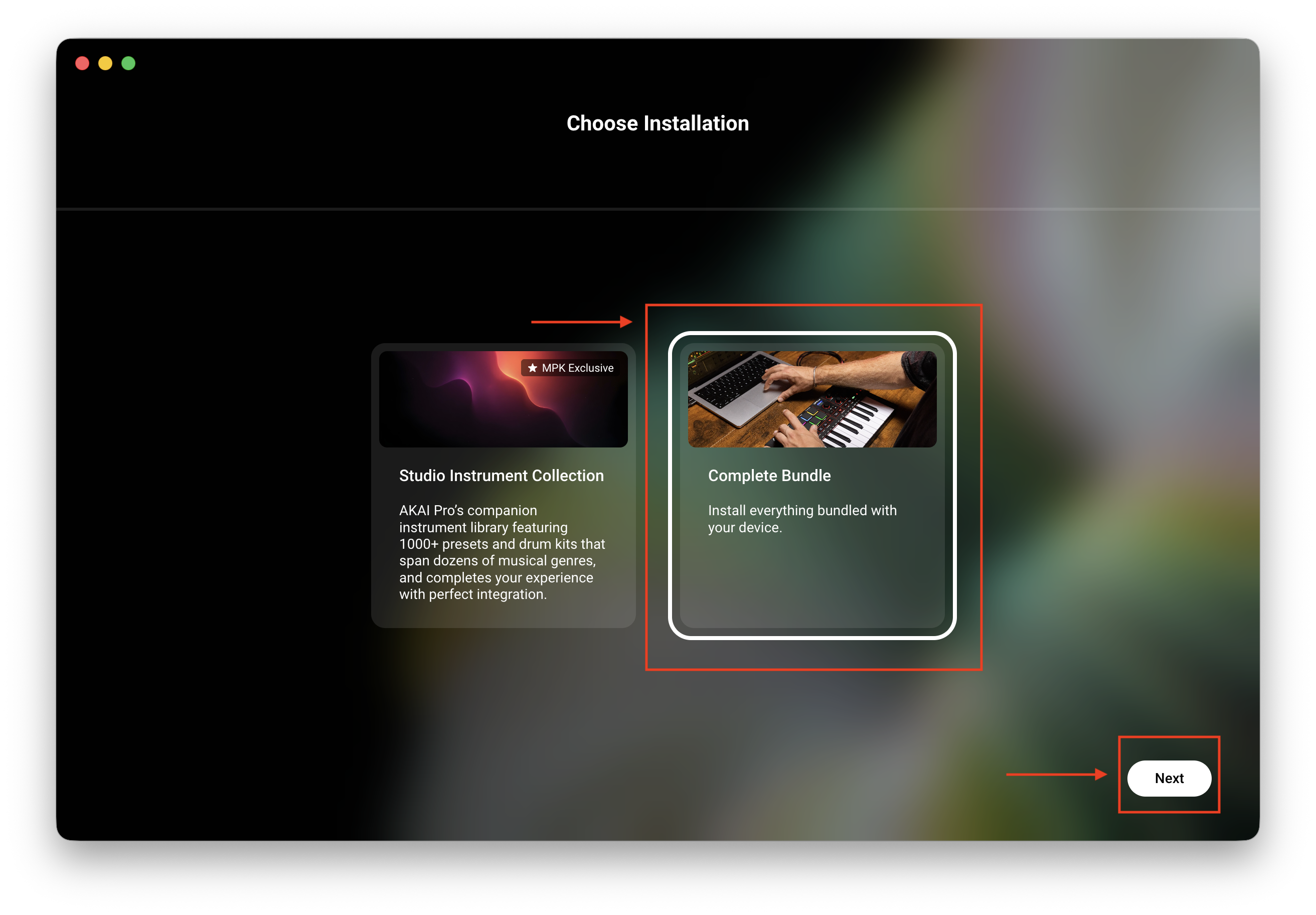
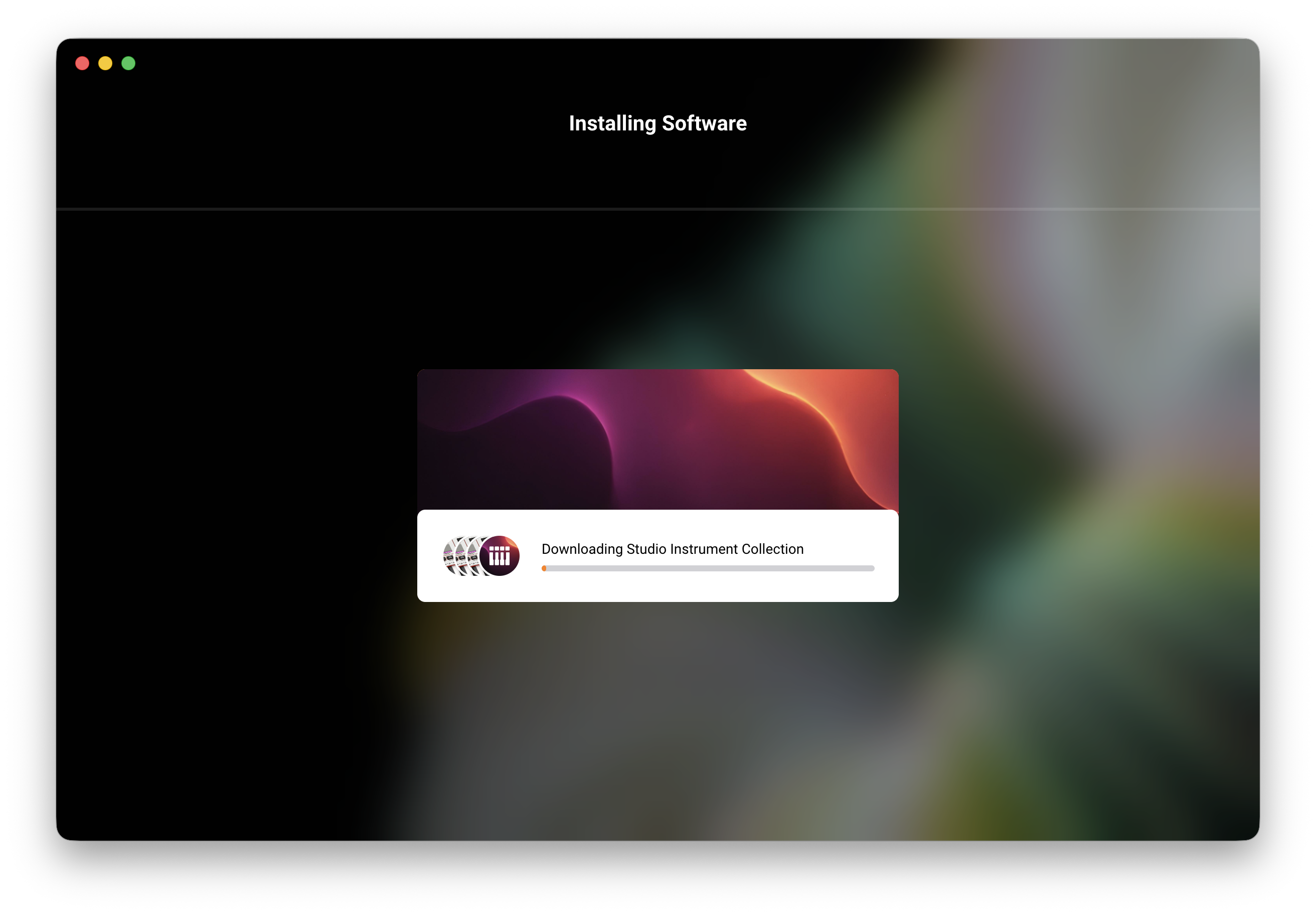
13. If you select 'Complete Bundle'... You'll be prompted to run additional installers. Please Run the installers prompted to complete the software installation process.
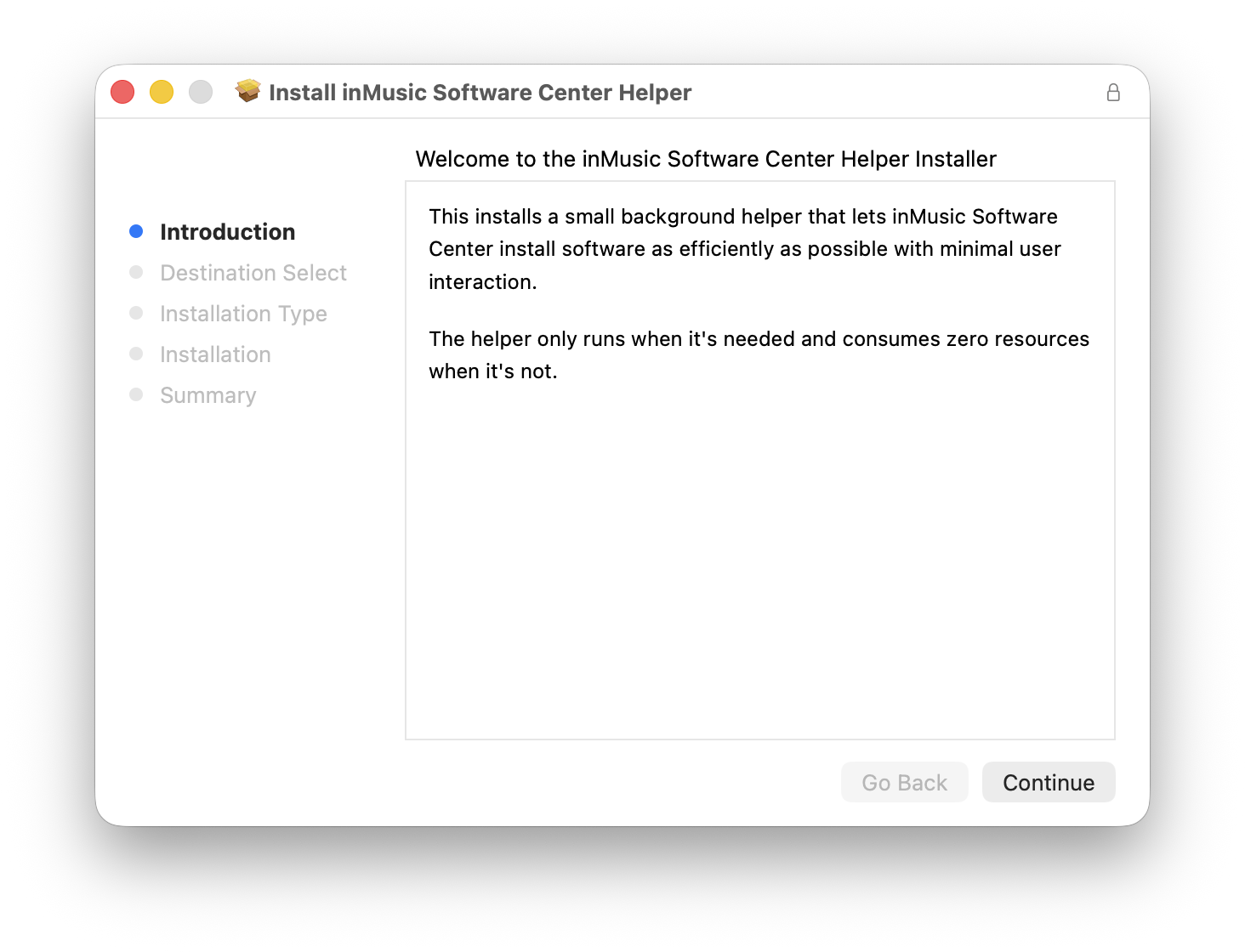
- Note: Users on macOS will be prompted to install the inMusic Software Center Helper:
Native Komplete Select
14. Click 'Go to Hardware Center' to redeem Komplete Select
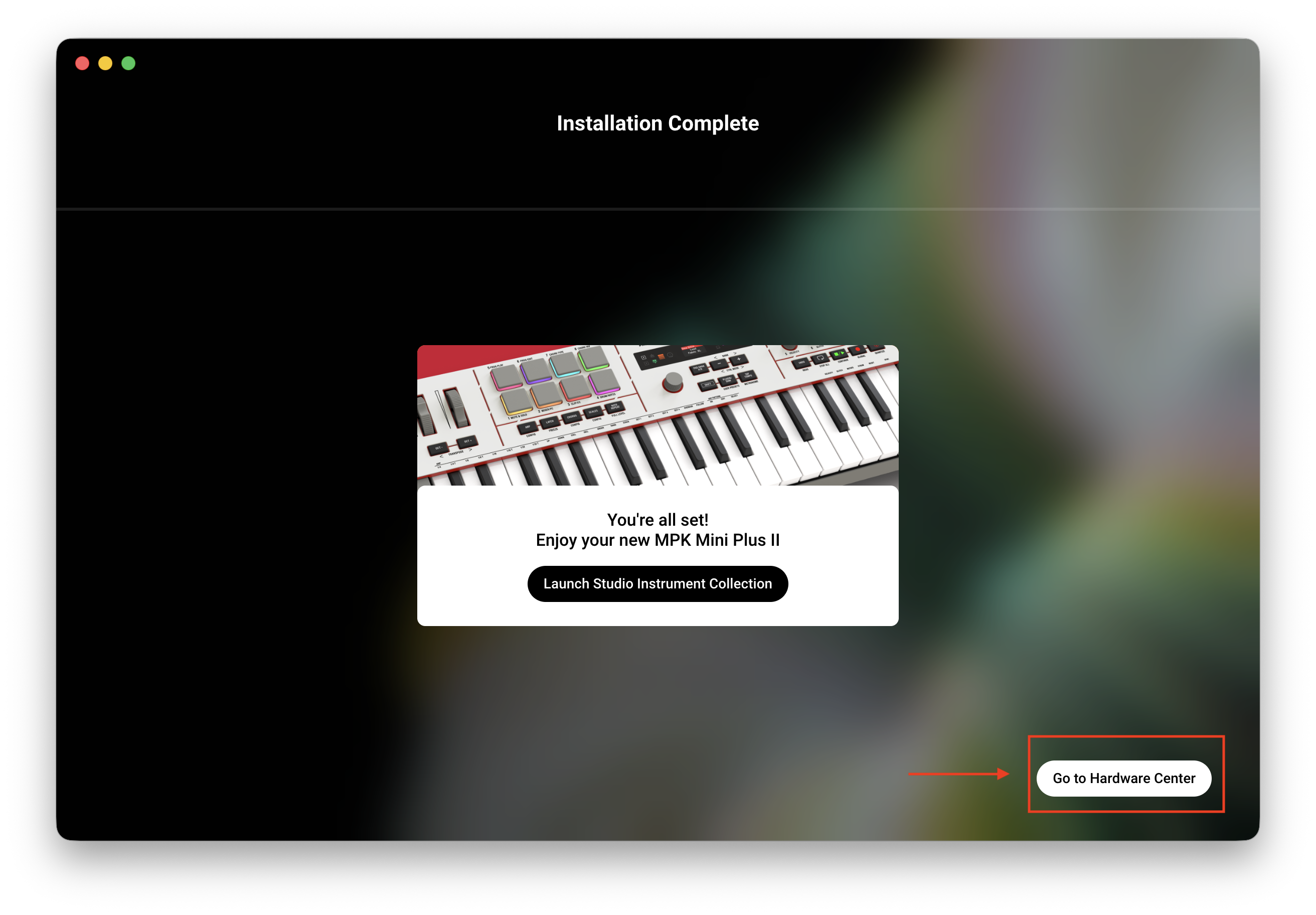
15. Click Open Native Access:
- Note: If you do not have Native Access or a Native Instruments account, you will be prompted to download/install it and create an account
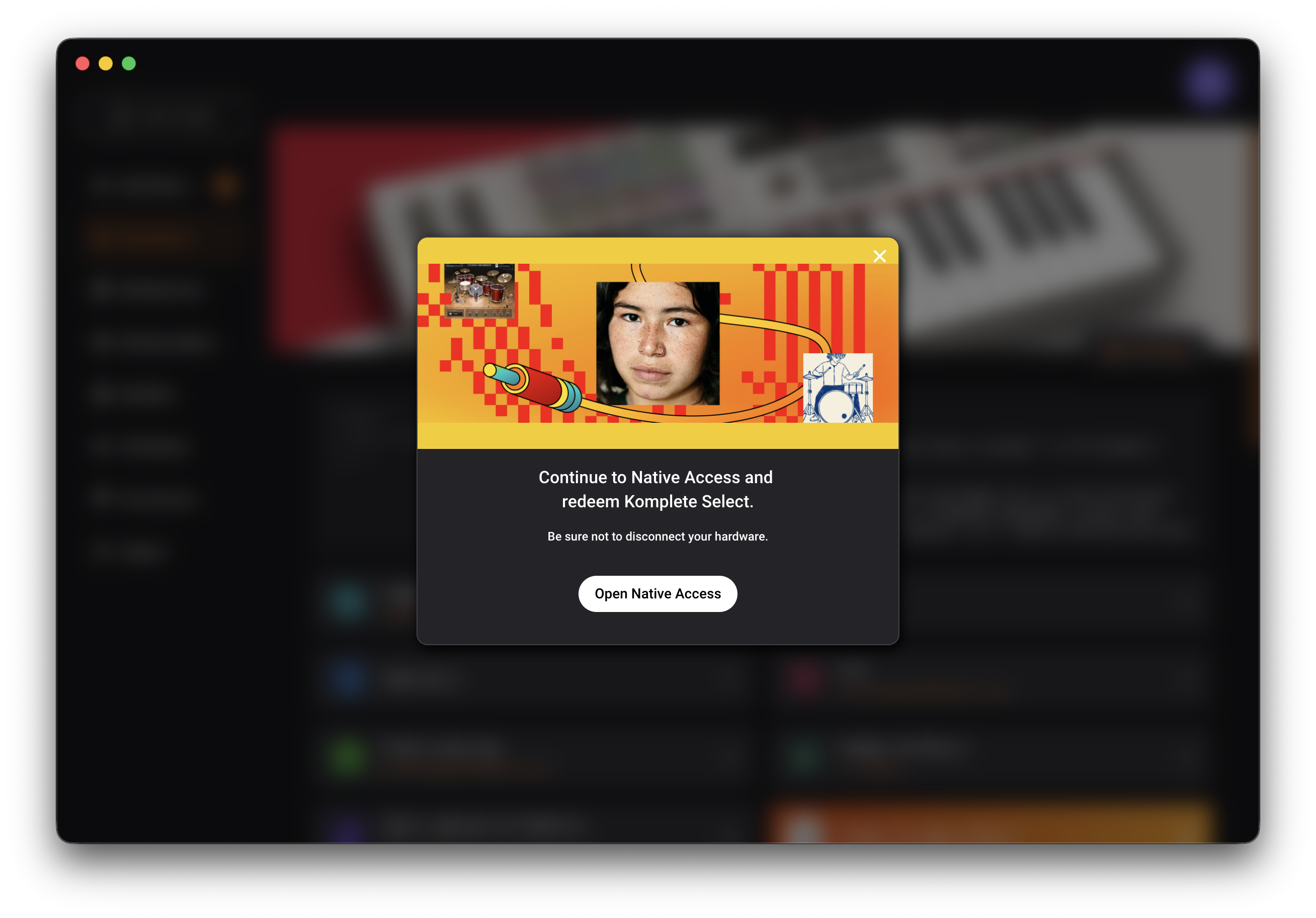
16. Native Access will automatically launch - Ensure your MPK mini is still connected to your computer
17. A pop-up window will appear in Native Access to prompt 'Finish setting up your MPK Mini'.
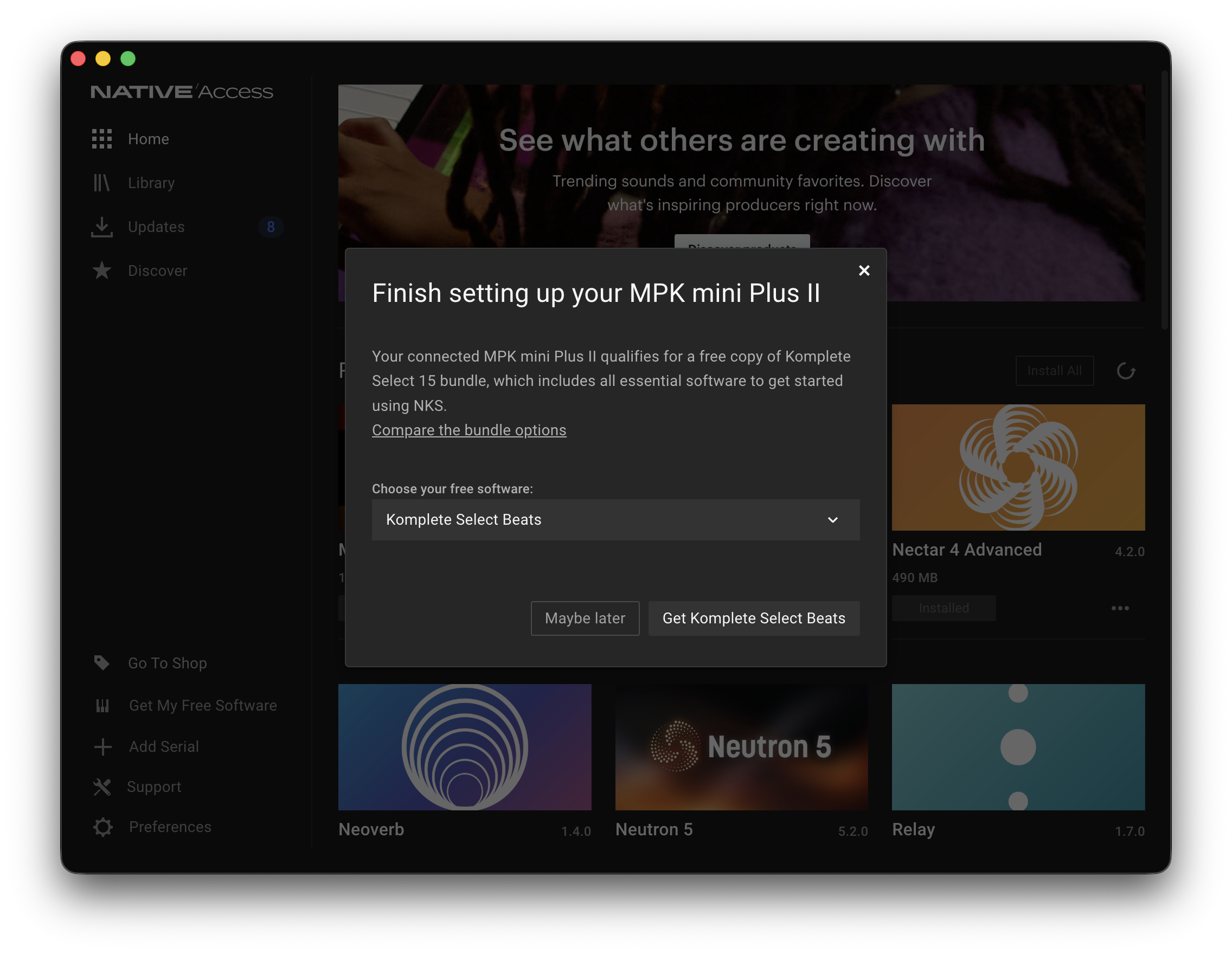
Choose from the drop-down menu whether you want to redeem Komplete Select Beats, Band, or Electronic.
Note: If you're not sure which bundle to select, click 'Compare the bundle options'
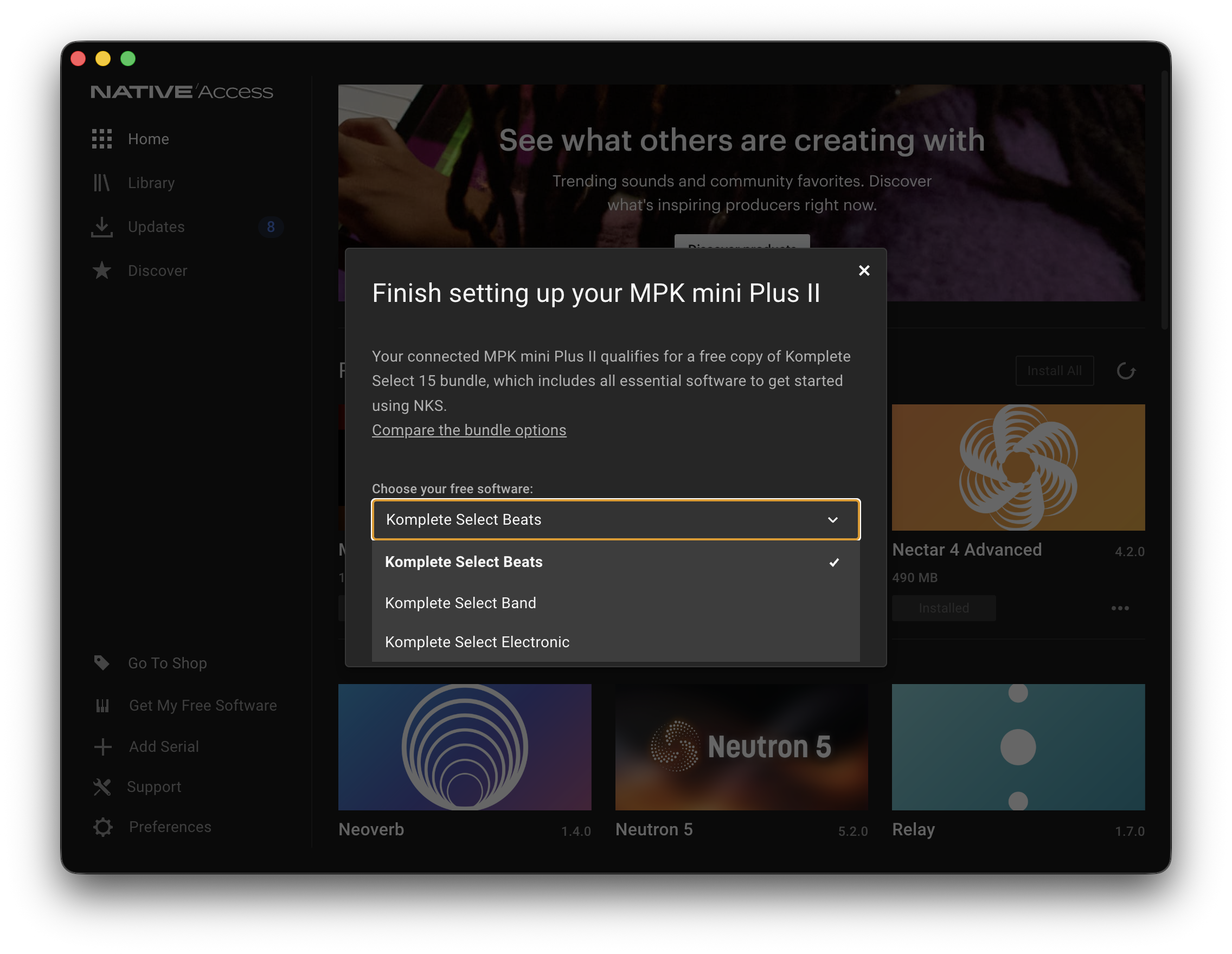
18. Once you've decided which Komplete Select bundle you wish to redeem, click 'Get Komplete Select'
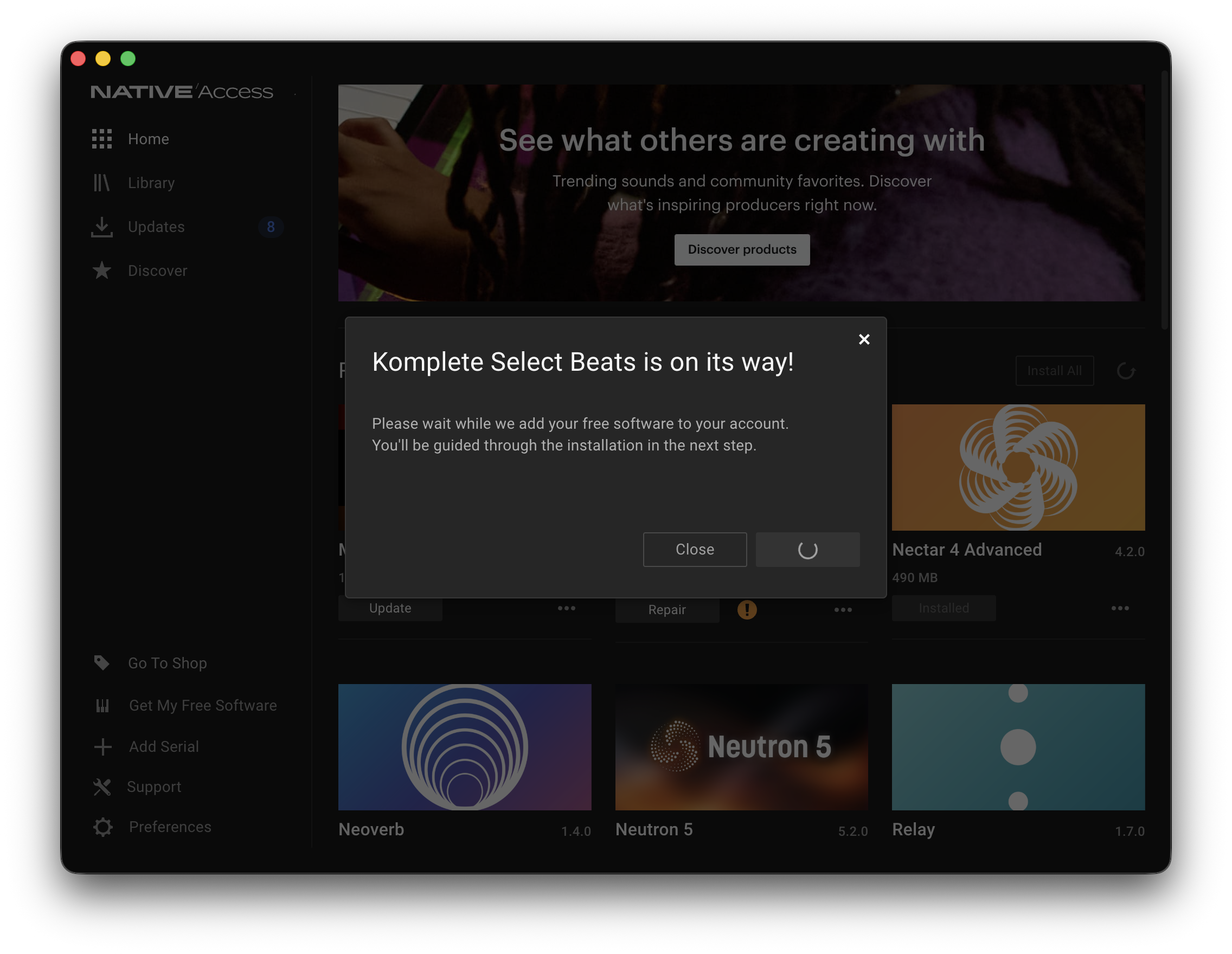
19. Choose whether you want to install all content from Komplete Select, or only 'Essential for NKS'
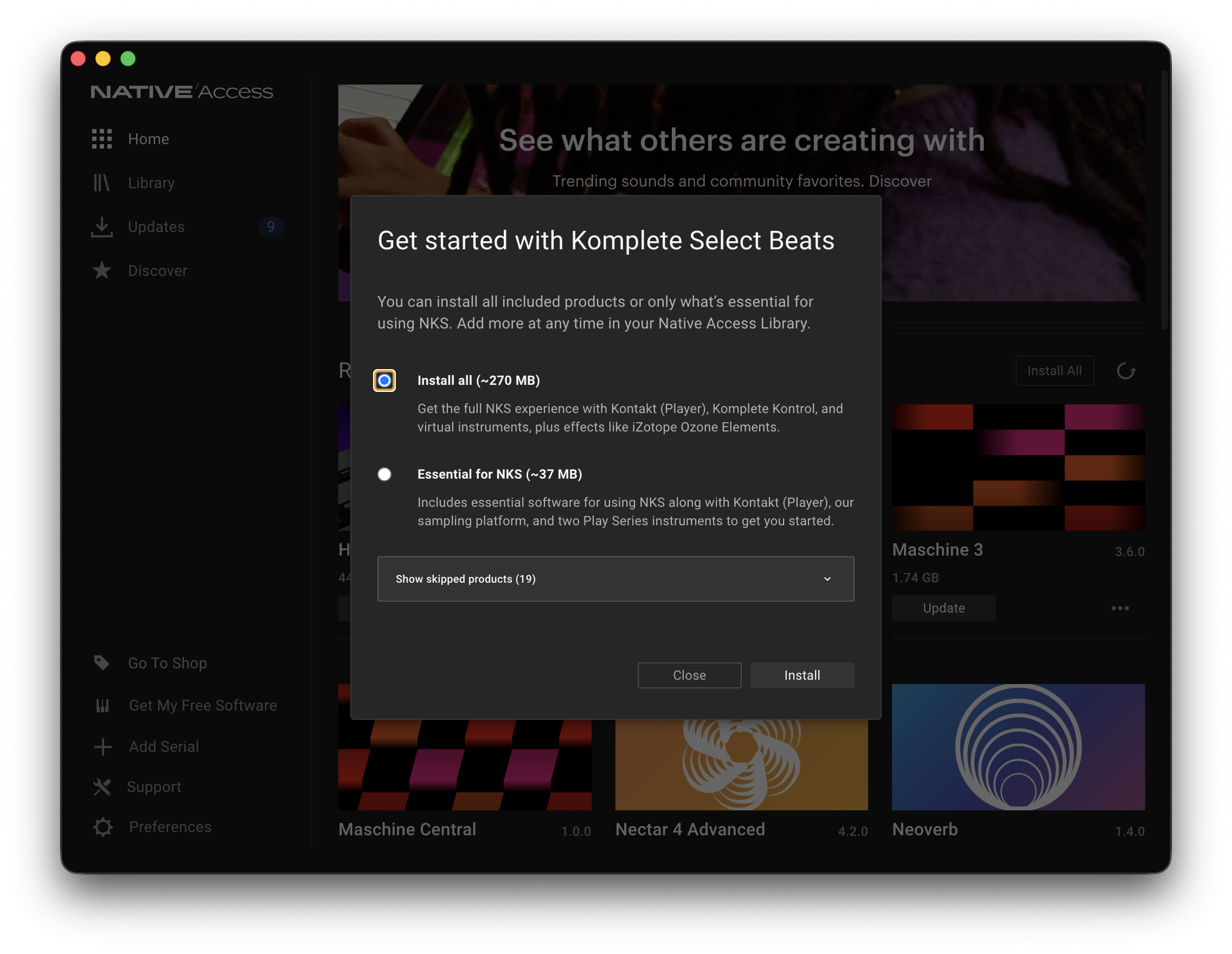
20. Click Install to begin the Installation of your Native Komplete Select bundle. Your software will begin to download & install via Native Access.
Launching the Studio Instrument Collection
There are two ways you can choose to use the Studio Instrument Collection - either completely standalone, or as a plugin within your DAW.
Standalone
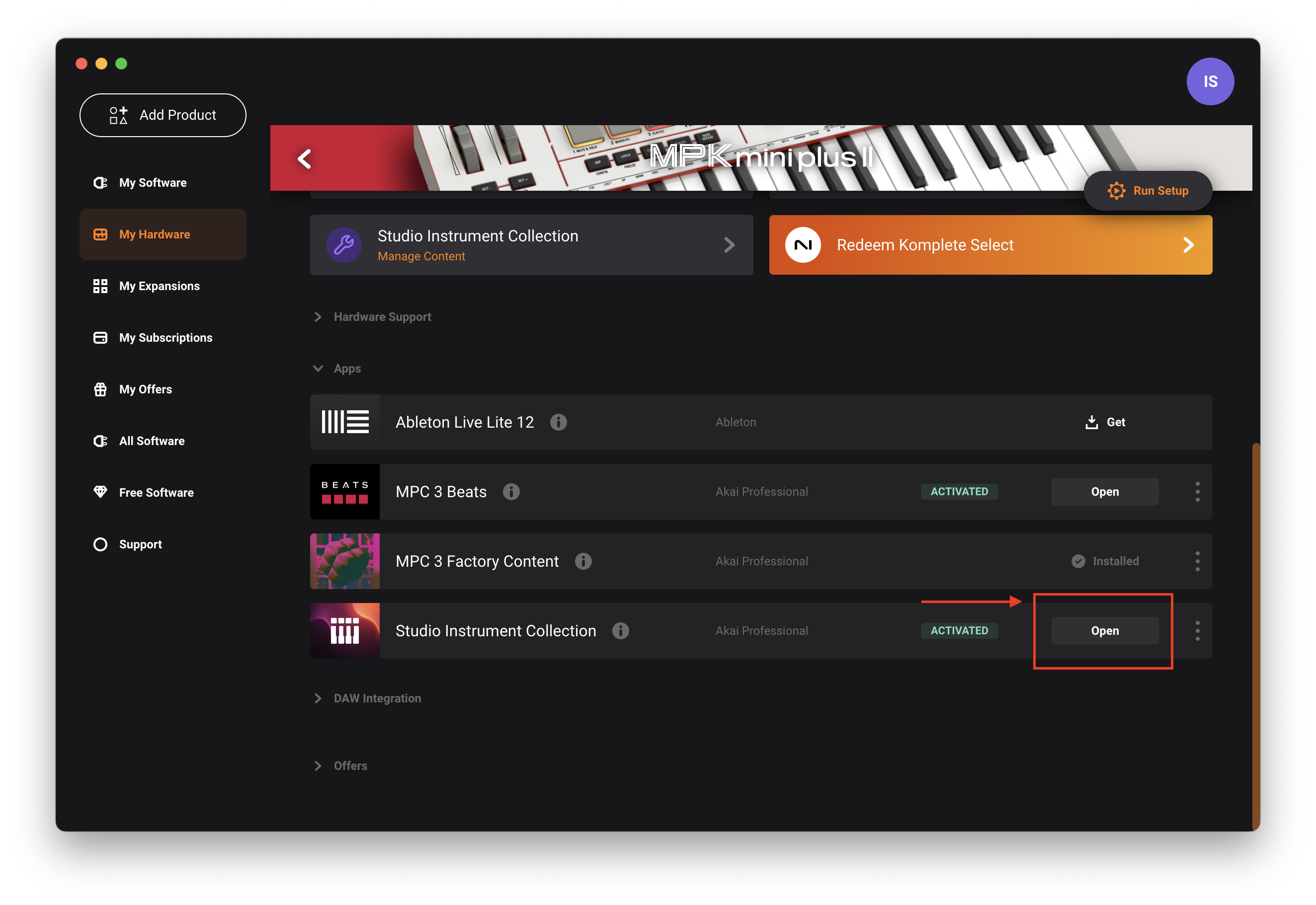
To use this as a standalone software, click Open beside Studio Instrument Collection in the inMusic software Center.
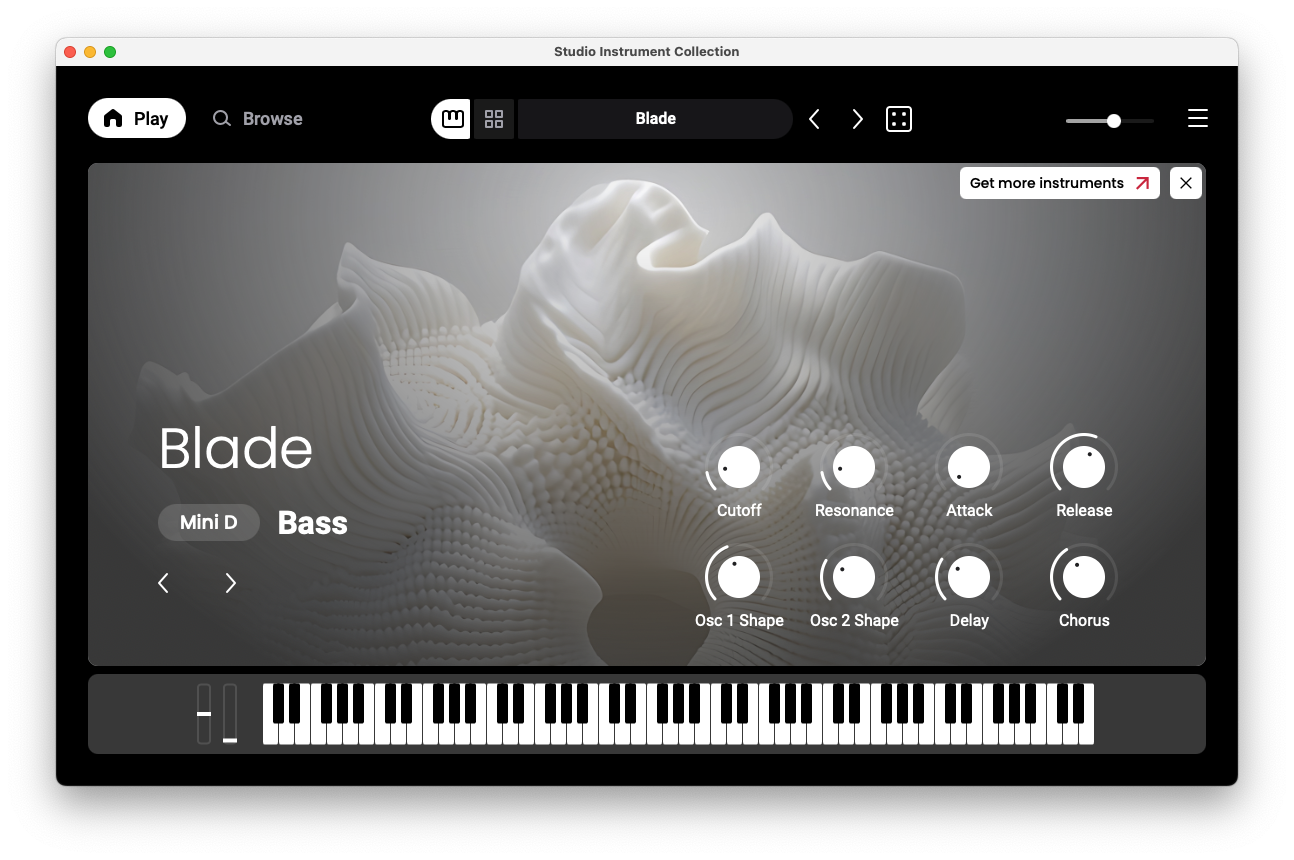
 Studio Instrument Collection will load as a standalone application:
DAW / Plugin
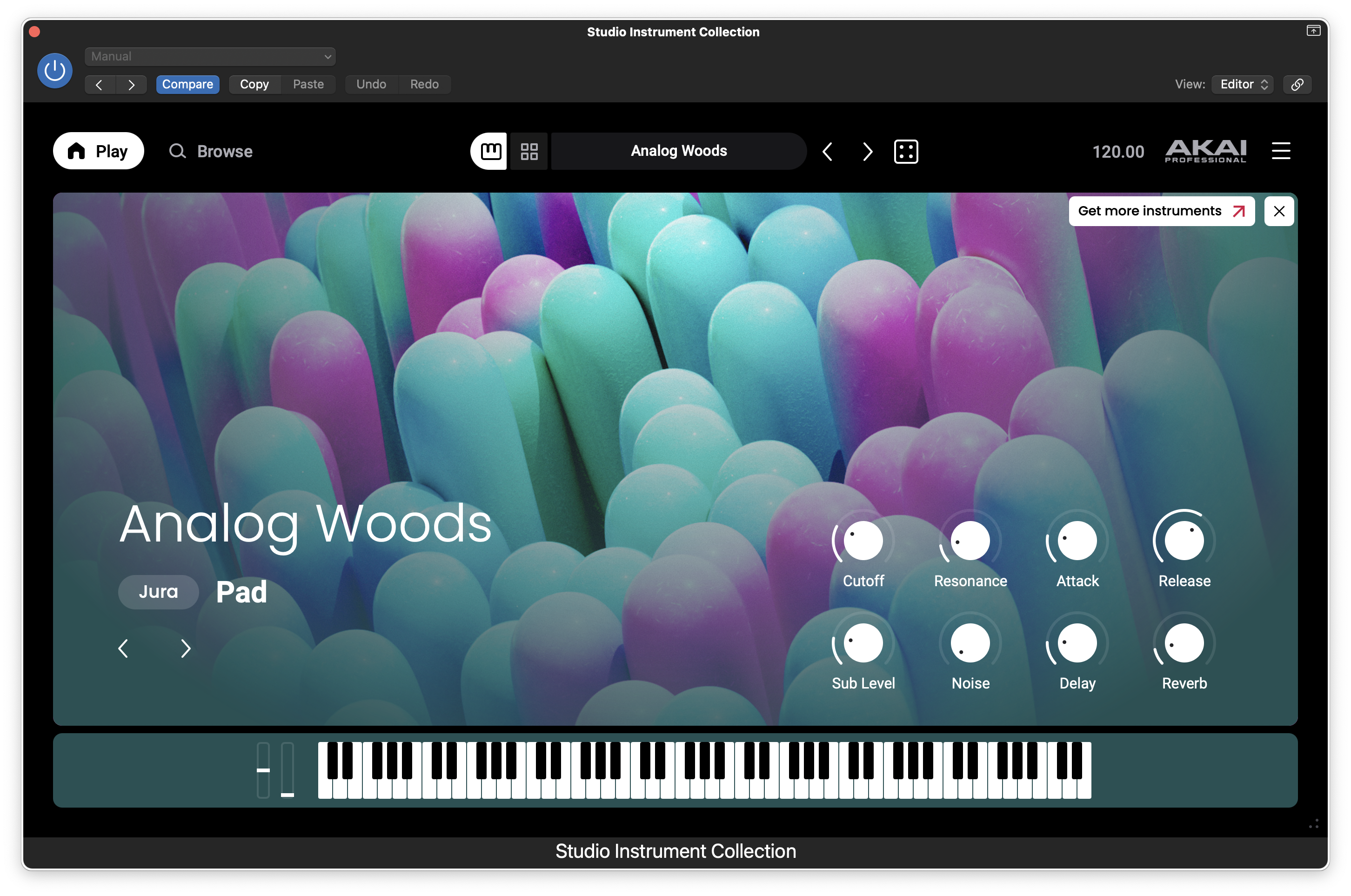
To use Studio Instrument Collection within a DAW, follow the steps below:
1. Open a supported DAW host software.
2. Open your software’s Preferences, Options, or other menu to scan for Studio Instrument Collection as a new plugin. Consult your software’s documentation for more information.
3. In your project, add Studio Instrument Collection as a plugin instrument to a track, and then open the plugin window.
Studio Instrument Collection - Get More Instruments
Once you've installed Studio Instrument Collection, you have the choice to install more instruments to increase the number of sounds available.
1. Click Get More Instruments
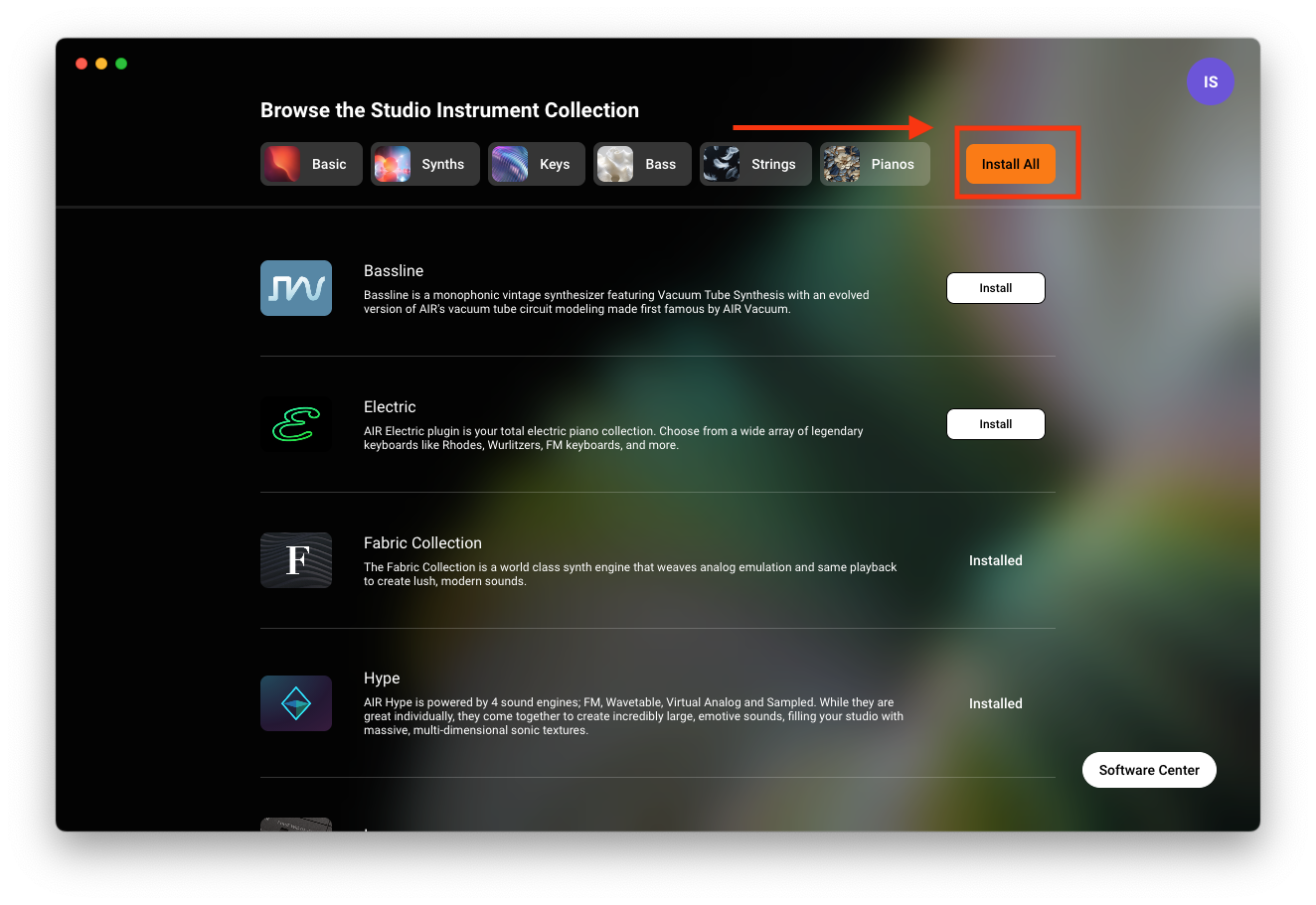
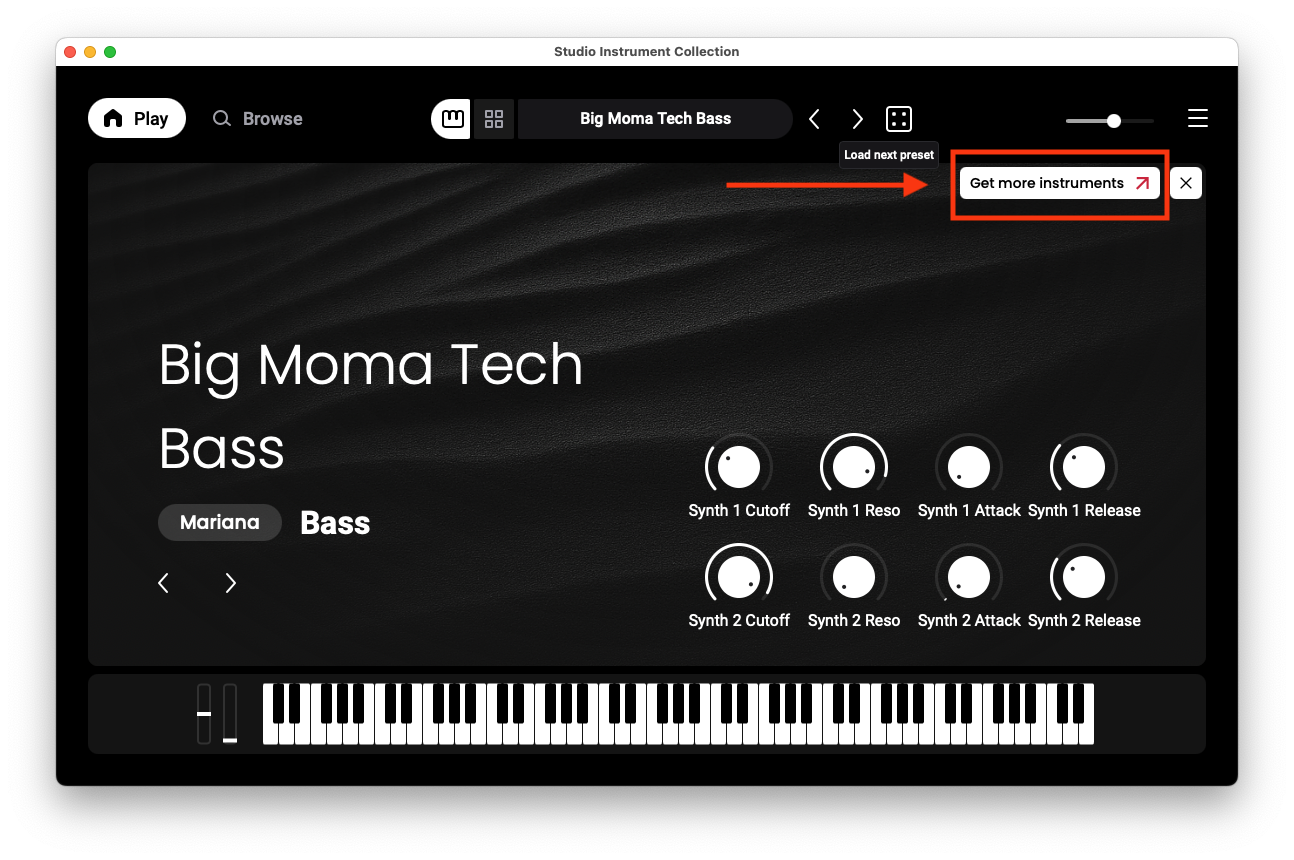 2. The inMusic Software Center will launch, providing you with the option to browse between different sounds like Synths, Keys, Strings, Pianos, etc to install the instruments of your choice.
Additionally, you can select Install All to extend your palette of sounds.
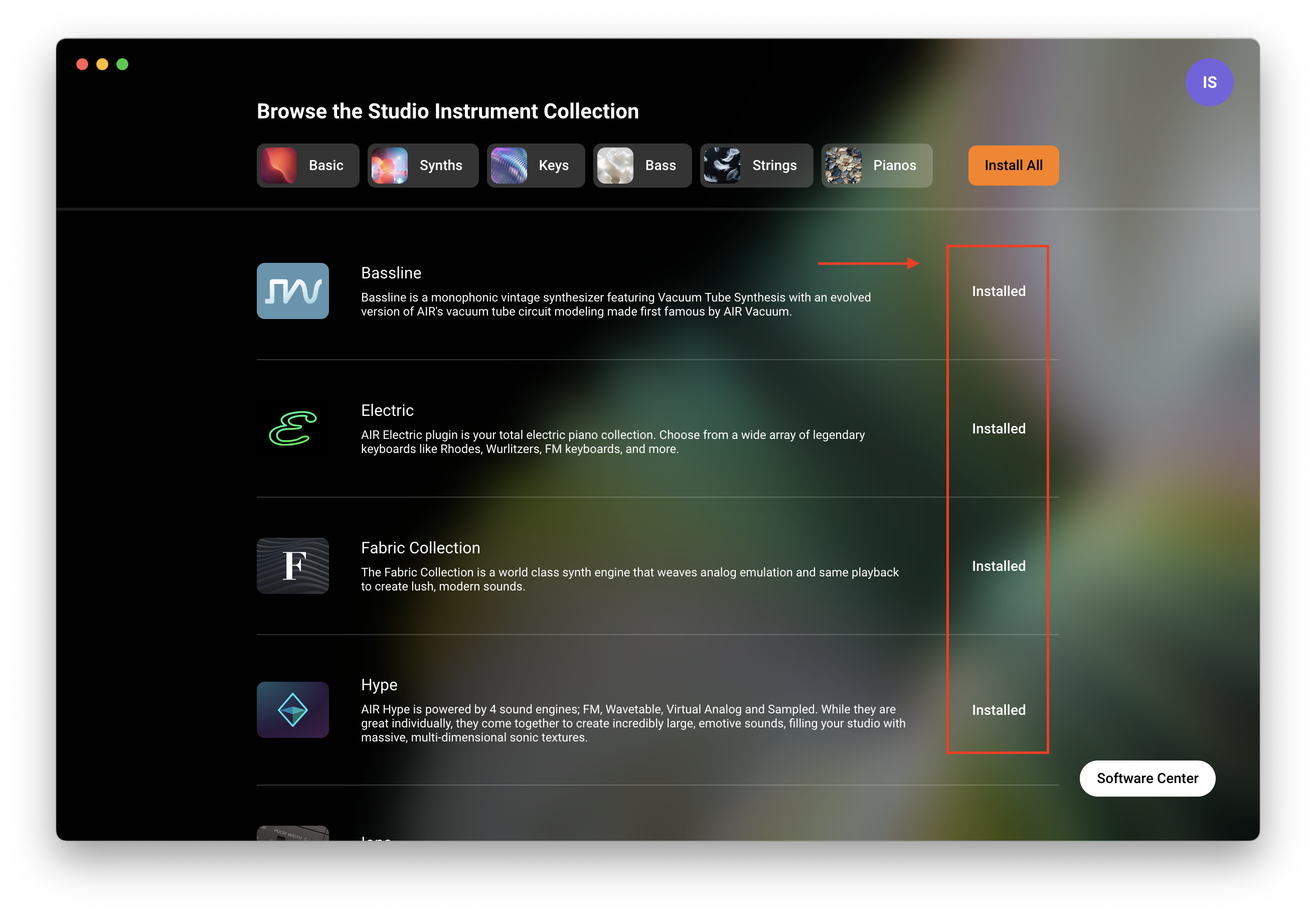
3. The instruments will begin installation and will appear as Installed when complete.
4. Navigate back to the Studio Instrument Collection, where you will be prompted to Rescan Library - Click Start Rescan.
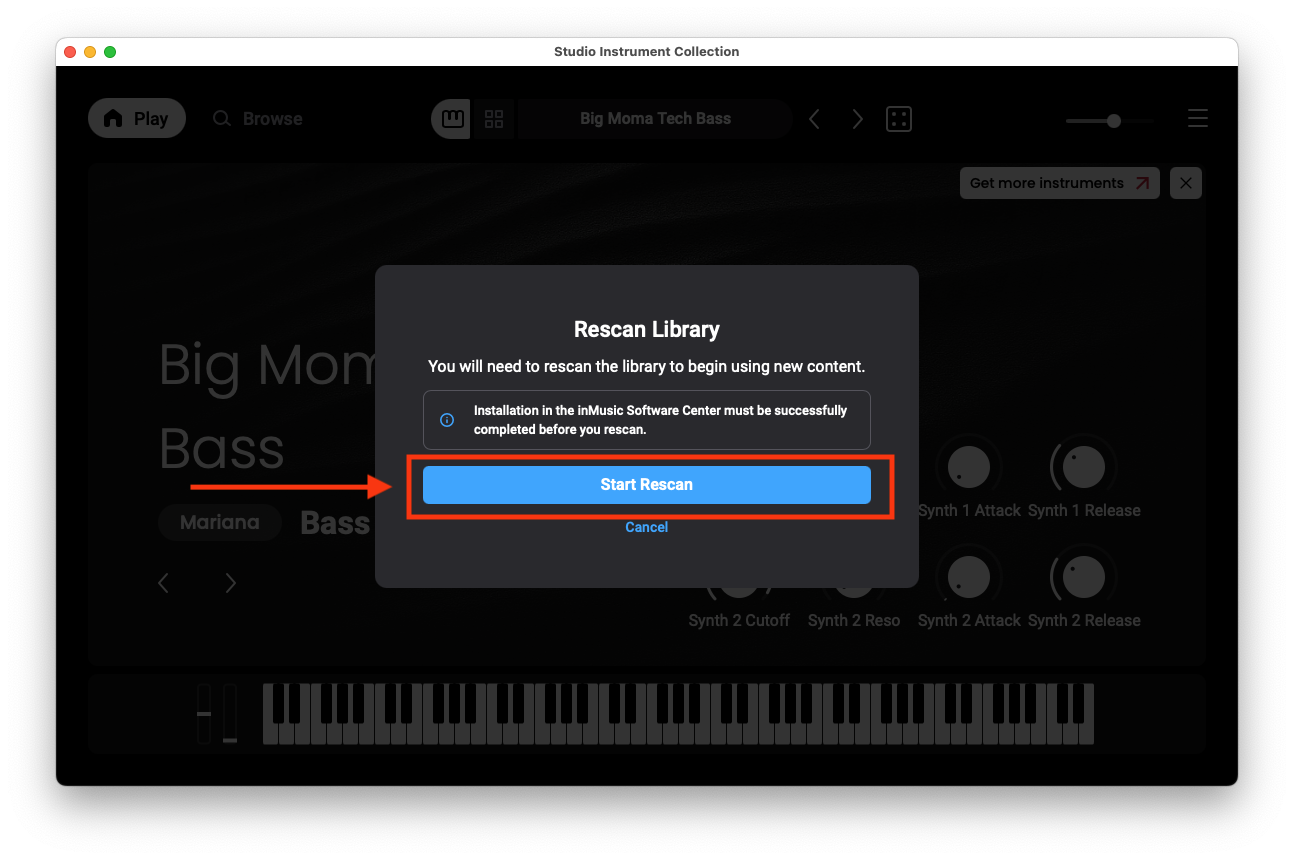 Once Rescan has completed, you'll have access to a palette of additional sounds within Studio Instrument Collection.