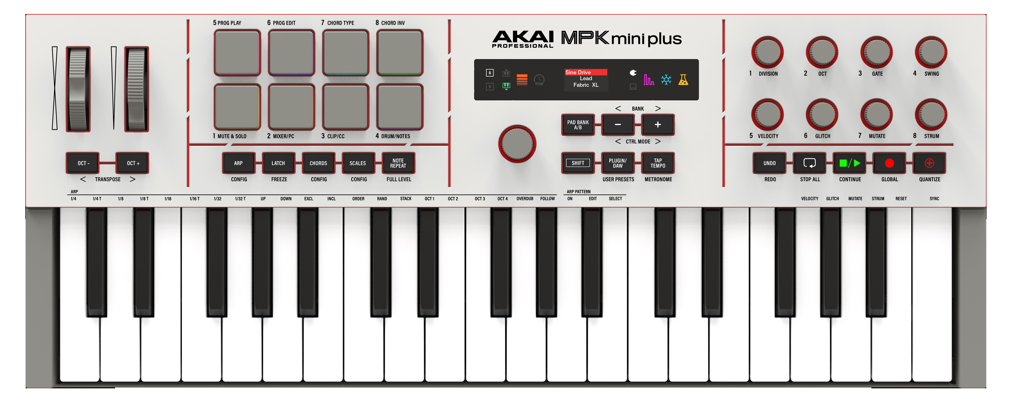
Welcome to this FAQ article for the Akai Pro MPK mini Plus II.
This article is designed to answer some of the most common questions about the MPK mini Plus II, whether you're considering purchasing one or looking for guidance with setup and getting started.
TABLE OF CONTENTS
- What are MPK mini Plus II's System Requirements?
- What's the difference between MPK mini Plus & MPK mini Plus II?
- How can I power MPK mini Plus II?
- What software is included with MPK mini Plus II?
- Is an account require to unlock and redeem the included software?
- Can I use any MPC Expansions with Studio Instrument Collection?
- Is a mapping or DAW script available with MPK mini Plus II?
- Windows Driver
- Can I connect MPK mini Plus II to a smart device?
- Can I connect MPK mini Plus II to the MPC Live III, or MPC XL?
- Can I connect MPK mini Plus II to the MPC One G2, or MPC Key 37 G2?
- Can I control MPC hardware running 3.10 with the MPK mini Plus II
- How many Keys are featured on MPK mini Plus II?
- How many Pads are featured on MPK mini Plus II?
- How many knobs are featured on MPK mini Plus II?
- What MIDI I/O is available on MPK mini Plus II?
- How do I send MIDI data from the MPK mini Plus II DIN port to external gear?
- What are the different Keyboard Modes?
- Can I Mutate Chords?
- Can I Strum Chords?
- What is Progression Mode?
- Is editing software supplied with MPK mini Plus II?
- How many Preset slots does the MPK mini Plus II have? The MPK mini Plus II features 13 preset slots, 11 of which are user presets to edit as you wish.
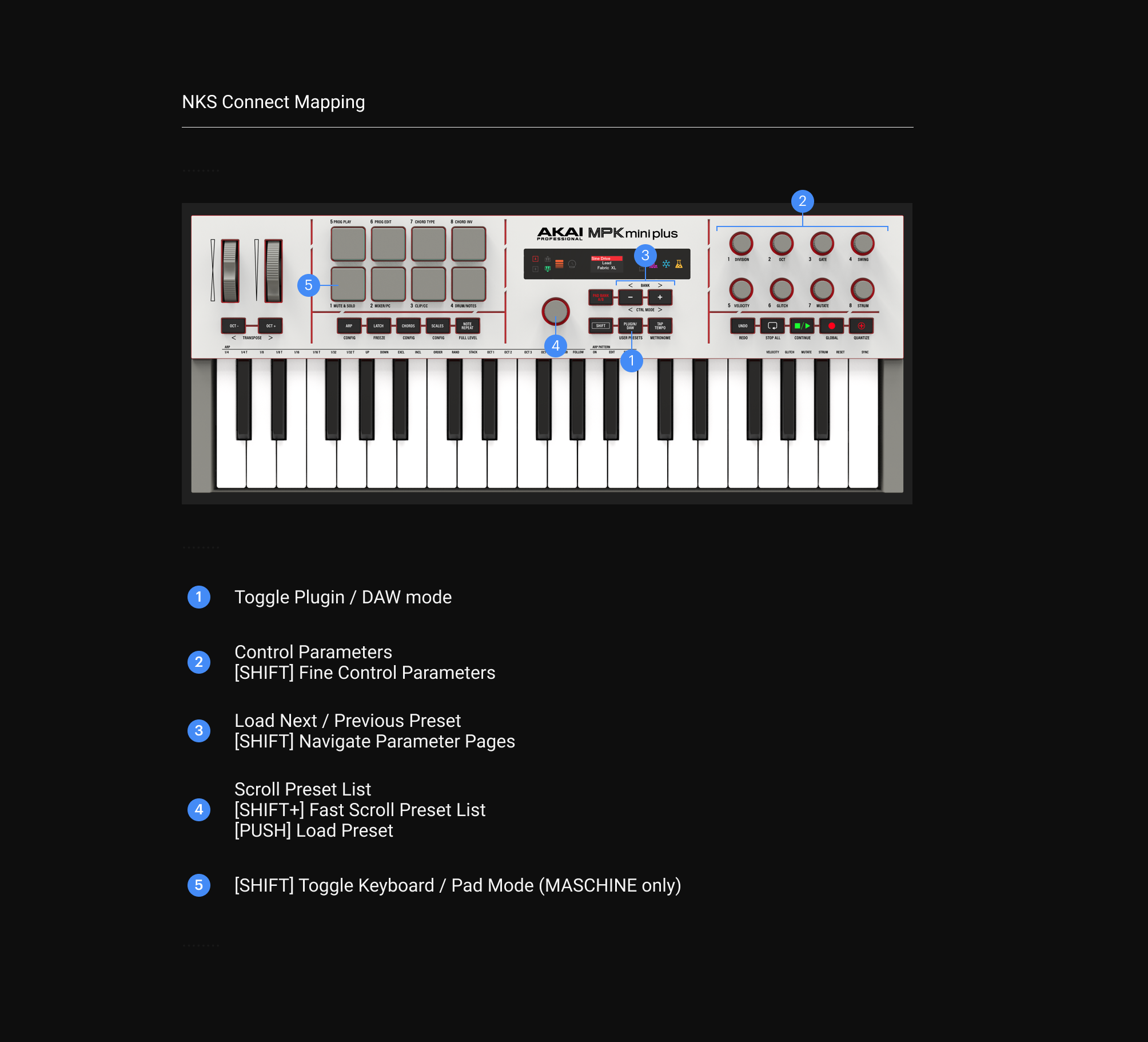
- What is the NKS Connect mapping for the MPK mini Plus II?
What are MPK mini Plus II's System Requirements?
The MPK mini Plus II is a class-compliant USB MIDI device, so it can be used with Windows or Mac computers that support class-compliant USB MIDI devices.
However, to install and use the included software, your computer will need to meet the following minimum system requirements:
Mac
- macOS 13 or later
- 4 GB RAM
- Intel Core i7 2.5 GHz or Apple Silicon
- 11 GB free disk space
Windows
- Windows 10 or later (64-bit)
- 4 GB RAM
- Intel Core i7 2.5 GHz
- 11 GB free disk space
Note: Moog Mariana presets from the Studio Instrument Collection are especially CPU-intensive and may require a higher Audio Buffer setting on older systems.
What's the difference between MPK mini Plus & MPK mini Plus II?
| Feature | MPK mini Plus | MPK mini Plus II |
| MPC3 / MPC Hardware Integration | NO | YES |
| Studio Instruments Collection | NO | YES |
| Progression Mode | NO | YES |
| Strum | NO | YES |
| Mutate | NO | YES |
| Color Display | NO | YES |
| Advanced ARP Features | NO | YES |
| Pad Modes | NO | YES |
| USB Connectivity Type | USB-B | USB-C |
| Dedicated DAW Maps | NO | YES |
| NKS Connect | NO | YES |
How can I power MPK mini Plus II?
MPK mini Plus II can be powered by connecting the USB-C cable to a USB-C port on your computer or a USB-C to wall adapter.
What software is included with MPK mini Plus II?
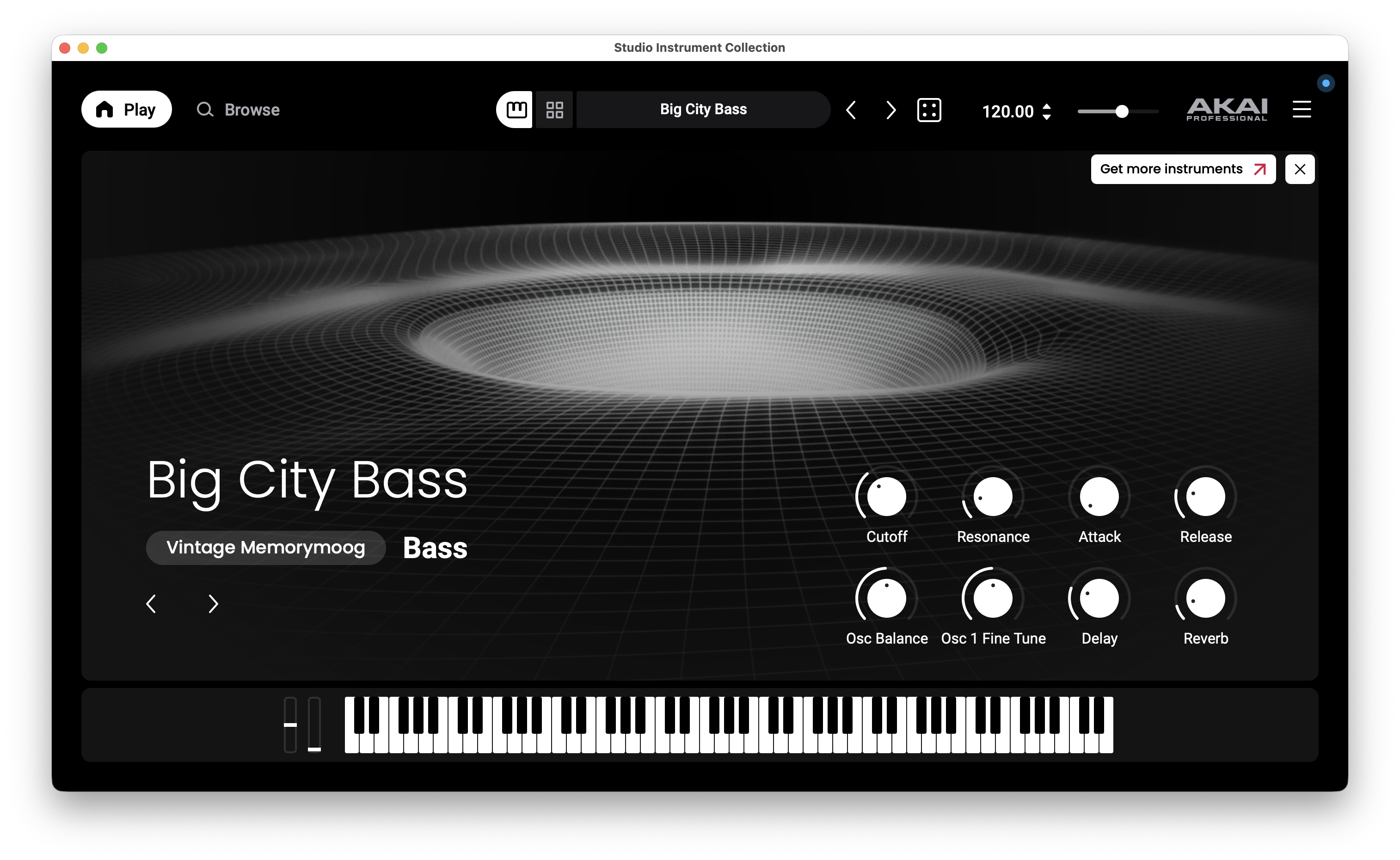
MPK mini Plus II is supplied with Studio Instrument Collection & Ableton Live Lite 12.
Studio Instrument Collection is your go-to premium toolkit for composing or performing in any environment. Designed from the ground up to integrate with the Akai Professional MPK® mini Plus II, it provides a virtual instrument locker of the finest presets from AIR, Moog, and Akai.
Studio Instrument Collection supports VST3 and AU plugin formats, as well as standalone operation. AAX support for ProTools is currently unavailable.
Is an account require to unlock and redeem the included software?
Alternatively, please see the getting stated video below:
Can I use any MPC Expansions with Studio Instrument Collection?
Yes, Studio Instrument Collection will automatically scan your computer’s MPC Expansion folder, allowing you to access any official Akai drum programs.
Is a mapping or DAW script available with MPK mini Plus II?
Absolutely! DAW control scripts will automatically map the MPK hardware controls to functions in your DAW. This is useful if you are not accustomed to MIDI mapping controllers.
Mapping is available for the following DAWs:
- MPC 3.10 (Note: MPK mini Plus II Control Script is not supported with the MPC3 Plugin)
- Ableton Live 11 & 12
- FL Studio v26
- Logic Pro 12
- GarageBand 10.4.14
- Cubase 15
- Bigwig Studio 6.1
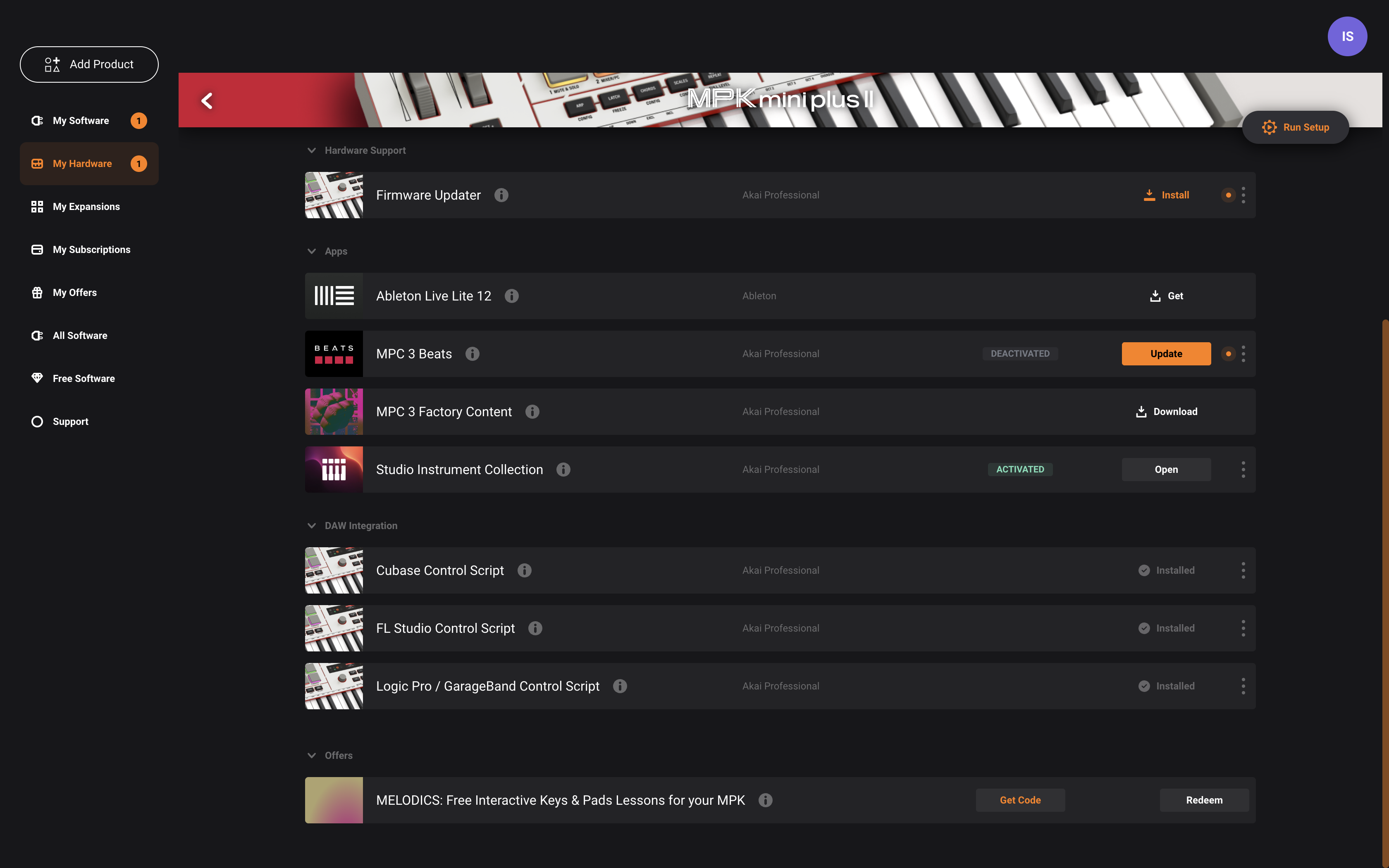
The mapping installers for Windows and macOS are available from the inMusic Software Center, within the 'My Hardware' tab.
Note: Windows users will not see the Logic Pro / GarageBand script installers for download/install, as it is exclusive to macOS.
Note: If you're running an older DAW build, please consider that the mapping may not function or work as expected.
Windows Driver
Note: After installing the Windows driver, please be sure to double check the MPK mini Plus II's MIDI Ports assignments by going in the MIDI settings of your DAW.
Can I connect MPK mini Plus II to a smart device?
Yes - Users can connect to their smart device using the included USB-C cable.
Note, the included software is incompatible with Android, iOS/iPad OS devices; basic functionality is available to smart device users to trigger sounds from third-party apps/DAWs. Note, compatibility is held with smart devices that support class-compliant MIDI functionality.
If you're unsure whether your smart device supports this, consult the user manual for your device.
Can I connect MPK mini Plus II to the MPC Live III, or MPC XL?
Yes, MPK mini Plus II can connect to the MPC Live III or MPC XL by using a USB-C to USB-Type A cable (not included), or you can use the original USB-C cable along with a USB-C Female to USB Type-A Male Adapter.
Can I connect MPK mini Plus II to the MPC One G2, or MPC Key 37 G2?
Yes, MPK mini Plus II can connect to the MPC One G2, or MPC Key 37 G2 by using the original USB-C cable.
Can I control MPC hardware running 3.10 with the MPK mini Plus II
Yes, the MPK mini Plus II fully integrates with the MPC Firmware running 3.10+.
How many Keys are featured on MPK mini Plus II?
MPK mini Plus II features a 37-note, velocity-sensitive keyboard. This means that the keys react to how hard you play them: the harder you strike, the louder the note.
How many Pads are featured on MPK mini Plus II?
MPK mini Plus II features 8 drum pads. These drum pads can be used to trigger drum hits or other samples in your software. The pads are velocity-sensitive, which makes them very responsive and intuitive to play. You can also configure these pads to send Program Change messages or MIDI CC messages instead of notes
How many knobs are featured on MPK mini Plus II?
MPK mini Plus II features 8 endless knobs that are used to control parameters in supported software.
What MIDI I/O is available on MPK mini Plus II?
MPK mini Plus II features a USB MIDI Input / Output via USB-C and a 5-Pin DIN MIDI output.
MPK Mini IV features five different MIDI ports that are used for communication. Understanding what these ports
are used for can help you set it up properly with your software or hardware.
- MPK mini Plus II MIDI Port
- This port will send keybed, drum pad, pitch and modwheel, sustain pedal, and knob control data.
Messages sent to this port are expected to be recorded and edited by a Host DAW. Messages received from this port can be resent to the physical 5-pin MIDI output port, depending on the settings.
All Presets will send MPK® mini Plus II performance data on this port by default.
- This port will send keybed, drum pad, pitch and modwheel, sustain pedal, and knob control data.
- MPK mini Plus II DAW Port
- This port will send all interface controls, screen controls, and transport controls to a connected supported DAW. When using the DAW Preset, this port must be enabled in the DAW software to access the DAW control script.
- MPK mini Plus II Plugin Port
- This port will send all interface controls, screen controls, and transport controls to the Studio Instrument Collection (SIC) software.
When using the Plugin Preset, this port must be enabled in the SIC software to access the SIC control script. This port is also used for NKS (Native Kontrol Standard) connection.
- This port will send all interface controls, screen controls, and transport controls to the Studio Instrument Collection (SIC) software.
- MPK mini Plus II Din Port
- This port is the physical 5-pin MIDI output on the rear panel of MPK® mini Plus II.
You can choose to send incoming MIDI data from the USB-C® port or the internal hardware MIDI data to this port by adjusting the DINsrc setting in the Global Menu.
- This port is the physical 5-pin MIDI output on the rear panel of MPK® mini Plus II.
How do I send MIDI data from the MPK mini Plus II DIN port to external gear?
- Go to Global > DINsrc > Set to either USB or INT:
- INT (default) – Will send internal MIDI data from Port 1 out the DIN port
- USB – Will send data from your computer, through the MPK out the DIN port like a MIDI interface.
What are the different Keyboard Modes?
MPK mini Plus II features three modes for playing melodic content on the keyboard. By default, the keys play one note at a time like a standard keyboard. In Chords Mode, each key plays a chord comprised of three or more notes in sync. In Scales Mode, the keys play notes in a set scale.
Can I Mutate Chords?
Yes, you can mutate chords by holding CHORDS and pressing the A3 key to enable the function. To adjust the Mutate Percentage, hold CHORDS and turn KNOB 7.
Can I Strum Chords?
Yes. Press the CHORDS button to enable Chords Mode on the keyboard. To adjust the Strum Type and Timing, hold CHORDS while turning KNOB 8. You can then enable the Strum function by holding CHORDS and pressing the A#/Bb3 key.
What is Progression Mode?
Progression Mode lets you trigger custom chord progressions with the pads while simultaneously playing lead melodies on the keyboard.
To Enter Progression Play mode for the pads, press and hold SHIFT and press PAD 5 (PROG PLAY)
To Enter Progression Edit mode, press and hold SHIFT and press PAD 6 (PROG EDIT)
Is editing software supplied with MPK mini Plus II?
No, MPK mini Plus II does not include any editing software. All Program Edit features are available directly on the hardware.
MPK mini Plus II’s Program Edit Mode allows you to modify the functions of the pads and knobs. This allows you to create programs that can be customized to other software or external MIDI gear.
How many Preset slots does the MPK mini Plus II have?
The MPK mini Plus II features 13 preset slots, 11 of which are user presets to edit as you wish.
What is the NKS Connect mapping for the MPK mini Plus II?