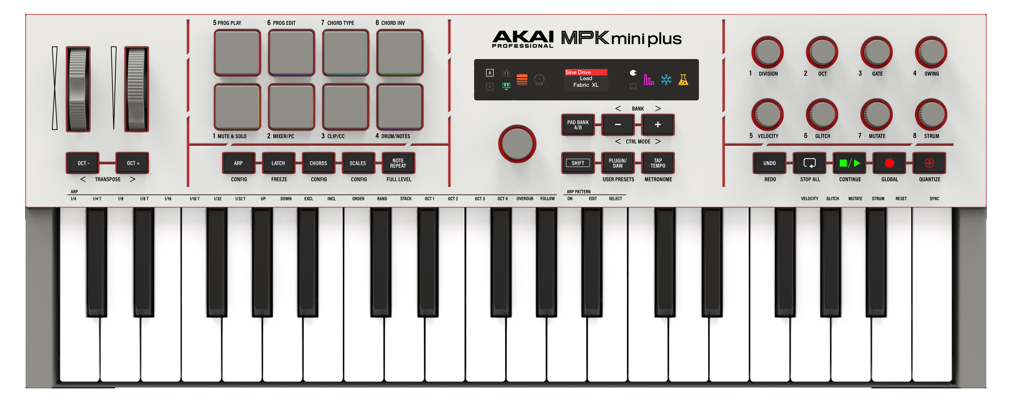
Welcome to this troubleshooting guide for MPK Mini Plus II.
The contents of this article cover common troubleshooting steps to help you solve any issues you may face.
TABLE OF CONTENTS
- I've just got my MPK Mini Plus II. What’s the first thing I should do?
- I’ve just updated the MPK Mini Plus II firmware on macOS, but now the display and controls will not connect to my supported software... What should I do?
- My MPK Mini Plus II MIDI ports look different than what is shown in the User Guide
- I can’t access the Prog Edit or Save functions when in DAW or Plugin Mode.
- I can’t hear Arp or Note Repeat when connected to a DAW.
- I can’t use the Prog Chng or CC Pad modes in the Plugin or DAW mode.
- My MPK Mini Plus II is not showing as connected in Software Instrument Collection
- My MPK’s display and controls won’t connect to the Studio Instrument Collection software on Windows
- I’m using the Studio Instrument Collection as a VST and can’t play keys and pads at the same time.
- I’m having a hard time exiting the MPK config menus, what’s the best way to do this?
- My sustain pedal data is inverted. How do I fix this?
- My MPK won’t sync clock with the DAW, what do I do?
- The display shows "Program Protect!" when attempting to edit a preset
I've just got my MPK Mini Plus II. What’s the first thing I should do?
Update your firmware - MPK mini Plus II is supplied with a day-one firmware update to improve stability. Please refer to the dedicated firmware update guide here: MPK mini Series| Studio Instrument Collection Redemption & Setup Guide : inMusic Support
I’ve just updated the MPK Mini Plus II firmware on macOS, but now the display and controls will not connect to my supported software... What should I do?
To solve this issue, please follow the steps below:
- Close / Quit your DAW or any other MIDI Applications
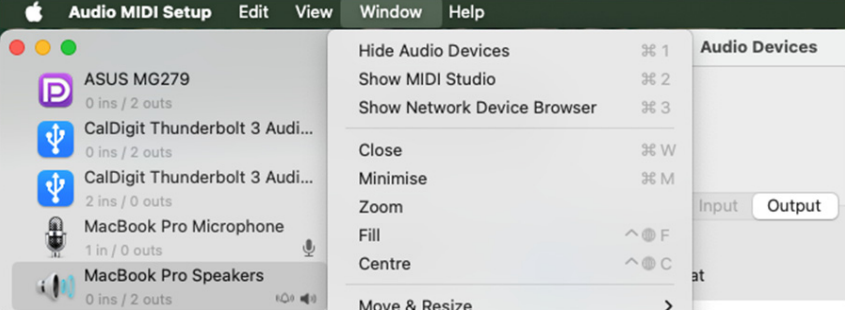
- On your macOS computer, go to Applications > Utilities > Audio MIDI Setup and open it.
- Enter the MIDI Studio tab by going to Window > Show MIDI Studio, or by pressing ⌘ (Cmd) + 2.
- Locate MPK mini Plus II in the list of devices
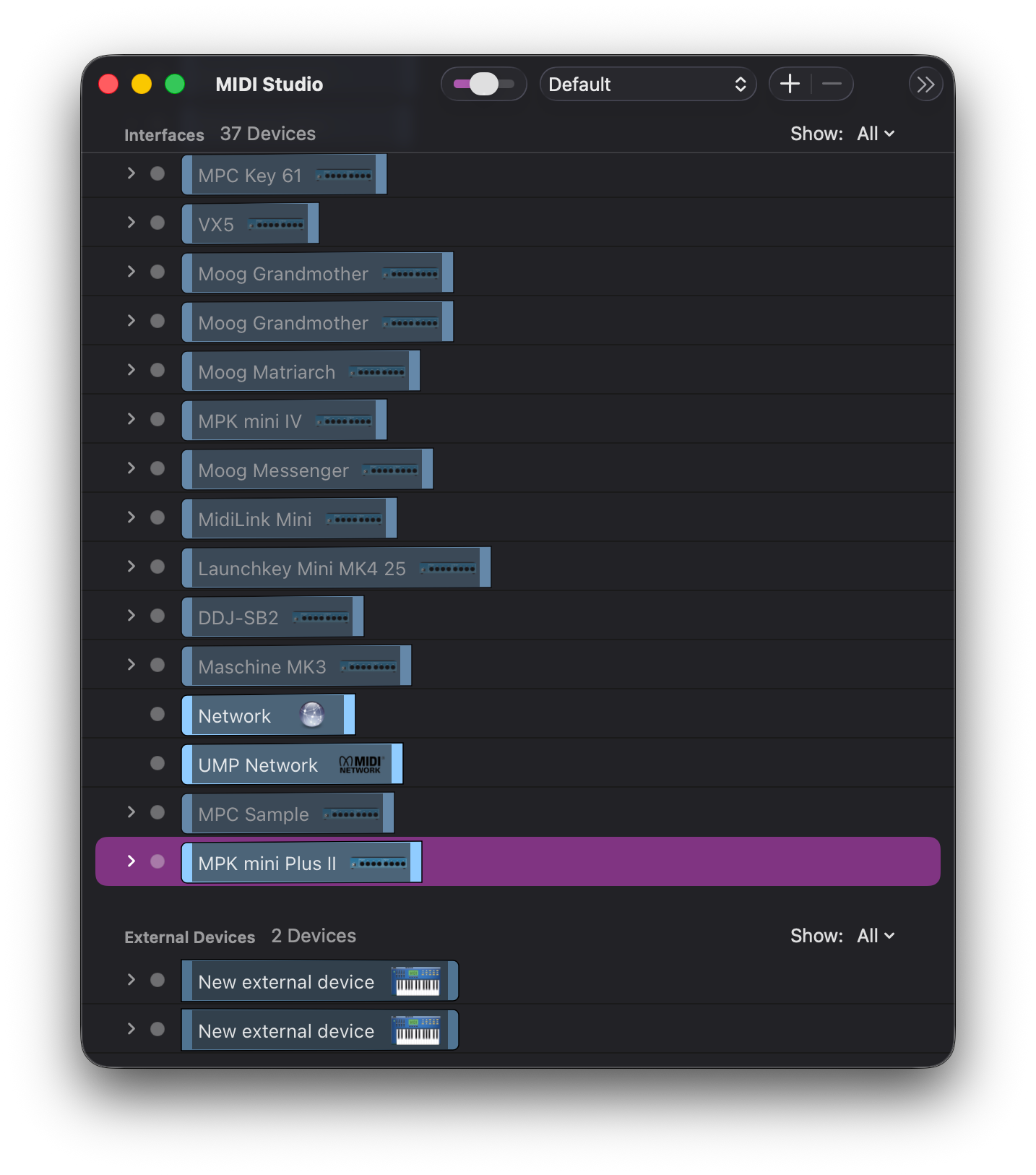
- Disconnect the MPK Mini Plus II from your Mac's USB port. After disconnecting the device, it should remain visible in MIDI Studio but appear dimmed (inactive).
- Remove the MPK Mini Plus II from the MIDI Studio list by selecting it and pressing backspace on your keyboard, or by clicking the – icon in the MIDI Studio window.
My MPK Mini Plus II MIDI ports look different than what is shown in the User Guide
Your Firmware is likely out of date and needs to be updated.
To update the firmware, please refer to the dedicated firmware update guide here: MPK mini Series| Studio Instrument Collection Redemption & Setup Guide : inMusic Support
I can’t access the Prog Edit or Save functions when in DAW or Plugin Mode.
Prog Edit and Save are disabled while in the DAW or Plugin Mode. This is to ensure software control scripts remain intact. If you want to customize an MPK preset, load a USER preset to access the Prog Edit and Save functions.
I can’t hear Arp or Note Repeat when connected to a DAW.
External Clock Sync is likely engaged, start DAW playback to hear the arp.
Some DAWs may require you to configure an external MIDI Clock setup. If the External Clock is engaged on MPK Mini Plus II, please consult your DAW's manual to ensure your project is configured as the Master Clock and that External Clock messages can be sent to external hardware.
I can’t use the Prog Chng or CC Pad modes in the Plugin or DAW mode.
These pad modes are not supported in MPK’s scripted DAWs. Instead, the SHIFT + Pad modes will control different functions within the DAW, enhancing your control from the hardware. To use the Prog Chng or CC pad modes, load a User Preset.
My MPK Mini Plus II is not showing as connected in Software Instrument Collection
If your MPK Mini Plus II is not appearing as connected in Software Instrument Collection, make sure it is connected directly to the computer.
We do not recommend connecting the keyboard through:
- USB hubs
- USB-C adapters or port translators
- Docking stations
- Extension cables
These devices can sometimes prevent the software from correctly detecting the keyboard.
For best results, connect the keyboard directly to a USB port on your computer and restart the Software Instrument Collection application before checking the connection status again.
My MPK’s display and controls won’t connect to the Studio Instrument Collection software on Windows
- Check that you are using the Plugin Mode.
- Click on the Studio Instrument Collection GUI to refocus the app on the MPK control surface.
In order for MPK Mini Plus II's control surface to connect with the Software Instrument Collection, set Windows to 'Focus' the Software Instrument Collection application.
If you click off onto another app, MPK Mini Plus II will lose the control script connection to Software Instrument Collection. While you will still hear keys/pads, the screen will not display in the Software Instrument Collection, and the buttons won’t engage.
I’m using the Studio Instrument Collection as a VST and can’t play keys and pads at the same time.
The Software Instrument Collection VST can only support one type of instrument at a time, either keys or drums. You can use multiple instances of the Software Instrument Collection VST in your DAW to play both instruments.
The standalone SIC app will allow you to play keys and pads at the same time.
I’m having a hard time exiting the MPK config menus, what’s the best way to do this?
The Plugin/DAW button doubles as a Home button. You can press this button to exit any MPK menu and the Mode will not change. Once the MPK has returned to the home screen, this button can be used normally.
My sustain pedal data is inverted. How do I fix this?
MPK Mini Plus II supports normally open sustain pedals. If your pedal is normally closed, go to the Global menu > Sust > and change the type to INV. This will invert the sustain signal so it operates correctly with your HW.
My MPK won’t sync clock with the DAW, what do I do?
By default, the MPK’s clock source is set to Internal. Go to Arp Config > Clock > Change to EXT to receive an external DAW clock.
The display shows "Program Protect!" when attempting to edit a preset
This message is shown when a Factory Preset is selected for editing. Since Factory Presets are read-only, you’ll need to select a User Preset to make changes. This can be achieved by following the steps below:
- Hold SHIFT and PLUGIN/DAW to enter USER PRESETS.
- Scroll to PRST3:USER1 and select it by pressing the main encoder.
- Hold SHIFT and press OCT-, then tap or move a control to enter its PROG EDIT settings.
- Use the encoder to browse and edit the available settings.
- Once finished, press the PLUGIN/DAW button to save your settings and start playing.