Some GarageBand users may experience issues where the Studio Instrument Collection is showing as activated within the inMusic Software Center, and works via the standalone application. But are prompted to activate the plugin, or are given an error message, when attempting to use the same plugin in GarageBand. This article will provide common troubleshooting steps to resolve this issue.
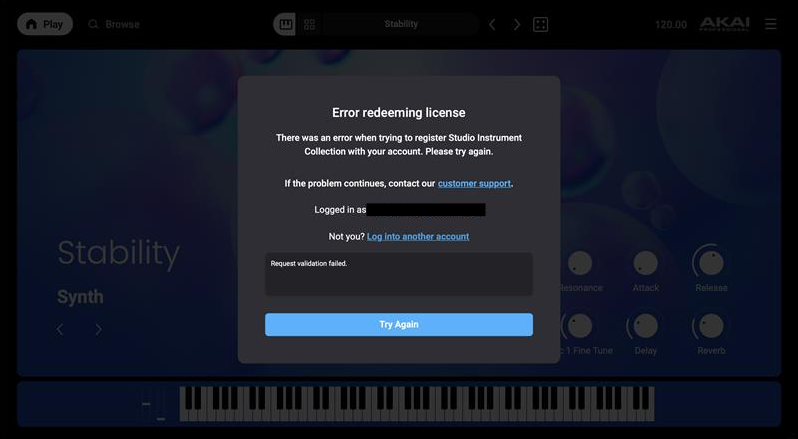
TABLE OF CONTENTS
- Confirm the license is activated within the inMusic Software Center
- Reset the plugin license via the inMusic Software Center
- Check if GarageBand is Running via Rosetta
- Reset the GarageBand Plugin Cache
- Clear GarageBand Preferences
Confirm the license is activated within the inMusic Software Center
Before troubleshooting this prompt, please ensure the license is activated within the Software Center. To do this:
- Launch the inMusic Software Center
- Go to the My Software tab
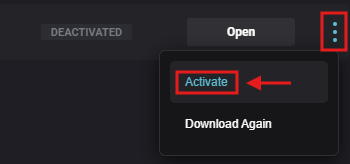
- On the right side of the plugin list, there will be a Deactivated/Activated icon

- If the plugin is not currently activated, manually activate the plugin by clicking on the three-dot icon and selecting Activate
Reset the plugin license via the inMusic Software Center
For most users, deactivating and reactivating your license via the Software Center while the plugin is loaded within GarageBand will correct this behaviour. To do this:
- While GarageBand is open, remove the Studio Instrument Collection track
- Launch the inMusic Software Center
- Under the My Software tab, locate the affected plugin
- If the plugin is ACTIVATED:
- Click on the three-dot icon and select Deactivate
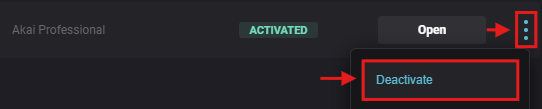
- Once deactivated, click the same icon and select Activate
- Click on the three-dot icon and select Deactivate
- If the plugin is DEACTIVATED:
- Click the three-dot icon, and select Activate

- Click the three-dot icon, and select Activate
- Load the Studio Instrument Collection back into your GarageBand
Check if GarageBand is Running via Rosetta
Apple Silicon Mac computers can run applications using Rosetta, Apple's Intel translation layer. In some cases, running GarageBand via Rosetta may cause Studio Instrument Collection plugins to incorrectly display activation prompts, even when the plugin is properly activated in the inMusic Software Center. Before proceeding with the remaining troubleshooting steps, please confirm that GarageBand is not running via Rosetta.
- Close GarageBand.
- Open Finder and navigate to Applications.
- Locate GarageBand.
- Right-click (or Control-click) GarageBand and select Get Info.
- Look for the Open using Rosetta checkbox.
- If this option is enabled, uncheck it.
- Close the Info window.
- Relaunch GarageBand and load the Studio Instrument Collection plugin again.
Note: The Open using Rosetta option is only available on Apple Silicon Macs and may not appear if GarageBand is already running natively or if Rosetta is not installed.
Reset the GarageBand Plugin Cache
If prompted to activate the plugin when loaded in GarageBand, but it is showing as activated within the Software Center. Please follow the steps below to reset your Audio Unit (AU) plugin cache:
- Close GarageBand
- Launch Finder
- Go to the following location:
Users\username\Library\Caches\AudioUnitCache- To access the hidden user library - Go to the main user folder and press CMD + Shift + . (Period)
Alternatively, click the Go menu, hold down the Option key, and select Library
- To access the hidden user library - Go to the main user folder and press CMD + Shift + . (Period)
- Delete the following files:
- com.apple.audiounits.cache
- com.apple.audiounits.sandboxed.cache
- Empty the trash can
- Relaunch GarageBand and attempt to load your plugin
Clear GarageBand Preferences
In cases where the activation prompt persists. It is highly recommended to reset GarageBand's preferences via the steps below:
Important note - these steps will reset any user preferences in GarageBand. You may wish to take a screenshot of your settings if any adjustments have been made.
- Close GarageBand
- Open Terminal
- Copy and paste the following prompts below into Terminal:
defaults delete com.apple.garageband10
- Users who have updated GarageBand from an older version will need to copy and paste an additional prompt:
defaults delete com.apple.garageband
- Users who have updated GarageBand from an older version will need to copy and paste an additional prompt:
Press Enter for Terminal to complete the prompt
- Reopen GarageBand and load your plugin
If you continue to experience activation issues within GarageBand, please get in touch with our support team, who will be happy to assist you further!