MPC Oscillator Content and MPC Core Oscillator expansion are available from the 3.9 update. This guide will provide instructions on how to successfully download the additional content and expansion on MPC Standalone and Desktop.
TABLE OF CONTENTS
- Installing MPC Oscillator Content - Standalone
- Installing MPC Oscillator Content - Desktop
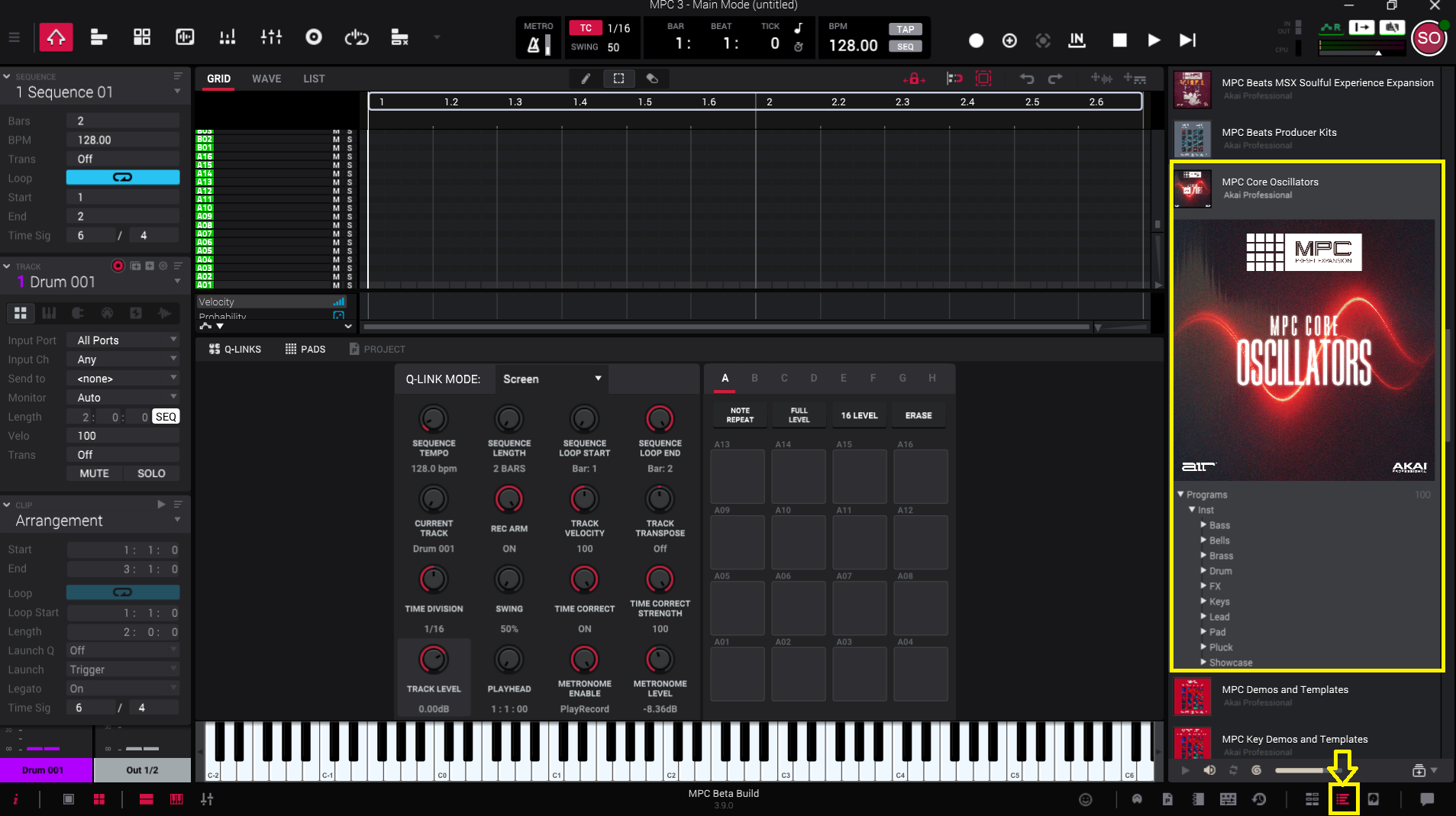
- Installing MPC Core Oscillator Expansion - Standalone
- Installing MPC Core Oscillator Expansion - Desktop
Installing MPC Oscillator Content - Standalone
This chapter covers the steps to install the MPC Oscillator content on your MPC Standalone hardware.
1. On your MPC, navigate to Menu > Preferences > Activations
2. Tap the Features tab, you will see MPC Oscillator Content
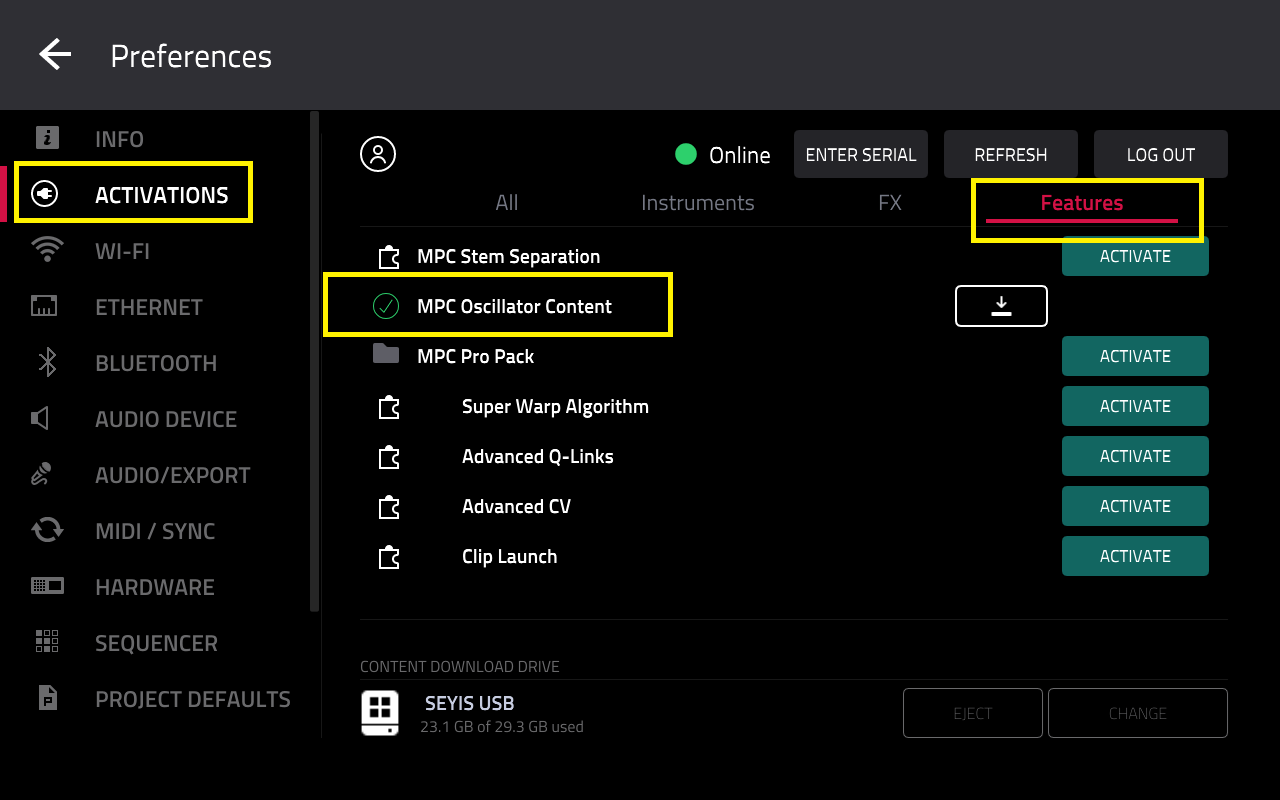
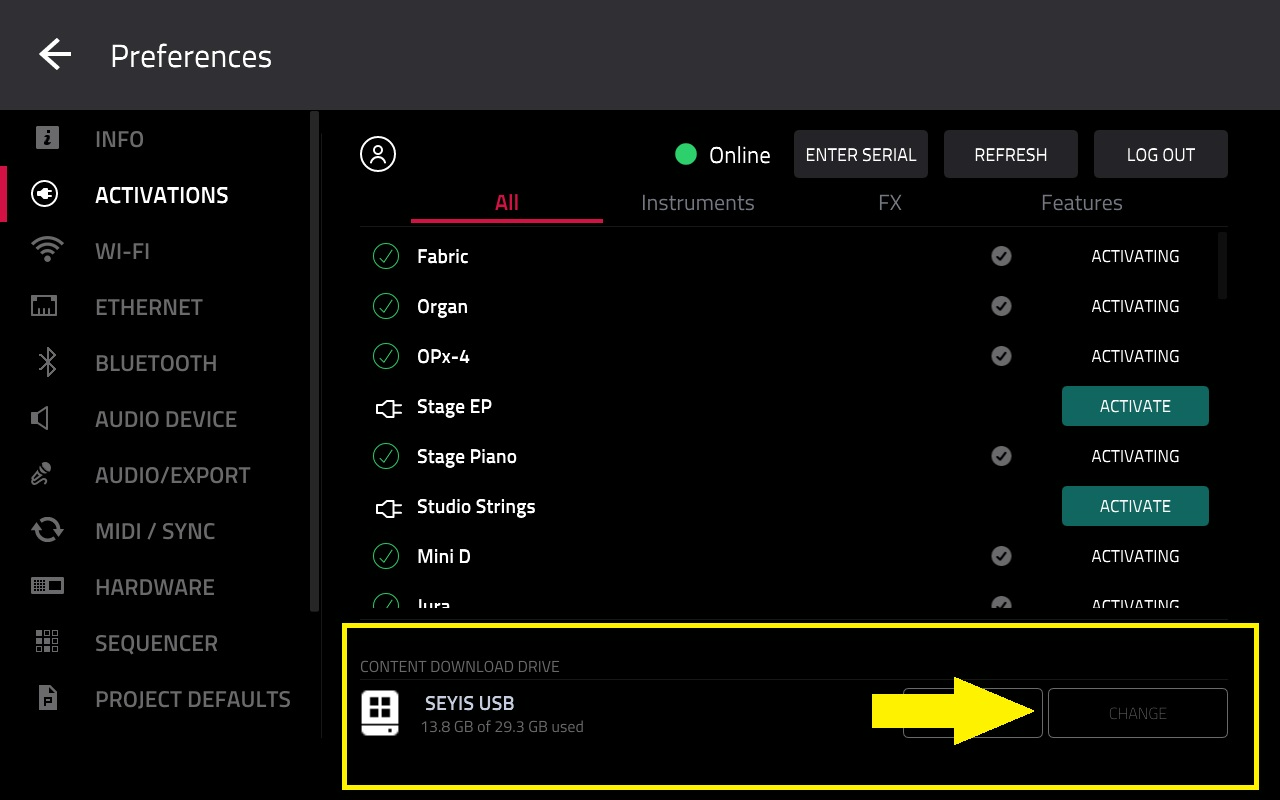
Important: Before downloading the content, ensure you have selected a content download drive

3. Tap the download icon

4. Wait for the download to complete

5. Once the MPC Oscillator Content has been it installed, it will disappear form the activations list
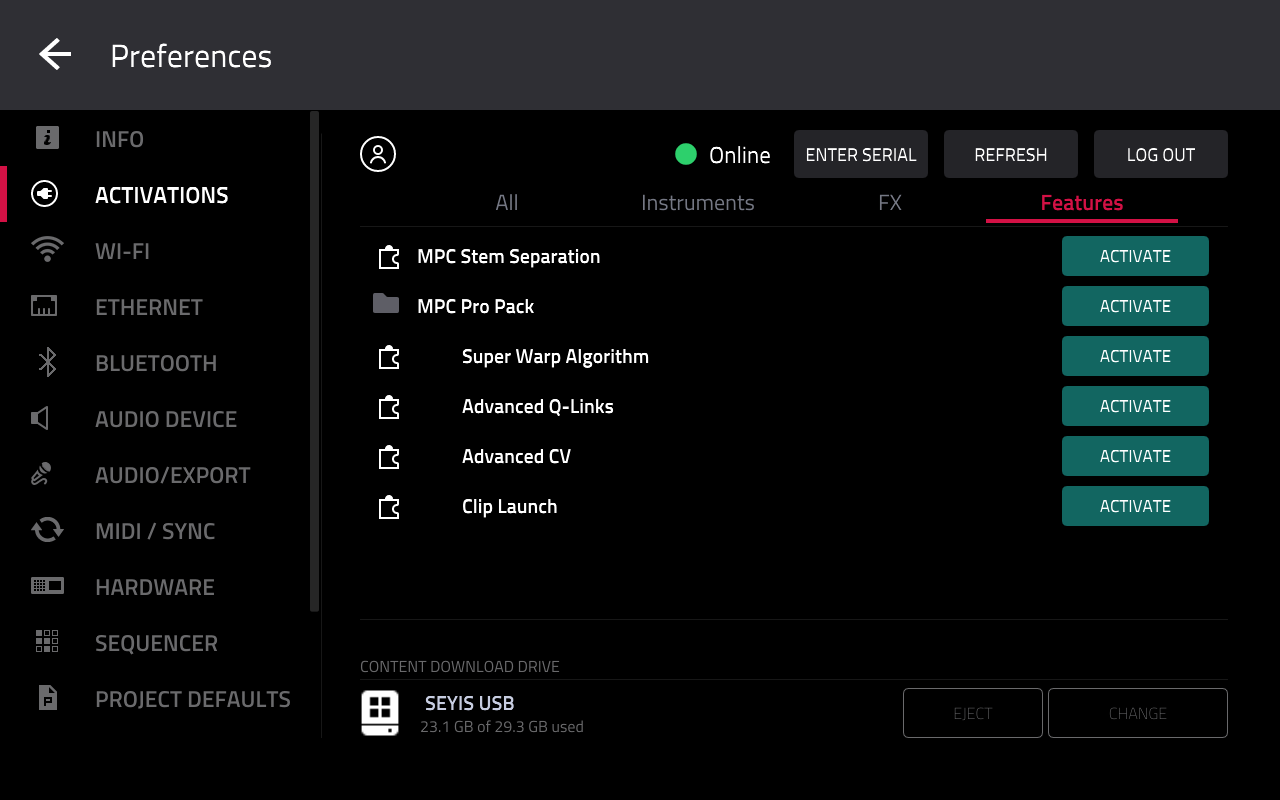
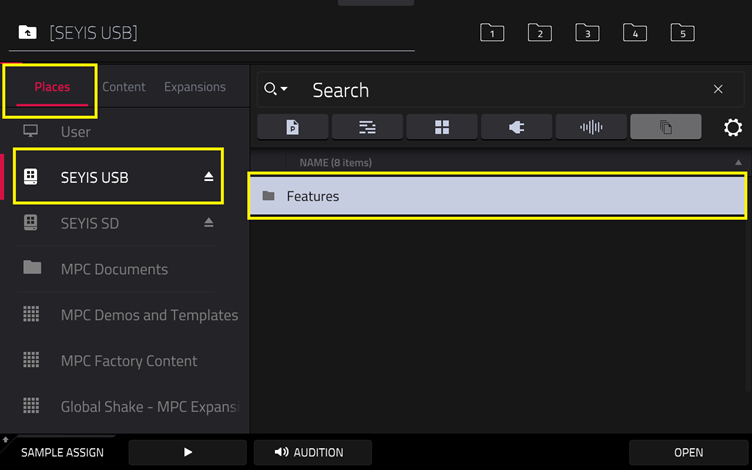
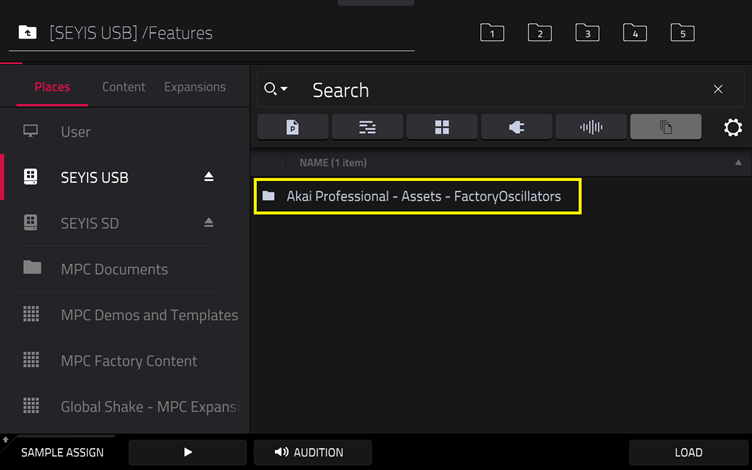
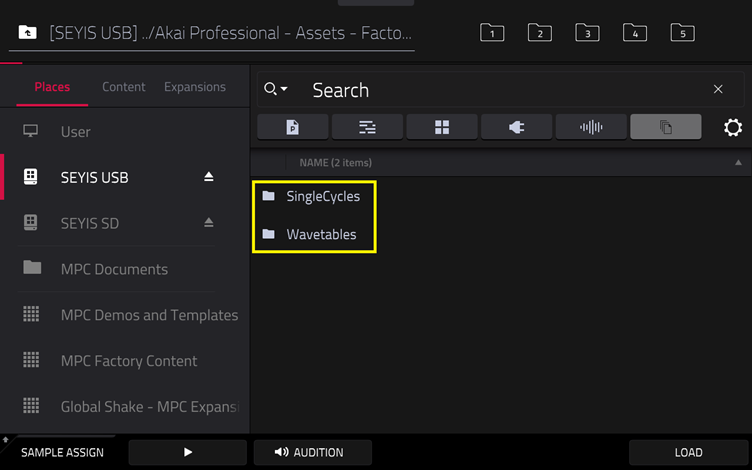
To verify that the MPC Oscillator Content has been installed:

Installing MPC Oscillator Content - Desktop
This chapter covers the steps to install the MPC Oscillator content on MPC 3 Desktop software.
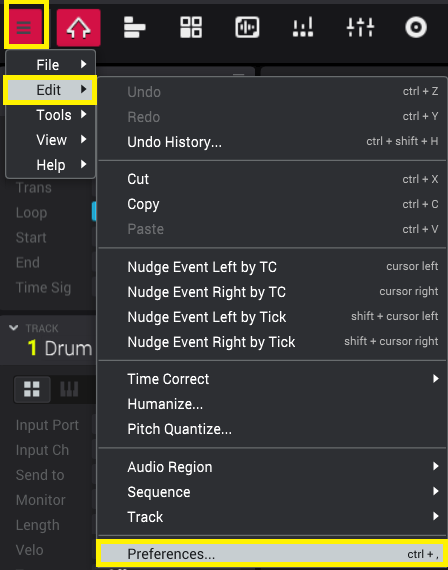
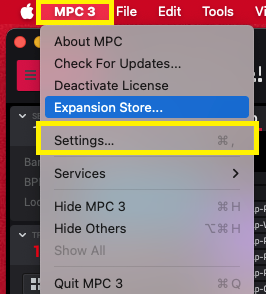
1. In MPC 3 desktop, navigate to the Preferences menu
Windows: Menu > Edit > Preferences...
macOS: MPC 3 > Settings..
2. In the Activations tab, click into the Features tab
You will see MPC Oscillator Content
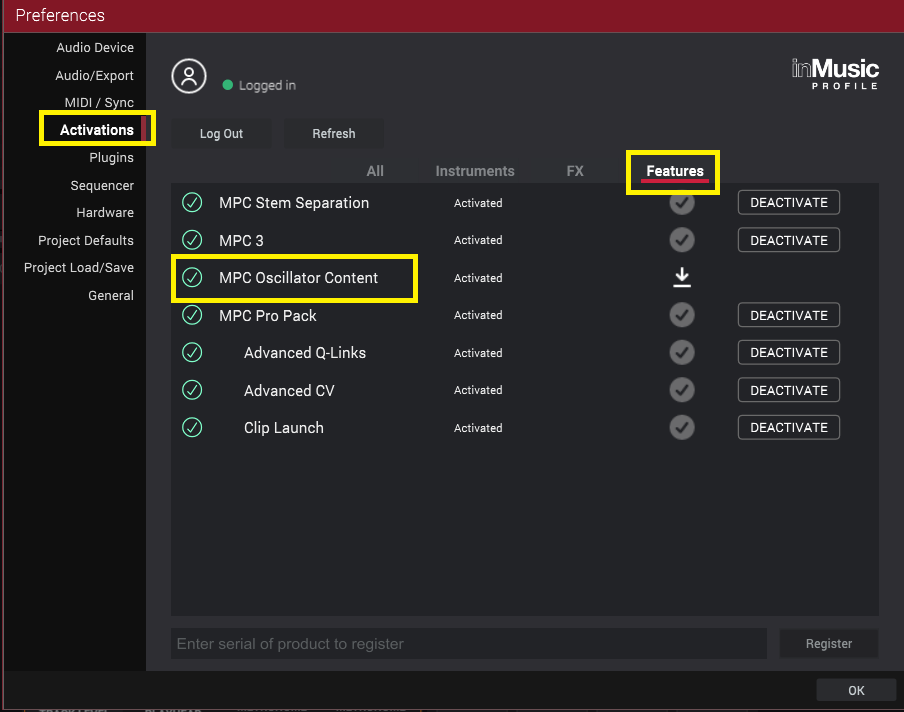
3. Click the download icon

4. Wait for the download to complete

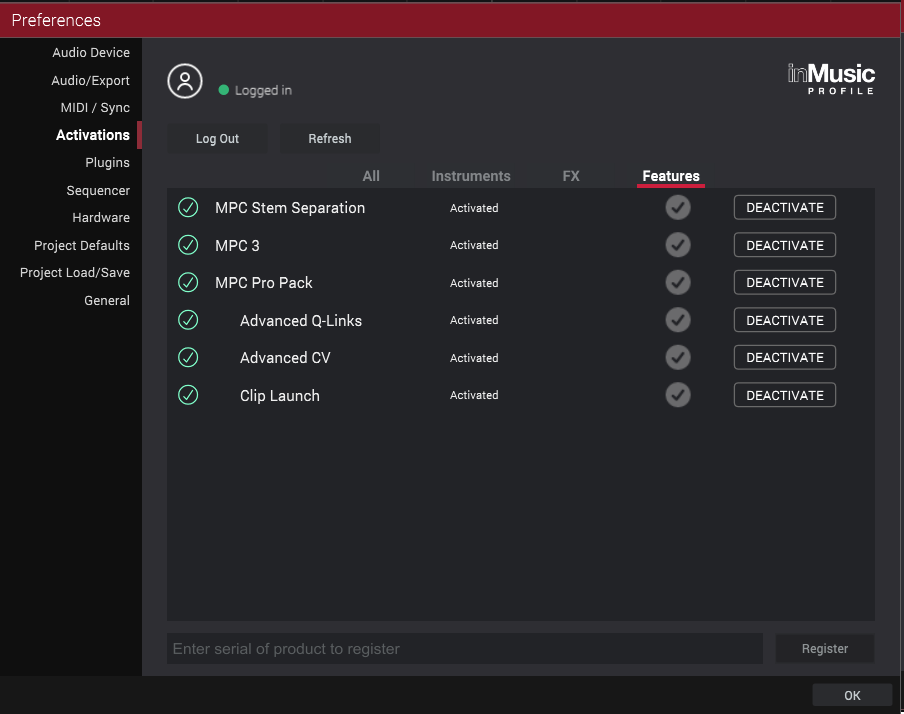
5. Once the MPC Oscillator Content has been it installed, it will disappear form the activations list
Installing MPC Core Oscillator Expansion - Standalone
This chapter covers the steps to install the MPC Core Oscillator expansion on your MPC Standalone hardware.
1. Download and install the inMusic Software Center: HERE
2. Sign in using your Akai/inMusic account (the same email used for purchase).
3. Once signed in, go to: My Expansions > MPC Expansions
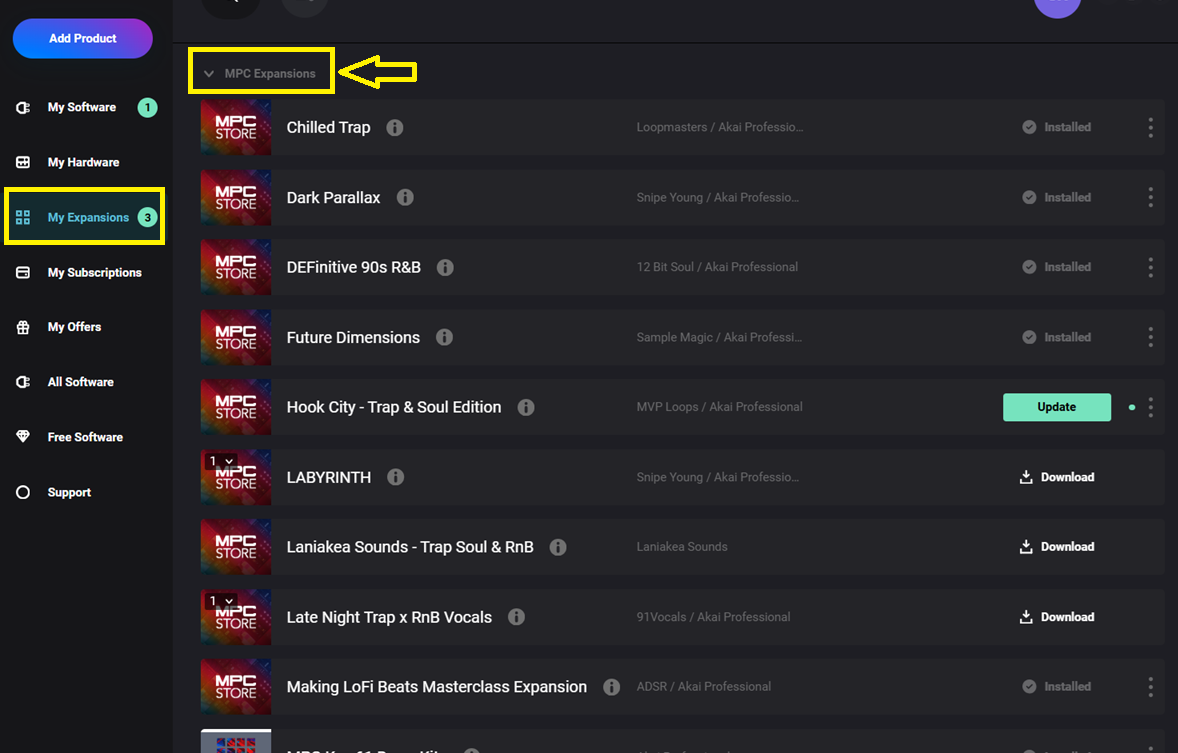
4. Scroll down, you should see MPC Core Oscillators Expansion in the list.
5. Click the drop down arrow. Then, click Download

6. Once the download has completed, click Transfer
Note: If 'Transfer' does not appear... You have downloaded the expansion installer for desktop - Navigate back to step 5.

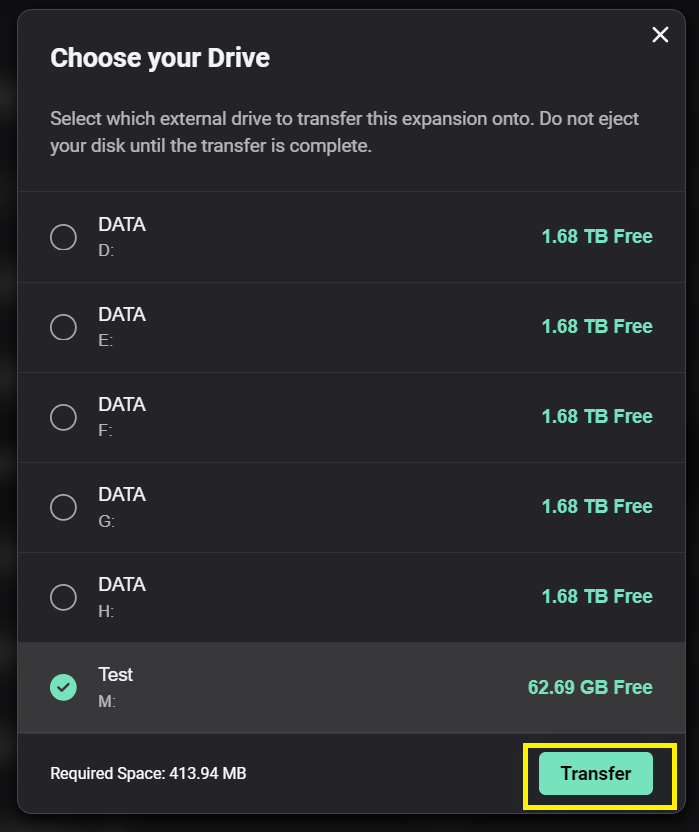
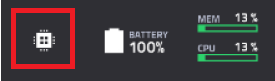
9. Wait for the files to transfer
10. Once the transfer is complete, you will receive a Transfer Complete message confirming the drive the expansion has been transferred to
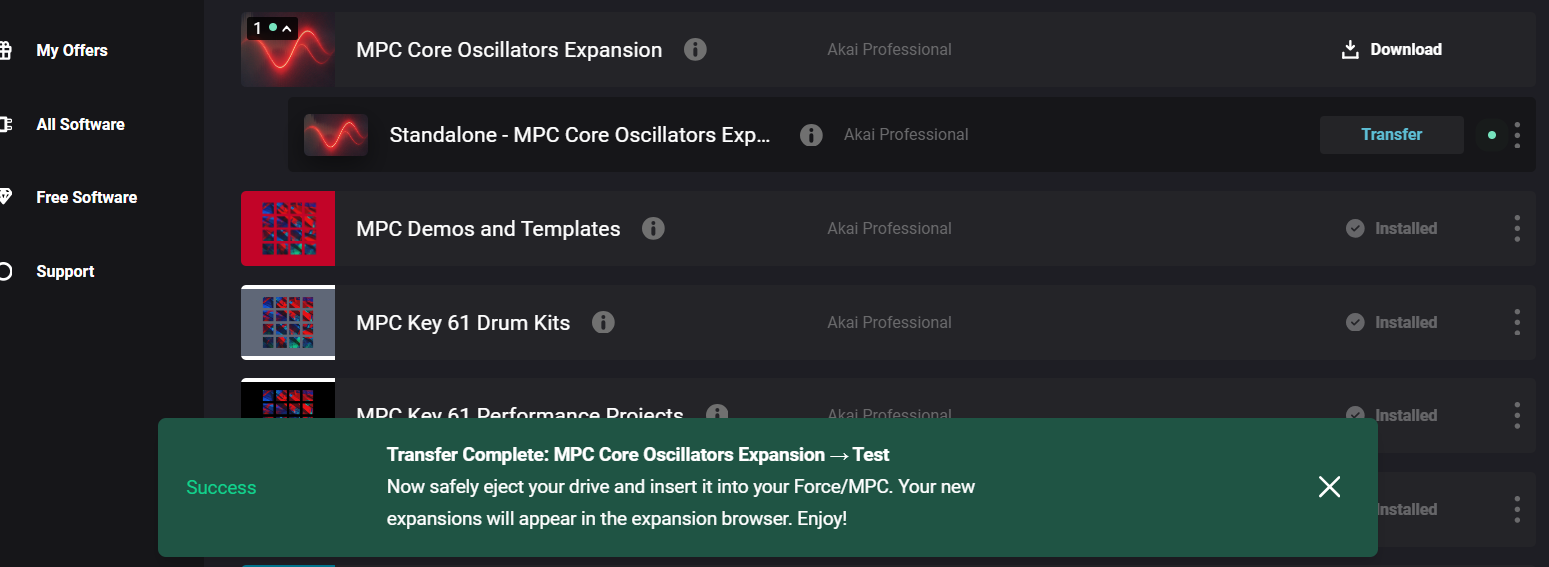
11. The expansion will be in the Expansions folder on your drive.
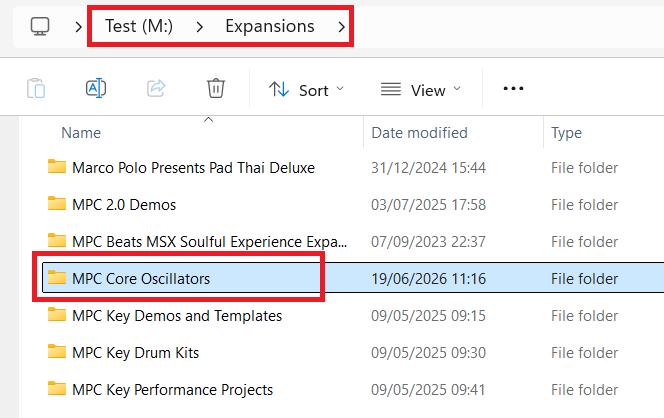
12. Safely eject the drive from your computer/place your MPC back in standalone mode.
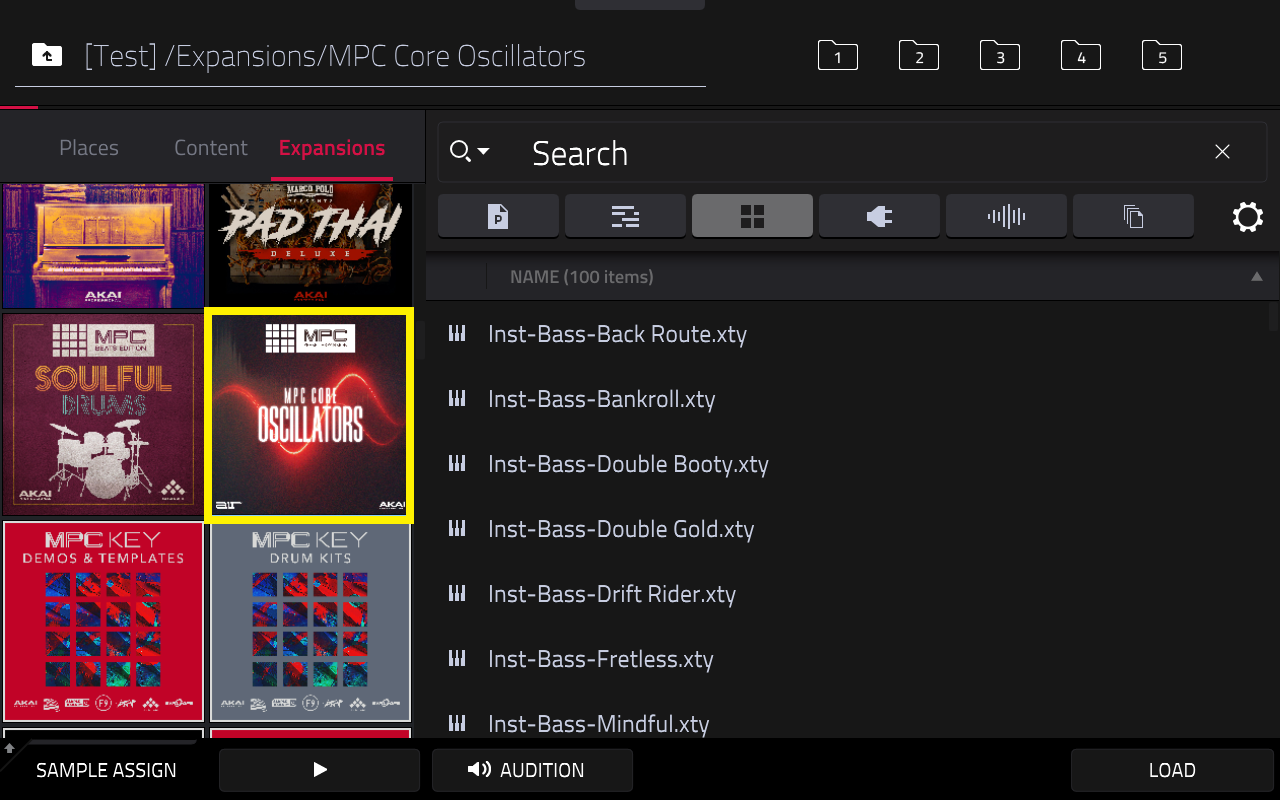
Installing MPC Core Oscillator Expansion - Desktop
This chapter covers the steps to install the MPC Core Oscillator expansion on MPC 3 Desktop software.
1. Download and install the inMusic Software Center: HERE
2. Sign in using your Akai/inMusic account (the same email used for purchase).
3. Once signed in, go to: My Expansions > MPC Expansions
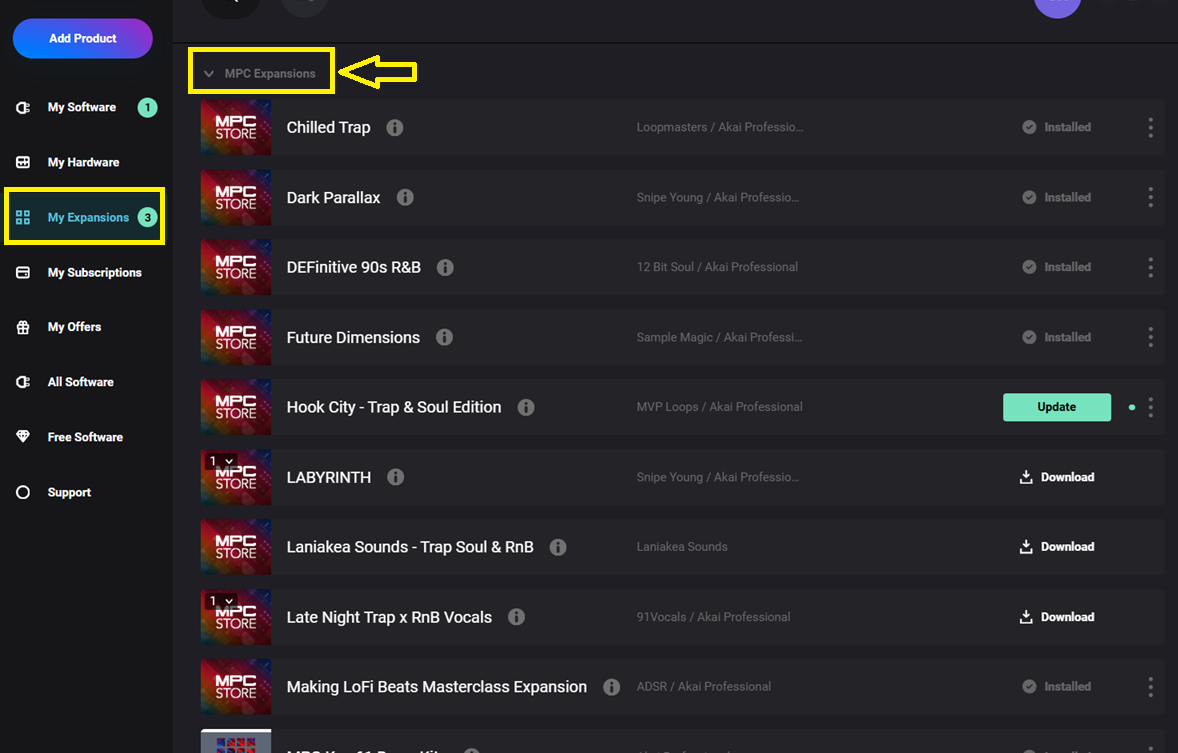
4. Scroll down, you should see MPC Core Oscillators Expansion in the list:

5. Click the Download button

6. Once the download has finished, click Install

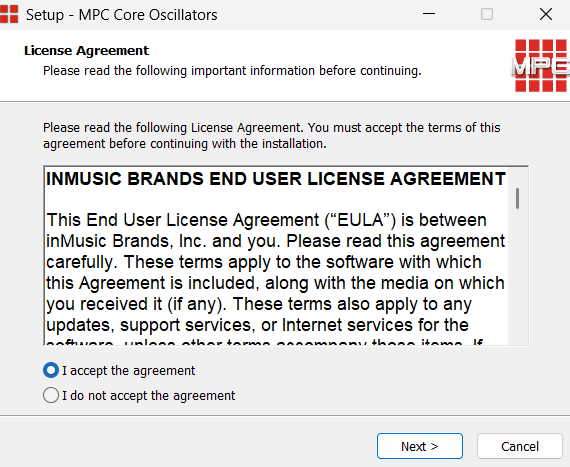
7. Follow the on-screen prompts to complete the installation process.