
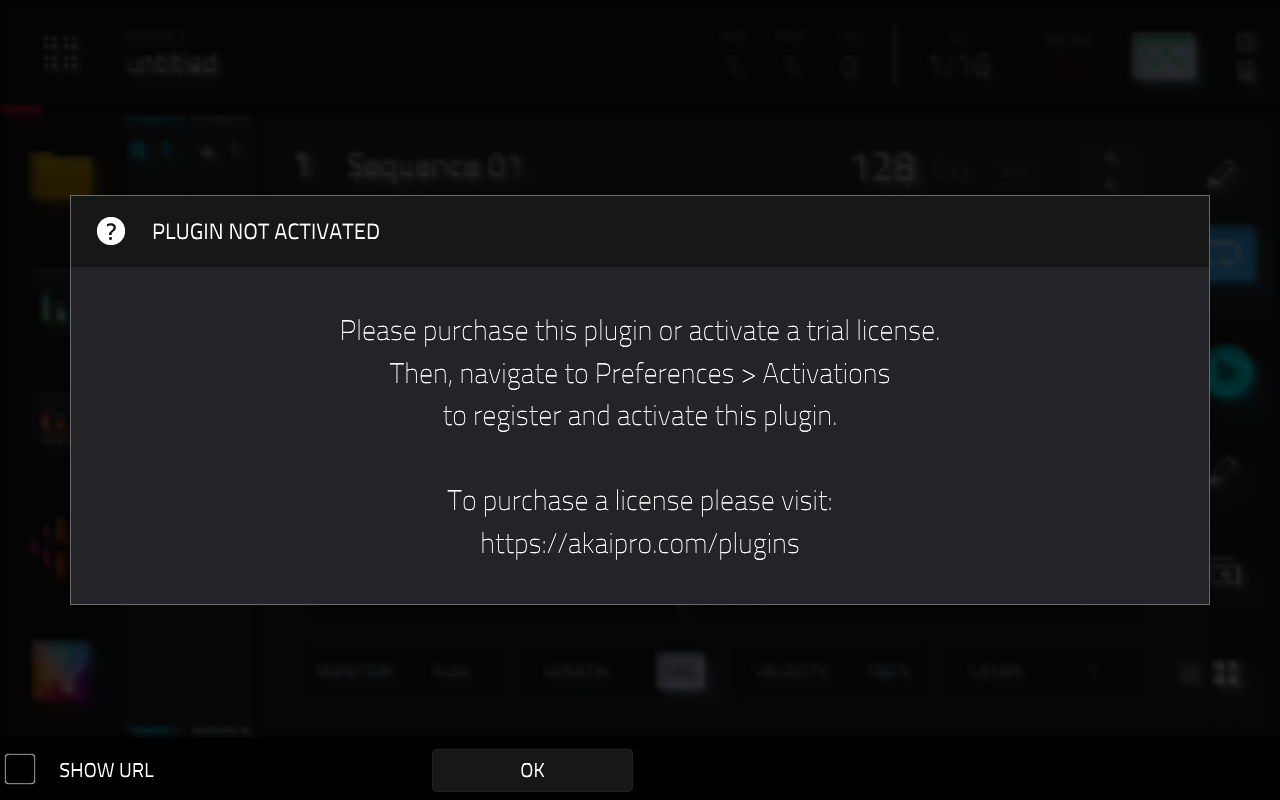
This article will cover the steps to resolve the error 'Plugin Not Activated' when loading a plugin track on MPC Standalone and MPC Desktop Software.
TABLE OF CONTENTS
- MPC Standalone
- Step 1 - Check Activations Menu
- Step 2 - Check Default Plugin
- MPC Desktop Software
- Step 1 - Check Activations Menu
- Step 2 - Check Default Plugin
MPC Standalone
If you have loaded a new plugin track on your MPC and you get the error 'Plugin Not Activated'. There can be a few reasons why. Please see the information below to help resolve the error message.
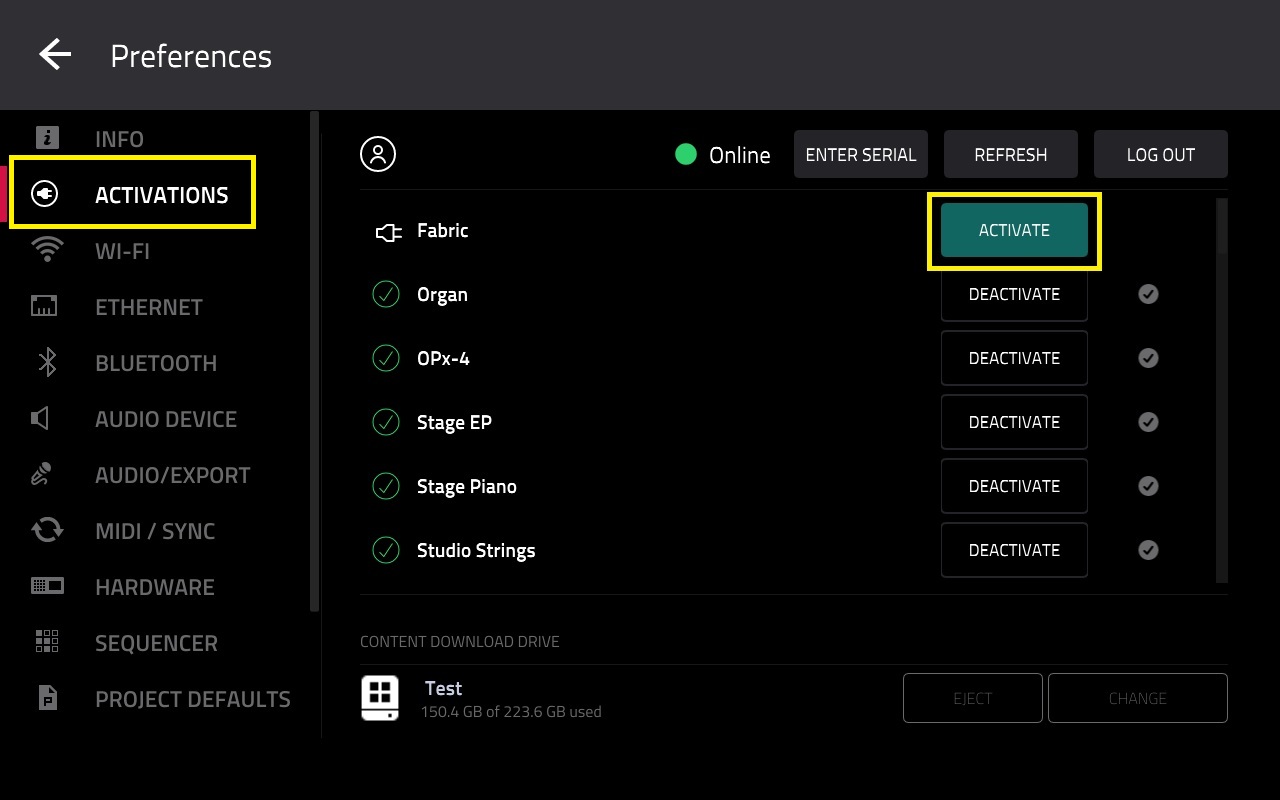
Step 1 - Check Activations Menu

To resolve this, tap on 'Activate'
A activated plugin will have a checkmark with a Black/White 'Deactivate' button

Step 2 - Check Default Plugin
It may be possible that you have set your default plugin to a 'paid' plugin that is currently deactivated (or the trial has expired).
Due to this, the MPC will prompt you to activate it - as all 'paid' plugins need activation (with a full or trial license) in order to be used.
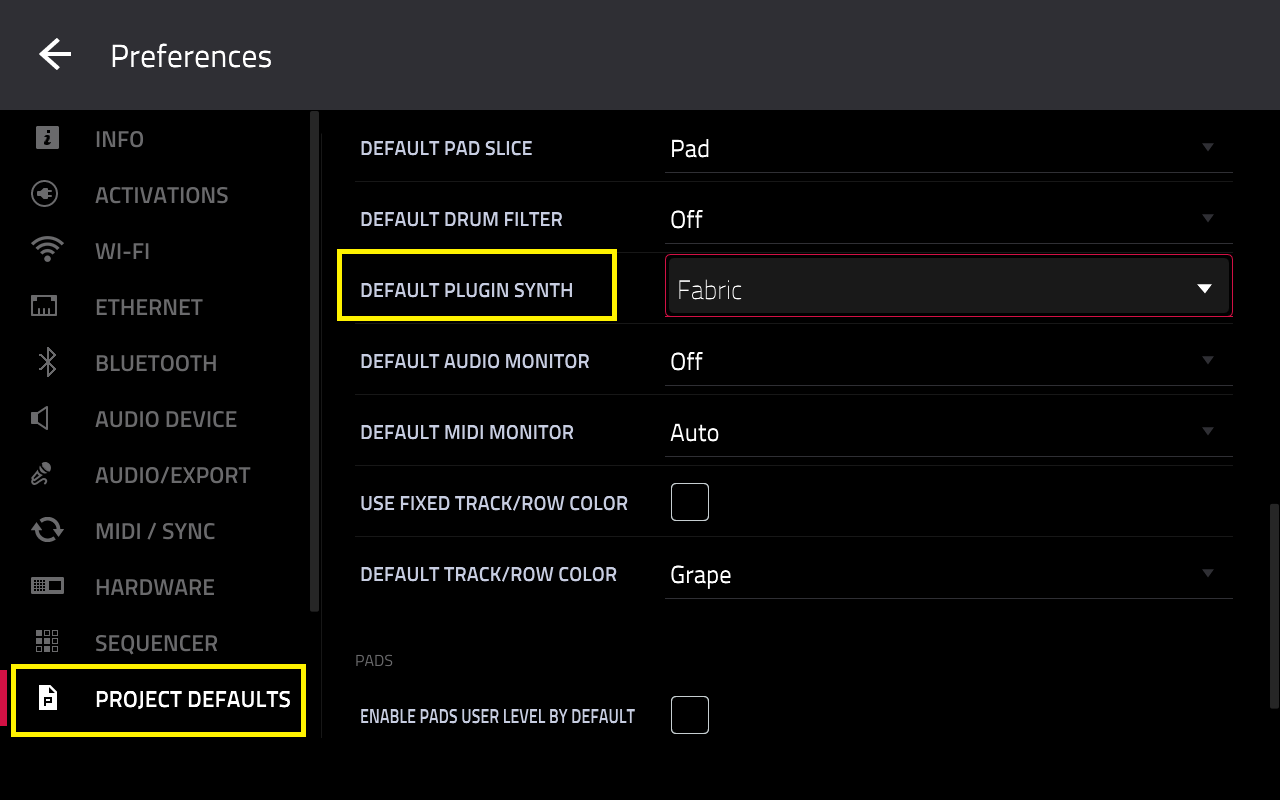
• Electric
• Drumsynth Multi
• Hype
• Mellotron
• Odyssey
• Solina
• TubeSynth
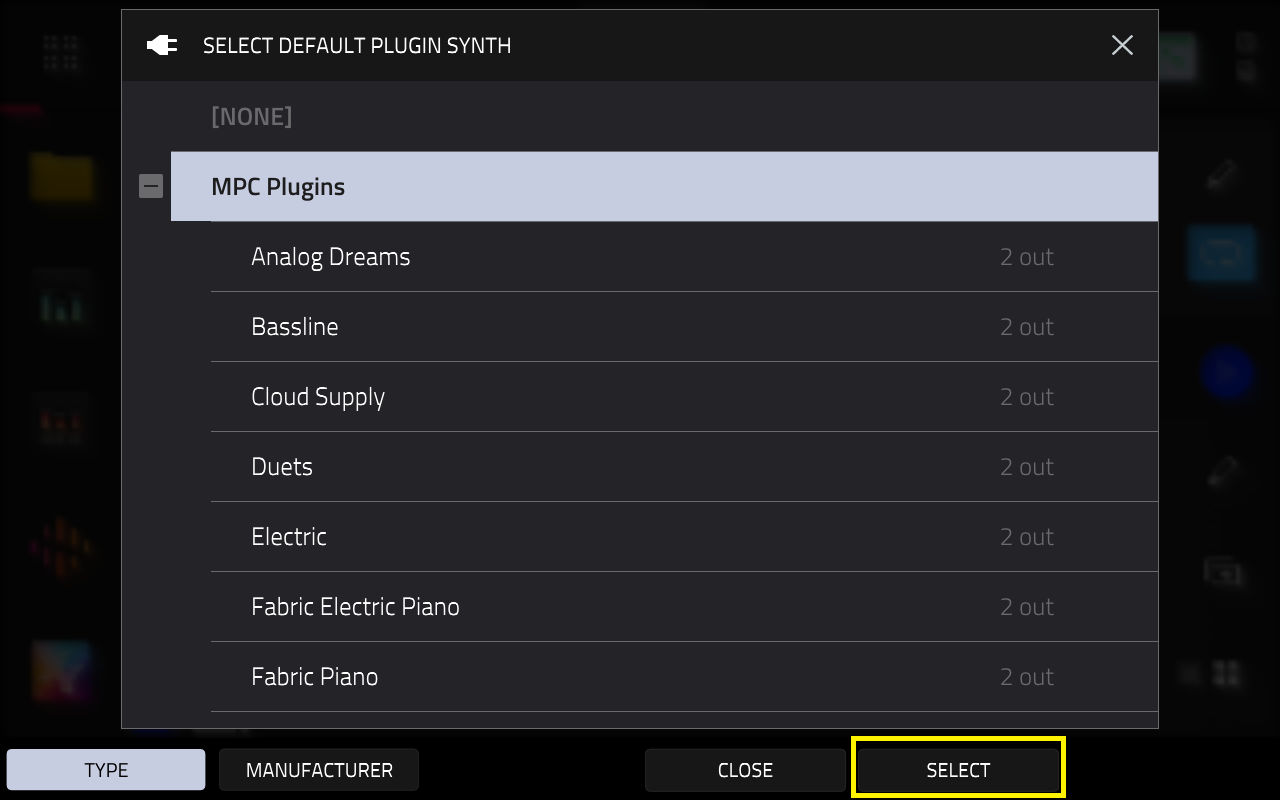
Once this has been done, you should no longer receive the error message after creating a plugin track.
MPC Desktop Software
If you have loaded a new plugin track in MPC Desktop and you get the error 'Plugin Not Activated'. This is occuring based on the Default Plugin that has been set in MPC Desktop software.
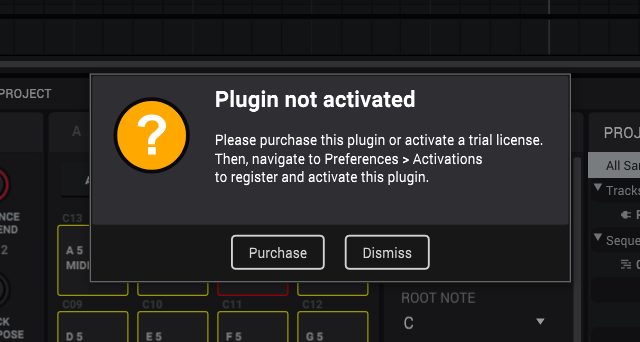
It is likely the default plugin is a 'paid' plugin that is currently deactivated (or the trial has expired). Due to this, MPC Desktop software will prompt you to activate it - as all 'paid' plugins need activation (with a full or trial license) in order to be used.
Step 1 - Check Activations Menu
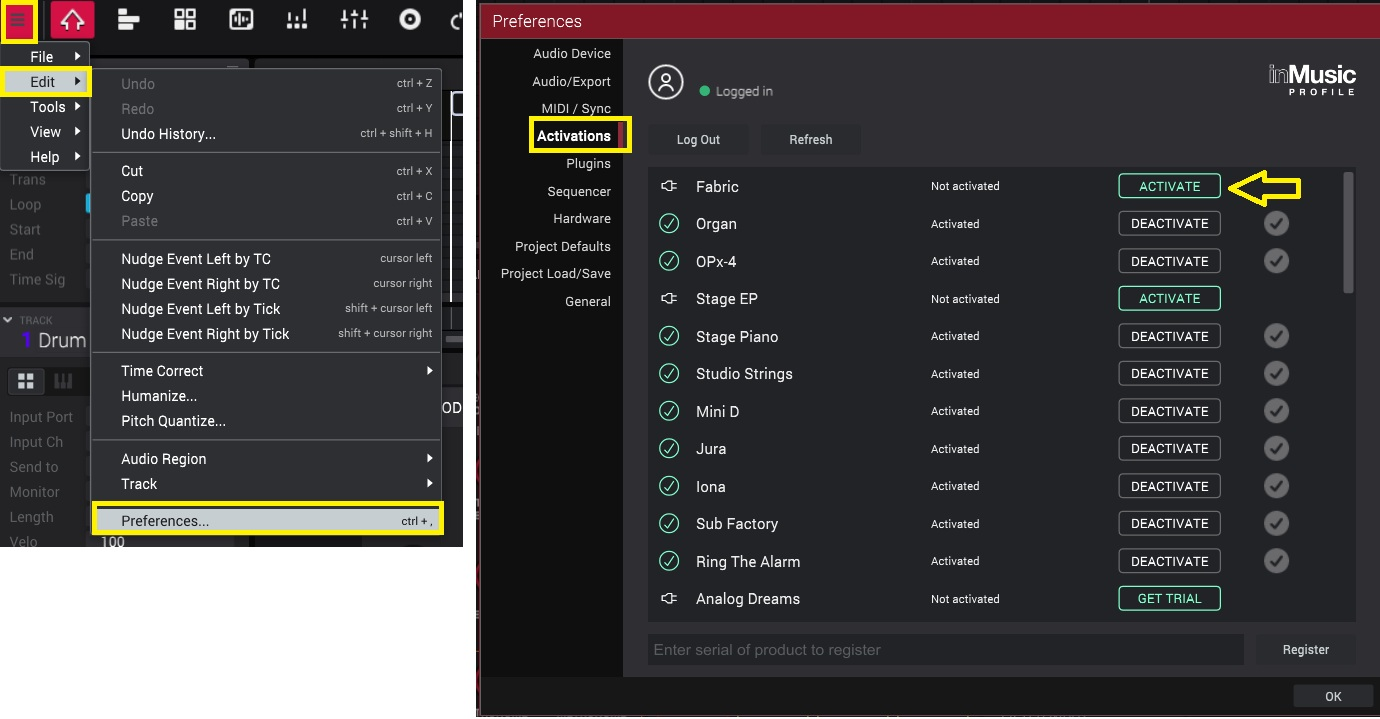
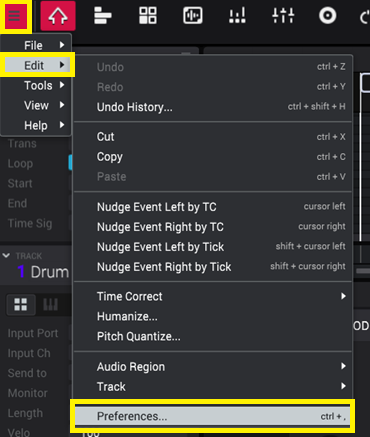
Step 2 - Check Default Plugin
• Electric
• Drumsynth Multi
• Hype
• Mellotron
• Odyssey
• Solina
• TubeSynth
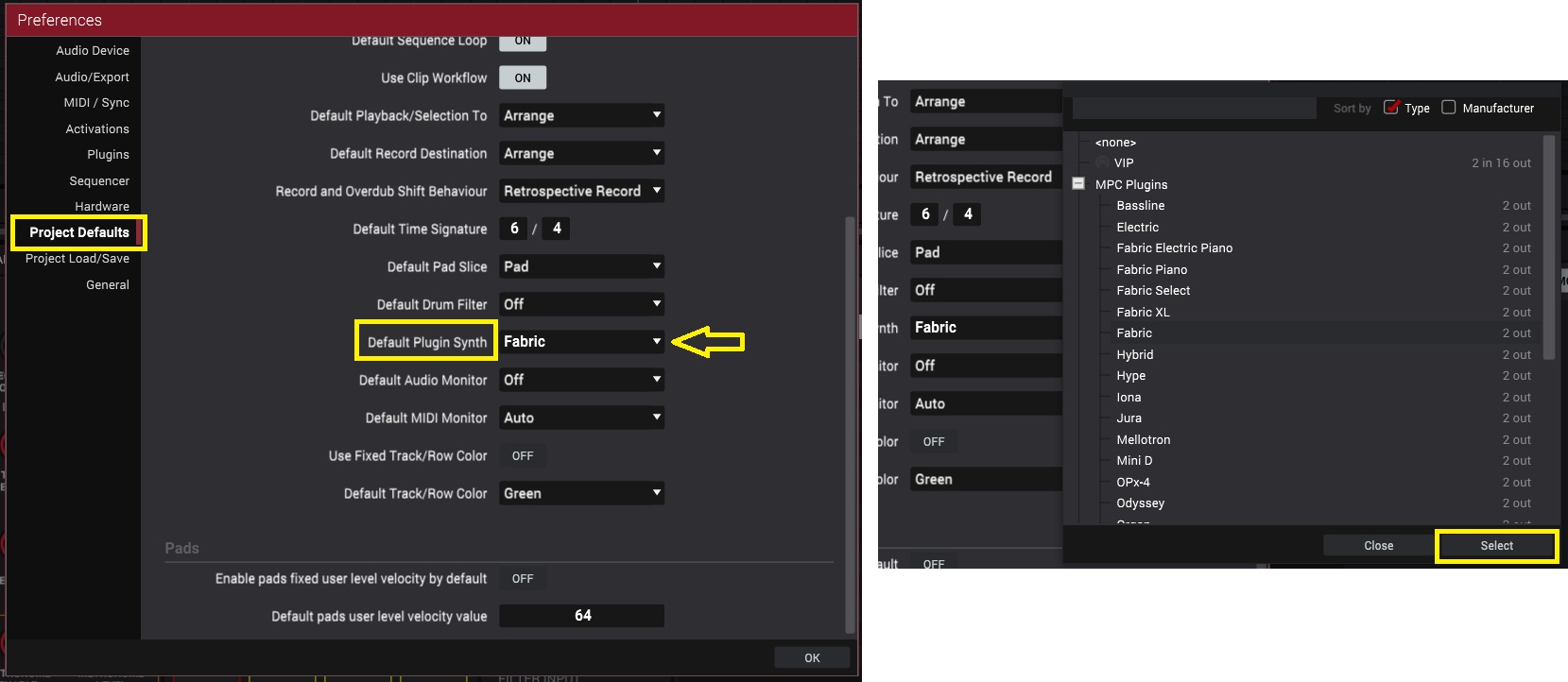
Once this has been done, you should no longer receive the error message after creating a plugin track.
Refer to the following article to learn more about the plugin offerings on MPC Standalone and MPC Desktop software: Akai Pro MPC Series | Why Are Some Plugins Not Available on My MPC?