
This article explains the different download options available in the inMusic Software Center when downloading MPC expansions.
TABLE OF CONTENTS
- I cannot see a Standalone/Transfer option
- How do I install the expansion?
- How do I export the expansion to my standalone MPC?
I cannot see a Standalone/Transfer option
The standalone/transfer package was introduced after many of the earlier MPC expansions had already been released. As a result, some older expansions may not include a standalone/transfer download option within the inMusic Software Center.
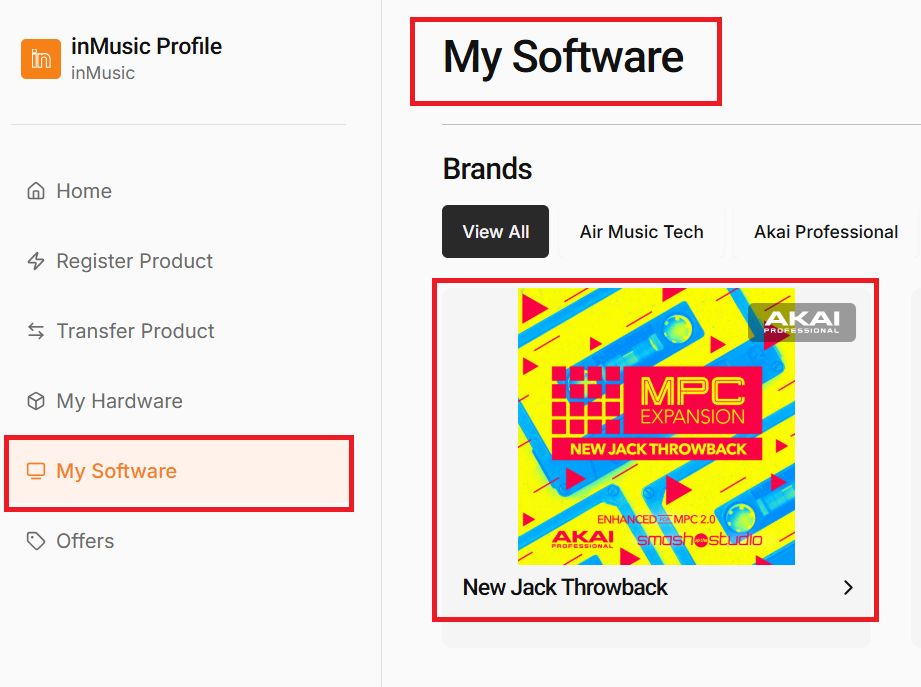
See an example with the New Jack Throwback expansion. This will only provide the standard desktop download option and does not include a Standalone/Transfer package.
This is expected behaviour and does not indicate an issue with your account, authorisation, or the inMusic Software Center.

How do I install the expansion?
See the steps below:
Locating Your Akai Professional Account
After purchasing an expansion, it will automatically be linked to your inMusic Profile account. If you're unsure of the account, it is likely the email address you used at the time of purchase.
The expansion will be under My Software
Download the inMusic Software Center
Log in
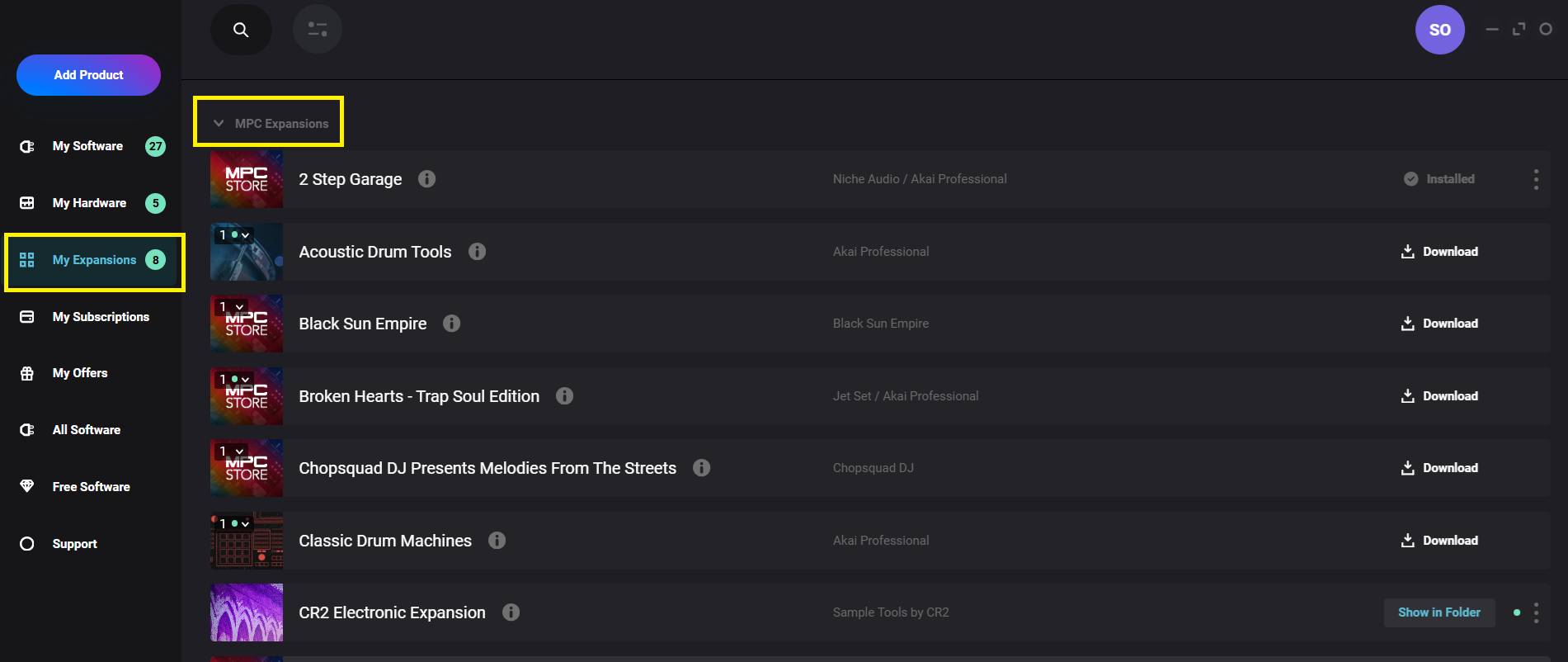
Find your expansions
My Expansions > MPC Expansions
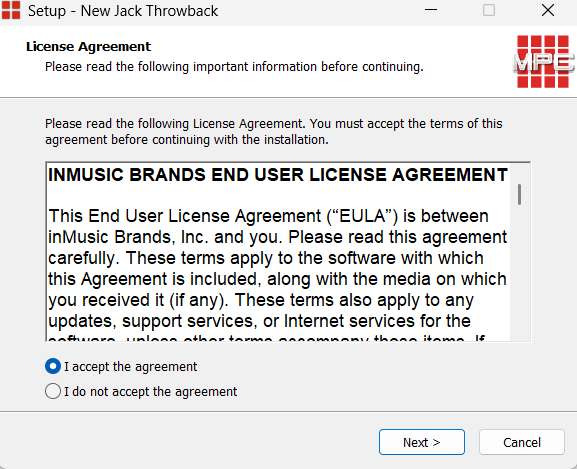
Download and Install

How do I export the expansion to my standalone MPC?
MPC 2
To export an expansion select File > Export > Expansions.

Selecting an Expansion and Destination
Check off the expansion(s) that you wish to export to your external media, and select which drive you want to export it to. In this article, we will export the Araab Muzik Expansion to an SD card named Music Media.
If the external drive you are using is installed in your MPC, make sure that it is in controller mode so that your computer will see the drive as available.
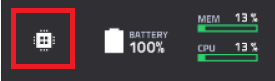
To place your MPC in controller mode, tap the microchip icon in the Main Menu
Note 1: MPC Key 37 (Gen 1) and MPC One/One+ (Gen 1) - The USB-A port will not mount a USB drive in controller mode. If you are using a USB drive, connect it to the USB port on your computer. Alternatively, you can connect an SD card directly to the MPC as this will mount on your computer.
Note 2: Do not export the expansion to your computer HD, as it will just create a duplicate of what exists on your computer.

Your expansion should be exporting to your drive. Be patient as this may take a few minutes depending on how large the expansion is.

Once complete, the MPC software will display the below message. Your expansion is now successfully exported!

Now that your expansion is exported to a drive, it will be available on your MPC in standalone when connected, or on a computer, through the media browser.
MPC 3
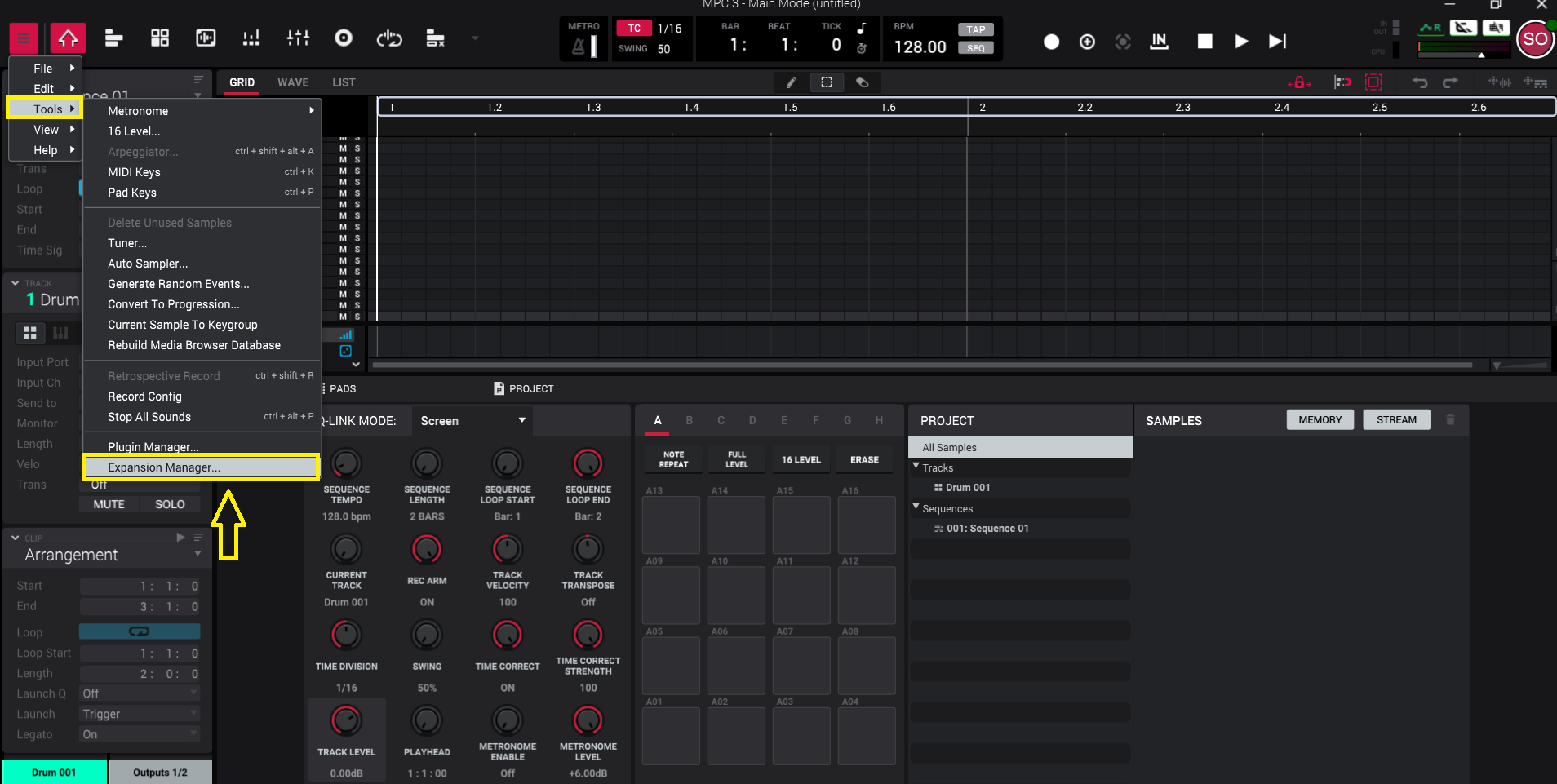
To export an expansion select File > Tools > Expansion Manager.
You will then see the following 'Expansions' window, click on Export
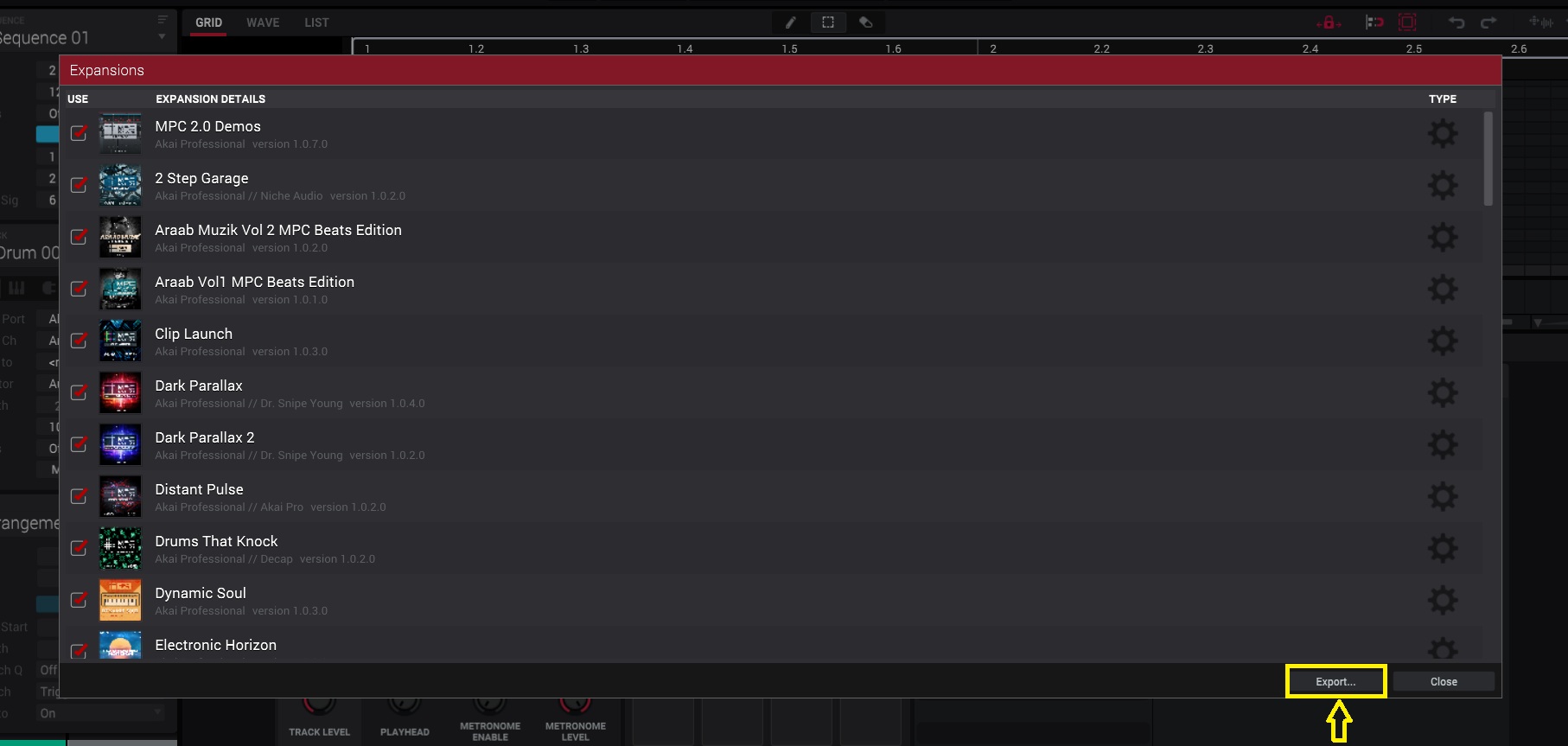
Selecting an Expansion and Destination
Check off the expansion(s) that you wish to export to your external media, and select which drive you want to export it to. In this article, we will export the Araab Muzik Vol 2 Expansion to an SSD drive named Test.
If the external drive you are using is installed in your MPC, make sure that it is in controller mode so that your computer will see the drive as available.
To place your MPC in controller mode, tap the microchip icon in the Main Menu
Note 1: MPC Key 37 (Gen 1) and MPC One/One+ (Gen 1) - The USB-A port will not mount a USB drive in controller mode. If you are using a USB drive, connect it to the USB port on your computer. Alternatively, you can connect an SD card directly to the MPC as this will mount on your computer.
Note 2: Do not export the expansion to your computer HD, as it will just create a duplicate of what exists on your computer.
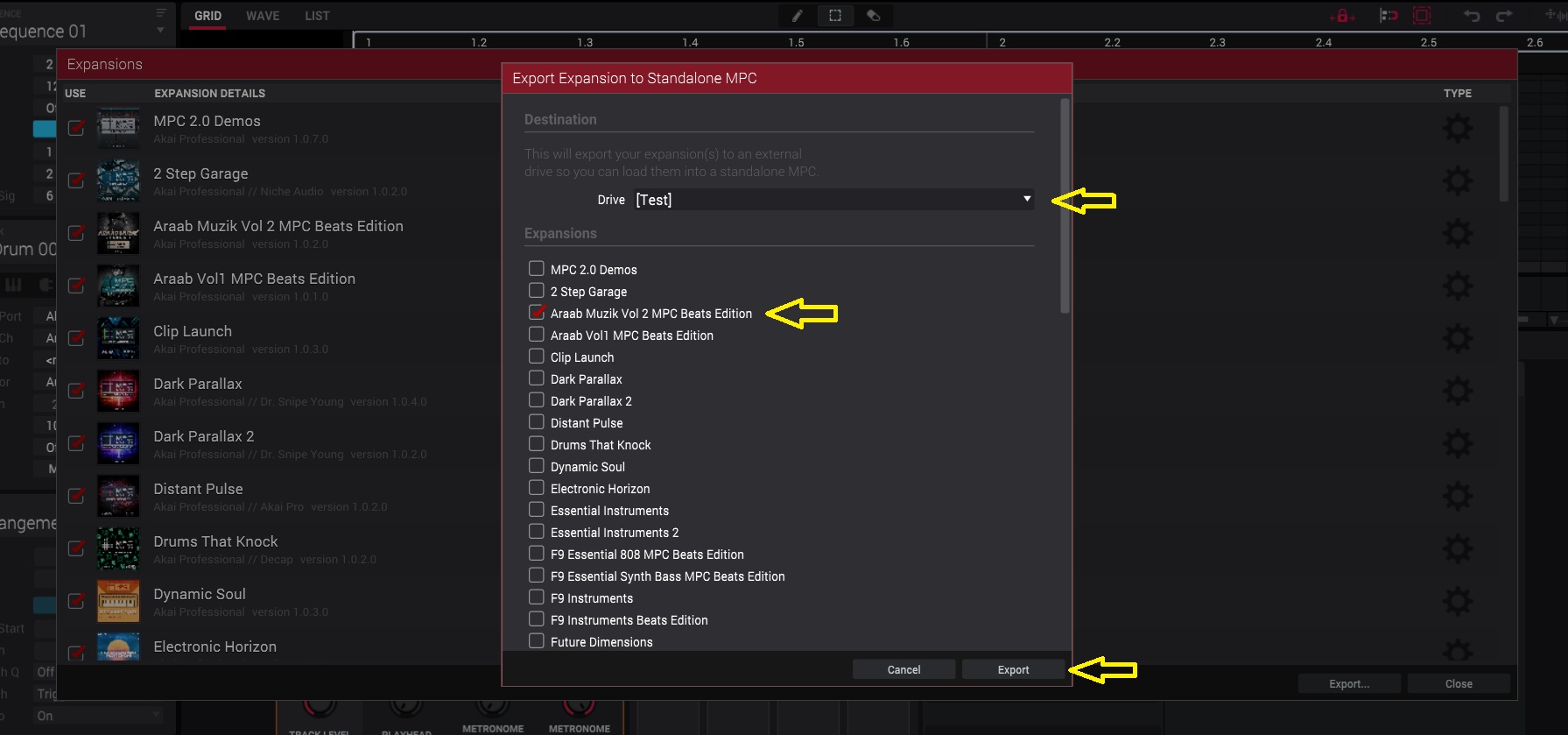
Your expansion should be exporting to your drive. Be patient as this may take a few minutes depending on how large the expansion is.
Once complete, the MPC software will display the below message. Your expansion is now successfully exported!
Now that your expansion is exported to a drive, it will be available on your MPC in standalone when connected, or on a computer, through the media browser.